
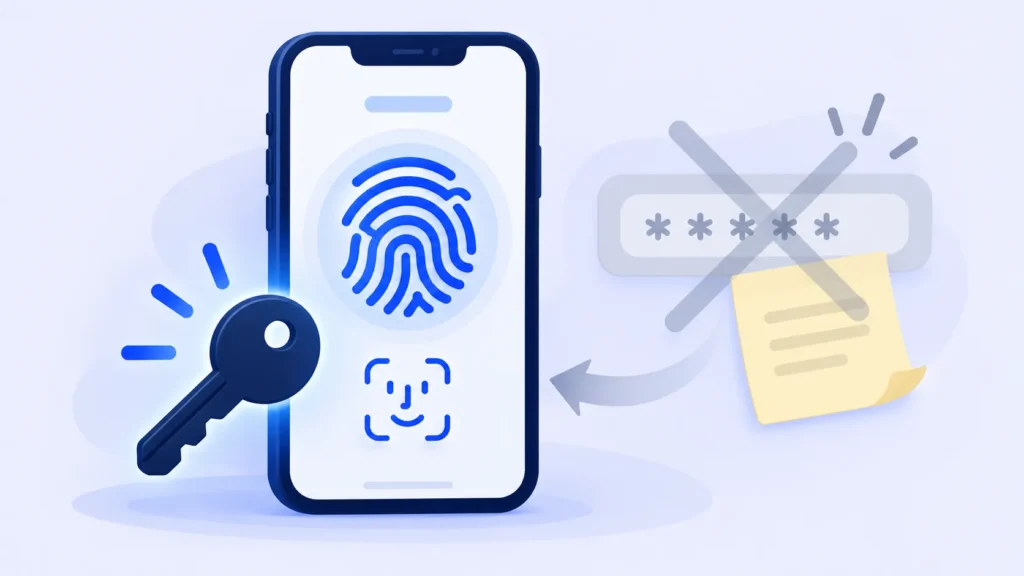
You probably have dozens of passwords. Some are reused, a few are written on sticky notes, and at least one is your pet’s name followed by “123.” You’re not alone, and the tech industry knows it.
Passkeys are the replacement. Instead of typing a password, you sign in the same way you unlock your phone: with your face, your fingerprint or your screen-lock PIN. Here’s how they work and why they’re worth setting up.
What Is a Passkey?
A passkey is a digital key stored on your device that lets you sign in to a website or app without a password. It was developed by the major tech companies through an industry group called the FIDO Alliance, so it works across Apple, Google and Microsoft devices.
When you sign in, your phone or computer asks you to confirm it’s you with Face ID, a fingerprint or your PIN. That’s it. Nothing to remember, nothing to type.
How It Works (Without the Jargon)
Every passkey has two matching parts:
- A public part that the website keeps.
- A private part that stays on your device and never gets sent anywhere.
When you sign in, the website sends a challenge. Your device answers it using the private part, but only after you unlock it with your face, fingerprint or PIN. The website checks the answer against the public part and lets you in.
Your fingerprint or face data never leaves your device. It’s only used to unlock the passkey locally.

Why Passkeys Are Safer Than Passwords
- They can’t be phished. A passkey only works on the real website it was made for. A fake look-alike site can’t use it.
- Nothing to steal from the website. If a company gets hacked, there’s no password database to leak, only public parts that are useless on their own.
- No reuse problem. Every passkey is unique to one site, automatically.
- No weak passwords. You can’t accidentally create a guessable passkey.
Where Can You Use Passkeys?
A growing list of services support them, including Google, Apple, Microsoft, Amazon and PayPal, plus many banks, shopping sites and social apps. If a site supports passkeys, you’ll usually see an option like “Sign in with a passkey” or “Create a passkey” in your account’s security settings.
Note: Features and policies may vary by plan, region and app version, and can change at any time. Check the official help center for the latest information.
How to Set Up Your First Passkey
Your Google account is a good place to start:
- Go to myaccount.google.com and open Security.
- Find Passkeys and security keys.
- Choose Create a passkey and follow the prompts on your phone or computer.
The steps are similar on other sites. Look in account or security settings.
What If I Lose My Phone?
This is the most common worry, and it’s mostly solved. On iPhone, passkeys sync through your iCloud Keychain. On Android and Chrome, they sync through Google Password Manager. Many password managers also store passkeys. Sign in to your account on a new device, and your passkeys come with you.
It’s still smart to keep a backup sign-in method, like a recovery email or phone number, on important accounts.
Frequently Asked Questions
Do passkeys replace two-factor authentication?
In most cases, yes. A passkey already combines something you have (your device) with something you are or know (face, fingerprint or PIN).
Can I still use my password after creating a passkey?
Usually, yes. Most sites keep your password as a backup option, at least for now.
Can I use a passkey on a computer that isn’t mine?
Often, yes. Many sites let you scan a QR code with your phone and approve the sign-in there, without saving anything on the other computer.
The Bottom Line
Passkeys are faster than passwords and much harder to steal. You don’t have to switch everything at once. Start with your email account, since it’s the key to resetting everything else, and add passkeys to other accounts as sites offer them.
Disclaimer: This article is for general information only and is based on details available at the time of writing. Prices, plans, features, release dates, policies and availability can change at any time and may vary by country. Please verify the latest information on the official website of the company or product mentioned before making any decision or purchase. This is not legal, financial or security advice; consult a qualified professional for your situation. Next DigiTech is an independent website and is not affiliated with or endorsed by the companies mentioned; all trademarks belong to their respective owners. We are not responsible for any loss or decisions made based on this content.
