
When your computer slows to a crawl, apps freeze for a second, or the browser reloads tabs you were reading, memory (RAM) is often involved. RAM is the short-term workspace your computer uses for everything that is open right now. When it fills up, the system has to shuffle data to your much slower storage drive, and everything feels sluggish.
Before you spend money on an upgrade, there are free fixes worth trying. This guide covers Windows 11 and Mac, explains what the memory numbers mean, and tells you honestly when more RAM is the real answer. Menu names may differ slightly by Windows or macOS version.
Quick Summary
- Check first: Windows Task Manager (Ctrl + Shift + Esc) or Mac Activity Monitor (Memory tab).
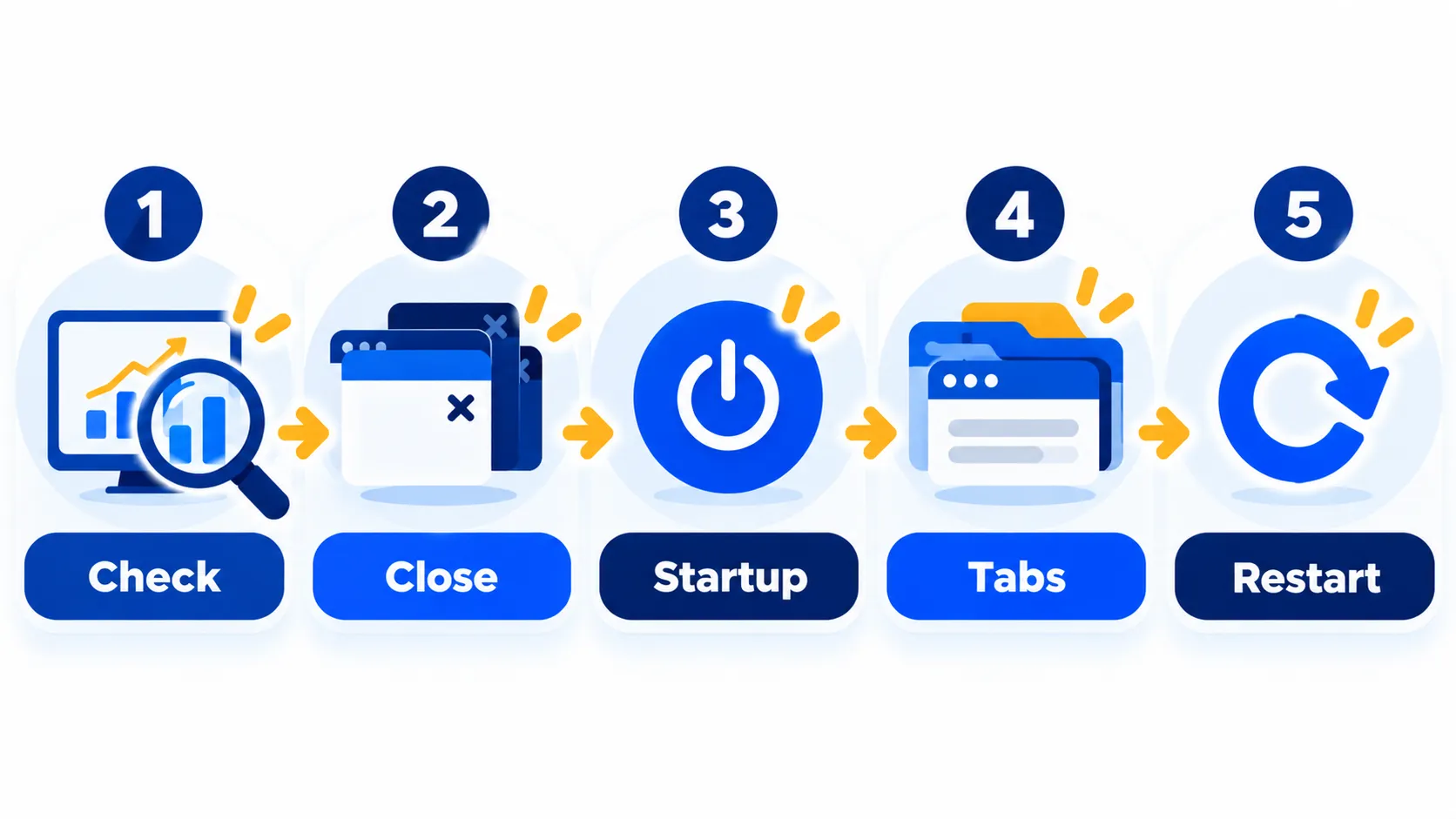
- Biggest wins: Close heavy apps, limit browser tabs, disable unneeded startup apps and restart.
- Browsers: Turn on Chrome Memory Saver or Edge sleeping tabs.
- Do not trust “RAM cleaner” apps. Free memory is not wasted memory, and your system already manages it.
- Upgrade if memory stays high after cleanup during your normal work.
First, Understand What You Are Looking At
High memory use is not automatically a problem. Operating systems use spare RAM to keep recently used files ready so apps open faster. Apple’s Activity Monitor guide calls this Cached Files: files the system caches in unused memory to improve performance, which stay cached until overwritten. That is normal and helpful.
What matters is whether your computer is struggling. Signs of real memory pressure include constant slowdowns when you switch apps, spinning cursors, apps closing unexpectedly, and the drive light staying busy when you are doing little.
How to Check Memory on Windows 11
- Press Ctrl + Shift + Esc to open Task Manager.
- Click the Processes tab and click the Memory column header to sort from highest to lowest.
- Look at the top few apps. Browsers, video tools and games are common heavy users.
- Open the Performance tab and select Memory to see total use over time. Windows also shows a Compressed figure, which is memory Windows has squeezed to make room.
Right-click an app and choose End task to close it. Save your work first, and do not end processes you do not recognize, since some are needed by Windows.
How to Check Memory on a Mac
- Open Activity Monitor (in Applications > Utilities, or search with Spotlight).
- Click the Memory tab.
- Click the Memory column to sort by usage.
- Check the Memory Pressure graph at the bottom.
Apple explains the main figures this way: Physical Memory is the RAM installed, Memory Used is the amount in use, App Memory is what apps use, Wired Memory is memory the system needs to operate and cannot be given to other apps, and Compressed is memory that has been compressed to make more RAM available. Swap Used is space on your startup disk used to swap unused data to and from RAM. Apple says the Memory Pressure graph represents how efficiently your memory is serving your processing needs. If it stays high and swap keeps growing, you are short of memory.
To quit an app, select it, click the X button in the toolbar and choose Quit.
Does Memory Compression Help?
Both systems squeeze rarely used data in memory so it takes less space before resorting to the slower drive. Apple describes inactive apps being compressed as memory nears capacity. This is automatic. You do not need to enable anything, and tools that claim to “boost” RAM usually just force the system to throw away useful cached data, which can make things feel slower afterward.
Step-by-Step: Free Up RAM
1. Close what you are not using
Quit apps you finished with, not just their windows. On a Mac, closing a window often leaves the app running. Check the Dock for apps with a dot under them and quit with Command + Q.
2. Cut startup apps
Apps that launch at sign-in use memory all day. Microsoft’s performance guide says apps launching at startup can slow boot time and increase background activity.
Windows 11:
- Press Ctrl + Shift + Esc to open Task Manager.
- Select Startup apps in the left-hand menu.
- Right-click apps you do not need at startup and choose Disable.
Mac:
- Choose Apple menu > System Settings.
- Click General, then Login Items & Extensions.
- Select an item you do not need and click the Remove button.
Apple notes that the same screen has an App Background Activity section, where apps can run tasks even when they are not open. Review it for apps you rarely use. Do not disable security software or drivers.
Note: Features and policies may vary by plan, region and app version, and can change at any time. Check the official help center for the latest information.
3. Tame your browser
Browsers are often the single biggest memory user. Two built-in options help:
- Chrome Memory Saver: Open Chrome, select More (three dots) > Settings > Performance, and turn on Memory Saver. Google says it frees up memory by deactivating tabs you are not using, and reloads them when you return. Active audio or video, screen sharing, downloads and pinned tabs stay active. You can choose Moderate, Balanced (recommended) or Maximum.
- Edge sleeping tabs: Go to Settings and more > Settings > System and performance > Performance and make sure Save resources with sleeping tabs is on. Microsoft says background tabs inactive for two hours are paused by default, and you can choose a different interval.
Also bookmark tabs you are keeping “for later” and close them. Extensions can use memory too. Read how to find an extension slowing your browser.
4. Restart your computer
A restart clears memory held by apps that were never fully closed. Microsoft’s guidance is to close unused apps and tabs, then restart if performance does not improve (Start > Power > Restart). On a Mac, use Apple menu > Restart. If you rarely restart, this alone can make a visible difference. Note that “Shut down” on some Windows PCs uses a quick-start mode, so Restart is the more reliable choice.
5. Install updates
Memory leaks and bugs get fixed in updates. Check Windows Update or macOS Software Update. Before big upgrades, read should you update right away?
6. Clear junk that is not RAM-related
A nearly full drive makes memory problems worse because the system needs free disk space to swap data. Keep a good chunk of storage free. Our guide on how to clear cache and the broader speed up a slow laptop guide cover this.
Habits That Keep Memory Healthy
- Keep tab counts reasonable. Use bookmarks or a reading list.
- Do not run several heavy apps (video editors, virtual machines, games) at once on a low-memory machine.
- Restart weekly.
- Install apps only from official sources. See how to spot a fake app.
- Skip “RAM booster” and “cleaner” utilities.
When Is It Time to Upgrade?
Free fixes have limits. Consider more RAM or a new computer if:
- Memory stays near full right after a restart with only your normal apps open.
- On a Mac, memory pressure stays high and swap use keeps growing during normal work.
- Your computer has the bare minimum. Microsoft’s minimum for Windows 11 is 4 GB of RAM, which is enough to run it but not comfortable with many tabs and apps.
- You use heavy software that recommends more memory than you have.
Check whether your computer can be upgraded at all. Many modern laptops and every Apple silicon Mac have memory built in that cannot be added later. If you do plan to buy, note that prices have moved recently; see why laptop prices are going up and our Black Friday laptop buying guide. As a rough rule of thumb (our opinion, not a spec), prefer more memory over a slightly faster processor if you keep many tabs and apps open.
Note: Prices are based on official announcements at the time of writing and may vary by country, retailer, taxes and promotions. Always check the latest pricing on the official website before buying.
Frequently Asked Questions
Is high RAM usage bad?
Not by itself. Systems use spare RAM for caching. It is a problem when your computer slows down, apps freeze or the Mac’s memory pressure stays high.
Do RAM cleaner apps work?
They are rarely worth it. They can free memory briefly, but the system then reloads the data, and some apps are not trustworthy. Use the built-in tools instead.
How do I check how much RAM I have?
On Windows, go to Settings > System > About and check installed RAM. On a Mac, choose Apple menu > About This Mac.
Will closing browser tabs really help?
Yes. Each tab uses memory, and some pages use much more than others. Memory Saver or sleeping tabs automate this.
Can I add RAM to my laptop?
Only some models. Many thin laptops and Apple silicon Macs have non-upgradable memory, so check your model’s specifications first.
The Bottom Line
Check Task Manager or Activity Monitor, close the heaviest apps, trim startup items, switch on your browser’s memory saver and restart. If memory is still maxed out during normal work, that is your sign to upgrade.
Related Guides
- How to Speed Up a Slow Laptop in 10 Minutes (Windows and Mac)
- Is an Extension Slowing Down Your Browser? How to Find and Fix It
- How to Clear Cache on iPhone, Android, Chrome and Safari
- Black Friday 2026 Laptop Buying Guide: Specs That Matter and Deals to Avoid
Explore more in our Tech Tips hub.
Disclaimer: This article is for general information only and is based on details available at the time of writing. Prices, plans, features, release dates, policies and availability can change at any time and may vary by country. Please verify the latest information on the official website of the company or product mentioned before making any decision or purchase. Next DigiTech is an independent website and is not affiliated with or endorsed by the companies mentioned; all trademarks belong to their respective owners. We are not responsible for any loss or decisions made based on this content.