
Runway is one of the leading AI video generators. It turns text descriptions and still images into short, cinematic video clips, and it offers AI tools to edit existing footage. Filmmakers, ad agencies and content creators use it to create visuals that would normally need a camera crew.
Here’s what Runway can do, what’s free, and how its credit system works.
Quick Verdict
- Best for: Creators and marketers who want high-quality, cinematic AI video clips.
- Skip it if: You need long videos cheaply. Credits go quickly, and each clip is only a few seconds.
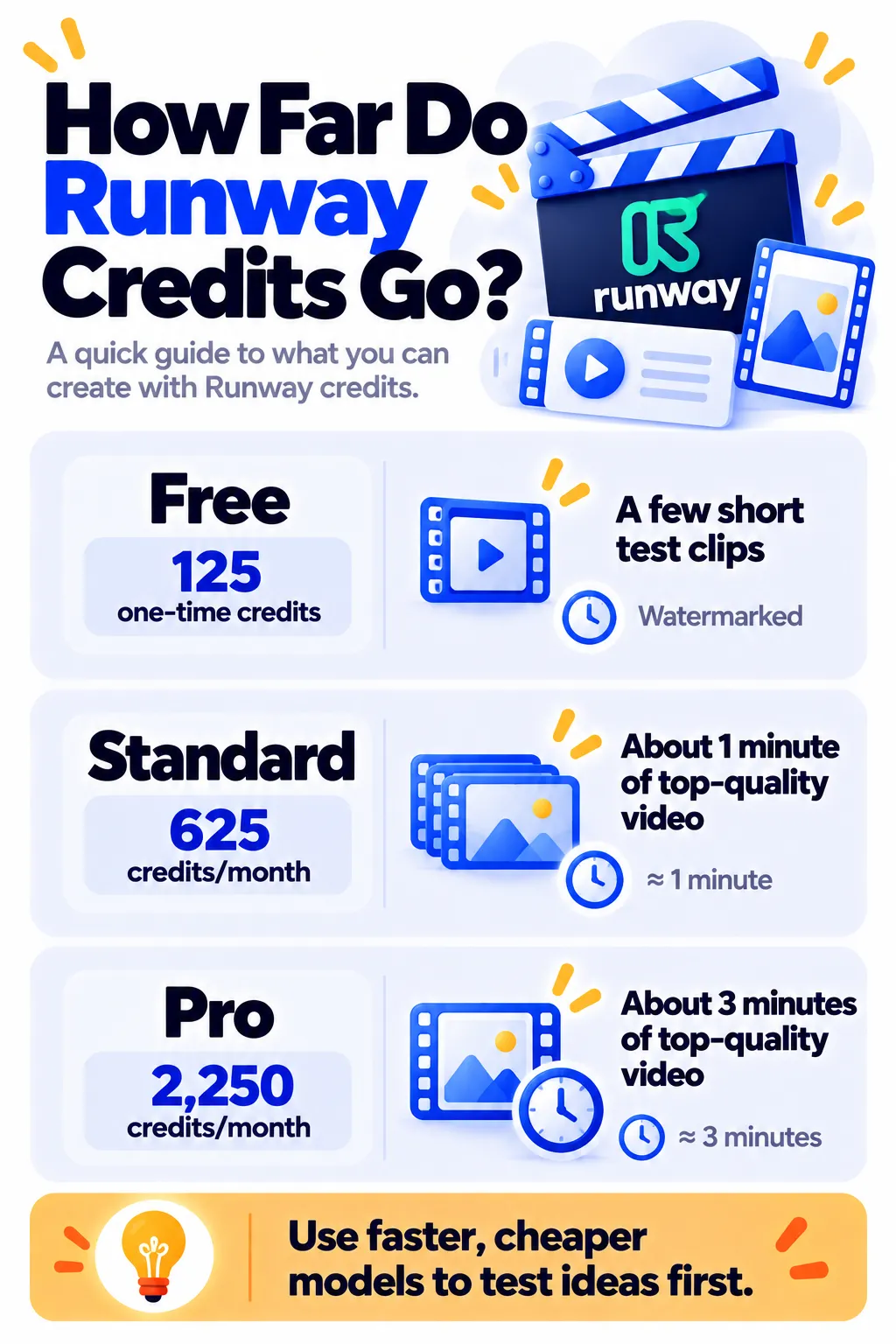
- Is the free plan enough? Only to test it. Free gives 125 one-time credits that don’t refresh.
What Is Runway?
Runway is a web-based AI video platform at runwayml.com, with an iPhone app too. Its own models, such as Gen-4.5 and Gen-4 Turbo, create short clips from a prompt or an image. Paid plans also give access to some third-party video models.
What You Can Do With Runway
- Text to video: Describe a scene and get a short clip.
- Image to video: Bring a still photo or illustration to life.
- Edit existing video: Change scenes, styles or objects in footage with AI.
- Character performance: Animate characters using a reference performance.
- Images and audio: Create images, voiceovers and more.
How to Make a Video With Runway (Step by Step)
- Go to runwayml.com and sign up free.
- Choose Generate Video.
- Upload a starting image (recommended for better control) or start from text.
- Write a prompt describing the motion and camera, for example “slow camera push in, waves crashing at sunset.”
- Choose the model and clip length, then click Generate.
- Review, regenerate if needed, and download your clip.
Tips for Better AI Video
- Start from an image to control the look and composition.
- Describe the camera: “slow zoom,” “drone shot,” “handheld,” “tracking shot.”
- Keep motion simple: One clear action per clip works best.
- Test with cheaper, faster models before using premium credits.
- Edit clips together in a video editor like CapCut to make a longer video.
Runway Pricing (2026)
US prices as of October 2026:
| Plan | Price | What you get |
|---|---|---|
| Free | $0 | 125 one-time credits, watermarked videos, limited models |
| Standard | $15/month ($12 yearly) | 625 credits a month (about 1 minute of top-model video), no watermark |
| Pro | $35/month ($28 yearly) | 2,250 credits a month plus pro features |
| Max | $95/month ($76 yearly) | 9,500 credits a month for heavy users |
Credit costs vary by model, and faster models use fewer credits. Check Runway’s pricing page for current rates.
Responsible Use
- Don’t create realistic videos of real people without their permission.
- Label AI-generated content when it could be mistaken for real footage.
- Check Runway’s terms before using clips in ads or client work.
Runway vs Other AI Video Tools
Runway is strong for cinematic, high-quality clips. For talking-avatar videos, HeyGen is a better fit. For editing your own footage with captions and templates, use CapCut or Descript. See more in best AI video editors for beginners.
Frequently Asked Questions
Is Runway free?
There’s a free plan with 125 one-time credits, enough for a few short test clips. Free videos have a watermark.
How long can Runway videos be?
Each generation is usually a few seconds long, around 5 to 10 seconds. Combine clips in an editor for longer videos.
Can I use Runway videos commercially?
Paid plans generally allow commercial use. Check Runway’s current terms for details.
Why do my videos look strange?
Complex motion and multiple people are hard for AI. Simplify the action, start from a good image, and describe the camera movement clearly.
Do Runway credits roll over?
On most plans, monthly credits don’t roll over. Free credits are one-time only.
The Bottom Line
Runway is one of the most powerful AI video tools available, but credits run out fast. Test ideas with the free credits, use faster models for drafts, and upgrade to Standard when you’re ready to create watermark-free clips. Explore more tools in our AI tools directory.
Related Guides
- Pictory Review 2026: Turn Scripts and Blog Posts Into Videos, Pricing
- How to Make YouTube Shorts With AI: A Simple 6-Step Workflow
- What Is Leonardo AI? How to Use It, Free Plan and Pricing (2026)
- VEED Review 2026: Online Video Editor With AI Subtitles, Free vs Paid
Explore more in our AI Video and Audio Tools hub.
Disclaimer: This article is for general information only and is based on details available at the time of writing. Prices, plans, features, release dates, policies and availability can change at any time and may vary by country. Please verify the latest information on the official website of the company or product mentioned before making any decision or purchase. Next DigiTech is an independent website and is not affiliated with or endorsed by the companies mentioned; all trademarks belong to their respective owners. We are not responsible for any loss or decisions made based on this content.