
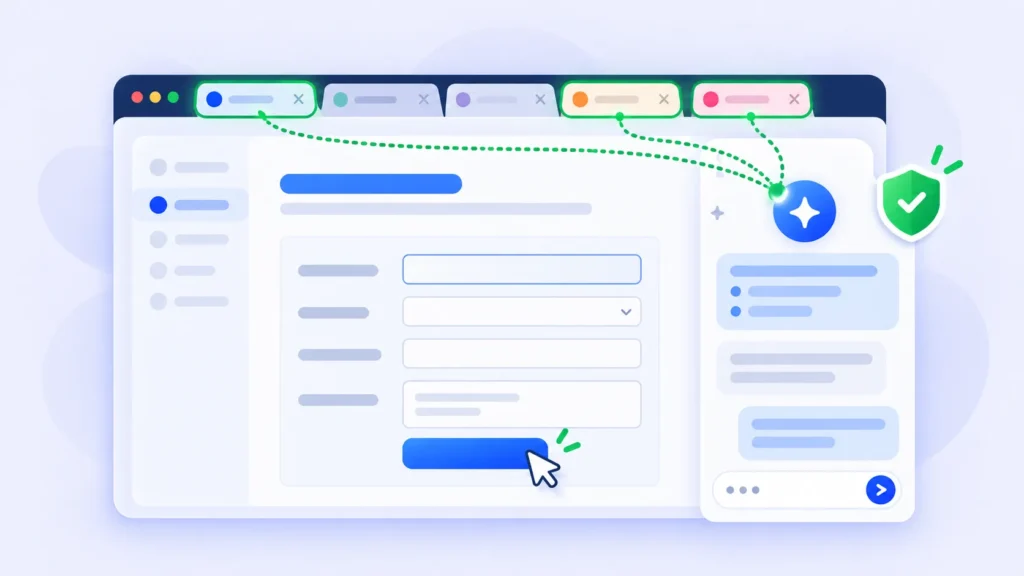
OpenAI has given its ChatGPT extension for Google Chrome a big upgrade. As of mid-October 2026, ChatGPT can look at your open tabs, answer questions about them, and even take actions for you, like filling out forms, sending messages, downloading files and organizing tabs into groups.
Note: Release dates and rollout timing can change. Please confirm the latest details on the official website or help center.
That’s genuinely useful, but it also means an AI can see and act on what’s in your browser. Here’s how the new features work, how they compare with Google’s Gemini in Chrome, and how to use them safely.
What Can the ChatGPT Chrome Extension Do Now?
The extension works from a sidebar next to the page you’re browsing. With the new update, it can:
- Answer questions using your open tabs: “Which of these three laptops has the best battery life?”
- Compare pages side by side: Products, pricing plans or services across several tabs.
- Explain articles: Summarize a long article in plain English and pull out its main argument.
- Fill out forms: For example, completing an event registration from details in another tab, then stopping so you can review before submitting.
- Take actions in tabs: Send messages or download files.
- Organize your browser: Group related open tabs together.
Note: Features may vary by plan, region and extension version, and can change at any time. Check the official help center for the latest information.
Real-World Examples
- Compare couches across four stores by size, material, delivery time and return policy.
- Compare contractor quotes in different tabs and draft an email to the best one.
- Fill in a dentist’s intake form and add the appointment to your calendar.
- Collect vendor details, prices and links into a comparison sheet.
How to Install and Use It
- Open the Chrome Web Store and search for the ChatGPT extension. Check that the publisher is OpenAI before installing, since copycat extensions exist.
- Click Add to Chrome, then pin the extension to your toolbar.
- Sign in with your ChatGPT account.
- Open the sidebar and choose which tabs ChatGPT can use.
- Type a request, like “Compare the return policies on these three tabs.”
- For actions like filling forms, review everything before you submit.
The extension also works in other Chromium browsers like Edge, Brave, Opera and Vivaldi. OpenAI hasn’t published full details on which features need a paid plan, so check inside the extension.
ChatGPT vs Gemini in Chrome
Google already builds Gemini into Chrome, with a similar sidebar. Here’s how they compare:
| ChatGPT extension | Gemini in Chrome | |
|---|---|---|
| How you get it | Install from the Chrome Web Store | Built into Chrome |
| Reads open tabs | Yes | Yes (current tab shared by default) |
| Takes actions | Fills forms, sends messages, downloads files, groups tabs | Helps with tasks across Google apps and pages |
| Best for | People who already use ChatGPT | People who live in Google apps |
Note: Features and default settings may vary by region, browser and app version, and can change at any time. Check the official help centers for the latest information.
Prefer Claude? Read our Claude in Chrome guide. Curious why OpenAI moved to an extension instead of its own browser? See why ChatGPT Atlas shut down.
How to Stop Gemini in Chrome From Sharing Your Tabs
If you use Gemini in Chrome, it shares the tab you’re on by default when you open it, and Google says this can include page content that isn’t visible on screen. To change that:
- Open Chrome’s menu and choose Settings.
- Go to AI innovations > Gemini in Chrome.
- Under Permissions, turn off “Share current tab by default.”
You can still add a tab manually when you want help with it. To stop your chats being used to improve Google’s AI, also turn off Save activity in the Gemini app (Google may still keep chats for up to 72 hours).
Note: Settings menus, data-retention periods and privacy policies may vary by region and app version, and can change at any time. Check Google’s official help center for the latest information.
Safety Tips Before You Let AI Control Your Browser
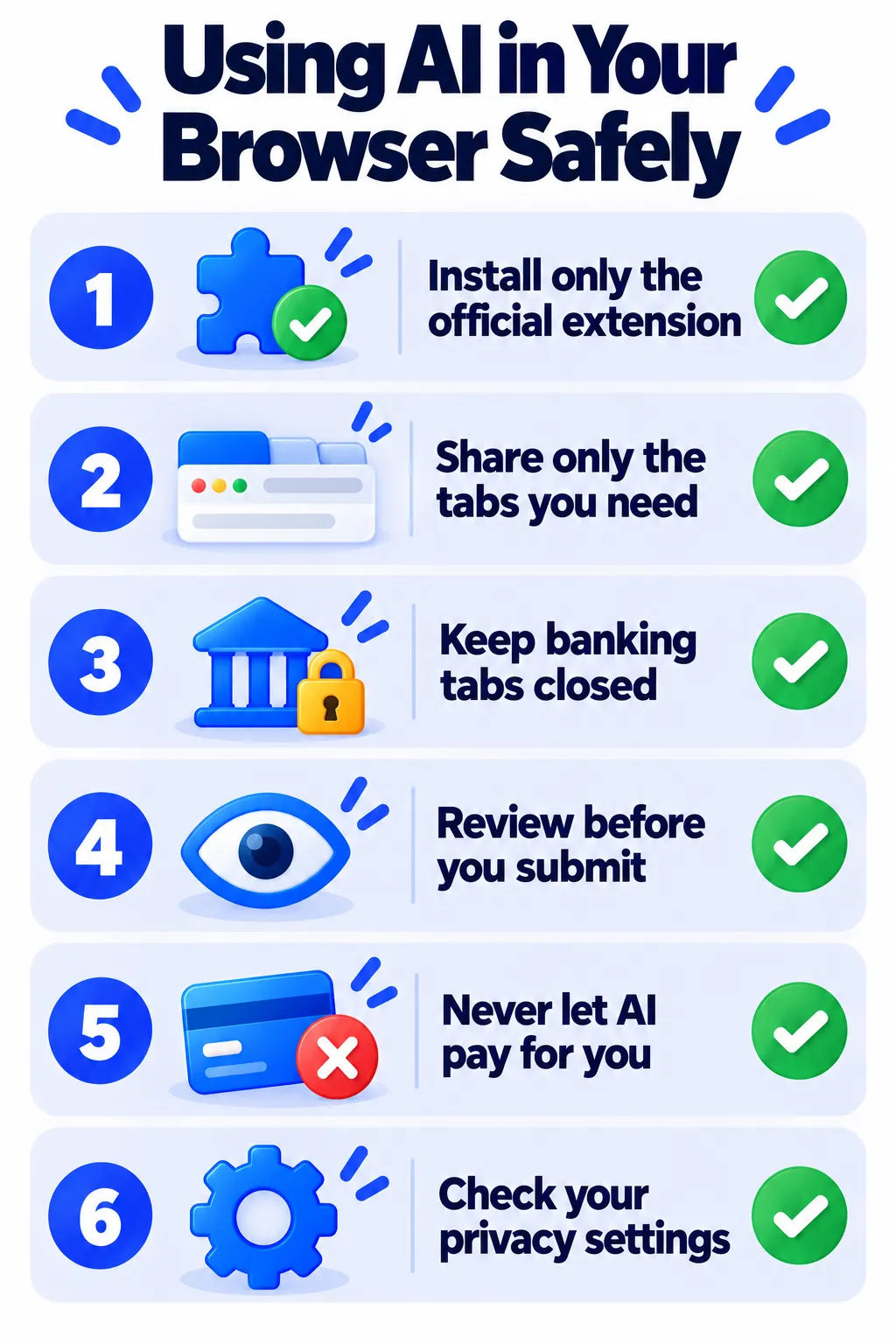
- Install only the official extension. Fake AI extensions are a common way to steal data. Here’s how to check if a Chrome extension is safe.
- Share only the tabs you need. Close banking, health and work tabs before asking AI about other pages.
- Review every action. Read filled-in forms and messages before you hit submit or send.
- Don’t let AI handle payments or change account settings for you.
- Watch out for “prompt injection.” Malicious web pages can hide instructions that try to trick AI agents. If ChatGPT suddenly suggests something odd, stop and check.
- Check your data settings. Learn how to stop AI from training on your chats.
Frequently Asked Questions
Is the ChatGPT Chrome extension free?
You can install it for free with a ChatGPT account. Some advanced features may depend on your plan.
Can ChatGPT see all my tabs?
It uses the tabs you share with it in the sidebar. Only share what you’re comfortable with.
Can ChatGPT submit forms for me?
It can fill forms and take actions in tabs. It’s safest to review and submit important forms yourself.
Is it safe to use AI extensions?
Official extensions from OpenAI, Google and Anthropic are generally safe when used carefully. Avoid unknown “AI helper” extensions with few reviews.
The Bottom Line
ChatGPT’s upgraded Chrome extension turns it into a real browsing assistant that can compare pages, fill forms and tidy your tabs. Use it for research and busywork, keep sensitive tabs closed, and always review what it does before anything gets sent. For more on staying safe, read what not to share with AI chatbots.
Related Guides
- Claude in Chrome: How to Let Claude Browse and Work for You
- Are Chrome Extensions Safe? How to Check Before You Install
- ChatGPT Atlas Is Gone: Why OpenAI Shut It Down and What Replaced It
- 8 Chrome Extensions That Make Everyday Browsing Faster (Checked for 2026)
Explore more in our Extensions hub.
Disclaimer: This article is for general information only and is based on details available at the time of writing. Prices, plans, features, release dates, policies and availability can change at any time and may vary by country. Please verify the latest information on the official website of the company or product mentioned before making any decision or purchase. Privacy and data-use details are based on the company’s published policies, which may change; review the official privacy policy and settings yourself. Next DigiTech is an independent website and is not affiliated with or endorsed by the companies mentioned; all trademarks belong to their respective owners. We are not responsible for any loss or decisions made based on this content.

