“Storage almost full” is one of the most annoying messages on an Android phone. It blocks updates, stops the camera and makes everything feel slow. The good news is that you rarely need to delete your precious photos. Most of the space is usually taken by junk files, unused apps, old downloads and duplicate copies of photos that are already backed up.
This guide walks through the safest order to clear space. It uses Google’s official tools and keeps your memories intact. Menu names may differ slightly by phone brand and version.
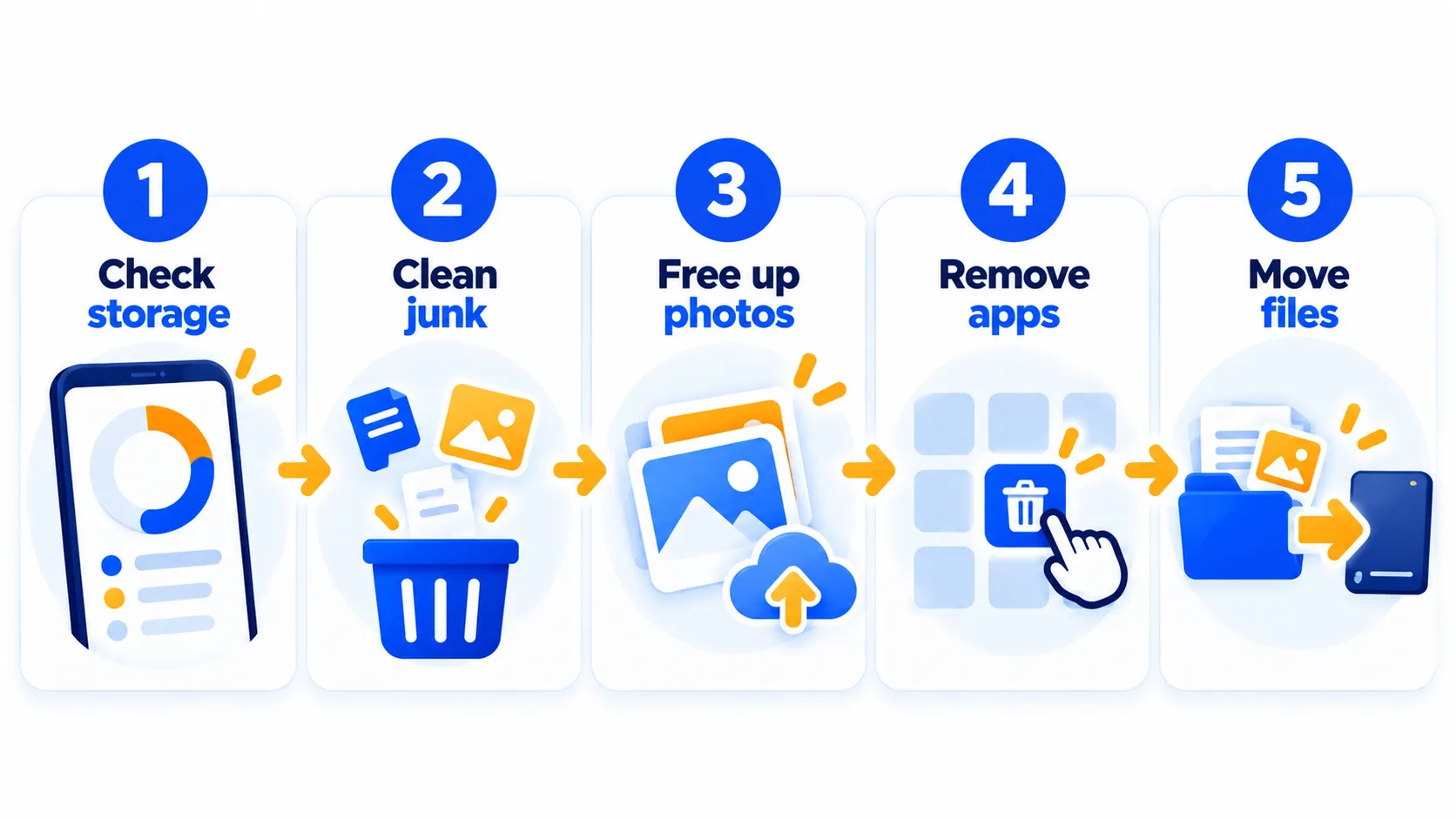
Quick Summary
- Step 1: See what is using space in Settings > Storage.
- Step 2: Clean junk and large files with Files by Google.
- Step 3: Remove on-device copies of photos that are already backed up, using Google Photos.
- Step 4: Uninstall unused apps and clear app cache.
- Step 5: Move files to a computer, cloud storage or an SD card (if your phone has a slot).
Step 1: See What Is Taking Up Space
Open Settings and tap Storage. Google’s help page says you can select a category to see what is using space. Look for big categories such as Images, Videos, Apps and Other. Knowing the biggest offender saves you time.
Step 2: Use Files by Google to Clean Junk
Files by Google is Google’s free file manager, and many phones already have it. If you do not, install it from the Play Store.
- Open Files by Google.
- Tap the Clean tab (or open the menu and tap Clean).
- On the Junk files card, tap Clean.
- Confirm by tapping Clear.
Junk files are temporary files that apps store for their own use. Clearing them does not change your app settings. Be careful with anything you delete through Files by Google, because Google notes that data is permanently removed.
You can also use Settings > Storage > Free up space, scroll to a category, tap Select files, choose items and tap Move files to Trash. Large videos, old downloads and duplicate files are the usual winners.
Note: Features and policies may vary by plan, region and app version, and can change at any time. Check the official help center for the latest information.
Step 3: Free Up Space Without Deleting Your Photos
This is the big one. If your photos are backed up to Google Photos, you can remove the extra copies from your phone and keep them in your Google Photos library.
- Open Google Photos and make sure you are signed in and your backup is finished.
- Tap your profile picture at the top.
- Choose the option to free up space on this device.
- Check how much space it will free, then tap the button to remove those copies.
Google says this removes copies of photos and videos from your device while keeping them in Google Photos. Items from the last 30 days may stay on your phone. After removal, those photos will not appear in your phone’s built-in gallery app or when you are offline. You will find them in the Google Photos app or at photos.google.com.
Important: This only works safely if the photos are really backed up. Check that backup is on and complete before you start. Google also warns that you cannot restore items from trash after 30 days or after the trash is emptied.
Turn on Smart Storage (optional)
Google’s help page says you can go to Settings > Storage > Free up space, tap the menu, open Settings and turn on Smart Storage. It clears backed-up photos and videos when your storage is almost full. Only use it if you trust your backup.
Note: Features and policies may vary by plan, region and app version, and can change at any time. Check the official help center for the latest information.
Step 4: Uninstall Unused Apps and Clear Cache
Uninstall apps you never use
Go through your app list and remove anything you have not opened in months. Google notes you can reinstall apps later, and you do not need to pay again for paid apps you have bought.
Clear cache
Cache is temporary data apps keep to load faster. Clearing it is safe and frees space, though apps may load a little slower next time you open them.
- Open Settings > Apps and tap the app (start with social media, browsers and streaming apps).
- Tap Storage (or Storage & cache).
- Tap Clear cache.
Be careful with Clear storage (also called Clear data). Google says it permanently deletes all app data, such as logins and saved settings, so try deleting data inside the app first. For more on this, see how to clear cache on iPhone, Android, Chrome and Safari.
Step 5: Move Files Off Your Phone
- Computer: Google’s help page suggests copying files to a computer over USB, then deleting them from the phone.
- Cloud storage: Upload large videos and documents to Google Drive or another cloud service. If your Google storage is full, read Google Storage Full? How to Free Up Space in Gmail, Drive and Photos.
- SD card: Some Android phones have a microSD slot. If yours does, use Files by Google or your phone’s file manager to move photos, videos and downloads to the card. Many newer phones do not have a slot, so check your model.
- Downloaded media: Remove offline downloads in apps like YouTube Music or Google TV. Google’s help page describes removing downloads from each app’s library.
Quick Storage Cleanup Table
| What to do | Typical result | Risk |
|---|---|---|
| Clean junk files | Quick small win | Low |
| Free up backed-up photos | Often the biggest win | Low if backup is complete |
| Uninstall unused apps | Medium to large win | Low |
| Clear app cache | Small to medium win | Low |
| Clear app data | Varies | High: loses app data |
| Delete large videos | Large win | Medium: back up first |
Prevent Storage From Filling Up Again
- Keep Google Photos backup on and run Free up space every month or two.
- Lower video recording quality if you rarely need 4K.
- Turn off automatic media downloads in chat apps such as WhatsApp.
- Review Settings > Storage after big app updates.
- Moving to a new phone? See how to transfer everything to a new phone.
Heavy phone use also drains the battery fast. Check these phone settings that quietly save battery.
Frequently Asked Questions
Will Free up space in Google Photos delete my photos?
It removes the copies stored on your phone. The backed-up versions stay in your Google Photos library, so confirm your backup is complete first.
Is it safe to clear cache?
Yes. Cache is temporary data. Apps may be slightly slower the first time you open them afterwards.
What is the difference between Clear cache and Clear storage?
Clear cache removes temporary files. Clear storage deletes all of the app’s data, including settings and sign-ins.
Why does the Other category take so much space?
It usually includes app data, system files and leftover files. Cleaning junk files and clearing app cache can help.
Can I use an SD card to free up space?
Only if your phone has a microSD slot. You can then move photos, videos and downloads onto it.
The Bottom Line
Start with Files by Google and the Google Photos Free up space tool, then remove unused apps and clear cache. You can usually recover several gigabytes without deleting a single memory. Just make sure your backup is complete first.
Related Guides
- Google Storage Full? How to Free Up Space in Gmail, Drive and Photos
- How to Clear Cache on iPhone, Android, Chrome and Safari
- How to Transfer Everything to a New Phone (iPhone and Android)
- 10 Simple Phone Settings That Quietly Save Battery
Explore more in our Tech Tips hub.
Disclaimer: This article is for general information only and is based on details available at the time of writing. Prices, plans, features, release dates, policies and availability can change at any time and may vary by country. Please verify the latest information on the official website of the company or product mentioned before making any decision or purchase. Next DigiTech is an independent website and is not affiliated with or endorsed by the companies mentioned; all trademarks belong to their respective owners. We are not responsible for any loss or decisions made based on this content.