You open your laptop, click one thing, and wait. And wait. Before you start shopping for a new one, give it ten minutes. Most slow laptops aren’t broken. They’re just carrying too much.
These fixes work on both Windows and Mac, and you don’t need any special software.
1. Restart Properly (Not Just Close the Lid)
Closing the lid puts your laptop to sleep, so apps and memory leaks pile up for days or weeks. A real restart clears all that. On Windows, use Start > Power > Restart. On Mac, Apple menu > Restart. Do this at least once a week.
2. Stop Apps From Launching at Startup
Lots of apps sneak themselves into your startup list, and they all fight for attention the moment you log in.
- Windows: Press Ctrl + Shift + Esc to open Task Manager, then click Startup apps. Disable anything you don’t need right away, like chat apps, game launchers and updaters.
- Mac: Go to System Settings > General > Login Items and remove the extras.
3. Find What’s Hogging Your Computer
Open Task Manager (Windows) or Activity Monitor (Mac, search it with Spotlight). Sort by CPU or Memory. If one app is using a huge chunk, close it or update it. Web browsers are often the biggest culprits.
4. Tame Your Browser
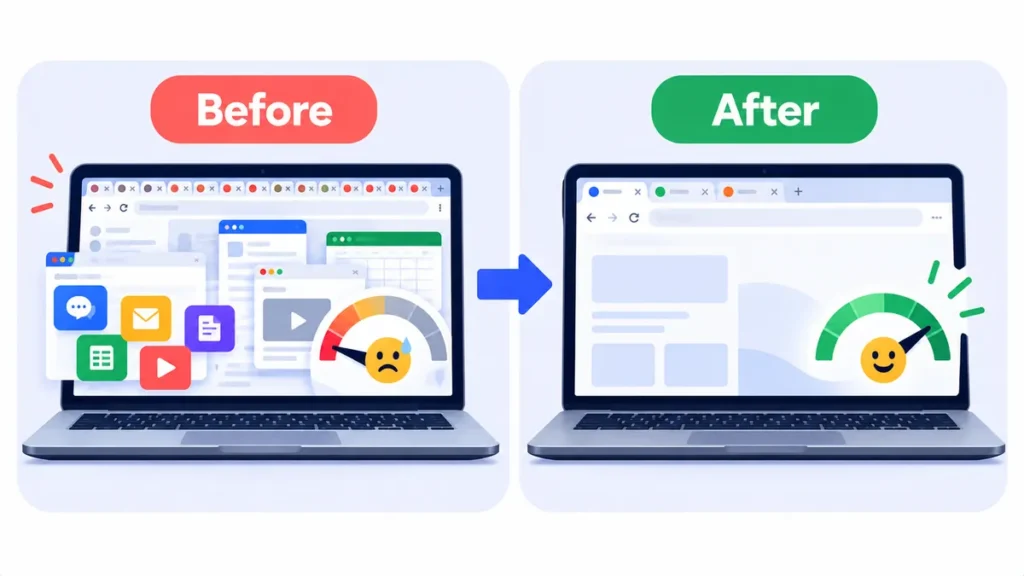
Every open tab uses memory. If you’ve got 40 tabs open “for later,” save them as bookmarks or use a tab manager, then close them. While you’re there, remove browser extensions you don’t use. Each one runs in the background.
5. Free Up Storage Space
When your drive is nearly full, everything slows down. Try to keep at least 15 to 20 percent free.
- Windows: Go to Settings > System > Storage and turn on Storage Sense, then check Cleanup recommendations.
- Mac: Go to System Settings > General > Storage and follow the recommendations.
Empty your Downloads folder too. It’s usually full of installers you’ll never use again.
Note: Features and policies may vary by plan, region and app version, and can change at any time. Check the official help center for the latest information.
6. Install Updates
Updates often include performance fixes, not just security patches. Check Settings > Windows Update or System Settings > General > Software Update on Mac.
7. Check Your Power Mode
On battery, many laptops quietly throttle performance to save power. On Windows, go to Settings > System > Power & battery and set Power mode to Balanced or Best performance when you’re plugged in. On Mac, make sure Low Power Mode isn’t on when you need speed.
8. Scan for Malware
Sudden slowness, pop-ups or a fan that never stops can mean something unwanted is running. On Windows, open Windows Security > Virus & threat protection and run a Quick scan.
When It’s Actually the Hardware
If you’ve done all of this and it’s still slow, your laptop may simply be underpowered for today’s apps. Two upgrades make the biggest difference on older machines:
- Switch from a hard drive (HDD) to an SSD. This can make an old laptop feel brand new.
- Add more RAM if your laptop allows it. 8 GB is a sensible minimum for everyday use; 16 GB is comfortable.
Frequently Asked Questions
Why is my laptop so slow all of a sudden?
Common causes are a big update running in the background, a nearly full drive, too many startup apps, or a browser with dozens of tabs open.
Does restarting really make a difference?
Yes. It clears memory and stops stuck background processes. It’s the easiest fix on this list.
Should I use a “PC cleaner” app?
Usually not. The built-in tools in Windows and macOS do the same job without the pop-ups and upsells.
The Bottom Line
Restart, cut startup apps, close extra tabs and free up storage. That’s ten minutes, and for most laptops it’s the difference between frustrating and fine.
Related Guides
- Black Friday 2026 Laptop Buying Guide: Specs That Matter and Deals to Avoid
- 8 Chrome Extensions That Make Everyday Browsing Faster (Checked for 2026)
- Why Are Laptop Prices Going Up in 2026? Should You Buy Now or Wait?
- MacBook Neo vs Windows Laptops: Which Budget Laptop Should You Buy?
Explore more in our Tech Tips for Beginners hub.
Disclaimer: This article is for general information only and is based on details available at the time of writing. Prices, plans, features, release dates, policies and availability can change at any time and may vary by country. Please verify the latest information on the official website of the company or product mentioned before making any decision or purchase. Next DigiTech is an independent website and is not affiliated with or endorsed by the companies mentioned; all trademarks belong to their respective owners. We are not responsible for any loss or decisions made based on this content.