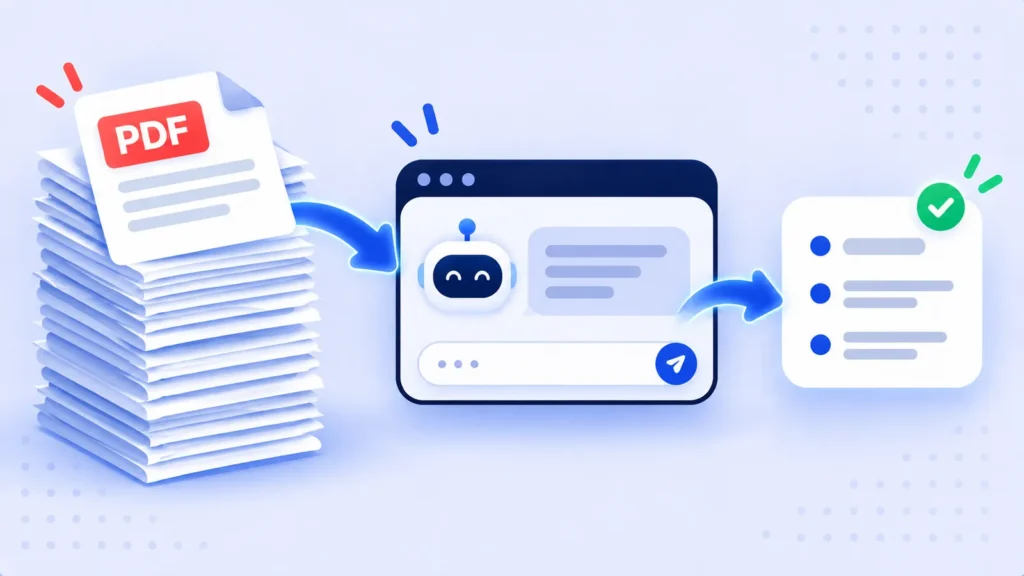
You’ve got a 60-page report, a contract, or a research paper, and about ten minutes before the meeting. Reading the whole thing isn’t happening.
This is where AI actually earns its keep. Free tools can now read a PDF and give you the key points in seconds. The trick is knowing which tool to use, what to ask, and how to make sure the summary didn’t quietly skip the one paragraph that mattered.
Free AI Tools That Can Read Your PDF
All of these let you upload a PDF on a free account. Free plans come with daily or file-size limits, and those limits change often, so if one tool says your file is too big, just try another.
- ChatGPT: Great all-rounder. Upload the file with the paperclip icon and ask away.
- Google Gemini: Handy if your PDF is already in Google Drive.
- Claude: Strong with long documents and keeps the tone of the original well.
- Microsoft Copilot: Built into Edge, so it can summarize a PDF you’ve opened in the browser.
- NotebookLM: Google’s research tool. It answers only from your uploaded files and links each answer to the exact passage, which makes checking easy.
How to Summarize a PDF in 5 Steps
- Open your AI tool and start a new chat.
- Upload the PDF. Look for a paperclip or plus icon next to the message box.
- Say who the summary is for. “Summarize this for a busy manager” gets a very different result than “Summarize this for a student writing an essay.”
- Ask for a format. Bullet points, a short paragraph, or a table. Be specific.
- Ask follow-up questions about anything that looks unclear or important.
Copy-and-Paste Prompts That Work
Generic prompts get generic summaries. Try these instead:
- “Summarize this PDF in 7 bullet points. Put the most important point first.”
- “What are the key numbers, dates and deadlines in this document? List them in a table with page numbers.”
- “I need to make a decision based on this. What are the main risks or red flags?”
- “Explain this like I’m new to the topic. Avoid jargon.”
- “What does this document NOT cover that I might expect it to?”
The 30-Second Check Most People Skip
AI summaries are usually good, but they can miss things or, now and then, state something the document never said. Before you rely on one, ask:
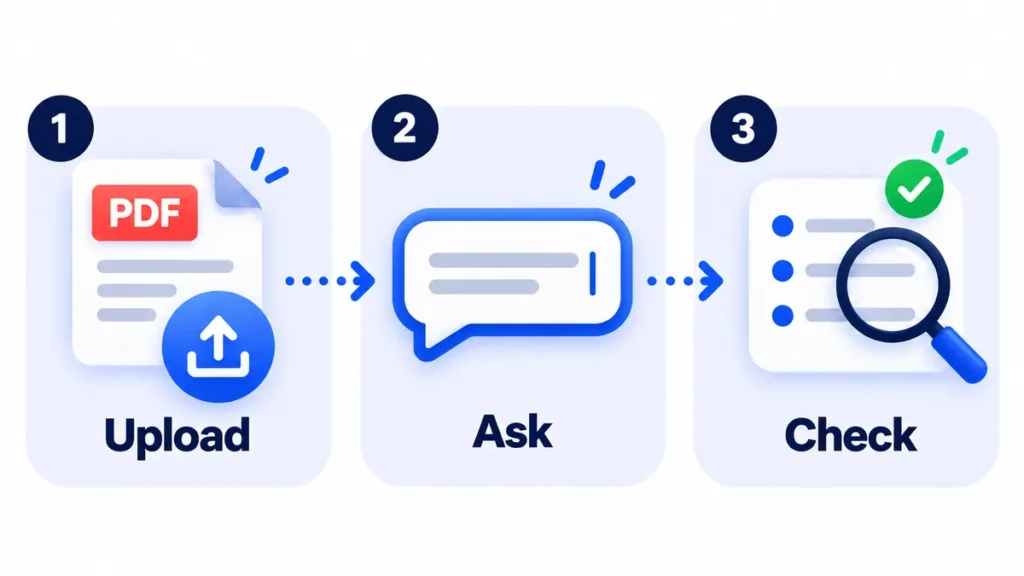
“For each bullet point, give me the page number and a short quote from the PDF that supports it.”
Now spot-check two or three of those quotes in the actual file. If a quote doesn’t exist, you’ve caught a problem before it caught you. NotebookLM does this automatically with clickable citations, which is why it’s a favorite for anything important.
What Not to Upload
Be careful with documents that contain other people’s personal data, medical records, bank statements, or anything covered by a confidentiality agreement. Free AI tools may use your chats to improve their models unless you turn that off in settings.
If you’re summarizing work files, check whether your company has an approved AI tool first. Many do.
Note: Features and policies may vary by plan, region and app version, and can change at any time. Check the official help center for the latest information.
Scanned PDF? Do This First
If your PDF is a scan (you can’t highlight the text), some tools struggle. Most of the tools above can read scanned pages, but results improve if you run the file through a free OCR tool first, or open it in Google Drive with Google Docs, which converts the text for you.
Frequently Asked Questions
Can ChatGPT summarize a PDF for free?
Yes. The free plan lets you upload files, though there are limits on how many files and messages you can use each day.
Which AI is best for summarizing long PDFs?
For long or important documents, NotebookLM and Claude are both strong. NotebookLM’s built-in citations make it the easiest to fact-check.
Is it safe to upload PDFs to AI tools?
It’s fine for public or everyday documents. Avoid uploading anything sensitive, and check the tool’s privacy settings to stop your chats being used for training.
The Bottom Line
Upload, ask a specific question, then check two or three claims against the original. That one extra step turns a quick AI summary into something you can actually trust.
Related Guides
- What Is Notion AI? Features, Pricing and Is It Worth It? (2026)
- Best Note-Taking Apps That Sync Across All Your Devices
- AI Tools for Small Business Owners: 10 Ways to Save Time
- How to Use AI to Write Emails in Gmail (Step by Step)
Explore more in our AI Productivity Tools hub.
Disclaimer: This article is for general information only and is based on details available at the time of writing. Prices, plans, features, release dates, policies and availability can change at any time and may vary by country. Please verify the latest information on the official website of the company or product mentioned before making any decision or purchase. This is not medical, financial, legal or security advice; consult a qualified professional for your situation. Next DigiTech is an independent website and is not affiliated with or endorsed by the companies mentioned; all trademarks belong to their respective owners. We are not responsible for any loss or decisions made based on this content.