You go to take a photo, and there it is again: “Storage Almost Full.” You delete a few apps, and two days later the warning is back.
If this started right after the iOS 27 update, you’re not imagining it. Apple’s new AI features need more room than before, and the update itself is big. The good news? Most iPhones have several gigabytes hiding in places you’d never think to look.
Below are 10 fixes, starting with the quickest. You don’t need a computer or any paid app. Many people can win back several gigabytes in about 15 minutes.
1. First, See What’s Actually Eating Your Storage
Before you start deleting things, take 30 seconds to find the real culprit. Guessing usually means deleting the wrong stuff.
Go to Settings > General > iPhone Storage. Give it a few seconds to load. You’ll see a colored bar at the top and a list of apps below it, sorted from biggest to smallest.
Look for three things:
- The top 3 apps. These are often games, streaming apps with offline downloads, or social apps with huge caches.
- Photos. If this is your biggest category, skip ahead to fixes 6 to 8.
- System Data. If this gray block looks huge, fix 9 is for you.
Quick tip: games and downloaded movies or shows are usually the largest single items on a phone. One downloaded season of a show can take up more space than hundreds of photos.

Quick Wins: Fixes That Take Under 5 Minutes
2. Offload Apps You Barely Use
Offloading removes an app but keeps its data and settings. When you need it again, tap the icon and it downloads back exactly as you left it.
To do it for one app: Settings > General > iPhone Storage, tap the app, then tap Offload App. Want your iPhone to handle this automatically? Turn on Offload Unused Apps in the same menu.
This works great for travel apps, airline apps and that game you haven’t opened since spring.
3. Empty “Recently Deleted” (Yes, Really)
Here’s the part that surprises most people: deleting a photo doesn’t free up space right away. It moves to the Recently Deleted album and sits there for up to 30 days.
Open Photos, scroll down to Recently Deleted, unlock it with Face ID, then tap Select > Delete All. Do the same in the Files app under Browse > Recently Deleted.
4. Stop Messages From Keeping Everything Forever
If you’ve had your iPhone for a few years, your texts might be holding gigabytes of old videos, GIFs and voice notes.
Go to Settings > Apps > Messages > Keep Messages and switch from Forever to 1 Year (or 30 Days if you’re brave). Your iPhone will clear older messages and their attachments.
Want to keep your texts but lose the heavy stuff? In iPhone Storage, tap Messages, then Review Large Attachments. Swipe left to delete the big videos you don’t need.
5. Clear Out Heavy App Caches
Apps like TikTok, Instagram, Spotify and Netflix quietly store cached videos and downloads. Some of them grow to several gigabytes.
Check each one in iPhone Storage. If the “Documents & Data” number is much bigger than the app itself, delete the app and reinstall it. You’ll log back in, and the cache starts fresh.
For streaming apps, open the Downloads tab and remove shows you’ve already watched. That alone can free a surprising amount of space.
For Safari, go to Settings > Apps > Safari > Clear History and Website Data. Heads up: this signs you out of most websites.
Photos and Videos: Usually the Biggest Space Hog
6. Turn On “Optimize iPhone Storage”
If you use iCloud Photos, this one setting can free up a huge chunk of space without deleting a single picture.
Go to Settings > Photos and choose Optimize iPhone Storage. Your full-quality photos and videos stay safe in iCloud, while your iPhone keeps smaller versions. When you open a photo, the full version downloads in a second or two.
One catch: you need enough iCloud space to hold your whole library. More on that in fix 10.
7. Merge Duplicate Photos
Burst shots, saved screenshots and photos sent back to you on WhatsApp all pile up as copies.
Open Photos, scroll down to Utilities, and tap Duplicates. Your iPhone finds matching photos for you. Tap Merge to keep the best version and remove the rest.
While you’re there, check Screenshots too. Most of us have hundreds we’ll never look at again.
8. Change How Your iPhone Records Video
This is the sneaky one. Recording in 4K at 60 frames per second looks great, but every minute of video eats several hundred megabytes.
Go to Settings > Camera > Record Video. For everyday clips of your kids, pets or a concert, 1080p at 30 fps looks fine on a phone screen and uses a fraction of the space. Switch back to 4K when you’re filming something special.
Also check Settings > Camera > Formats and make sure High Efficiency is selected. It saves photos and videos in smaller file types with no visible drop in quality.

9. Shrink “System Data” (and Understand the iOS 27 Jump)
System Data is the gray block at the end of your storage bar. It holds caches, logs, temporary files, Siri voices and other things iOS needs to run. It’s normal for it to take a few gigabytes. It’s not normal for it to keep growing forever.
Why your storage jumped after iOS 27
Two things are going on.
First, Apple Intelligence now lives on your phone. Most iPhones need up to 8 GB of free space for iOS 27’s AI features. The iPhone 17 Pro, 17 Pro Max, iPhone Air, iPhone 18 Pro, 18 Pro Max and iPhone Duo need up to 14 GB, because they run a bigger on-device model (9to5Mac).
Second, a big update leaves leftovers behind. Your iPhone also re-indexes everything after a major update so search and Siri work properly, and that can take days (Fast Company). Some of that space often settles back down on its own.
Note: These details come from the company’s own announcements and have not been independently verified by Next DigiTech.
How to bring System Data down safely
- Give it a few days. Keep your iPhone on Wi-Fi and plugged in overnight. Let the post-update indexing finish before you panic.
- Restart your iPhone. It sounds too simple, but a restart clears out a lot of temporary files.
- Clear Safari data and shorten Messages history (fixes 4 and 5). Both feed directly into System Data.
- Install any iOS 27 point updates. Go to Settings > General > Software Update. Apple released iOS 27.0.1 on September 28, and early fixes like this are worth installing.
- Not using Apple Intelligence? You can turn it off in Settings > Apple Intelligence & Siri. That may free up some of the space its models use, but you’ll lose the new Siri features.
If System Data is still taking 30 GB or more after a week, jump to the last-resort option in fix 10.
10. Still Full? Move Things to the Cloud (or Start Fresh)
Sometimes there’s just more stuff than phone. At that point, the smart move is to store it somewhere else.
Option A: Upgrade your cloud storage
Every Apple Account comes with only 5 GB of free iCloud storage, which fills up fast. In the US, iCloud+ starts at $0.99 a month for 50 GB, and the 200 GB plan is $2.99 a month (MacRumors). Pair a paid plan with Optimize iPhone Storage (fix 6), and your photo library mostly lives in the cloud instead of on your phone.
Note: Prices are based on official announcements at the time of writing and may vary by country, retailer, taxes and promotions. Always check the latest pricing on the official website before buying.
Prefer not to pay Apple? Google Photos and OneDrive both work well on iPhone. Back up your photos there, confirm they uploaded, then delete them from your phone.
One iOS 27 change to know about: new Shared Albums now keep full-resolution photos, and they count against the album owner’s iCloud storage, including photos other people add (MacRumors). For a one-off trip or party, use the new temporary Shared Album instead. It doesn’t use your storage, but anything not saved is deleted after 30 days.
Note: Features and policies may vary by plan, region and app version, and can change at any time. Check the official help center for the latest information.
Option B: Back up and restore (last resort)
If System Data is still huge after trying everything, a clean restore usually fixes it.
- Back up your iPhone: Settings > [your name] > iCloud > iCloud Backup > Back Up Now.
- Wait until the backup finishes, and double-check the time stamp.
- Go to Settings > General > Transfer or Reset iPhone > Erase All Content and Settings.
- During setup, choose Restore from iCloud Backup.
This takes an hour or two, so do it on Wi-Fi with your phone plugged in. Never skip step 2.
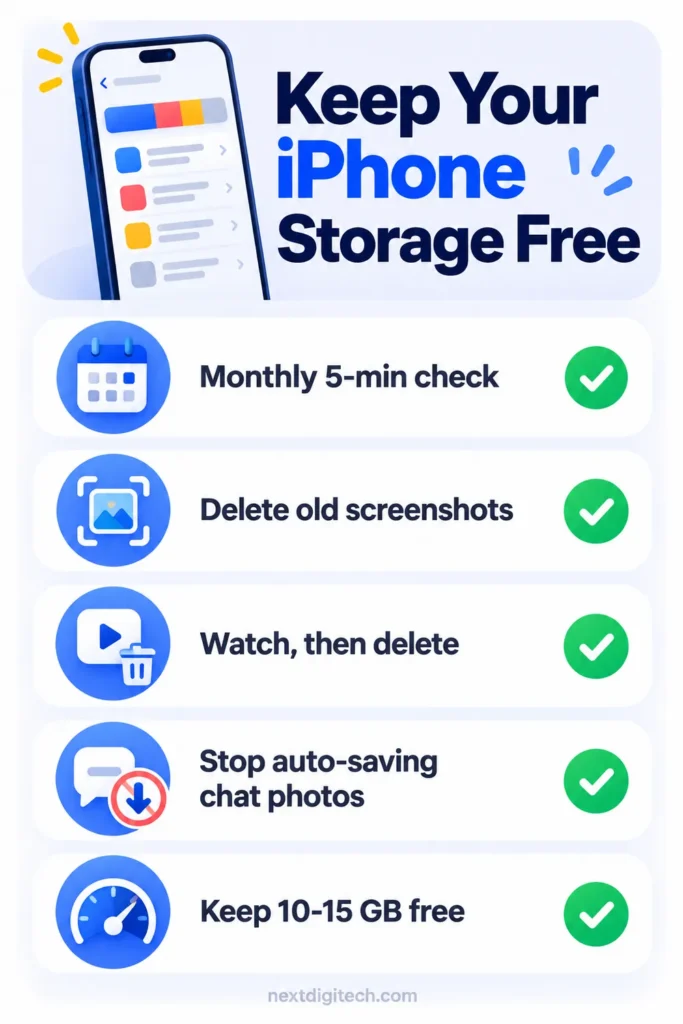
5 Habits That Keep the “Storage Full” Warning Away
Cleaning up once is great. Not having to do it again is better. These small habits take a minute a week:
- Do a 5-minute monthly check. Open iPhone Storage on the first of each month and look at your top 3 apps.
- Delete screenshots right after you use them. Saved a boarding pass or a recipe? Delete it once you’re done.
- Watch, then delete. Remove downloaded shows and podcasts as soon as you’ve finished them.
- Don’t save every WhatsApp photo. In WhatsApp, go to Settings > Chats and turn off Save to Photos.
- Keep 10 to 15 GB free. Your iPhone runs smoother with breathing room, and big updates like iOS 27 need it.
Frequently Asked Questions
Why does my iPhone say storage is full when I have nothing on it?
The space is usually hiding in System Data, old message attachments, or the Recently Deleted album. Check Settings > General > iPhone Storage to see exactly where it’s going, then follow fixes 3, 4 and 9.
Does deleting photos from my iPhone delete them from iCloud?
Yes, if iCloud Photos is turned on. Photos sync across all your devices, so a delete on one deletes everywhere. If you want to free up phone space without losing photos, use Optimize iPhone Storage instead.
Is it safe to delete System Data on iPhone?
There’s no button to delete it directly, and that’s on purpose. The safe ways to shrink it are restarting, clearing Safari and message history, updating iOS, and, as a last resort, backing up and restoring.
How much free space does iOS 27 need?
The update itself may need 25 GB or more of free space to install, depending on your model (Fast Company). Apple Intelligence then needs up to 8 GB, or up to 14 GB on the newest Pro models (9to5Mac).
What’s the difference between offloading and deleting an app?
Deleting removes the app and all its data. Offloading removes only the app and keeps your data, so nothing is lost when you reinstall it.
Will buying more iCloud storage fix my iPhone storage?
Not by itself. iCloud is separate from your phone’s storage. It helps only when you pair it with Optimize iPhone Storage, which moves full-size photos off your phone.
The Bottom Line
A full iPhone almost never needs a new phone. Start with fix 1 to find the real culprit, knock out the quick wins, then tackle photos and System Data. For most people, that’s enough to make the warning disappear for months.
Got a trick that worked for you? Share it in the comments. It might save someone else a trip to the Apple Store.
Related Guides
- 10 Simple Phone Settings That Quietly Save Battery
- Why Is My Phone Overheating? 10 Easy Fixes for iPhone and Android
- How to Clear Cache on iPhone, Android, Chrome and Safari
- Wi-Fi Connected But No Internet? 10 Fixes That Actually Work
Explore more in our Tech Tips for Beginners hub.
Disclaimer: This article is for general information only and is based on details available at the time of writing. Prices, plans, features, release dates, policies and availability can change at any time and may vary by country. Please verify the latest information on the official website of the company or product mentioned before making any decision or purchase. Next DigiTech is an independent website and is not affiliated with or endorsed by the companies mentioned; all trademarks belong to their respective owners. We are not responsible for any loss or decisions made based on this content.