Spam texts used to be an occasional nuisance. Now they arrive in waves: fake delivery notices, “unpaid toll” warnings, prize claims and job offers that lead nowhere. Some are just annoying. Others are scams designed to steal your passwords or money.
The good news is that both iPhone and Android include tools to filter, block and report these messages, and you can add one more layer by forwarding them to your mobile carrier. This guide walks through each step. Menu names may differ slightly by phone brand and version.
Quick Summary
| Goal | iPhone | Android (Google Messages) |
|---|---|---|
| Filter unknown senders | Settings > Apps > Messages > Unknown Senders > Screen Unknown Senders | Messages settings > Protection and safety > Spam protection |
| Report | Report Junk in the conversation | Block icon > Report spam |
| Block | Block the sender from the conversation details | Details > Block & report spam |
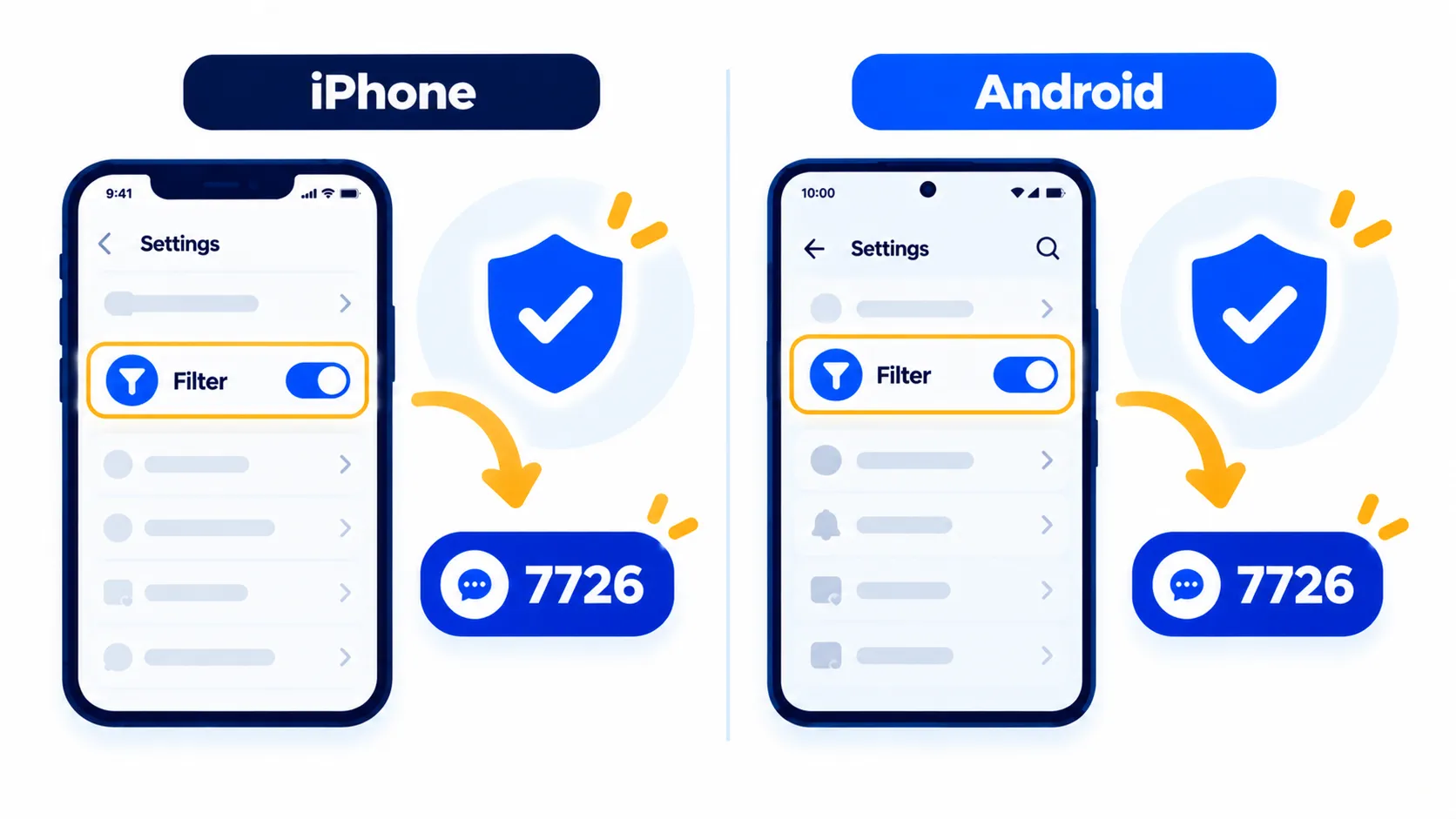
| Tell your carrier | Forward to 7726 | Forward to 7726 |
First, a Few Safety Rules
- Do not tap links in unexpected texts asking for personal or financial information. The US Federal Trade Commission says legitimate companies will not request account details by text.
- Check independently. If a message might be real, contact the company using a phone number or website you already know is correct, not the details in the text.
- Do not reply to messages from senders you do not know, even to argue. A reply can confirm that your number is active.
How to Block Spam Texts on iPhone
Step 1: Screen unknown senders
Apple’s support page for recent versions of iOS says Screen Unknown Senders is off by default. To turn it on:
- Open Settings > Apps > Messages.
- Scroll to Unknown Senders.
- Switch on Screen Unknown Senders.
You can also do this inside Messages: tap Filters, then Manage Filtering, and switch on Screen Unknown Senders. After that, messages from people not in your contacts move to a separate Unknown Senders list. Tap Filters > Unknown Senders to look through them. If one is actually legitimate, open it and tap Mark as Known.
Apple’s page was written for iOS 26. Wording may change in iOS 27, so use the search box in Settings if you cannot find an item.
Step 2: Turn on the text message filter
Apple also offers a Text Message Filter for SMS, MMS and RCS messages. Go to Messages > Filters > Manage Filtering > Text Message Filter, then turn it on. This targets messages such as promotions and transactions, and you can also enable any third-party filtering extensions you have installed.
Step 3: Report junk and block
Open the unwanted conversation. For iMessage conversations, a Report Junk option normally appears under the message. You can also tap the sender’s name or number at the top, then choose the option to block the caller. Wording differs by iOS version, so check Apple’s current Messages guide if yours looks different.
Note: Features and policies may vary by plan, region and app version, and can change at any time. Check the official help center for the latest information.
How to Block Spam Texts on Android
These steps are for Google Messages, which is the default texting app on many Android phones. Samsung and some other brands ship their own app, so menu names may differ slightly.
Step 1: Check spam protection is on
- Open Google Messages.
- Tap your profile picture or initials at the top right.
- Tap Messages settings > Protection and safety > Spam protection.
- Make sure Enable spam protection is on.
If you do not see Spam protection, your device may not support it. Google says it is turned on automatically by default, detects suspected spam including scam and phishing messages, and can move it to your spam folder. It uses on-device models, and it checks links by uploading the URL to Google to confirm it is not malicious. Google also says it may briefly process the contents of unencrypted messages to detect spam.
Step 2: Report spam and block the sender
From the conversation list:
- Touch and hold the conversation.
- Tap the Block icon, then Report spam, then OK.
From inside the conversation: tap More options > Details > Block & report spam, then OK.
Google says reporting also blocks the sender and moves the message to the Spam & blocked folder. It sends Google the sender’s number, their last 10 incoming messages and your country code. Your name and phone number are not linked to the spammer’s messages, and the spammer is not notified. You can also block a number without reporting it.
Note: These details come from the company’s own announcements and have not been independently verified by Next DigiTech.
Report Spam Texts to Your Carrier: 7726
Both the FTC in the US and the NCSC in the UK say you can forward spam or scam texts to 7726 (it spells SPAM on the keypad). Your provider can then use the report to spot and block similar messages. In the UK, the NCSC says most providers offer this for free.
The NCSC gives these steps:
- iPhone: Press and hold the message bubble, tap More, select the message, tap the arrow at the bottom right, enter 7726 and send.
- Android: Press and hold the message bubble, tap the three dots at the top right, tap Forward, enter 7726 and send.
Note the sender’s number first, because you may be asked for it. If 7726 does not work on your network, contact your provider to ask how to report. You can also file a report with the FTC at ReportFraud.ftc.gov in the US.
Extra Ways to Cut Down Spam Texts
- Ask your carrier. The FTC suggests asking your wireless provider about its blocking tools. Many offer free filters in their app or account page.
- Be careful where you share your number. Free competitions and online forms can pass your number on.
- Do not click “unsubscribe” in unexpected spam. Use the report and block tools instead.
- Keep your phone updated. Updates improve security and filtering. See whether you should update right away.
- Protect important accounts with two-factor authentication, so a stolen password is not enough.
What to Do If You Clicked or Replied
- Do not enter any more information. Close the page.
- If you shared a password, change it right away on the real website and anywhere you reused it.
- If you shared card or bank details, contact your bank using the number on your card.
- Run a security scan and check for signs described in Is my phone hacked?
- In the US, the FTC points to IdentityTheft.gov for steps if you gave out sensitive information.
Note: Features and policies may vary by plan, region and app version, and can change at any time. Check the official help center for the latest information.
Frequently Asked Questions
Does blocking a number stop all spam?
No. Spammers change numbers often, so blocking helps but filtering and reporting work better in combination.
Will filtering hide texts I want?
It can. Check your Unknown Senders or Spam folder now and then, and mark genuine senders as known.
Is forwarding to 7726 free?
The NCSC says most UK providers offer it for free. Check your own provider’s terms.
Does reporting spam in Google Messages tell Google my number?
Google says your name and phone number are not linked to the spammer’s messages, but it does receive the spammer’s number and recent messages from them.
What about spam calls?
Different tools apply. We cover them in our guide on how to stop spam calls on iPhone and Android.
The Bottom Line
Turn on your phone’s built-in filtering, report and block junk when it arrives, and forward the worst offenders to 7726. Never click links in unexpected texts, and always verify through an official website or number you already trust.
Related Guides
- How to Stop Spam Calls on iPhone and Android (2026 Guide)
- Fake Data Breach Notices and QR Code Scams: How to Tell What’s Real
- Is My Phone Hacked? 10 Warning Signs and What to Do Next
- Your Email Was in a Data Breach: What to Do Next (Step by Step)
Explore more in our Online Safety & Privacy hub.
Disclaimer: This article is for general information only and is based on details available at the time of writing. Prices, plans, features, release dates, policies and availability can change at any time and may vary by country. Please verify the latest information on the official website of the company or product mentioned before making any decision or purchase. This is not legal, financial or security advice; if you think you have been scammed, contact your bank and the official reporting services. Next DigiTech is an independent website and is not affiliated with or endorsed by the companies mentioned; all trademarks belong to their respective owners. We are not responsible for any loss or decisions made based on this content.