
Microsoft Power Automate is Microsoft’s automation tool. It connects apps like Outlook, Excel, Teams, SharePoint and OneDrive so routine work happens on its own, such as saving attachments, sending approval requests, or copying data into spreadsheets. It can even automate clicks and typing in desktop apps on Windows.
If your work runs on Microsoft 365, you may already have access to it. Here’s what Power Automate does, what’s free, and how to build your first flow.
Quick Verdict
- Best for: Businesses and office workers who use Microsoft 365, Teams, Outlook and Excel.
- Skip it if: You mostly use Google Workspace or a mix of non-Microsoft apps. Zapier or Make are easier there.
- Is it free? Basic flows are included with many Microsoft 365 plans, and desktop automation is free for Windows users. Premium features cost extra.
What Is Power Automate?
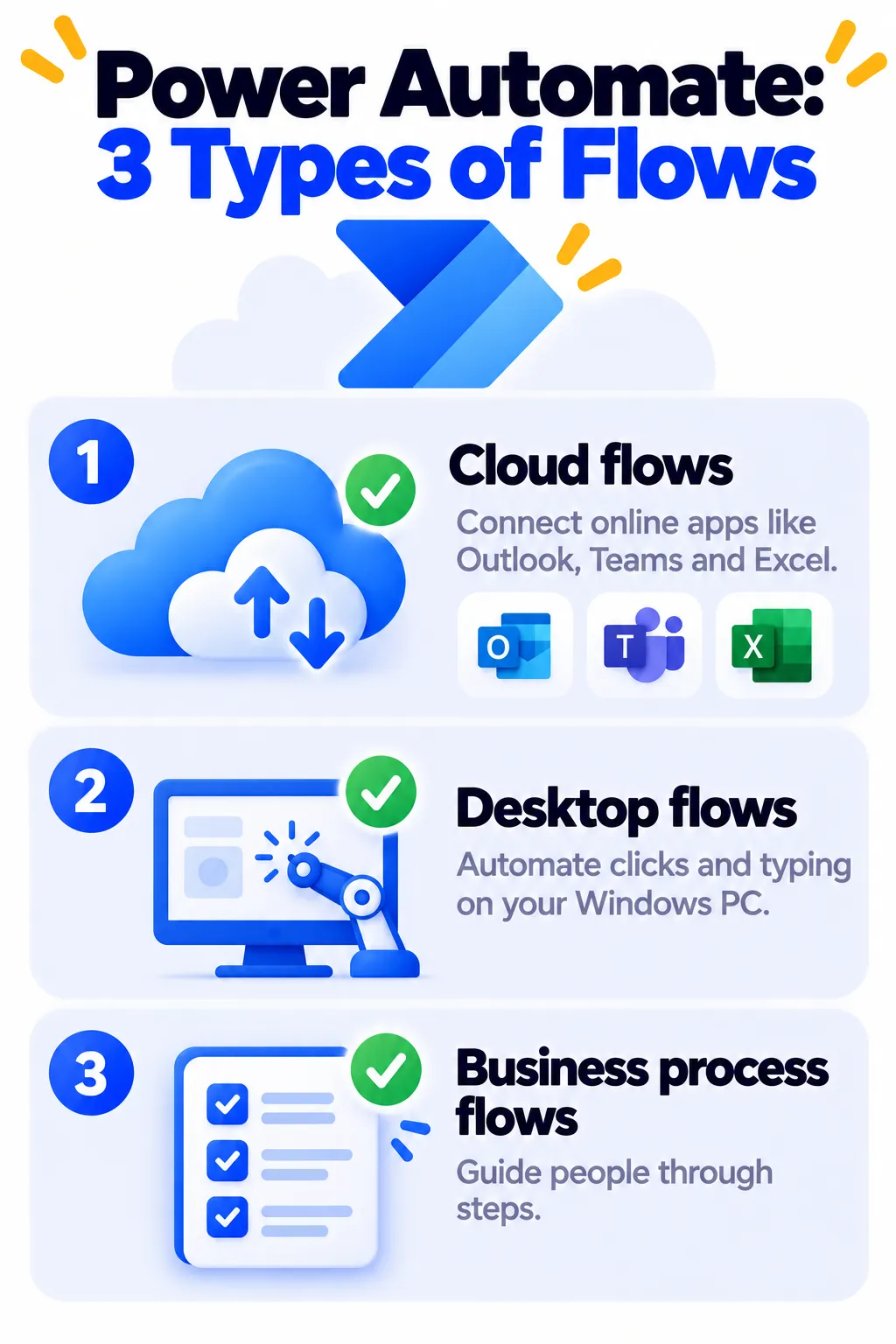
Power Automate lets you create flows, which are automated workflows. There are three main types:
- Cloud flows: Connect online apps and services. Example: when an email with an attachment arrives in Outlook, save it to OneDrive.
- Desktop flows (RPA): Automate actions on your Windows PC, like opening apps, clicking buttons, copying data between programs and filling in forms. “RPA” stands for robotic process automation.
- Business process flows: Guide people through a set of steps, like an onboarding checklist.
With Copilot in Power Automate, you can describe what you want in plain English, and it drafts the flow for you.
10 Useful Power Automate Flows
- Save Outlook attachments to OneDrive or SharePoint automatically.
- Send approval requests in Teams or email for time-off, purchases or documents.
- Get a Teams message when a high-priority email arrives from your manager or a key client.
- Add Microsoft Forms responses to Excel and notify your team.
- Create a Planner task from a flagged email.
- Send a daily reminder in Teams for a stand-up or report.
- Collect invoices from email and log them in a spreadsheet.
- Copy data from an old desktop app into Excel using a desktop flow.
- Rename and organize files in a folder on your PC.
- Use AI to extract information from documents like invoices or receipts (premium feature).
How to Create Your First Cloud Flow (Step by Step)
- Go to make.powerautomate.com and sign in with your Microsoft work, school or personal account.
- Click Create, then choose Automated cloud flow, or start from a template.
- Or type a description for Copilot, like “When I get an email with an attachment, save it to OneDrive.”
- Choose your trigger, such as “When a new email arrives (V3)” in Outlook.
- Add an action, such as “Create file” in OneDrive, and fill in the fields.
- Click Save, then Test by sending yourself a sample email.
How to Try Desktop Automation on Windows
- Open Power Automate from the Start menu (it comes with Windows 11), or download it free from Microsoft for Windows 10.
- Sign in and click New flow.
- Use the recorder to capture your clicks and typing, or drag actions from the left panel.
- Run the flow to test it, then adjust any steps that didn’t work.
Tip: Start with a simple, repetitive task, like renaming files or copying a few fields from one window to another.
Power Automate Pricing (2026)
US prices as of October 2026 (billed yearly):
| Plan | Price | What you get |
|---|---|---|
| Included with Microsoft 365 | No extra cost | Cloud flows using standard connectors like Outlook, Teams, SharePoint and Excel |
| Power Automate for desktop | Free for Windows users | Build and run desktop flows on your own PC while you’re present |
| Premium | $15/user/month | Premium connectors (like Salesforce and custom APIs), attended desktop automation with cloud features, AI Builder |
| Process | $150/bot/month | Unattended automation that runs 24/7 without a person present |
A 30-day free trial of Premium is usually available. Licensing can be complex for businesses, so check Microsoft’s Power Automate pricing page or ask your IT admin.
Tips and Safety
- Check with your IT team before automating work accounts. Many companies have rules about which connectors you can use.
- Test with sample data before running a flow on real emails or files.
- Turn on failure notifications so you know if a flow stops working.
- Don’t store passwords in desktop flows as plain text. Use secure input options.
Power Automate vs Zapier, Make and n8n
Power Automate is the best choice if you live in Microsoft 365, and it uniquely includes desktop automation for Windows. Zapier is easier for mixed business apps, Make is affordable and visual, and n8n is great for AI agents and self-hosting. For simple personal and smart home automations, try IFTTT. Want AI help in Office itself? See our Microsoft Copilot guide.
Frequently Asked Questions
Is Power Automate free?
Partly. Many Microsoft 365 plans include basic cloud flows, and Power Automate for desktop is free for Windows users. Premium connectors and advanced features need a paid license.
Do I need to know coding?
No. Power Automate is a low-code tool with templates, a visual designer and Copilot to help you build flows.
Is Power Automate included in Windows 11?
Yes. Power Automate for desktop comes with Windows 11, and Windows 10 users can download it free.
What is the difference between Premium and Process?
Premium is for a person who runs automations while working. Process is for unattended bots that run on their own, around the clock.
Why did my flow fail?
Common causes include expired connections, changed file paths or column names, or missing permissions. Open the flow’s run history to see which step failed.
The Bottom Line
If you use Microsoft 365 or Windows, Power Automate is a powerful automation tool you may already have. Start with a template, try a simple desktop flow, and upgrade to Premium only when you need premium connectors or AI features. Explore more tools in our AI tools directory.
Related Guides
- Zapier vs Make vs n8n: Which Automation Tool Should You Use? (2026)
- Google Apps Script: 25 Things You Can Automate for Free (Beginner’s Guide 2026)
- How to Use AI to Write Excel and Google Sheets Formulas
- 10 Small Business Tasks You Can Automate Today (With the Best Tools)
Explore more in our Automation and Chatbot Tools hub.
Disclaimer: This article is for general information only and is based on details available at the time of writing. Prices, plans, features, release dates, policies and availability can change at any time and may vary by country. Please verify the latest information on the official website of the company or product mentioned before making any decision or purchase. Next DigiTech is an independent website and is not affiliated with or endorsed by the companies mentioned; all trademarks belong to their respective owners. We are not responsible for any loss or decisions made based on this content.