
Google Search no longer works only as a list of blue links. Google AI Mode lets you ask longer, messier questions, get a written answer with links to sources, and keep asking follow-ups in the same conversation. If you have seen the “AI Mode” button under the Google search bar and wondered whether it is worth using, this guide explains what it does, how to open it, how to get better answers, and what to watch out for.
Quick Summary
- What it is: Google’s AI search experience that answers questions with an AI-written response, supports follow-ups and links to web sources.
- How to open it: Go to google.com/ai, tap “AI Mode” under the search bar on google.com, or tap AI Mode in the Google app.
- What you can ask with: Text, voice, images and files, and you can paste a web page address to ask about it.
- Best for: Comparisons, planning, “how do I” questions and multi-part questions.
- Main limits: It can misread web content or miss context, so check important facts in more than one place.
- Privacy: You can delete individual searches or your whole AI Mode history.
Note: Features and policies may vary by plan, region and app version, and can change at any time. Check the official help center for the latest information.
What Is Google AI Mode?
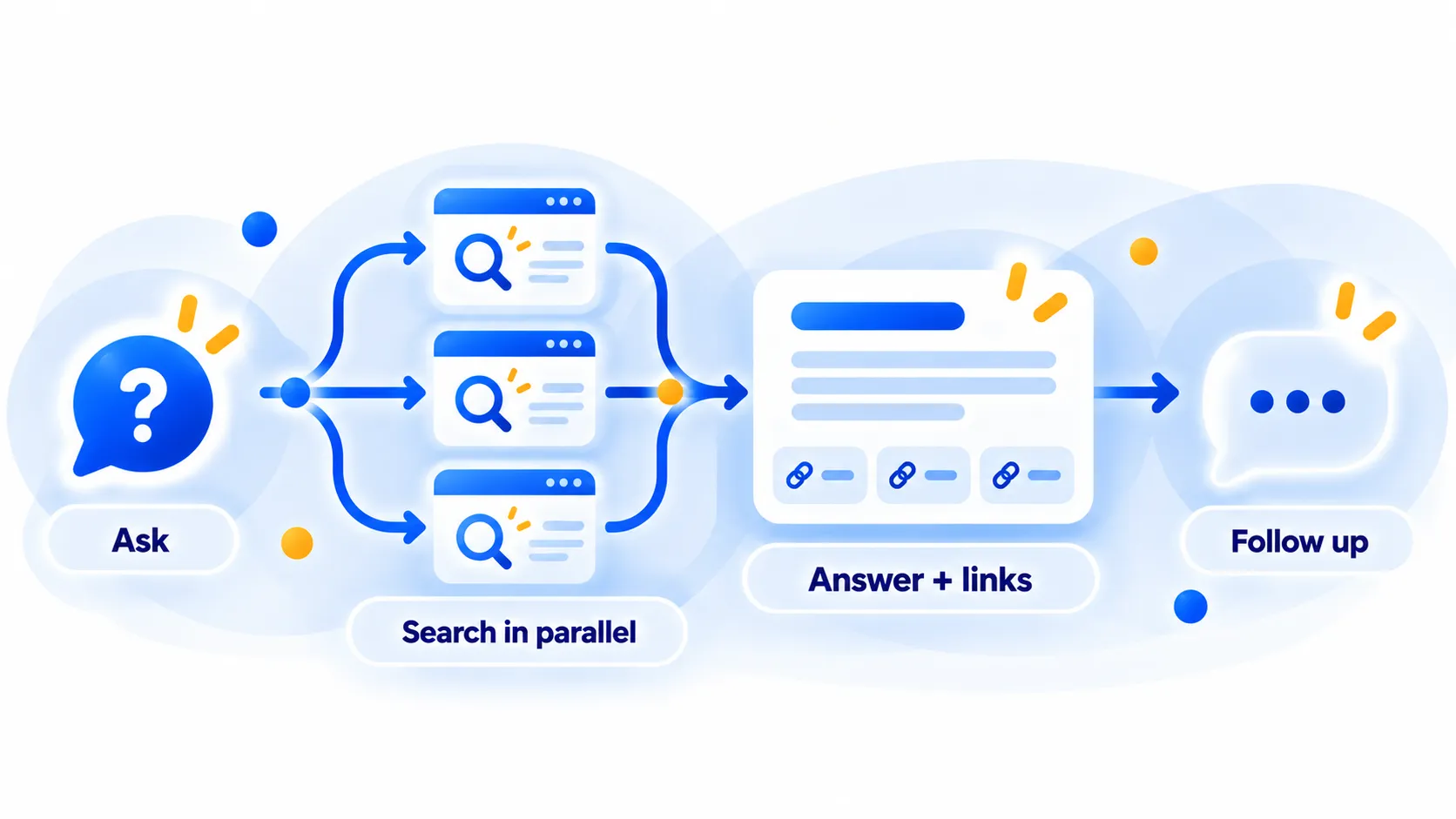
Google describes AI Mode as its most powerful AI search experience. Instead of showing ten links and leaving you to work out the answer, it reads a question, breaks it into smaller subtopics, searches for each one at the same time and then writes a combined answer. Links to the web sources are shown alongside, so you can click through and check the original pages.
It is different from AI Overviews, the short summaries that sometimes appear at the top of normal search results. An AI Overview is a quick snapshot. AI Mode is a separate, conversation-style space where you can keep going with follow-up questions.
Note: These details come from the company’s own announcements and have not been independently verified by Next DigiTech.
What changed in 2026
At Google I/O 2026, reported on 20 May 2026, Google said AI Mode was moving to Gemini 3.5 Flash worldwide as the default model in Search, and unveiled a redesigned, AI-powered search box that accepts text, images, files, videos and browser tabs. Reports from that event also mention search agents that monitor topics for you (for AI Pro and Ultra subscribers) and booking features planned for “this summer”. Exact rollout dates and regions for several of these were not given in the coverage we reviewed, so treat them as “announced” rather than “available to everyone”. We could not confirm the status of every item as of today.
Note: Release dates and rollout timing can change. Please confirm the latest details on the official website or help center.
How to Open Google AI Mode
Google’s help page does not describe a separate “turn on” switch. You simply open it using one of the routes below. If you do not see it, the most likely reasons are that it is not available in your country or language yet, or that your account type restricts it (see the requirements section).
On a computer
- Open a browser and go to google.com/ai, or go to google.com.
- Type your question into the search bar.
- Select the AI Mode button.
On your phone
- Open the Google app.
- Tap AI Mode on the home screen.
- Type, speak or add a photo or file to ask your question.
Note: Features and policies may vary by plan, region and app version, and can change at any time. Check the official help center for the latest information.
Who can use it
- AI Mode is available in a list of countries, territories and languages published on Google’s help page. The list is long and covers many regions, so check it for your location.
- For the best experience, Google recommends turning on history and personalised recommendations. Without history, you can still use AI Mode but cannot resume earlier searches.
- Some features sit behind the “AI Mode” experiment in Search Labs, which is limited to users aged 18 and over.
- Workspace accounts where Search and Assistant are turned off may not have history, and only a Workspace administrator can enable it.
- Supervised child accounts are managed through Family Link.
Note: Features and policies may vary by plan, region and app version, and can change at any time. Check the official help center for the latest information.
What You Can Do With AI Mode
Ask in more than one way
You can type, speak, upload an image, or add files such as PDFs. You can also paste the address of a web page and ask questions about it. In Chrome, you can add open tabs to your question so the answer can draw on pages you are already reading.
Keep the conversation going
Ask follow-ups such as “make that cheaper”, “explain it more simply” or “compare the top two”. You can resume past sessions from AI Mode history if history is switched on.
Pro model and interactive visuals
Google’s help page says a “Pro” option, based on Gemini 3 Pro, can be chosen in the Ask anything bar for users aged 18 and over with a Google AI Plus, Pro or Ultra subscription on a personal account, with daily usage limits. It also says you can ask for simulations, calculators and diagrams with sliders and toggles, currently for signed-in English-language users. Because Google notes these settings are being updated, the model name on your screen may differ from the help page.
Note: These details come from the company’s own announcements and have not been independently verified by Next DigiTech.
We did not find a Google-confirmed price for these plans on the help page we reviewed, so check Google’s plan page for current subscription costs.
Note: Prices are based on official announcements at the time of writing and may vary by country, retailer, taxes and promotions. Always check the latest pricing on the official website before buying.
Tips for Better Answers
- Write full sentences. “I have a 10-minute walk to work and a small budget. Which commuter bikes under a set price suit hills?” works better than “best bike”.
- Give constraints. Budget, location, age, skill level and time all help.
- Ask for a format. Try “put this in a table” or “give me a 3-step checklist”.
- Use follow-ups instead of starting over. Context is kept.
- Add a source. Paste a link or upload a PDF and ask for a summary of just that item.
- Click the links. Open at least one cited source for anything that matters.
- Ask for a visual when a topic is hard to picture, such as “show an interactive diagram of compound interest”.
Note: Features and policies may vary by plan, region and app version, and can change at any time. Check the official help center for the latest information.
Limits and Things to Watch
- It can be wrong. Google itself says AI Mode can misinterpret web content or miss context and advises checking important information in more than one place.
- Sometimes you get links only. When confidence is low, it may show web links instead of an AI answer.
- Be careful with health, legal and money topics. Treat answers as a starting point and speak to a qualified professional.
- Availability varies. Features such as Pro mode, interactive visuals and personalisation depend on your country, language, age and plan.
- Fewer clicks for publishers. Because answers appear on the page, some website owners worry about reduced traffic. That is a wider industry debate, not something we can measure here.
Note: These details come from the company’s own announcements and have not been independently verified by Next DigiTech.
Privacy: What Google Says and How to Control It
According to Google’s help page, interactions and feedback may be used to improve generative AI in Search. It says reviewer data is disconnected from accounts and that automated tools remove identifying information. Here is how to stay in control.
Delete AI Mode history
- Open the history panel inside AI Mode.
- Delete a single search, or choose to delete all AI Mode history.
- Alternatively, open your Search History page in My Activity and delete there.
Deleted searches may still appear in My Activity for a short time; Google says they are auto-deleted in less than 24 hours. A search that begins with an AI Overview and moves to AI Mode can create two history entries, and you need to delete both to remove it fully. For a wider clean-up, see our guide on how to delete your Google search history and activity.
Personalisation and connected apps
- Personal Intelligence uses your saved Search history to tailor answers. It needs history and personalised recommendations turned on and users aged 18 or over. You can ask AI Mode to remember or forget details.
- You may be able to connect Gmail, Google Calendar and Google Photos. Google says connecting them lets all Search services use those apps, and you can disconnect at any time. Think carefully before connecting email or photos.
- Avoid typing passwords, ID numbers, bank details or private medical information into any AI tool.
Note: Features and policies may vary by plan, region and app version, and can change at any time. Check the official help center for the latest information.
Frequently Asked Questions
Is Google AI Mode free?
The basic AI Mode experience is described on Google’s help page without a payment requirement. Some extras, such as the Pro model, require a Google AI Plus, Pro or Ultra subscription. Check Google’s plans page for current costs.
Is AI Mode the same as AI Overviews?
No. AI Overviews are short summaries that can appear above regular results. AI Mode is a dedicated conversation-style experience with follow-ups, file uploads and more.
Why can’t I see the AI Mode button?
It may not be available in your country or language yet, your account type may restrict it (for example some Workspace or supervised accounts), or your app may need updating. Try google.com/ai directly.
Can I stop Google saving my AI Mode searches?
You can delete individual searches or all AI Mode history. Google also says that without history turned on you can still use AI Mode, but you cannot resume past searches.
Can I trust the answers?
Use them as a helpful starting point. Google says AI Mode can misread content or miss context, so open the linked sources and compare at least two for anything important.
The Bottom Line
Google AI Mode is worth trying if you often ask complex, multi-part questions or want to compare options without opening ten tabs. Start at google.com/ai, ask in full sentences, use follow-ups and always click through to sources for important decisions. Review your history and connected-app settings so you are comfortable with what is saved. Because Google keeps changing AI Mode, check its help page for the latest on availability and features.
Related Guides
- How to Delete Your Google Search History and Activity (Step by Step)
- How to Write Better AI Prompts: A Beginner’s Guide (With Examples)
- Gemini 4 Argon Is Here: What’s New, Who Gets It and What It Costs
- Is It Safe to Share Personal Info With AI Chatbots?
Explore more in our AI Tools hub.
Disclaimer: This article is for general information only and is based on details available at the time of writing. Prices, plans, features, release dates, policies and availability can change at any time and may vary by country. Please verify the latest information on the official website of the company or product mentioned before making any decision or purchase. This is not medical, financial, legal or security advice; consult a qualified professional for your situation. Next DigiTech is an independent website and is not affiliated with or endorsed by the companies mentioned; all trademarks belong to their respective owners. We are not responsible for any loss or decisions made based on this content.