Giving a child their first phone or tablet is a big step. Parental controls let you limit screen time, block mature content and approve app downloads, without reading every message or hovering over their shoulder.
Both iPhone and Android include free, built-in parental controls. Here’s how to set them up.
Parental Controls on iPhone and iPad (Screen Time)
Best setup: create a child account with Family Sharing
For children under 13, the best approach is to create a child Apple Account inside Family Sharing. This lets you manage their settings from your own iPhone.
- On your iPhone, go to Settings > Family (or Settings > [your name] > Family Sharing).
- Tap Add Member and choose to create a child account.
- Follow the steps, which include setting age-appropriate restrictions.
Key Screen Time settings
Go to Settings > Screen Time and select your child. Then turn on:
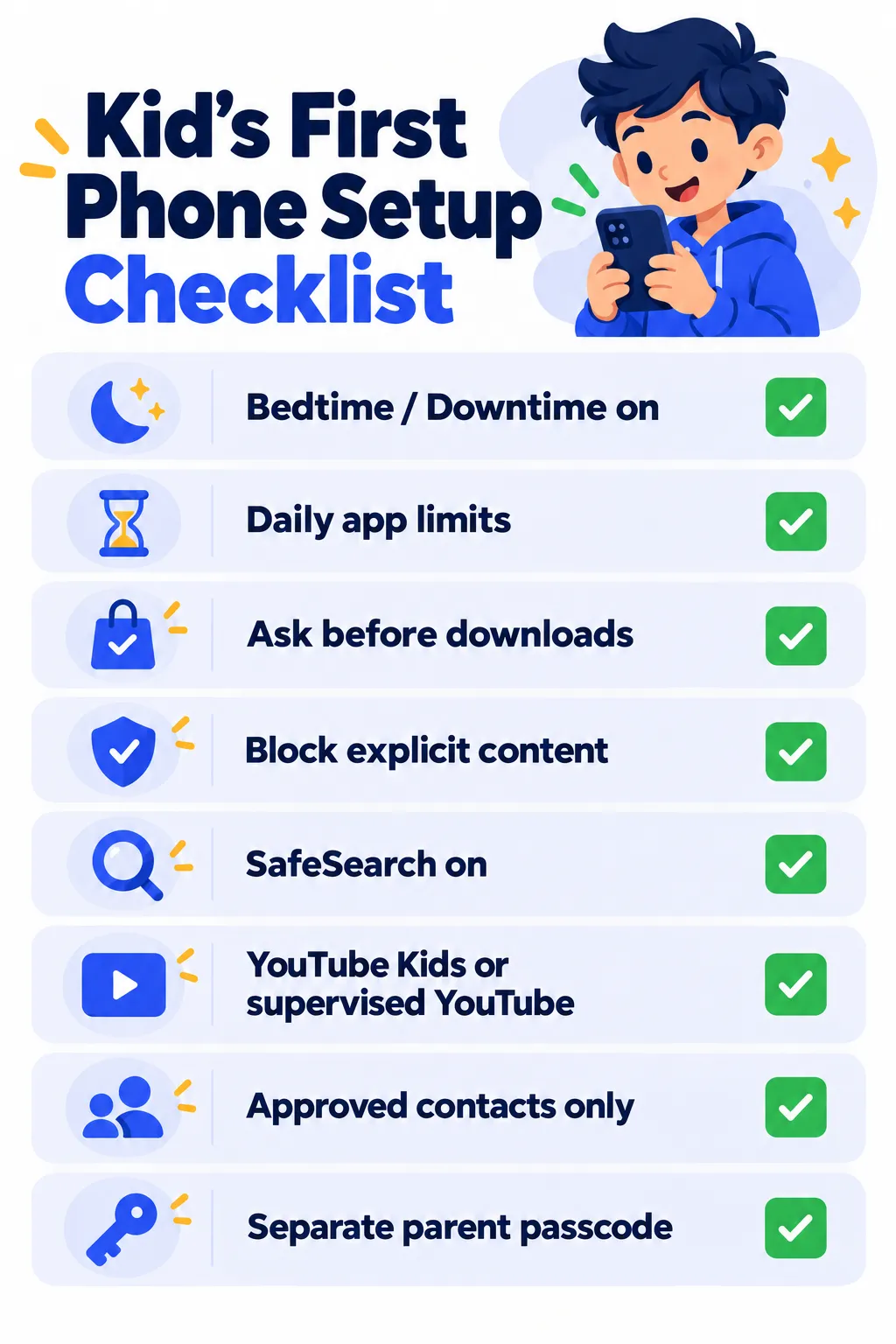
- Downtime: Blocks most apps during set hours, like bedtime or homework time.
- App Limits: Sets daily time limits for categories like games or social media.
- Communication Limits: Controls who your child can call or message.
- Content & Privacy Restrictions: Blocks explicit content, limits websites, sets age ratings for apps, movies and music, and prevents in-app purchases.
- Ask to Buy: Sends you a request every time your child wants to download or buy something.
Set a Screen Time passcode that’s different from your child’s device passcode, so they can’t change the settings.
Parental Controls on Android (Google Family Link)
Set up Family Link
- Install the Google Family Link app on your phone.
- Create a Google Account for your child, or link their existing account.
- On your child’s device, sign in with their account and follow the prompts to connect it to your Family Link.
On many Android phones, you can also start from Settings > Digital Wellbeing & parental controls (or search Settings for “parental controls”).
Key Family Link settings
- Screen time limits and bedtime: Set daily limits and a time when the device locks.
- App approvals: Approve or block apps your child wants from Google Play.
- Content filters: Set age ratings in Google Play and turn on SafeSearch in Google Search.
- App time limits: Limit specific apps, like games or video apps.
- Location: See where your child’s device is, if you choose to.
Don’t Forget These
- YouTube: Use the YouTube Kids app for younger children, or a supervised YouTube account for preteens.
- Games and consoles: Xbox, PlayStation and Nintendo Switch each have their own free parental control apps.
- Social media: Most major platforms require users to be at least 13 and offer teen accounts or family tools. Check each app’s settings together with your child.
- Your home Wi-Fi: Many routers include parental controls that filter content for every device in the house.
Note: Features and policies may vary by plan, region and app version, and can change at any time. Check the official help center for the latest information.
Tips That Matter More Than Settings
- Talk first. Explain why the rules exist. Kids accept limits better when they understand them.
- Keep devices out of bedrooms at night. Charging phones in the kitchen helps sleep a lot.
- Loosen rules as they grow. Teenagers need more independence, so review settings every few months.
- Teach scam awareness. Show them how to spot fake apps and messages. Our guide to spotting fake apps is a good starting point.
Frequently Asked Questions
What age should a child get a smartphone?
There’s no single right age. Many families start with a basic phone or tablet with strict controls, then add more freedom gradually.
Can my child turn off parental controls?
Not easily, if you use a separate parent passcode (iPhone) or Family Link (Android). Older, tech-savvy kids sometimes find workarounds, so keep talking with them.
Are parental control apps worth paying for?
For most families, the free built-in tools are enough. Paid apps add extras like detailed web reports or cross-platform controls.
Can I see my child’s messages?
Built-in tools focus on limits and content filters, not reading messages. Many experts recommend trust and open conversation over secret monitoring for older kids.
The Bottom Line
On iPhone, create a child account with Family Sharing and set up Screen Time. On Android, use Google Family Link. Turn on bedtime limits, content filters and download approvals, then review the rules as your child grows.
Related Guides
- Is It Safe to Share Personal Info With AI Chatbots?
- Is This App Safe? 8 Checks to Do Before You Download Any New App
- How to Stop Spam Calls on iPhone and Android (2026 Guide)
- Wi-Fi Connected But No Internet? 10 Fixes That Actually Work
Explore more in our Tech Tips for Beginners hub.
Disclaimer: This article is for general information only and is based on details available at the time of writing. Prices, plans, features, release dates, policies and availability can change at any time and may vary by country. Please verify the latest information on the official website of the company or product mentioned before making any decision or purchase. This is not medical, financial, legal or security advice; consult a qualified professional for your situation. Next DigiTech is an independent website and is not affiliated with or endorsed by the companies mentioned; all trademarks belong to their respective owners. We are not responsible for any loss or decisions made based on this content.