Few tech problems are more annoying: the Wi-Fi icon shows full bars, but pages won’t load and apps say you’re offline. Windows may say “No internet, secured,” and phones may show “Connected without internet.”
The cause is usually your router, your internet provider or a small setting on your device. Work through these fixes in order. Most people are back online by step 3.
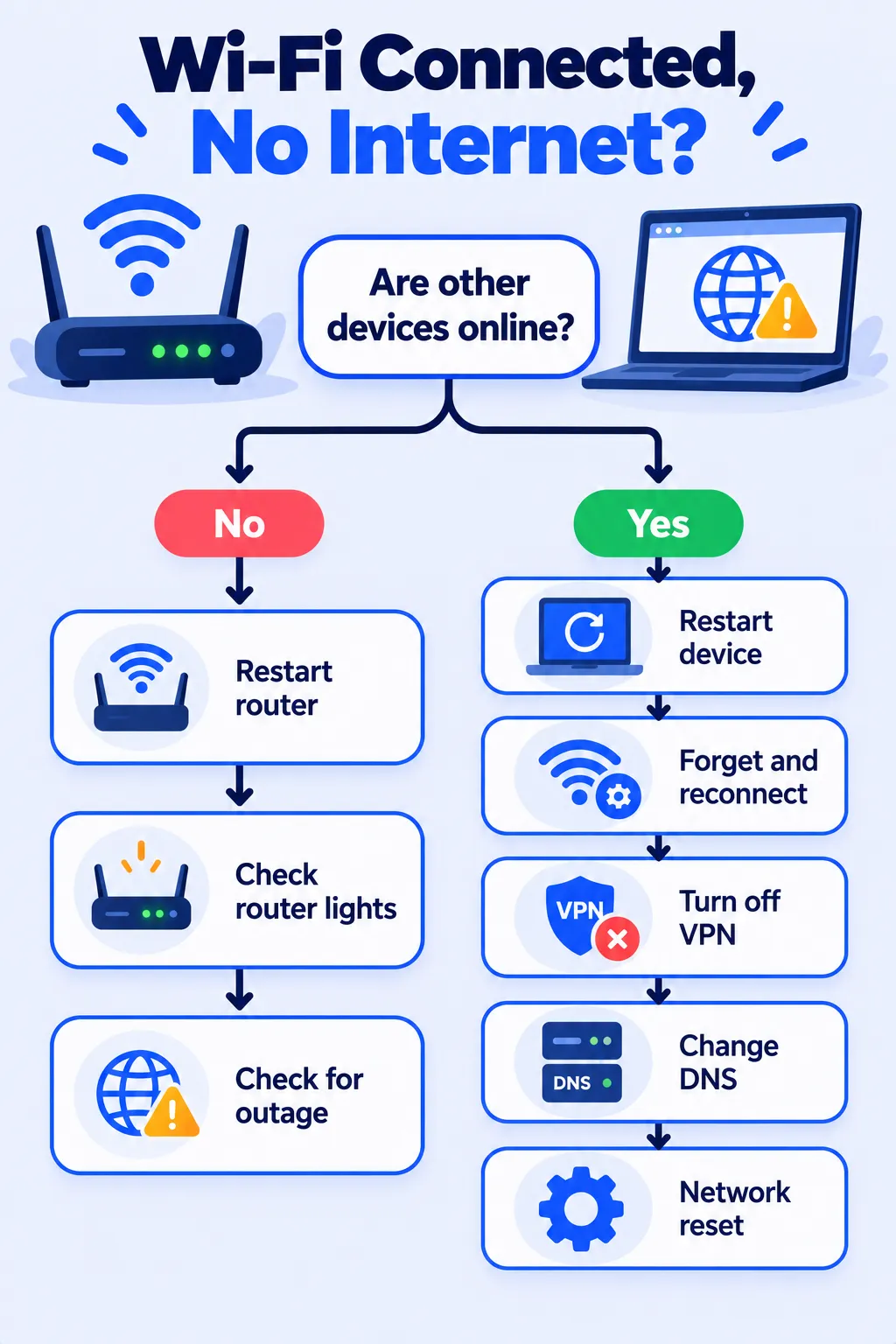
First: Is It Just One Device or All of Them?
Check another phone or laptop on the same Wi-Fi.
- All devices offline: The problem is your router or internet provider. Start with fixes 1 to 3.
- Only one device offline: The problem is that device. Skip to fixes 4 to 10.
1. Restart Your Router and Modem
Unplug the router (and modem, if separate) from power. Wait 30 seconds, plug the modem back in first, wait for its lights to settle, then plug in the router. This clears most temporary glitches.
2. Check the Router Lights
Look for an “Internet” or globe light. If it’s off, red or blinking orange, the router isn’t getting a connection from your provider. Check that the cable from the wall to the modem is firmly connected.
3. Check for an Outage
Use your phone’s mobile data to visit your internet provider’s website or app, which usually shows outages in your area. If there’s an outage, all you can do is wait or call your provider.
4. Restart Your Device
A simple restart refreshes the network connection. It’s basic, but it fixes a surprising number of problems.
5. Forget the Network and Reconnect
- iPhone: Settings > Wi-Fi > tap the (i) next to your network > Forget This Network.
- Android: Settings > Network & internet (or Connections) > Wi-Fi > your network > Forget.
- Windows: Settings > Network & internet > Wi-Fi > Manage known networks > Forget.
- Mac: System Settings > Wi-Fi > Details next to your network > Forget This Network.
Then reconnect and enter the password again.
6. Turn Off VPN or Proxy
A VPN that’s disconnected or misbehaving can block all traffic. Turn it off and test again. On Windows, also check Settings > Network & internet > Proxy and make sure no manual proxy is turned on unless you need one.
7. Renew Your IP Address and Clear DNS (Windows and Mac)
Windows: Search for Command Prompt, open it, and type these one at a time, pressing Enter after each:
ipconfig /releaseipconfig /renewipconfig /flushdns
Mac: Go to System Settings > Wi-Fi > Details next to your network > TCP/IP > Renew DHCP Lease.
8. Change Your DNS Server
DNS turns website names into addresses. If your provider’s DNS is having problems, pages won’t load even though you’re connected. Switching to a free public DNS often fixes it:
- Cloudflare: 1.1.1.1 and 1.0.0.1
- Google: 8.8.8.8 and 8.8.4.4
You’ll find DNS settings in your device’s Wi-Fi network details, or in your router settings to change it for every device at once.
9. Check the Date and Time
If your device’s date or time is wrong, secure websites can fail to load. Turn on automatic date and time in your settings.
10. Reset Network Settings
This is the last step before calling for help. It removes saved Wi-Fi networks and passwords, so have yours ready.
- Windows: Settings > Network & internet > Advanced network settings > Network reset.
- iPhone: Settings > General > Transfer or Reset iPhone > Reset > Reset Network Settings.
- Android: Settings > System (or General management) > Reset options > Reset Wi-Fi, mobile and Bluetooth.
On Hotel, Airport or Cafe Wi-Fi?
Public Wi-Fi often needs you to accept terms on a login page first. If that page doesn’t pop up, open your browser and visit any simple website (one that starts with http:// rather than https://) to trigger it.
Frequently Asked Questions
Why does my laptop say “No internet, secured”?
It means your laptop is connected to the router, but the router isn’t reaching the internet, or your laptop’s network settings are stuck. Start with a router restart, then try the IP renew and DNS steps.
Why does only one device have no internet?
Usually because of a saved network glitch, VPN, wrong DNS or old network drivers on that device. Forgetting the network and renewing the IP fixes most cases.
Should I reset my router to factory settings?
Only as a last resort. A factory reset erases your Wi-Fi name, password and settings, so you’ll need to set everything up again.
When should I call my internet provider?
If all devices are offline after a router restart and the router’s internet light isn’t normal, contact your provider. The problem is likely on their side.
The Bottom Line
Restart your router, check for an outage, then work through the device fixes. Nine times out of ten, a restart, forgetting the network or a DNS change gets you back online. If your laptop feels slow even when the internet works, our guide on speeding up a slow laptop can help.
Related Guides
- How to Clear Cache on iPhone, Android, Chrome and Safari
- 10 Simple Phone Settings That Quietly Save Battery
- iPhone Storage Full After iOS 27? 10 Easy Fixes That Actually Work
- Google Storage Full? How to Free Up Space in Gmail, Drive and Photos
Explore more in our Tech Tips for Beginners hub.
Disclaimer: This article is for general information only and is based on details available at the time of writing. Prices, plans, features, release dates, policies and availability can change at any time and may vary by country. Please verify the latest information on the official website of the company or product mentioned before making any decision or purchase. Next DigiTech is an independent website and is not affiliated with or endorsed by the companies mentioned; all trademarks belong to their respective owners. We are not responsible for any loss or decisions made based on this content.