

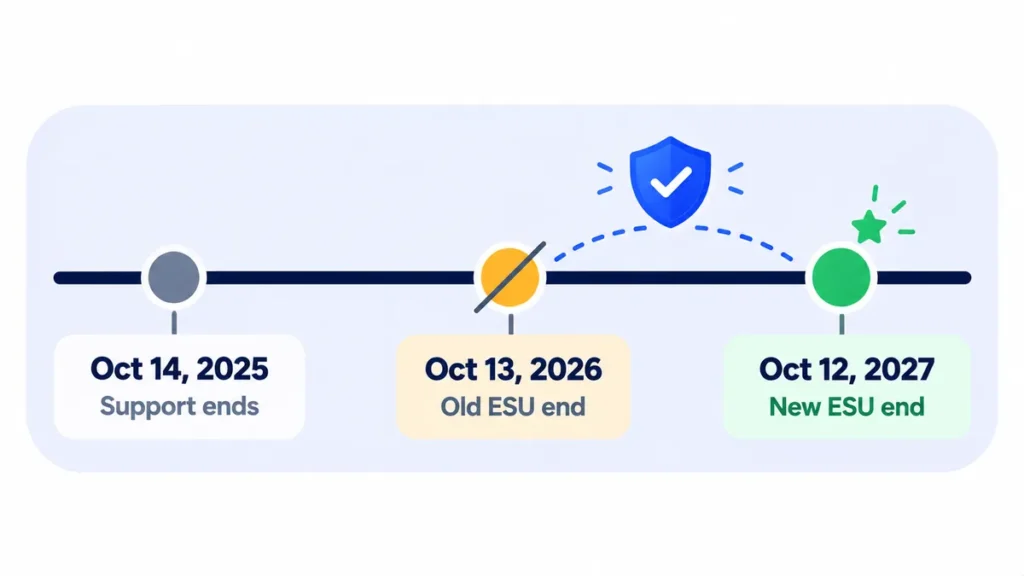
Microsoft has extended free Windows 10 Extended Security Updates (ESU) for home users to October 12, 2027 (Help Net Security). But many people open Windows Update, look for the Enroll now link, and find nothing there.
If that’s you, one of a handful of things is usually blocking it. Work through the checks below in order. For the full background on the extension, see Windows 10 security updates now run until October 2027.
Where the Enroll Option Should Appear
On an eligible PC, open Settings > Update & Security > Windows Update. You should see a message about Windows 10 support with an Enroll now link. If it’s missing, run through these checks.
1. Make Sure You’re on Windows 10 Version 22H2
ESU only works on version 22H2. Press Windows key + R, type winver and press Enter. If you see an older version, such as 21H2, install the 22H2 update from Windows Update first.
2. Install Every Pending Update
The enrollment option arrives through Windows Update, so a PC that’s behind may not show it. Click Check for updates, install everything (including optional updates if offered), restart, and check again. You may need to repeat this a couple of times.
3. Sign In With a Microsoft Account
Enrollment needs a Microsoft account. If you sign in to Windows with a local account, go to Settings > Accounts > Your info and choose Sign in with a Microsoft account instead.
4. Use an Administrator Account (Not a Child Account)
Under Settings > Accounts > Your info, your account should say Administrator. Standard accounts and child accounts in a Microsoft family group can’t enroll, so sign in with the main adult account on the PC.
5. Check Whether the PC Is Managed by Work or School
The free consumer program is for personal PCs. Go to Settings > Accounts > Access work or school. If the PC is connected to an organization or joined to a company domain, it won’t get the consumer offer. Ask your IT team about the separate business ESU program.
6. Check Your Windows Edition
The consumer program covers Windows 10 Home, Pro, Pro Education and Workstation. Enterprise and Education editions are licensed through organizations and use a different route. You can see your edition under Settings > System > About.
7. Give It a Little Time
Microsoft rolls features out gradually. If everything above checks out, restart the PC, leave it connected to the internet, and check again over the next few days.
HINWEIS: Veröffentlichungsdaten und Rollout-Timing können sich ändern. Bitte bestätigen Sie die neuesten Details auf der offiziellen Website oder in der Hilfe.
If Enrollment Starts but Fails
- Check your internet connection and restart the PC.
- Sign out of your Microsoft account in Windows, then sign back in.
- Try a different enrollment method. You can back up your PC settings with Windows Backup, redeem 1,000 Microsoft Rewards points, or make a one-time $30 payment.
- If the Windows Backup option fails, check that you’re signed in to OneDrive and that it isn’t full.
How to Confirm You’re Enrolled
Once enrollment works, the Windows Update page shows a message confirming your PC is enrolled in Extended Security Updates. From then on, security updates arrive through Windows Update as usual.
Häufig gestellte Fragen
I enrolled last year. Do I need to enroll again for 2027?
Nein. Microsoft sagt, dass die bestehenden Anmeldungen bis zum 12. Oktober 2027 automatisch fortgesetzt werden.
My PC can’t run Windows 11. Can I still enroll?
Yes. ESU is designed for exactly that situation. It keeps your PC protected while you plan what to do next. Here’s how to check whether your PC can run Windows 11.
Is ESU free in Europe?
In the European Economic Area, home users can get ESU at no cost by signing in to Windows 10 with a Microsoft account.
Das Endergebnis
If Enroll now is missing, the cause is almost always one of these: the PC isn’t on version 22H2, updates are pending, you’re using a local or non-admin account, or the PC is managed by work. Fix those, restart, and the option should appear.
Verwandte Anleitungen
- Windows 10-Sicherheitsupdates laufen jetzt bis Oktober 2027: Was Sie wissen müssen
- Kann Ihr PC Windows 11 ausführen? So überprüfen Sie die Anforderungen und was zu tun ist, wenn dies nicht möglich ist
- So sichern Sie einen Windows 11-PC und stellen ihn auf einem neuen Computer wieder her
- Sollten Sie sofort aktualisieren? Eine einfache Anleitung zu neuen Software-Releases
Erfahren Sie mehr in unserem Hub Software-Updates erklärt.
Disclaimer: Dieser Artikel dient nur der allgemeinen Information und basiert auf den zum Zeitpunkt des Schreibens verfügbaren Details. Preise, Pläne, Funktionen, Veröffentlichungsdaten, Richtlinien und Verfügbarkeit können sich jederzeit ändern und je nach Land variieren. Bitte überprüfen Sie die neuesten Informationen auf der offiziellen Website des Unternehmens oder des genannten Produkts, bevor Sie eine Entscheidung oder einen Kauf treffen. Dies ist keine medizinische, finanzielle, rechtliche oder Sicherheitsberatung; Konsultieren Sie einen qualifizierten Fachmann für Ihre Situation. Next Digitech ist eine unabhängige Website und ist nicht mit den genannten Unternehmen verbunden oder von diesen gebilligt; Alle Warenzeichen gehören ihren jeweiligen Inhabern. Wir sind nicht verantwortlich für Verluste oder Entscheidungen aufgrund dieser Inhalte.

