
A new iPhone is exciting, especially as a holiday gift. Setting it up properly takes about 30 minutes and saves you headaches later: your photos, messages and apps come across, your phone number moves over and your security settings are right from day one. Here is the complete step-by-step guide, whether you are moving from an old iPhone, an Android phone or starting fresh.
Quick answer: Back up your old phone, then turn on the new iPhone and follow the Hello screen. Place your old iPhone next to it to use Quick Start, or choose to set up manually. Activate your eSIM, set up Face ID and a passcode, transfer your data, sign in with your Apple Account and turn on automatic updates.
Before you start: back up your old phone
- Old iPhone: make a fresh iCloud or computer backup. See how to back up your iPhone.
- Android phone: back up photos and contacts to your Google account, and back up WhatsApp separately.
- Charge both phones and connect to Wi-Fi.
- Keep your Apple Account password and carrier details handy.
Step 1: Turn on your iPhone
Press and hold the side button until the Apple logo appears. On the Hello screen, swipe up, then choose your language, country or region and text and icon size (default, medium or large).
Step 2: Use Quick Start or set up manually
- Quick Start (from another iPhone): place your old iPhone next to the new one with Wi-Fi and Bluetooth on. Tap Continue on the old phone, then scan the animation on the new iPhone with the old one’s camera and enter your old passcode.
- Set Up Without Another Device: choose this if you are coming from Android, setting up as new or do not have your old iPhone.
Step 3: Activate your phone number (eSIM)
Recent iPhones in the US use eSIM only, so there is no SIM card to insert. During setup, you can usually transfer your number from your old iPhone, or follow your carrier’s instructions to activate a new eSIM. If your old phone uses a physical SIM, your carrier can convert it. Outside the US, many iPhones still have a SIM tray, so insert your SIM before you start.
Step 4: Set up Face ID and a passcode
Follow the prompts to scan your face and create a six-digit passcode. Use a code that is hard to guess, as it protects everything on your phone.
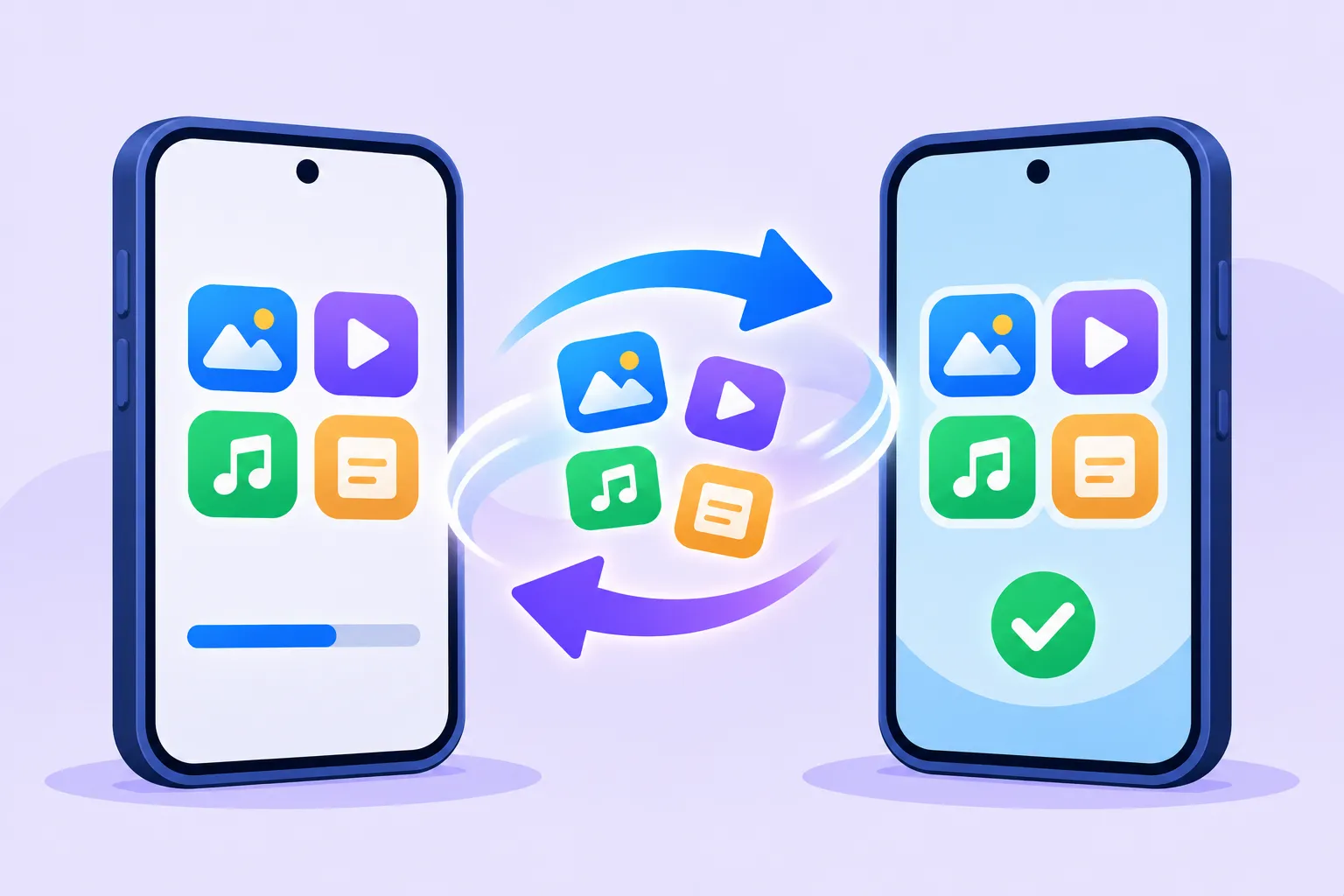
Step 5: Transfer your data and apps
| Coming from | Best method |
|---|---|
| Old iPhone nearby | Quick Start, transfer directly from iPhone |
| Old iPhone not available | Restore from iCloud backup |
| Backup on a computer | Restore from Mac or PC |
| Android phone | Move to iOS app during setup |
| Starting fresh | Don’t Transfer Anything |
Keep both phones close and plugged in until the transfer finishes. Apple’s official setup guide covers each option.
Step 6: Sign in and finish setup
- Sign in with your Apple Account.
- Choose whether to turn on automatic updates (recommended).
- Set up Apple Pay, Siri and Screen Time, or skip them for later.
- If the iPhone is for a child, choose Set up for a child to use Family Sharing controls.
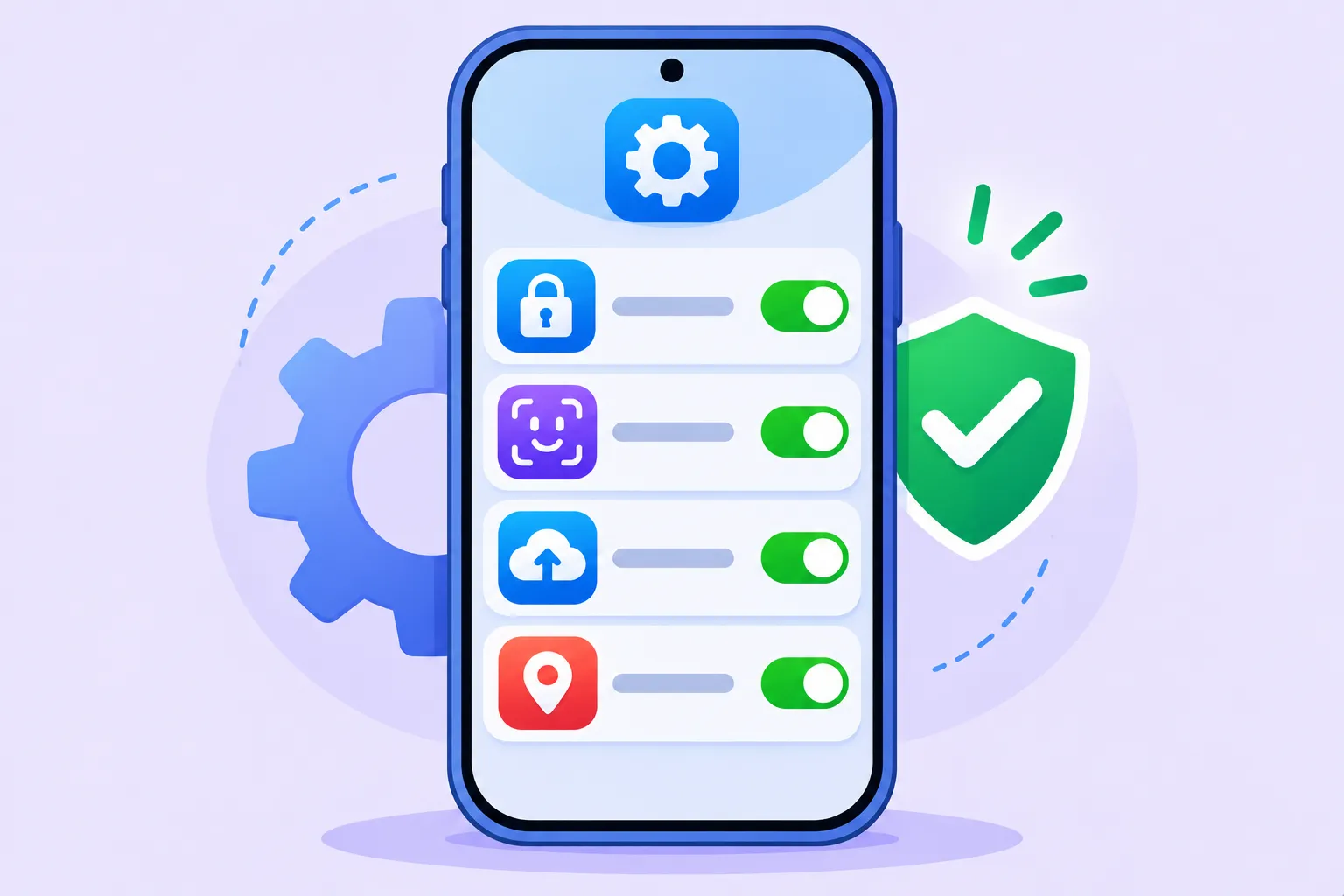
First settings to check after setup
- Find My: make sure it is on in Settings > [your name] > Find My.
- Stolen Device Protection: turn it on in Settings > Face ID & Passcode.
- iCloud Backup: turn it on so your new phone backs up daily.
- Emergency SOS and Medical ID: see how to set them up.
- Apple Account security: confirm two-factor authentication and your recovery contact.
What to do with your old phone
Once everything is on your new iPhone, wipe the old one before selling, trading in or giving it away. Follow our guide to factory resetting a phone before selling. Setting up a phone for a parent? See setting up a phone for a parent or grandparent.
The bottom line
Back up first, use Quick Start if you have your old iPhone, activate your eSIM, set up Face ID and transfer your data. Then turn on Find My, Stolen Device Protection and iCloud Backup, and your new iPhone is ready and secure.
Frequently asked questions
How do I transfer everything from my old iPhone to my new iPhone?
Use Quick Start: place the phones side by side, follow the prompts and choose Transfer from iPhone. You can also restore from an iCloud or computer backup.
What is the first thing to do when you get a new iPhone?
Back up your old phone, charge both devices and connect to Wi-Fi before you start setup.
Do I put the SIM card in first?
US iPhones use eSIM, so you activate your number during setup. On models with a SIM tray, insert the SIM before you turn the iPhone on.
Can I set up a new iPhone without my old phone?
Yes. Choose Set Up Without Another Device and restore from your iCloud backup or start fresh.

