
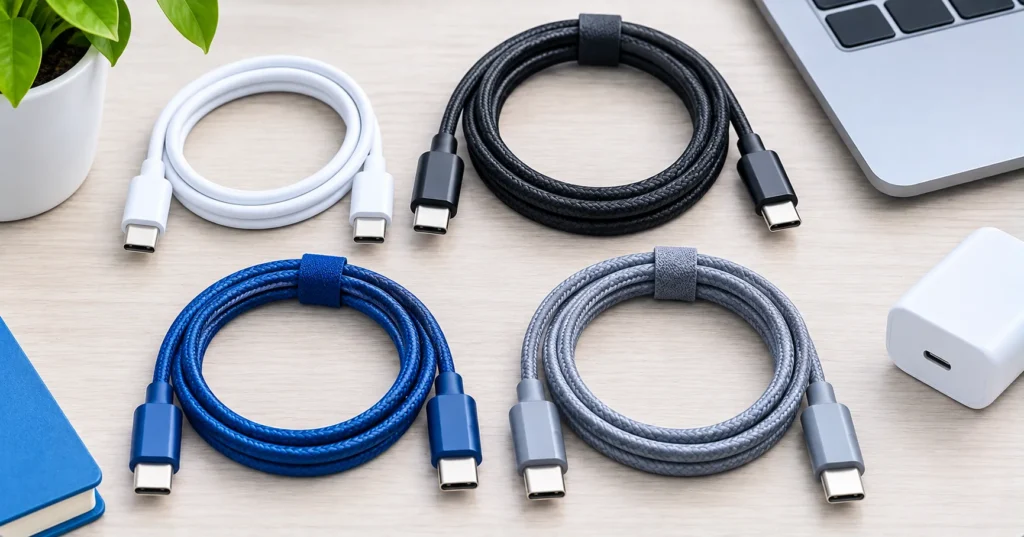
USB-C has made life easier: one plug shape for phones, laptops, tablets and earbuds. But USB-C describes only the shape of the plug, not what the cable can do. Two cables that look exactly the same can differ hugely in charging power, transfer speed and whether they can connect a monitor. Here is how to tell them apart.
Quick answer: Check three things on the packaging: charging power (60W or 240W), data speed (from USB 2.0 at 480 Mbps up to USB4 or Thunderbolt at 40 Gbps or more) and video support. For phones, almost any certified cable works. For laptops, get a 100W or 240W cable. For monitors and fast SSDs, get a USB4 or Thunderbolt cable.
Note: always check the cable’s packaging or listing for its rated specs.
1. Charging power
- 60W cables: fine for phones, tablets, earbuds and small laptops.
- 100W or 240W cables: needed for larger laptops that use high-power chargers. These cables contain a small chip (called an e-marker) that tells the charger they can handle more power.
Using a 60W cable with a 140W laptop charger will still work, but your laptop will charge more slowly.
2. Data speed
| Standard | Maximum speed | Good for |
|---|---|---|
| USB 2.0 | 480 Mbps | Charging, keyboards, basic phone transfers |
| USB 3.2 Gen 1 | 5 Gbps | Flash drives, everyday file copies |
| USB 3.2 Gen 2 | 10 Gbps | External SSDs |
| USB4 / Thunderbolt 4 | 40 Gbps | Fast SSDs, docks, monitors |
| USB4 Version 2 / Thunderbolt 5 | 80 Gbps | High-end docks and displays |
Many cheap or bundled cables are USB 2.0 only, even if they charge quickly. That is why copying photos from a phone can feel slow.
3. Video support
To connect a monitor, both your device’s port and the cable must support video (often called DisplayPort Alt Mode). USB4 and Thunderbolt cables support video. Many charging-only cables do not.

Which cable do you need?
| Use | Recommended cable |
|---|---|
| Charging a phone or earbuds | Any certified 60W USB-C cable |
| Charging a laptop | 100W or 240W cable that matches your charger |
| External SSD | 10 Gbps or faster |
| Monitor or dock | USB4 or Thunderbolt cable |
| Travel all-rounder | 240W USB4 cable, if your budget allows |
How to buy the right cable
- Match the wattage to your device’s charger.
- Look for a stated data speed if you transfer files.
- Check video support on both the cable and the port for monitors.
- Look for USB-IF certification logos, which show power and speed. Learn more at USB-IF.
- Avoid unbranded, ultra-cheap cables, which can be unreliable.
Tips
- Label your cables with coloured tape or tags so you know which is the fast one.
- Shorter cables often perform better at high speeds.
- Use rear ports on desktop PCs for fast devices, since front ports are often slower.
- For battery care tips, read our guide to phone charging myths.
The bottom line
Do not judge a USB-C cable by its plug. Check its charging power, data speed and video support, and buy certified cables from trusted brands. One good USB4 cable can replace a drawer full of mystery cables.
Frequently asked questions
Are all USB-C cables the same?
No. They can differ in charging power, data speed and video support, even if they look identical.
Can I charge my laptop with my phone’s USB-C cable?
Often yes, but it may charge slowly if the cable is rated only for 60W and your laptop charger is more powerful.
Why is my phone file transfer so slow?
Many phone cables only support USB 2.0 speeds. Use a faster cable and port for large transfers.
Is Thunderbolt the same as USB-C?
Thunderbolt uses the USB-C plug, but Thunderbolt cables and ports support higher speeds and more features than basic USB-C.

