
Your phone can do far more in an emergency than make a normal call. Both iPhone and Android can call emergency services with a quick button press, alert your emergency contacts with your location and show vital medical details on the lock screen, so first responders can help even if you cannot speak. It takes about five minutes to set up, and it is worth doing today, for yourself and for older relatives.
Quick answer: On iPhone, open Settings > Emergency SOS and the Health app > Medical ID, then turn on Show When Locked. On Android, open Settings > Safety & emergency to set up Emergency SOS, emergency contacts and medical information. Add at least two emergency contacts.
Note: menu names vary by phone and software version. Emergency calling availability depends on your region and carrier.
How to set up Emergency SOS on iPhone
- Open Settings > Emergency SOS.
- Turn on Call with Hold and Release (press and hold the side button and a volume button).
- Optionally turn on Call with 5 Button Presses (press the side button five times quickly).
- Check that Crash Detection is on, if your iPhone supports it.
How to set up Medical ID on iPhone
- Open the Health app and tap your profile picture.
- Tap Medical ID, then Edit (or Get Started).
- Add allergies, medications, conditions, blood type and emergency contacts.
- Turn on Show When Locked and Share During Emergency Call.
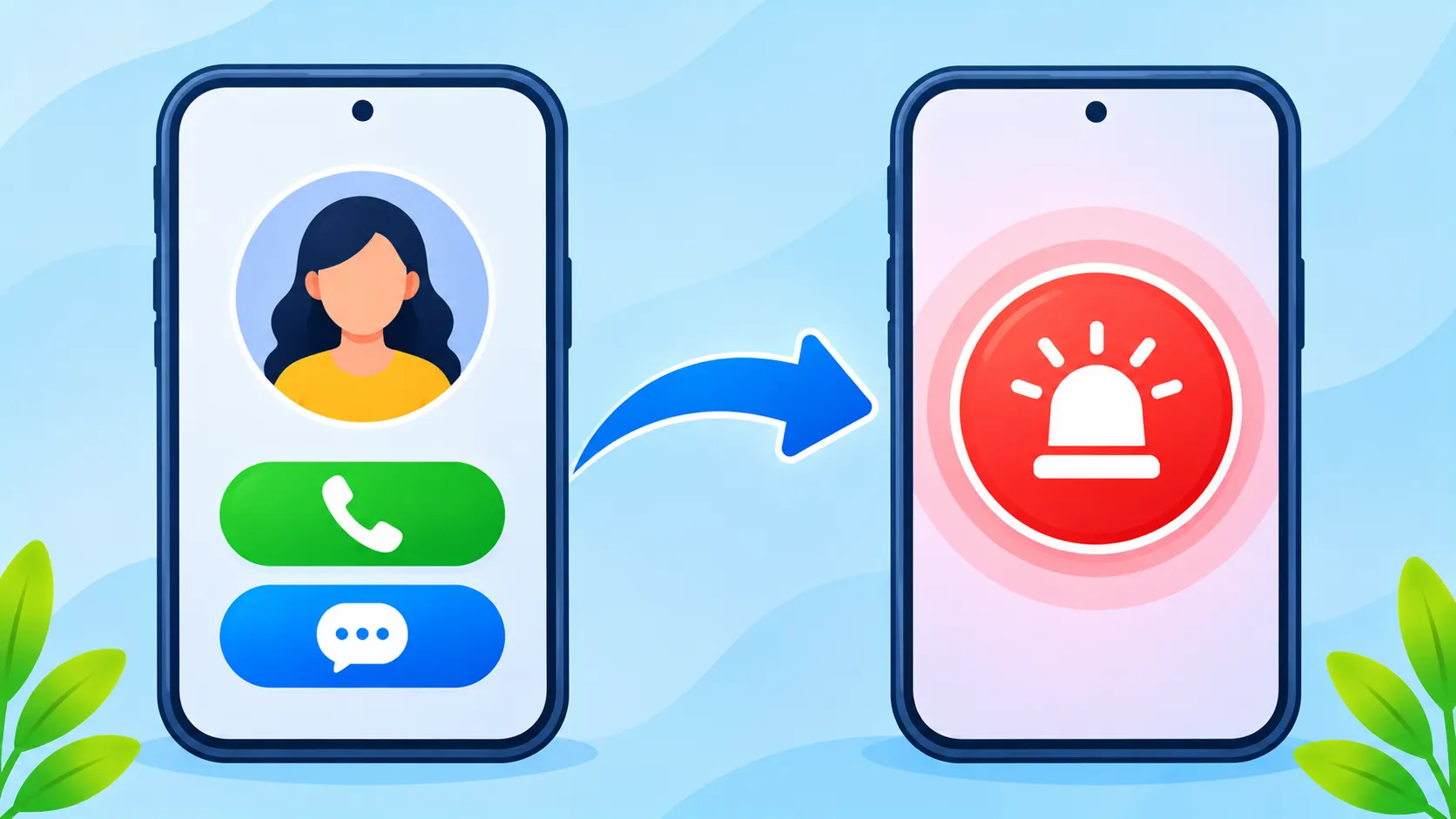
How to set up Emergency SOS on Android
- Open Settings > Safety & emergency (on Pixel, this may be the Personal Safety app).
- Tap Emergency SOS and turn it on. On most phones, you press the power button five or more times quickly.
- Choose whether to share your location and start recording video automatically.
- Tap Emergency contacts and add people.
- Tap Medical information and add your details, then allow them to show on the lock screen.
On Samsung phones, look for Settings > Safety and emergency. Google’s help page on getting help during an emergency covers the latest steps.
What to include in your medical info
| Include | Why it helps |
|---|---|
| Allergies | Prevents dangerous treatments |
| Medications | Avoids harmful drug interactions |
| Medical conditions | Diabetes, epilepsy or heart issues change care quickly |
| Blood type | Useful in serious emergencies |
| Emergency contacts | Lets responders reach family fast |
Safety and privacy tips
- Only add what you are comfortable showing on a locked screen, since anyone holding your phone can see it.
- Keep contacts up to date, especially after moving or changing numbers.
- Test carefully. Triggering SOS may place a real emergency call. If you call by mistake, stay on the line and explain.
- Set it up for older relatives, who may benefit most from these features.
For theft scenarios, read our guide to Android Theft Protection.
The bottom line
Emergency SOS and Medical ID take five minutes to set up and can make a huge difference when every second counts. Turn them on, add your contacts and medical details, and help your family do the same.
Frequently asked questions
How do I call emergency services quickly on iPhone?
Press and hold the side button and a volume button, or press the side button five times if you turned that option on.
Can paramedics see my Medical ID if my phone is locked?
Yes, if you turned on Show When Locked. They can tap Emergency on the lock screen and then Medical ID.
Does Emergency SOS share my location?
Yes. iPhone and Android can send your location to emergency contacts after an SOS call, if you set it up.
Does it work without a SIM card?
Emergency calls may work without a SIM in many countries, but it depends on your region and network.

