Staring at a blank email is a waste of time. Whether it’s a polite follow-up, a complaint to a company or a note to your child’s teacher, AI can write a solid first draft in seconds. If you use Gmail, the tool is already built in.
Here’s how to use AI to write emails in Gmail, plus a free method that works with any email app.
Method 1: “Help Me Write” in Gmail
Who can use it
- Personal Gmail accounts in the US: Help me write is free.
- Google AI plan subscribers (AI Plus, Pro or Ultra): available in many countries and languages.
- Work or school accounts: available if your Google Workspace admin has turned it on.
Outside the US on a free account? Skip to Method 2, which works everywhere.
Note: Features and policies may vary by plan, region and app version, and can change at any time. Check the official help center for the latest information.
How to draft a new email (computer)
- Open Gmail and click Compose.
- Click the Help me write button (a pen with a sparkle).
- Type a short instruction, for example: “Ask my landlord to fix the leaking kitchen faucet this week, polite but firm.”
- Click Create. Gmail writes a full draft.
- Read it, edit any details, and click Send when you’re happy.
How to use it on your phone
In the Gmail app on Android or iPhone, tap Compose, then tap Help me write at the top and enter your prompt.
Improve an email you’ve already written
Write your rough draft, click Help me write, and choose an option:
- Polish: Cleans up grammar and wording.
- Formalize: Makes it sound more professional.
- Elaborate: Adds more detail.
- Shorten: Trims it down.
Suggested Replies and thread summaries
Gmail can also suggest full replies that match your usual tone, and show a short AI summary at the top of long email threads. Both are free for personal US accounts and are handy when you’re catching up on a busy inbox.
Method 2: Use Any Free AI Chatbot (Works Everywhere)
If Help me write isn’t available to you, or you use Outlook, Yahoo or Apple Mail, use a free AI assistant like ChatGPT, Gemini or Claude:
- Open the AI chat and describe the email: who it’s for, what you need and the tone.
- Paste the email you’re replying to, if there is one (remove any private details first).
- Ask for changes: “Make it shorter,” “Sound friendlier,” or “Add a clear deadline.”
- Copy the final version into your email app.
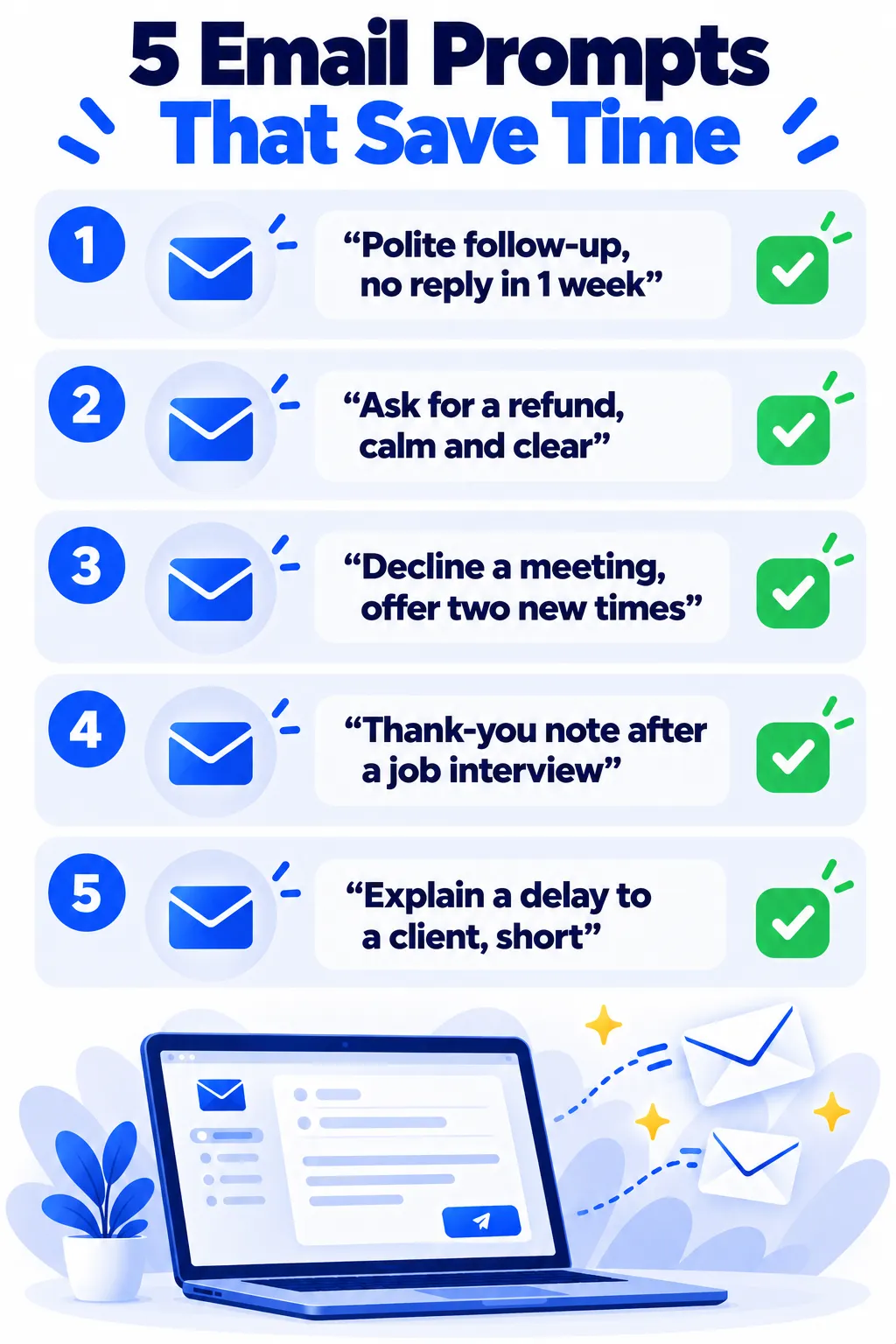
Prompts That Work Well
- “Write a polite follow-up to a recruiter. I applied two weeks ago and haven’t heard back. Keep it under 100 words.”
- “Write a firm but calm email asking for a refund for a damaged order. Order number: [number].”
- “Decline this meeting invitation and suggest two other times next week.”
- “Rewrite my email so it sounds more confident but still friendly.”
The more context you give, the better the draft. Our guide on how to write better AI prompts has more tips.
Tips for Better AI-Written Emails
- Always read before sending. AI can get names, dates or details wrong.
- Add a personal touch. One sentence in your own words makes the email feel human.
- Keep it short. Ask for “under 120 words” so the reader actually reads it.
- Protect private information. Don’t paste passwords, ID numbers or sensitive files into AI tools. See is it safe to share personal info with AI chatbots.
Frequently Asked Questions
Is Help me write in Gmail free?
Yes, for personal Gmail accounts in the US. In other countries, it’s included with paid Google AI plans or eligible Google Workspace plans.
Why don’t I see the Help me write button?
It may not be available for your account type, country or language yet, or your work admin may have turned it off. Update the Gmail app and check again, or use Method 2.
Does Gmail’s AI read my other emails?
When you use Help me write, it can use details from your emails and Google Drive files to personalize the draft. Google says this information is only used to improve your draft when you use the feature.
Note: These details come from the company’s own announcements and have not been independently verified by Next DigiTech.
Can people tell an email was written by AI?
Sometimes, if it sounds generic. Editing the draft and adding a personal line makes it sound like you.
The Bottom Line
In Gmail, click Help me write, describe what you need, and edit the draft before sending. If it’s not available to you, any free AI chatbot does the same job in seconds. Either way, you’ll spend less time on email and more on everything else.
Related Guides
- How to Use Gmail Filters to Automate Your Inbox (With 7 Ready Examples)
- How to Use ChatGPT to Write Your Resume and Cover Letter (With Prompts)
- How to Use AI to Write Excel and Google Sheets Formulas
- How to Use AI to Summarize Long Documents (Without Missing Key Details)
Explore more in our AI Productivity Tools hub.
Disclaimer: This article is for general information only and is based on details available at the time of writing. Prices, plans, features, release dates, policies and availability can change at any time and may vary by country. Please verify the latest information on the official website of the company or product mentioned before making any decision or purchase. Next DigiTech is an independent website and is not affiliated with or endorsed by the companies mentioned; all trademarks belong to their respective owners. We are not responsible for any loss or decisions made based on this content.