Your iPhone is full of photos, and you want them safely on your Windows PC. Apple doesn’t make this as obvious as it does on a Mac, but it’s easy once you know the options.
Here are three reliable ways to transfer photos from iPhone to PC, plus how to deal with HEIC files that won’t open.
Before You Start: Choose the Right Photo Format
iPhones save photos as HEIC files by default to save space. Some older Windows apps can’t open them. To get JPG files automatically when you transfer by cable:
On your iPhone, go to Settings > Apps > Photos, scroll to Transfer to Mac or PC, and choose Automatic. Your iPhone will convert photos to a compatible format during the transfer.
Method 1: USB Cable With the Windows Photos App (Best for Large Transfers)
- Connect your iPhone to your PC with a USB cable.
- Unlock your iPhone. If you see Trust This Computer?, tap Trust and enter your passcode.
- On your PC, open the Photos app.
- Click Import (top right) and choose your iPhone.
- Select the photos you want, or all new items, choose a destination folder, and click Add or Import.
If your PC doesn’t see your iPhone: Install Apple’s free Apple Devices app from the Microsoft Store, which includes the drivers Windows needs, then reconnect. Also try a different cable or USB port.
Method 2: USB Cable With File Explorer (Quick and Simple)
- Connect and unlock your iPhone, and tap Trust if asked.
- Open File Explorer and click Apple iPhone under This PC.
- Open Internal Storage > DCIM. Your photos are in folders inside.
- Copy the folders or photos and paste them into a folder on your PC.
This works well for grabbing a few recent folders, though large libraries can be slow to browse.
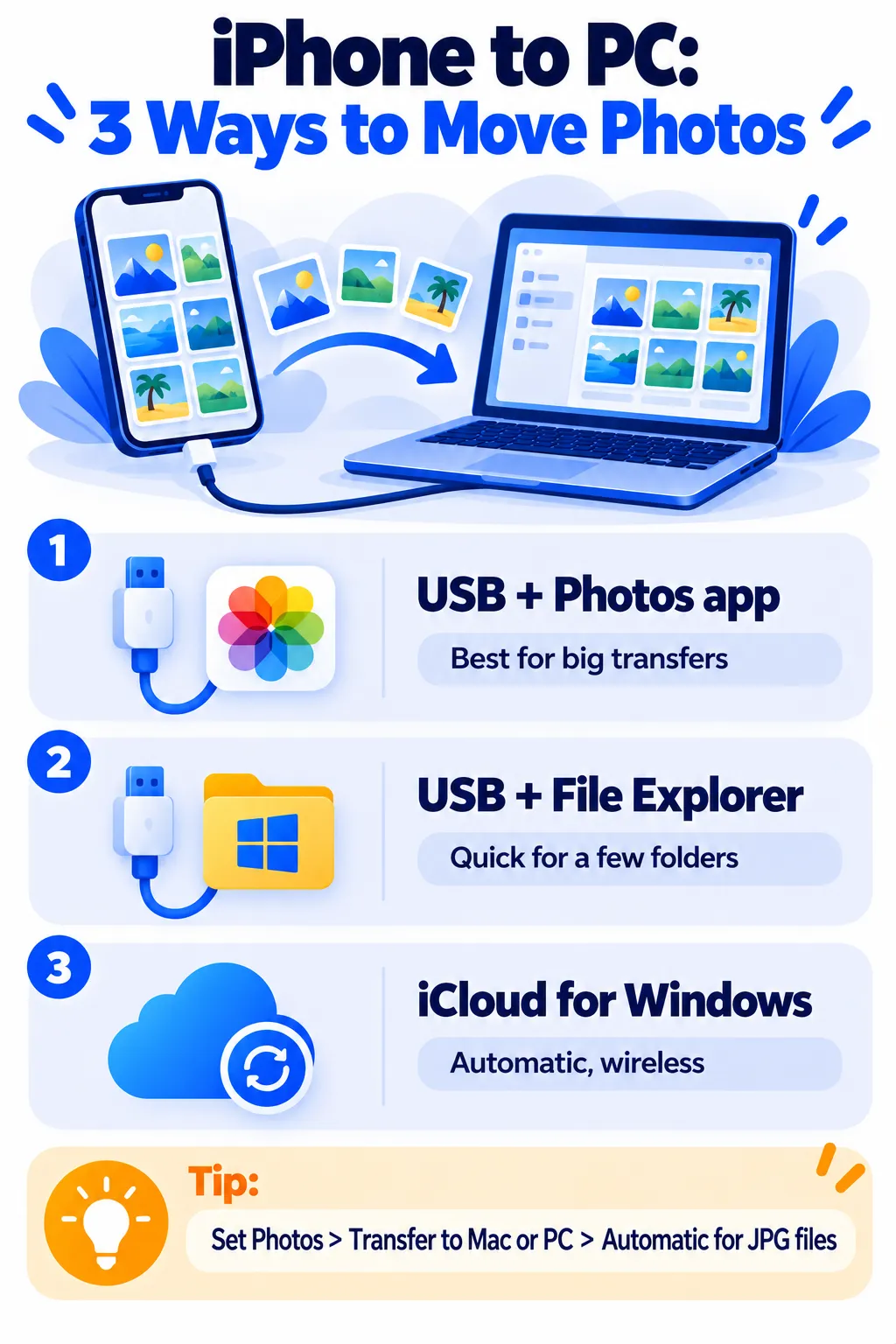
Method 3: iCloud for Windows (Wireless and Automatic)
If you use iCloud Photos, your photos can sync to your PC automatically without a cable.
- On your iPhone, make sure iCloud Photos is on: Settings > [your name] > iCloud > Photos.
- On your PC, install iCloud for Windows from the Microsoft Store and sign in with your Apple Account.
- Turn on Photos in iCloud for Windows.
- Your iCloud photos appear in File Explorer and in the Windows Photos app.
Note: Apple gives 5 GB of free iCloud storage, which fills up fast with photos. For large libraries, the USB methods above are free and faster.
Note: Prices are based on official announcements at the time of writing and may vary by country, retailer, taxes and promotions. Always check the latest pricing on the official website before buying.
Other Quick Options
- A few photos: Email them to yourself, or upload them to a cloud service like Google Photos, OneDrive or Dropbox and download them on your PC.
- Single file: Use the share button and save to OneDrive if you have the app.
How to Open HEIC Files on Windows
If you already have HEIC files that won’t open:
- Install Microsoft’s HEIF Image Extensions from the Microsoft Store, which lets the Photos app open them.
- Or set Transfer to Mac or PC to Automatic on your iPhone (see above) and transfer again.
After the Transfer: Free Up iPhone Space
Once your photos are safely on your PC (and ideally backed up to an external drive too), you can delete them from your iPhone to free up space. Remember to empty Recently Deleted in the Photos app. For more space-saving tips, see iPhone storage full? 10 easy fixes.
Frequently Asked Questions
Why can’t my PC see my iPhone?
Make sure the iPhone is unlocked and you tapped Trust. Install the Apple Devices app for drivers, and try another cable or USB port.
Do I need iTunes to transfer photos?
No. On Windows 10 and 11, the Photos app or File Explorer is enough. The Apple Devices app supplies drivers if needed.
Will transferring delete photos from my iPhone?
No. Importing copies the photos. They stay on your iPhone until you delete them.
Why are some photos missing from the import?
If iCloud Photos uses “Optimize iPhone Storage,” full-size originals may be in iCloud, not on the phone. Use iCloud for Windows or download them on the iPhone first.
The Bottom Line
For big transfers, plug in your iPhone and use the Windows Photos app. For automatic syncing, use iCloud for Windows. And set your iPhone to transfer photos in a compatible format so they open everywhere. If your Google storage is also filling up, see how to free up Google storage.
Related Guides
- How to Back Up Your iPhone (iCloud and Computer Methods)
- How to Transfer Everything to a New Phone (iPhone and Android)
- How to Screen Record on iPhone, Android, Windows and Mac
- How to Take a Screenshot on Any Device (Windows, Mac, iPhone, Android)
Explore more in our Tech Tips for Beginners hub.
Disclaimer: This article is for general information only and is based on details available at the time of writing. Prices, plans, features, release dates, policies and availability can change at any time and may vary by country. Please verify the latest information on the official website of the company or product mentioned before making any decision or purchase. Next DigiTech is an independent website and is not affiliated with or endorsed by the companies mentioned; all trademarks belong to their respective owners. We are not responsible for any loss or decisions made based on this content.