
With Windows 10 now past its normal end of support, many people are asking the same question: can my current PC run Windows 11? The answer depends on a short list of hardware requirements, and a surprising number of “old” PCs fail on just one setting that can sometimes be switched on. This guide explains Microsoft’s published requirements in plain English, shows how to check your PC in a few minutes, and lays out your options if the answer is no.
If you only want to know how long Windows 10 will keep getting security fixes, see our separate guide to Windows 10 security updates running until October 2027. This article is about the other half of the decision: whether you can move to Windows 11 at all.
Quick Summary
- Microsoft’s published minimums include a 64-bit processor (1 GHz or faster, 2 or more cores), 4 GB of RAM, 64 GB of storage, UEFI firmware with Secure Boot, TPM 2.0, a DirectX 12 compatible graphics card and a 720p display larger than 9 inches.
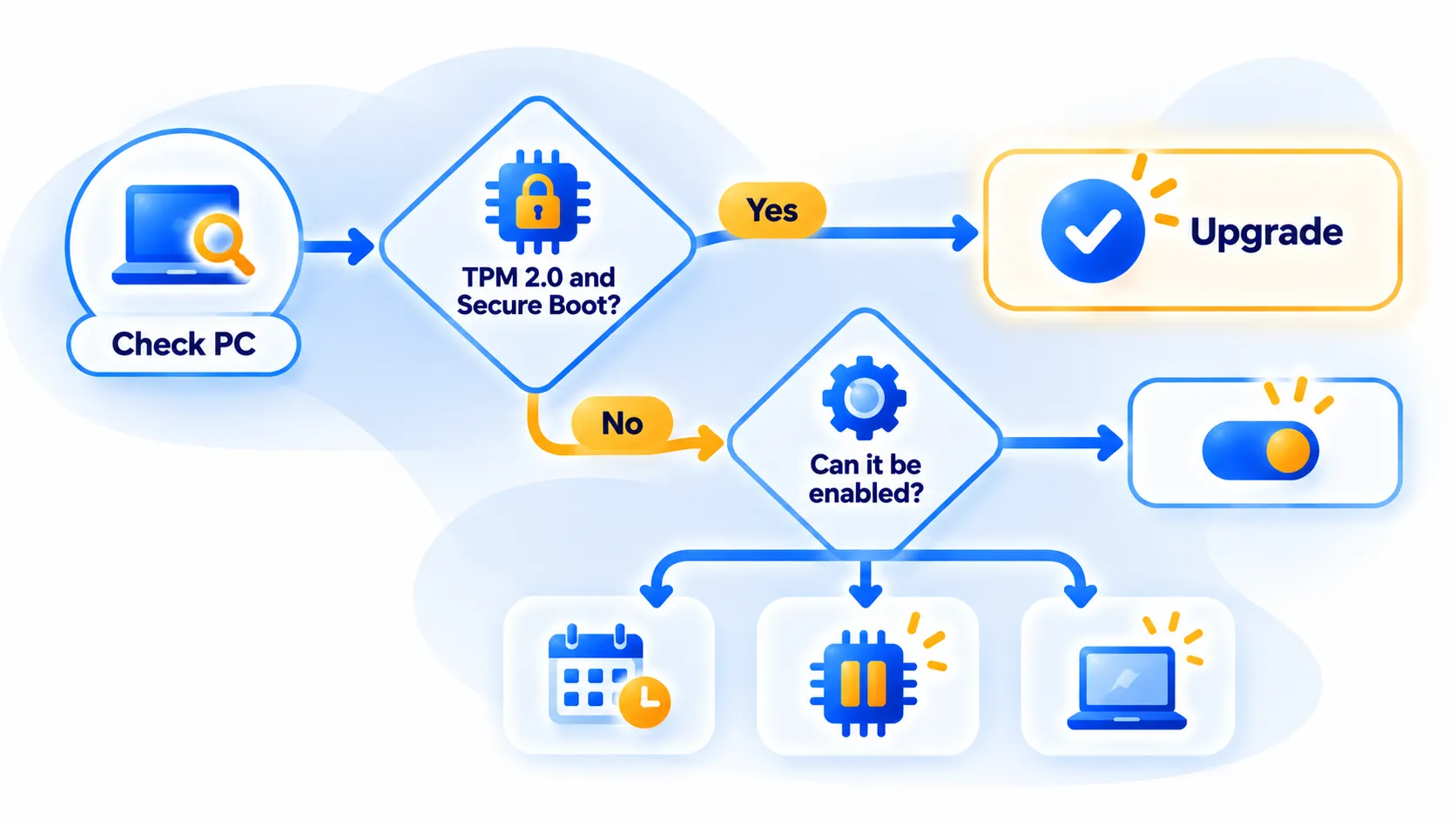
- The two requirements that most often block older PCs are TPM 2.0 and Secure Boot. Sometimes they are present but switched off in the firmware settings.
- You can check in minutes using Windows Security, the tpm.msc tool and System Information.
- If your PC fails, your options are: enable the missing setting, stay on Windows 10 with Extended Security Updates for now, upgrade hardware, replace the PC or try another operating system.
| Requirement | Microsoft’s minimum |
|---|---|
| Processor | 64-bit, 1 GHz or faster, 2 or more cores |
| Memory (RAM) | 4 GB |
| Storage | 64 GB or more |
| Firmware | UEFI with Secure Boot support |
| TPM | Version 2.0 |
| Graphics | DirectX 12 or later with WDDM 2.0 driver |
| Display | 720p, larger than 9 inches diagonally, 8 bits per color channel |
| Accounts | Home and Pro for personal use need internet and a Microsoft account during initial setup |
Note: Features and policies may vary by plan, region and app version, and can change at any time. Check the official help center for the latest information.
What the Requirements Mean in Plain English
Processor, RAM and storage
These are the easy ones. Most PCs sold in the last several years have 4 GB of RAM or more and at least 64 GB of storage. Note that these are minimums: Windows 11 will feel better with 8 GB of RAM or more, which is general advice rather than a Microsoft requirement. Microsoft also keeps a list of supported processors, so a processor that meets the 1 GHz and two-core rule can still be unsupported. Check Microsoft’s official compatibility information if the tools below report a processor problem.
UEFI and Secure Boot
UEFI is the modern replacement for the old BIOS start-up system. Secure Boot is a UEFI feature that helps make sure only trusted software loads when your PC starts. Many PCs support it but ship with it turned off, or use an older start-up mode called Legacy or CSM that has to be changed first.
TPM 2.0
A Trusted Platform Module is a small security chip (or a firmware version of one) that stores encryption keys. Microsoft’s support page says TPM 2.0 is required to run Windows 11 and is used for features such as Windows Hello and BitLocker. If your PC shows a TPM below version 2.0, it does not meet the requirement. If no TPM appears at all, it may simply be disabled in the firmware.
Note: These details come from the company’s own announcements and have not been independently verified by Next DigiTech.
How to Check Your PC Step by Step
Step 1: Check your TPM
- Press the Windows key + R, type tpm.msc and press Enter.
- Look at the Specification Version under TPM Manufacturer Information. You want 2.0.
- If you see “Compatible TPM cannot be found,” it may be disabled in firmware or your PC may not have one.
You can also open Windows Security, choose Device security and look for Security processor details.
Step 2: Check Secure Boot and UEFI
- Press the Windows key, type System Information and open it.
- Find BIOS Mode. It should say UEFI, not Legacy.
- Find Secure Boot State. It should say On. If it says Off, it may be switchable in firmware. If it says Unsupported, your PC likely cannot use it.
Step 3: Check the basics
Open Settings, then System, then About to see your processor and installed RAM. Open Settings, then System, then Storage to see drive size. Our guide to checking which version of Windows you have shows where these details live.
Step 4: Run Microsoft’s own check
Microsoft offers a PC Health Check app that tells you whether your PC meets the requirements and, in many cases, why not. You can also open Settings, then Windows Update, which may show whether Windows 11 is offered to your device. Always download PC Health Check only from Microsoft’s own website.
If a setting is switched off
Restart your PC and open the firmware settings (often by pressing a key such as F2, Del or Esc during start-up; the key varies by maker). Look for options named TPM, fTPM, PTT or Security Device Support, and for Secure Boot. Your PC maker’s support page has exact instructions. Be careful: changing the start-up mode can stop an older Windows install from booting, so back up first and follow your manufacturer’s guidance. If you are not comfortable, ask a qualified technician.
Before any upgrade, back up your files to an external drive or cloud storage. Windows 11 upgrades normally keep your files, but a backup is cheap insurance.
If Your PC Can’t Run Windows 11: Your Options
Option 1: Keep using Windows 10 with Extended Security Updates
Windows 10 support ended on October 14, 2025, and Microsoft recommends moving to Windows 11, though a Windows 10 PC keeps working. Our own guide reports that Microsoft extended consumer Extended Security Updates to October 12, 2027, with free and paid enrolment routes. Read that guide for the details, and confirm dates on Microsoft’s official page, because this is a bridge, not a permanent fix.
Note: Release dates and rollout timing can change. Please confirm the latest details on the official website or help center.
Option 2: Upgrade the hardware
Adding storage or RAM is often cheap. A TPM or processor problem is harder: on many desktops a motherboard TPM header or a firmware option is the fix, but on laptops it usually means a new device. Check cost against the age of the machine.
Option 3: Replace the PC
If your PC is several years old and slow already, replacing it can be the best value. Our Black Friday 2026 laptop buying guide lists specs that matter and deals to avoid. Prices and availability vary widely.
Note: Prices are based on official announcements at the time of writing and may vary by country, retailer, taxes and promotions. Always check the latest pricing on the official website before buying.
Option 4: Try another operating system
Some people move older PCs to a lightweight Linux distribution or to ChromeOS Flex-style alternatives. This can give an old machine a secure second life, but there is a learning curve and some Windows apps will not run. Test from a USB stick before committing.
What not to do
Be careful with unofficial tricks that bypass Windows 11’s checks. Microsoft does not support installs on hardware that fails its requirements, and they may affect updates and security. If you take that route, you do so at your own risk. Also avoid downloading “upgrade tools” from unknown sites.
Frequently Asked Questions
What are the minimum requirements for Windows 11?
A 64-bit processor with 2 or more cores at 1 GHz or faster, 4 GB of RAM, 64 GB of storage, UEFI with Secure Boot, TPM 2.0, a DirectX 12 compatible graphics card and a 720p display larger than 9 inches.
How do I check if my PC has TPM 2.0?
Press Windows key + R, type tpm.msc and check the Specification Version. You can also look under Device security in Windows Security.
My TPM shows as missing. Is my PC incompatible?
Not necessarily. Per Microsoft, it may be disabled in firmware. Check your PC maker’s instructions for enabling it.
Do I need a Microsoft account for Windows 11?
Microsoft says Windows 11 Home and Pro for personal use require internet connectivity and a Microsoft account during initial device setup.
Is it safe to keep using Windows 10?
A Windows 10 PC still works, but without security updates it becomes riskier over time. Enrolling in Extended Security Updates, keeping other software updated and avoiding risky downloads reduces the risk, but planning a move is wise.
The Bottom Line
Checking takes about five minutes: TPM, Secure Boot, then Microsoft’s own tool. If a setting is just switched off, you may be able to upgrade for free. If not, use Extended Security Updates as a bridge while you decide between upgrading parts, replacing the PC or switching systems.
Related Guides
- Windows 10 Security Updates Now Run Until October 2027: What You Need to Know
- Windows 11 26H2 Is Here: What’s New and Why 24H2 Users Should Update Now
- How to Check Which Version of Windows, macOS, iOS or Android You Have
- Black Friday 2026 Laptop Buying Guide: Specs That Matter and Deals to Avoid
Explore more in our Software Updates hub.
Disclaimer: This article is for general information only and is based on details available at the time of writing. Prices, plans, features, release dates, policies and availability can change at any time and may vary by country. Please verify the latest information on the official website of the company or product mentioned before making any decision or purchase. Next DigiTech is an independent website and is not affiliated with or endorsed by the companies mentioned; all trademarks belong to their respective owners. We are not responsible for any loss or decisions made based on this content.

