“What version of Windows are you running?” It is the question tech support always asks, and many of us have no idea. Knowing your operating system version helps you find the right fix, check whether an app will work, and see if your device still gets security updates.
This guide gives the quick, official steps for Windows, macOS, iPhone (iOS) and Android. Menu names may differ slightly by phone brand and version.
Quick Summary
| Device | Fastest way |
|---|---|
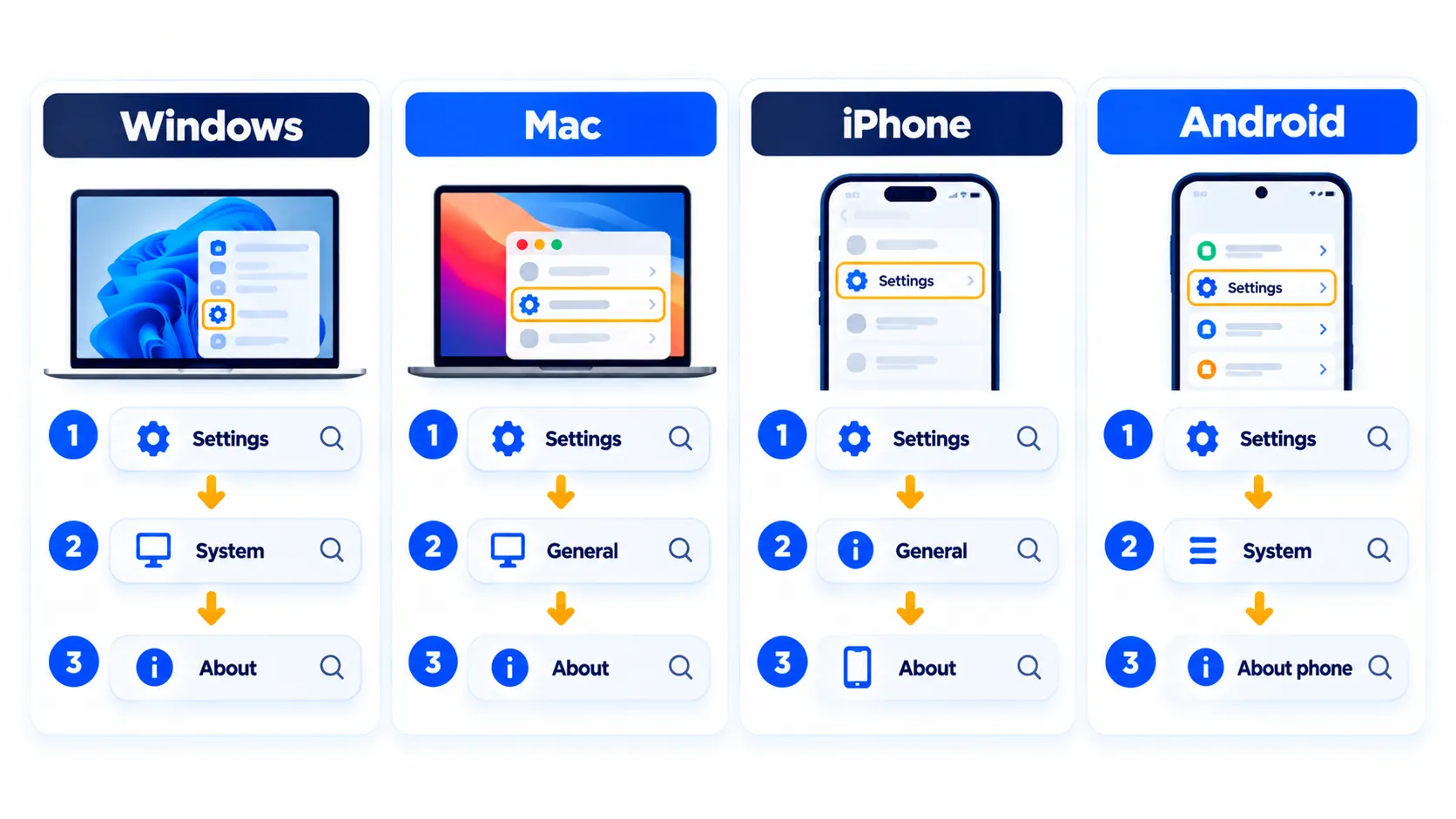
| Windows | Press Windows key + R, type winver, press Enter |
| Windows (Settings) | Settings > System > About |
| Mac | Apple menu > About This Mac |
| iPhone | Settings > General > About > iOS Version |
| Android | Settings > About phone > Android version |
How to Check Your Windows Version
Method 1: winver (fastest)
- Press Windows key + R to open the Run box.
- Type
winverand press Enter. - The About Windows window opens and shows your version details.
Microsoft notes you can also run winver from Command Prompt or PowerShell.
Method 2: Settings
- Right-click Start and choose Settings, then go to System > About.
- Under Windows specifications, check the Edition, Version and OS Build.
- Under Device specifications, check whether Windows is 32-bit or 64-bit. This section also lists your processor and installed RAM.
How to read the result
- Edition: Home, Pro, Enterprise and so on. This affects some features.
- Version: The release, such as 24H2. Newer releases bring new features and fixes.
- OS Build: A more exact number that identifies your exact update level. Support staff often ask for this.
Not sure if you should be on Windows 10 or 11? Check what the extended Windows 10 security updates mean for you, and see what is new in Windows 11 26H2.
How to Check Your macOS Version
- Click the Apple menu in the upper-left corner of your screen.
- Choose About This Mac.
- Read the macOS name and version number in the window.
- To see the build number, click the version number.
Apple notes that the window’s layout may differ between macOS versions, but it always shows the name and version.
How to Check Your iPhone (iOS) Version
- Open Settings.
- Tap General.
- Tap About.
- Find the number next to iOS Version.
Apple also says you can check the version from a computer: use Finder on a Mac with macOS Catalina or later, or the Apple Devices app or iTunes on a Windows PC, by connecting your iPhone.
To check for an update, go to Settings > General > Software Update. Before updating, read whether to update to iOS 27 yet and our notes on iOS 27.1 and 27.2.
Note: Release dates and rollout timing can change. Please confirm the latest details on the official website or help center.
How to Check Your Android Version
- Open the Settings app.
- Tap About phone (or About tablet), then Android version.
- Review the Android version, Android security update, Google Play system update and build number.
Google also explains how to check for updates: open Settings, tap System, then Software updates, and follow the prompts. Connect to Wi-Fi and charge your phone to at least 75 percent first, since updates can be large.
On Samsung phones, the screen may be called Software information under About phone, and you may also see a One UI version. Menu names may differ slightly by phone brand and version. Curious about the latest release? Read our Android 17 update guide and Samsung One UI 9 explainer.
Note: Features and policies may vary by plan, region and app version, and can change at any time. Check the official help center for the latest information.
Why Your Version Matters
- Security: Older versions stop getting security fixes. Android even lists a separate security update date so you can see how current you are.
- Compatibility: Apps and games often need a minimum version.
- Troubleshooting: The right fix depends on the version. Always note it when asking for help.
- Features: New releases add tools, such as better privacy and AI features.
Should You Update Right Now?
Usually yes for security updates, but it is smart to take a few precautions:
- Back up your device. Here is how to back up your iPhone.
- Check you have enough free storage and battery.
- Connect to reliable Wi-Fi.
- For big releases, wait a few days to see if early users report problems. Our guide, should you update right away?, explains how to decide.
Frequently Asked Questions
What is the difference between Windows version and OS build?
The version is the release (like 24H2). The OS build is a more exact number that shows your detailed update level.
How do I know if my Windows is 32-bit or 64-bit?
Go to Settings > System > About and look under Device specifications.
Where is the Android version on a Samsung phone?
Open Settings > About phone > Software information. Labels can vary by model and software version.
Can I check my iPhone version from a computer?
Yes. Apple says you can use Finder on newer Macs, or the Apple Devices app or iTunes on Windows, with your iPhone connected.
My device does not show a newer update. Why?
Updates roll out in stages and depend on your device model, carrier and region. Check back later or see the maker’s official update page.
The Bottom Line
Use winver on Windows, About This Mac on a Mac, Settings > General > About on iPhone, and Settings > About phone on Android. It takes less than a minute and makes support, updates and app compatibility much easier.
Related Guides
- Should You Update Right Away? A Simple Guide to New Software Releases
- Should You Update to iOS 27 Yet? What to Check First
- Android 17 Update: Which Phones Get It and What’s New
- Windows 10 Security Updates Now Run Until October 2027: What You Need to Know
Explore more in our Tech Tips hub.
Disclaimer: This article is for general information only and is based on details available at the time of writing. Prices, plans, features, release dates, policies and availability can change at any time and may vary by country. Please verify the latest information on the official website of the company or product mentioned before making any decision or purchase. Next DigiTech is an independent website and is not affiliated with or endorsed by the companies mentioned; all trademarks belong to their respective owners. We are not responsible for any loss or decisions made based on this content.