Google is shutting down Opal, its experimental no-code tool for building small AI mini-apps, on November 17, 2026. You can keep using it until November 16. The catch is that Opal projects do not move to Gemini automatically, so anything you want to keep has to be saved by hand. This checklist shows you exactly what to save and where to rebuild.
Quick answer: Before November 17, open each Opal app you use, copy the prompt from every step into a document in order, note any files or tools it used, and download the Opal folder from Google Drive as a backup. Then rebuild your favourite workflows as Skills in Gemini.
Note: dates come from Google’s announcement as reported by several outlets; check Google’s own pages for the latest.
What happens on November 17
- Opal stops running. You will no longer be able to open or run your mini-apps.
- Your workflow files stay in Google Drive, in a folder named Opal under My Drive.
- No automatic conversion has been announced for Opal projects.
- Shared Opal links stop working, so anyone you shared an app with will lose access too.
The shutdown is part of Google’s move to Gemini Skills, which are also replacing Gemini Gems. Android Central has more on the change from Gems to Skills.
Your save-before-shutdown checklist
- List your Opal apps. Open Opal and write down every app you still use.
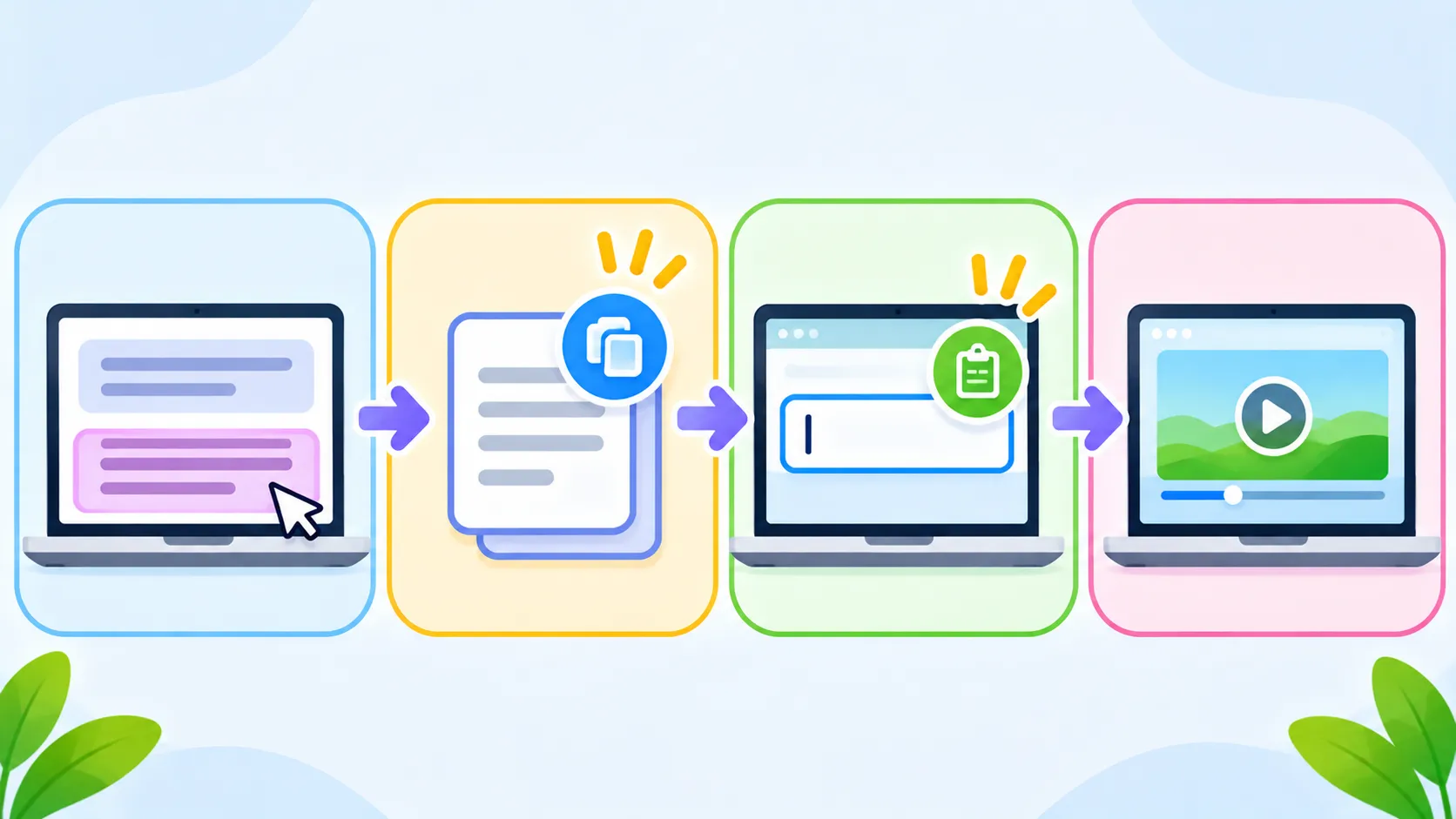
- Copy every prompt in order. Open each app and copy the prompt from each generation step into a document. Keep them numbered so you know the order.
- Note the inputs. Write down what the app asked users for, such as a topic, a file or a link.
- Note files, tools and permissions the app relied on, such as reference documents or web search.
- Save example outputs so you can check your rebuilt version works the same way.
- Download the Opal folder from Google Drive as a backup. After the shutdown, you can still open the files in a plain text editor to read the prompt text.
Where to rebuild your Opal apps
| Option | Best for |
|---|---|
| Gemini Skills | Reusable instructions you call with a slash command in Gemini |
| Google AI Studio | Building a small AI app with a shareable preview |
| Other no-code app builders | Apps with forms, pages and hosting |
Google points Opal users to Skills in Gemini. These are saved instructions you can call with a slash command, which works well for most single-purpose Opal apps. See our guide to how Gemini Skills replace Gems. For apps that need a proper interface, browse our list of free AI app builders for beginners.
How to rebuild an Opal app as a Gemini Skill
- Open Gemini and find the Skills option.
- Create a new Skill and give it a clear name.
- Paste your Opal prompts into the instructions, combining the steps into one clear set of directions.
- Test it with the example inputs you saved and compare the results.
- Adjust the wording until the output matches what your Opal app produced.
Do it now, not on the last day
Ten minutes today beats a scramble on November 16. Servers can be busy near a deadline, and you do not want to discover a missing prompt after Opal is gone. For other tools closing soon, see our list of AI tools shutting down.
The bottom line
Opal shuts down on November 17, 2026, and nothing moves automatically. Copy your prompts, download your Drive folder and rebuild your favourite apps as Gemini Skills while you can still compare them with the originals.
Frequently asked questions
When does Google Opal shut down?
On November 17, 2026. November 16 is the last day you can use it.
Will my Opal apps be converted to Gemini automatically?
No. Google has not announced automatic conversion for Opal projects. You need to save and rebuild them yourself.
What happens to my Opal files in Google Drive?
They stay in the Opal folder in My Drive, but they stop running. You can still open them in a text editor to read your prompts.
What replaces Opal?
Google is pointing users to Skills in Gemini, which are reusable instructions you call with a slash command.