
Your phone buzzes dozens of times a day with likes, promotions, group chats and app updates. Each interruption breaks your focus, and late-night notifications can ruin your sleep. Both iPhone and Android let you silence notifications on a schedule while still letting important people and apps through. Here is how to set it up.
Quick answer: On iPhone, go to Settings > Focus, choose Do Not Disturb, Sleep or Work, pick allowed people and apps and add a schedule. On Android, go to Settings > Notifications > Do Not Disturb (or Modes on newer phones), choose who can interrupt you and set a schedule. Allow repeated calls so emergencies still reach you.
Note: menu names differ by phone model and software version.
iPhone: how to set up Focus
- Open Settings > Focus.
- Choose Do Not Disturb, Sleep, Work or tap + to create your own.
- Under Allow Notifications, pick the people and apps that can still reach you.
- Tap Add Schedule to turn it on automatically by time, location or when you open an app.
- Optionally, choose a custom Lock Screen or Home Screen for that Focus.
Turn on Share Across Devices to use the same Focus on your iPad and Mac.
Android: how to set up Do Not Disturb or Modes
- Open Settings > Notifications > Do Not Disturb. On newer Pixel phones, look for Modes.
- Choose which people can call or message you.
- Choose which apps can still send notifications.
- Add a schedule, such as nights or work hours.
- Turn on Bedtime mode to dim the screen and silence your phone at night.
Google’s help page on Modes and Do Not Disturb covers your exact version.
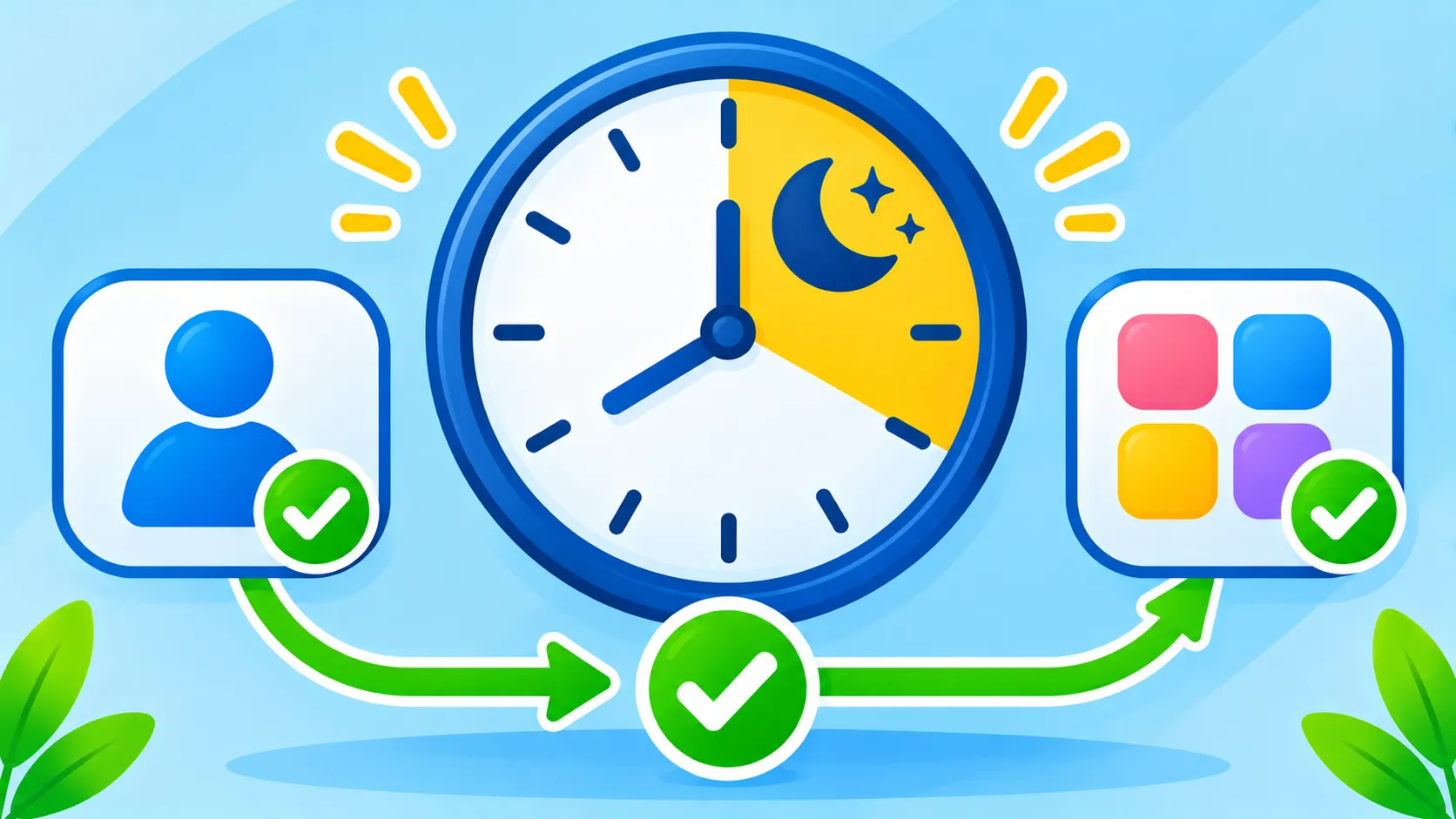
Suggested modes to set up
| Mode | When | Allow |
|---|---|---|
| Sleep | 10pm to 7am | Family, repeated calls, alarms |
| Work | Weekday work hours | Colleagues, calendar, work apps |
| Family time | Evenings or weekends | Family only |
| Driving | When connected to the car | Calls from favourites, maps |
Tips for fewer interruptions
- Allow repeated calls so a genuine emergency gets through.
- Turn off notifications for apps that do not need them, like shopping and games.
- Use notification summaries to group non-urgent alerts.
- Automate it. See our iPhone Shortcuts automations.
- Track your habits with Screen Time and Digital Wellbeing.
The bottom line
Ten minutes of setup can give you calmer days and better sleep. Create a Sleep and a Work mode, let only important people through and allow repeated calls for emergencies.
Frequently asked questions
Will alarms still ring in Do Not Disturb?
Yes. Alarms work normally on both iPhone and Android in Do Not Disturb.
Can certain people still call me?
Yes. Add them to your allowed contacts, or allow your favourites.
What is the difference between Focus and Do Not Disturb on iPhone?
Do Not Disturb is one type of Focus. Focus lets you create several modes, like Work and Sleep, with different rules.
Can Do Not Disturb turn on automatically?
Yes. Set a schedule by time, and on iPhone also by location or app.

