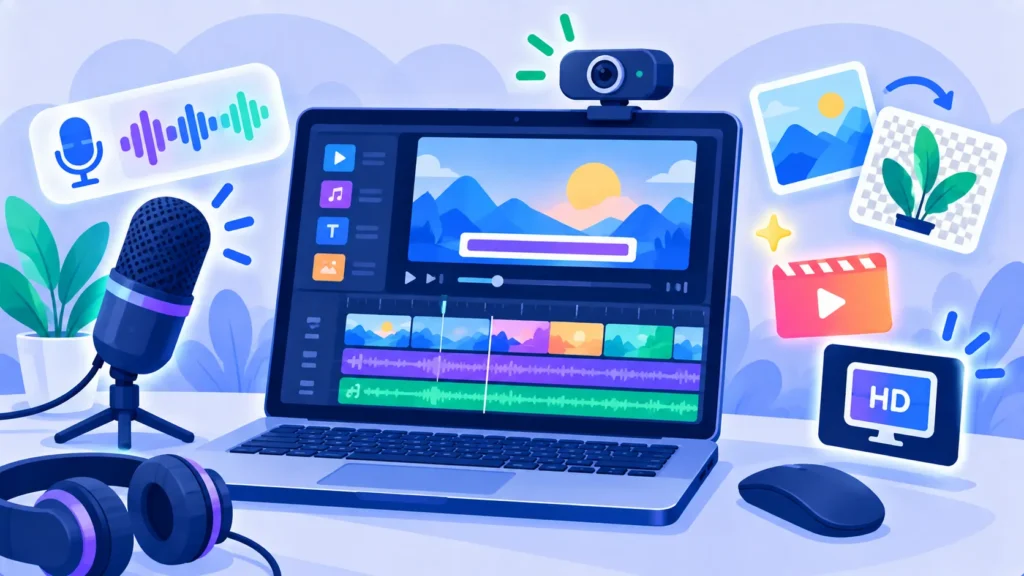
Clipchamp is Microsoft’s free video editor. It comes built into Windows 11, works in your web browser, and lets you export videos in full HD (1080p) with no watermark on the free plan. It also includes AI features like automatic subtitles, text-to-speech voiceovers and silence removal.
Here’s what Clipchamp can do, what’s free, and when Premium is worth it in 2026.
Quick Verdict
- Best for: Beginners, students, small businesses and Windows users who want a simple, free video editor.
- Not ideal if: You need advanced professional editing or a strong mobile app.
- Is the free plan enough? For most people, yes. Free exports up to 1080p without a watermark.
What Is Clipchamp?
Clipchamp is a timeline-based video editor owned by Microsoft. You can open it from the Windows 11 Start menu or at clipchamp.com in Edge or Chrome. It’s designed for quick, good-looking videos for YouTube, social media, school projects and work presentations.
Note: Microsoft ended support for the Clipchamp iPhone app in 2026, so Clipchamp is best used on a computer.
Note: Release dates and rollout timing can change. Please confirm the latest details on the official website or help center.
Key Features
- Drag-and-drop timeline with trimming, splitting, transitions and text.
- AI auto subtitles in many languages.
- Text-to-speech voiceovers with many natural voices.
- Silence removal to tighten talking videos.
- Screen and webcam recording for tutorials.
- Templates for social media, ads and intros.
- Free stock library of video, images and music.
- Resize for YouTube, TikTok, Reels and more.
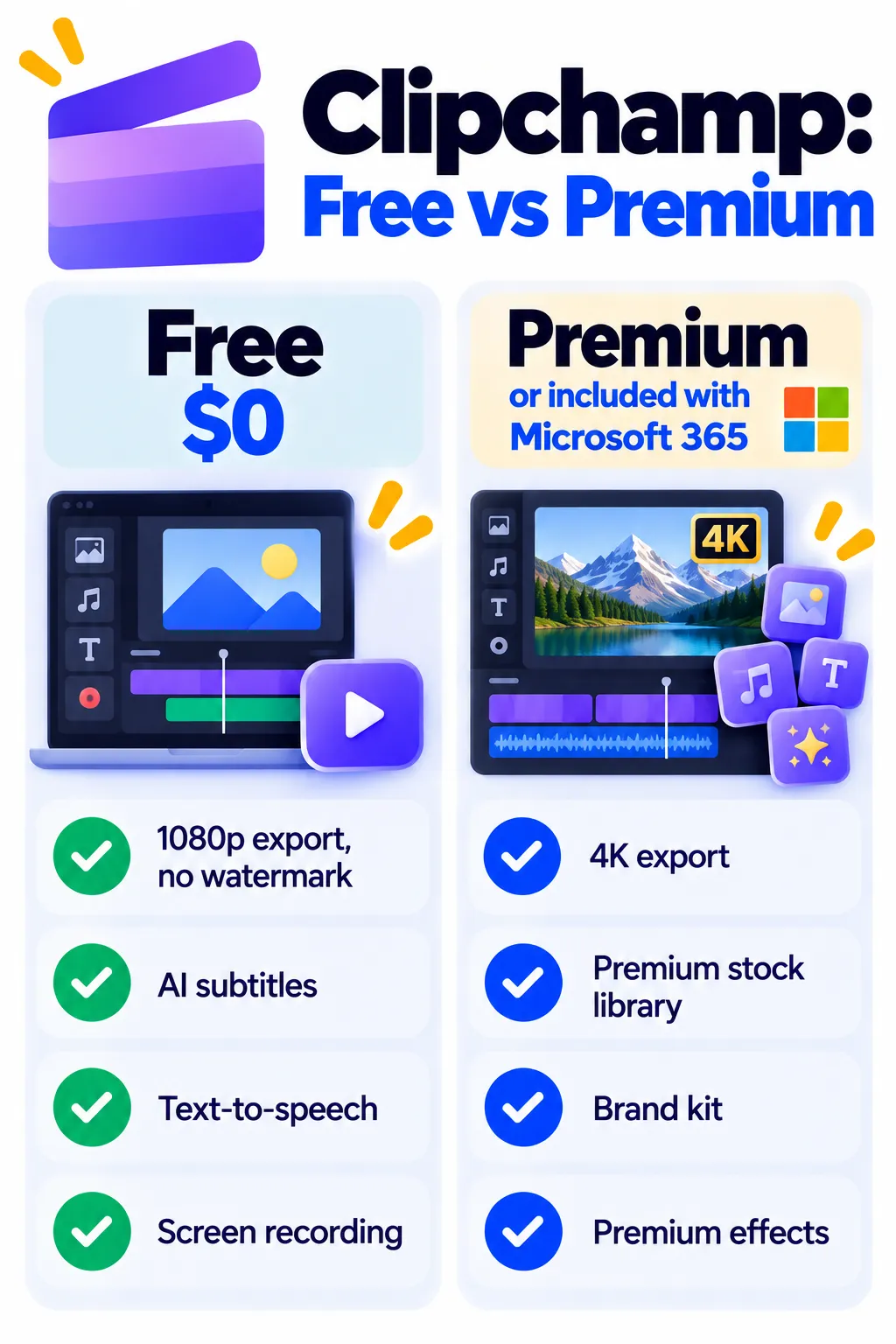
Clipchamp Pricing (2026)
| Plan | Price | What you get |
|---|---|---|
| Free | $0 | Unlimited exports up to 1080p with no watermark, AI subtitles, text-to-speech, recording, free stock |
| Premium | About $11.99/month, or included with Microsoft 365 Personal or Family | 4K export, premium stock, brand kit, premium effects and filters |
Watch out: If you add a premium stock clip or effect on the free plan, Clipchamp asks you to upgrade before exporting. Look for the premium icon before using an item.
Note: Prices are based on official announcements at the time of writing and may vary by country, retailer, taxes and promotions. Always check the latest pricing on the official website before buying.
How to Make a Video in Clipchamp
- Open Clipchamp from the Windows Start menu or clipchamp.com and sign in with a Microsoft account.
- Click Create a new video or choose a template.
- Import your clips, photos and music.
- Drag them onto the timeline and trim the parts you don’t need.
- Add text, transitions and AI subtitles.
- Click Export, choose 1080p and save or share.
Pros and Cons
Pros
- Free 1080p exports with no watermark
- Built into Windows 11
- Easy for complete beginners
- Useful AI subtitles and voiceovers
Cons
- 4K export needs Premium or Microsoft 365
- Premium items can block free exports if used by mistake
- Not as powerful as professional editors
- No longer supported on iPhone
Clipchamp vs CapCut vs Descript
- Clipchamp: Best free option for Windows users and simple projects.
- CapCut: Best for trendy short-form social videos and mobile editing.
- Descript: Best for editing talking videos and podcasts by editing text.
See more in best AI video editors for beginners.
Frequently Asked Questions
Is Clipchamp free?
Yes. The free plan includes unlimited exports up to 1080p with no watermark.
Does Clipchamp add a watermark?
No, not on standard free exports. Using premium items requires an upgrade before export.
Is Clipchamp included with Microsoft 365?
Yes. Clipchamp Premium features are included with Microsoft 365 Personal and Family subscriptions.
Can I use Clipchamp on a Mac?
Yes, through the web version in Chrome or Edge.
Can Clipchamp add subtitles automatically?
Yes. AI auto subtitles are available on the free plan.
The Bottom Line
Clipchamp is one of the best free video editors for beginners, especially on Windows. Use the free plan for 1080p videos without a watermark, and get Premium or Microsoft 365 only if you need 4K or premium stock. Explore more tools in our AI tools directory.
Related Guides
- VEED Review 2026: Online Video Editor With AI Subtitles, Free vs Paid
- How to Screen Record on iPhone, Android, Windows and Mac
- How to Make YouTube Shorts With AI: A Simple 6-Step Workflow
- Opus Clip Review 2026: Turn Long Videos Into Viral Shorts, Pricing and Tips
Explore more in our AI Video and Audio Tools hub.
Disclaimer: This article is for general information only and is based on details available at the time of writing. Prices, plans, features, release dates, policies and availability can change at any time and may vary by country. Please verify the latest information on the official website of the company or product mentioned before making any decision or purchase. Next DigiTech is an independent website and is not affiliated with or endorsed by the companies mentioned; all trademarks belong to their respective owners. We are not responsible for any loss or decisions made based on this content.