AI Overviews are the AI-written summaries that appear at the top of many Google searches. Some people find them helpful. Others want the plain list of links back, especially when the summary is wrong or pushes the real results down the page. Here is the honest answer on how to turn them off, and the methods that actually work.
Quick answer: You cannot fully turn off AI Overviews with a setting. Google treats them as a core part of Search. You can avoid them by clicking the Web filter after you search, or by setting a custom search engine with udm=14 so every search opens in the Web view.
Note: Google changes Search often, so a workaround may stop working.
Method 1: Use the Web filter
- Search on Google as usual.
- Under the search bar, click Web. If you do not see it, click More and choose Web.
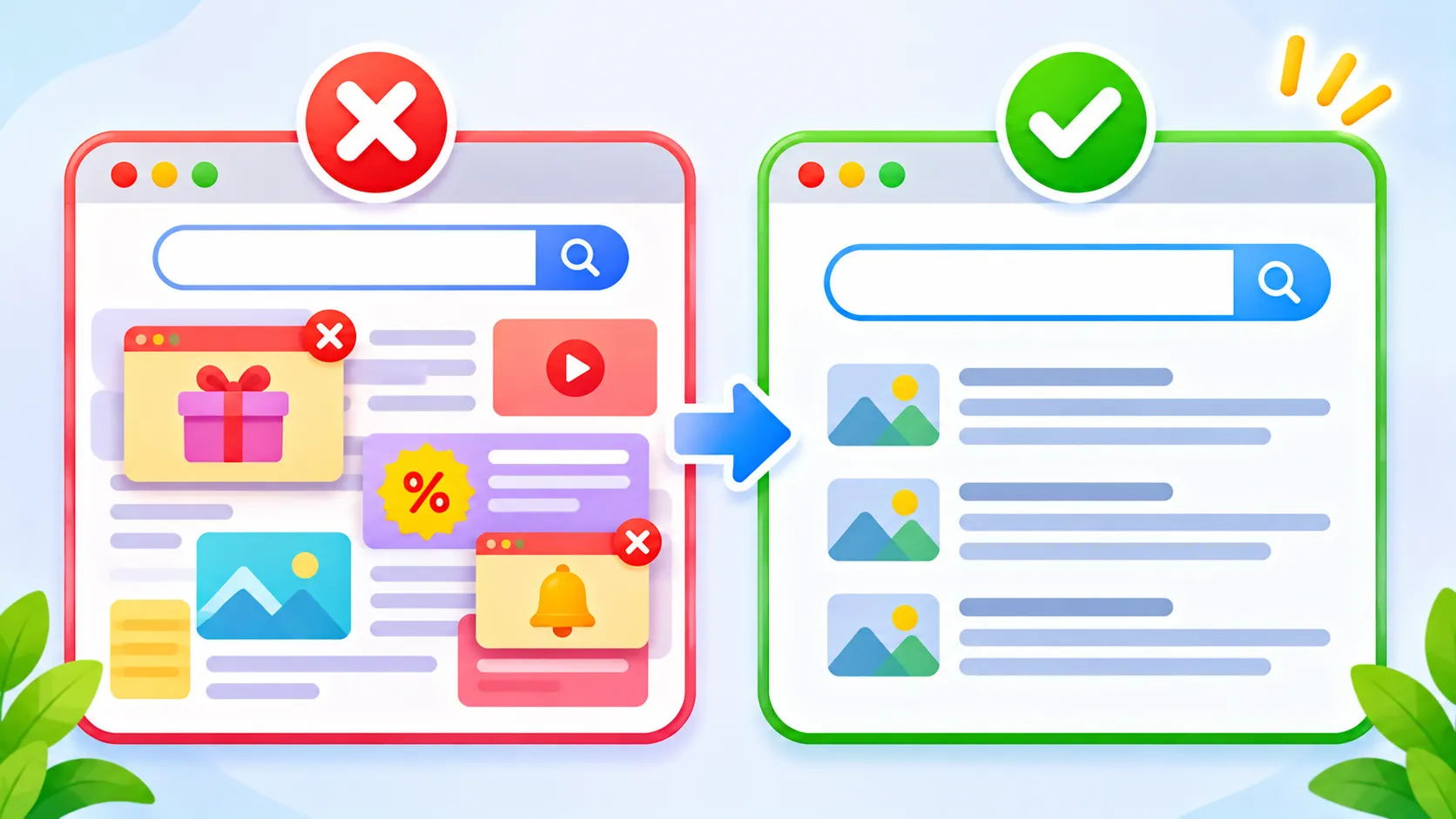
- Google shows a plain list of text links without the AI summary.
This is Google’s own option, so it is the most dependable. The trade-off is that it also removes snippets, knowledge panels, images and some local results.
Method 2: Make Web results your default (udm=14)
Adding &udm=14 to a Google search link opens the Web view directly. You can set this as your browser’s default search engine so every search skips AI Overviews.
In Chrome
- Go to Settings > Search engine > Manage search engines and site search.
- Next to Site search, click Add.
- Name: Google Web. Shortcut: gw. URL:
https://www.google.com/search?q=%s&udm=14 - Click Add, then open the three-dot menu next to it and choose Make default.
In Edge and Firefox
Both browsers let you add a custom search engine in their search settings using the same URL. In Firefox, you may need to add it through the search bar or an add-on, depending on your version.
This is a workaround rather than an official setting, but it has worked reliably for a long time.
Method 3: Switch off Search Labs experiments
If you opted into AI experiments through Search Labs, you can switch them off by clicking the Labs (flask) icon in the Google app or on google.com. This only removes experimental features. It does not remove the standard AI Overviews that Google shows to everyone.
Method 4: Browser extensions
Some extensions hide the AI Overview box after the page loads. Be careful: an extension that edits Google’s page can read what you search. Install only well-reviewed extensions from the official store, and check the permissions. Browse our browser extensions section for safe picks.
Which method should you pick?
| Method | Effort | Removes AI Overviews? | Downside |
|---|---|---|---|
| Web filter | One click per search | Yes | Removes other rich results too |
| udm=14 default | Five-minute setup | Yes, every search | Unofficial workaround |
| Search Labs off | One click | Only experimental features | Standard Overviews remain |
| Extensions | Install once | Hides them on screen | Privacy risk if poorly made |
Use the Web filter for occasional searches and the udm=14 default if you want it every time.
If you keep AI Overviews, use them wisely
- Check the sources linked in the summary before you trust it.
- Be extra careful with health, money and legal answers.
- Report mistakes with the thumbs-down button so Google can improve them.
Google explains how AI Overviews work on its Search Help page. If you want to try Google’s more advanced AI search instead, read our Google AI Mode guide.
The bottom line
There is no off switch, but you are not stuck with AI Overviews. The Web filter gives you clean links in one click, and a udm=14 default search engine removes them from every search.
Frequently asked questions
Is there a setting in my Google account to turn off AI Overviews?
No. Google does not offer an account setting to switch them off.
What does udm=14 do?
It is a parameter in the Google search link that opens the Web results view, which shows plain links without AI Overviews.
Does udm=14 work on my phone?
Yes, in mobile browsers that let you add a custom search engine. On phones, the Web filter is often the simplest option.
Can I report a wrong AI answer?
Yes. Use the thumbs-down button on the AI Overview and choose a reason.