
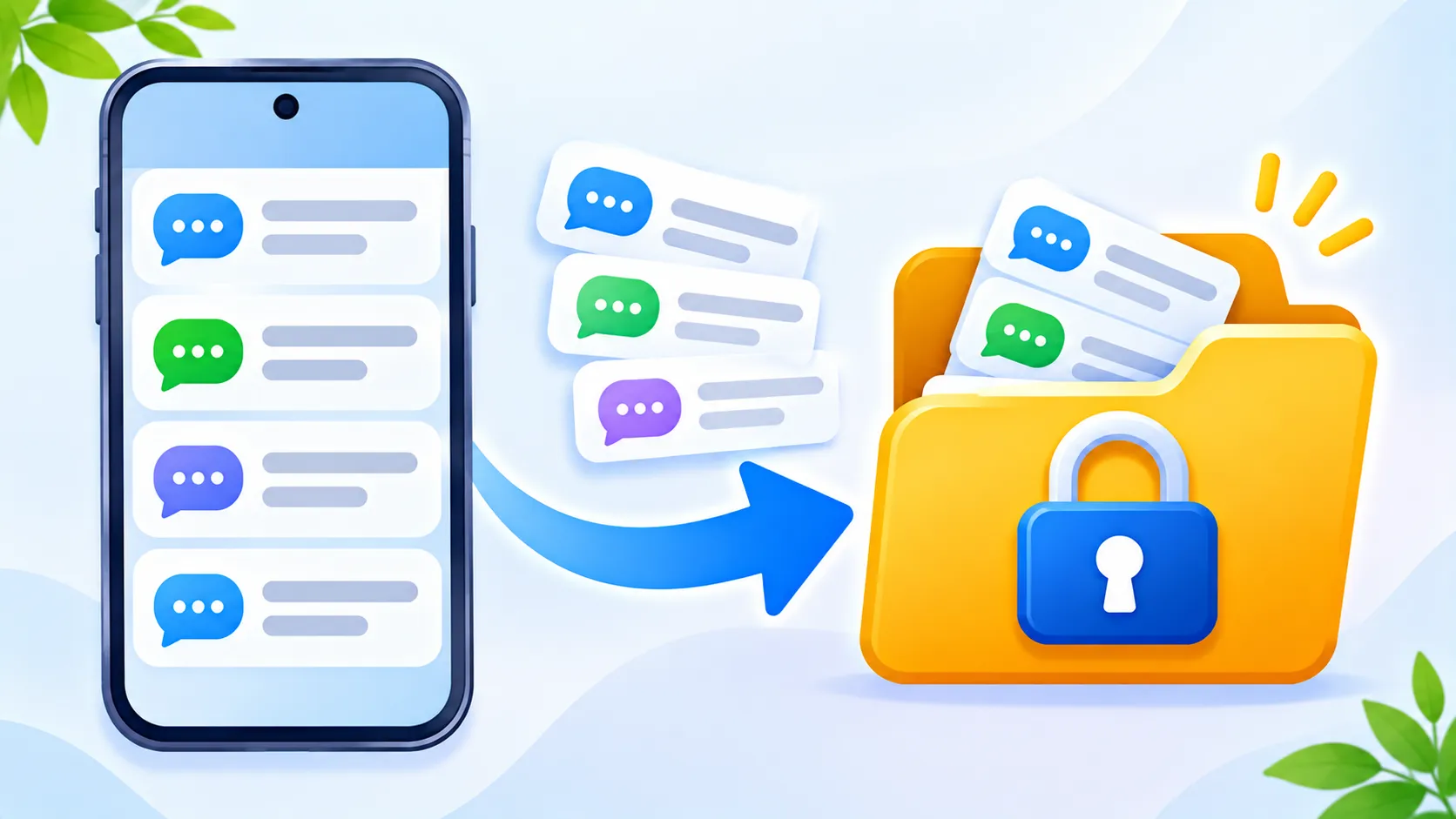
ChatGPT now lets you lock individual conversations behind a 4-digit PIN or your device’s fingerprint or face unlock. It is handy if you share a laptop, hand your phone to someone or share your screen in meetings. But it is easy to think it does more than it really does. This guide explains how Locked Chats work, how to set them up and where their limits are.
Quick answer: Open a chat’s options menu and choose to lock it, then set a 4-digit account PIN. Locked chats disappear from your normal chat list and search, and you open them from Projects > Locked chats. They are not end-to-end encrypted, and resetting a forgotten PIN permanently deletes them.
What Locked Chats are
OpenAI began rolling out Locked Chats on October 20, 2026. According to OpenAI’s help article, the feature is available on Free, Go, Plus, Pro, Business, Enterprise and Edu plans (but not ChatGPT for Healthcare). The rollout is gradual, so some accounts may not see it yet.
A locked chat is hidden from your regular chat history and search until you unlock it with your PIN, or with face or fingerprint unlock on supported iPhone and Android devices.
How to lock a chat
- Open ChatGPT and sign in.
- Open the chat you want to protect.
- Tap or click the chat’s options menu (the three dots) and choose the lock option.
- Set your 4-digit PIN when asked. On phones, you can also turn on biometric unlock.
- To read it later, go to Projects > Locked chats and unlock it.
Things to know before you rely on it
- Resetting the PIN deletes locked chats. If you forget your PIN and reset it, your locked chats are gone for good, and OpenAI Support cannot recover them. Changing a PIN you still remember is safe.
- Too many wrong attempts temporarily block access.
- Separate memory: locked chats keep their own memory, apart from your regular chats.
- Some features are limited. For example, voice is not available in locked chats in the desktop app.
What Locked Chats do not do
| Locked Chats do | Locked Chats do not |
|---|---|
| Hide chats from your chat list and search | Add end-to-end encryption |
| Need a PIN or biometrics to open | Change how long OpenAI keeps your data |
| Help on shared devices and screen shares | Change your model training setting |
| Keep a separate memory | Remove what ChatGPT remembered before you locked the chat |
On Enterprise and Edu workspaces, locked chats can still appear in compliance logs, although admins cannot reset your PIN or open your locked chats. In short: the lock protects you from people looking at your screen, not from the service itself. Avoid putting passwords, ID numbers or bank details into any chatbot.
Who should use Locked Chats
- Shared family computers or tablets.
- People who share their screen in work meetings or classes.
- Sensitive but not secret topics, like health questions, surprise gift plans or job hunting.
For truly confidential work, check your company’s policy first. For more privacy tips, see how to turn off personalised ads in ChatGPT and read whether AI chatbots are safe to use.
Note: OpenAI rolls features out in stages, so menu names may differ slightly on your account.
The bottom line
Locked Chats are a simple way to keep private conversations out of sight on shared devices. Set a PIN you will remember, because forgetting it means losing those chats, and remember that the lock hides chats rather than encrypting them.
Frequently asked questions
Can I recover locked chats after a PIN reset?
No. Resetting a forgotten PIN permanently deletes your locked chats, and OpenAI Support cannot restore them.
Is ChatGPT Locked Chats free?
Yes. It is available on the Free plan as well as Go, Plus, Pro, Business, Enterprise and Edu.
Are locked chats encrypted?
No. OpenAI says locking does not add end-to-end encryption or change how long your data is kept.
Where do I find my locked chats?
Go to Projects > Locked chats and unlock them with your PIN or biometrics.