

Your iPhone holds your photos, messages, contacts and years of memories. If it is lost, stolen, broken or replaced, a recent backup is what lets you get everything back. You can back up to iCloud automatically, or to a Mac or Windows PC with a cable. Here is how to do both and which one makes sense for you.
Quick answer: For iCloud, go to Settings > [your name] > iCloud > iCloud Backup, turn it on and tap Back Up Now. For a computer, connect your iPhone, open Finder on a Mac or the Apple Devices app on Windows, turn on Encrypt local backup and click Back Up Now. Many people use both.
Note: menu names can change between iOS versions.
Option 1: Back up to iCloud
- Connect your iPhone to Wi-Fi and plug it in.
- Open Settings, tap your name, then iCloud > iCloud Backup.
- Turn on Back Up This iPhone.
- Tap Back Up Now and wait for it to finish.
After that, your iPhone backs up automatically when it is charging, locked and on Wi-Fi. Free iCloud accounts include only 5GB, so you may need an iCloud+ plan. If space is tight, see iPhone storage full fixes.
Option 2: Back up to a Mac or Windows PC
- Connect your iPhone with a cable and unlock it. Tap Trust if asked.
- On a Mac, open Finder and select your iPhone in the sidebar. On Windows, open the Apple Devices app (or iTunes on older PCs).
- Choose Back up all of the data on your iPhone to this computer.
- Tick Encrypt local backup so passwords and Health data are included. Save the password safely.
- Click Back Up Now.
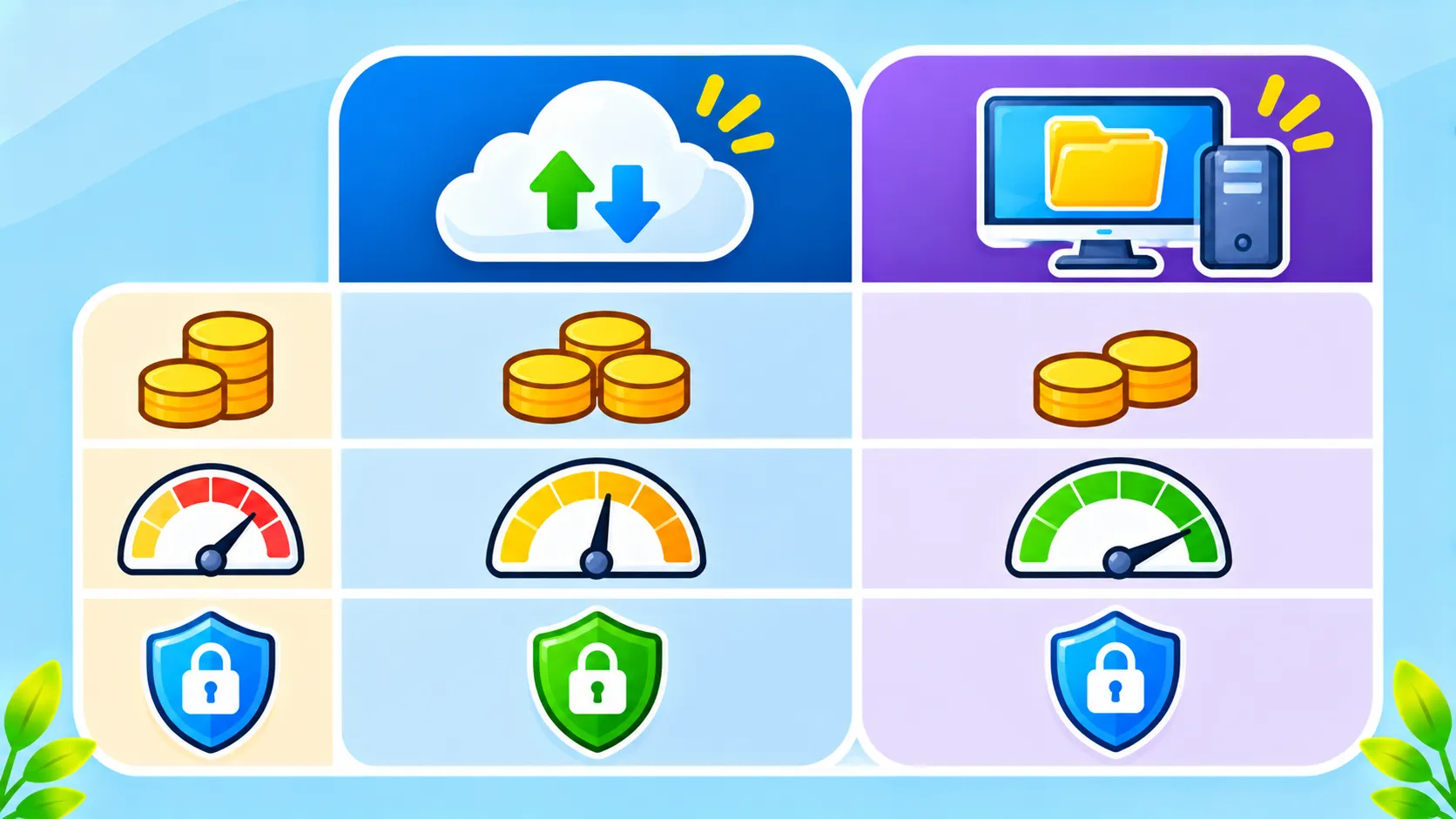
iCloud vs computer: which is better?
| iCloud | Mac or PC | |
|---|---|---|
| Automatic | Yes, daily | No, you start it |
| Cost | 5GB free, then monthly plan | Free, uses your computer’s storage |
| Works without a computer | Yes | No |
| Speed to restore | Depends on internet | Usually faster with a cable |
| Best for | Everyday protection | Large backups and extra safety |
For the best protection, use iCloud for daily automatic backups and make a computer backup before big changes, like a major iOS update or switching phones.
How to check your last backup
Go to Settings > [your name] > iCloud > iCloud Backup and look at the date of the last successful backup. Make a fresh one before updating iOS, resetting your phone to sell it or moving to a new iPhone.
If your backup fails
- Free up iCloud space or turn off backups for apps you do not need.
- Connect to a stable Wi-Fi network and keep the phone plugged in.
- Update iOS and the Apple Devices app or macOS.
- Try a different cable or port for computer backups.
Apple’s iPhone User Guide has more help. See also how to transfer data to a new phone and how to recover deleted photos.
The bottom line
Turn on iCloud Backup so your iPhone saves itself every day, and make an encrypted computer backup before big changes. With both, losing your phone does not mean losing your memories.
Frequently asked questions
How much iCloud storage do I get for free?
Every Apple Account gets 5GB free. Most people need an iCloud+ plan to back up a full iPhone.
Does iCloud Backup include my photos?
If iCloud Photos is turned on, your photos are already stored in iCloud and are not duplicated in the backup.
Why should I encrypt my computer backup?
Encrypted backups include saved passwords, Wi-Fi settings and Health data, and protect them with a password.
How often does iCloud back up my iPhone?
Usually once a day, when your iPhone is charging, locked and connected to Wi-Fi.

