
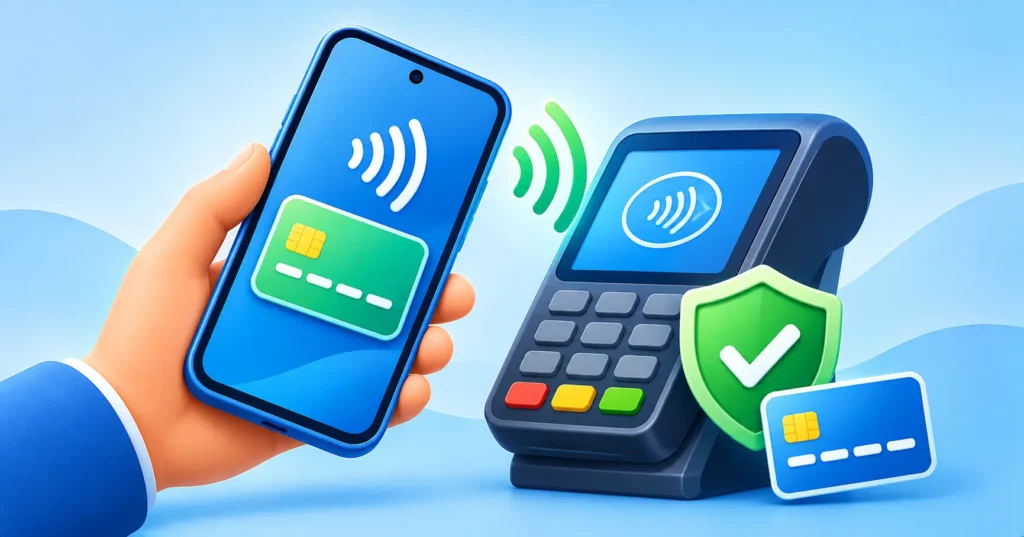
Paying with your phone is quick, and for many people it is also safer than handing over a plastic card. Apple Pay and Google Wallet store a digital version of your card and use extra protections each time you pay. If you have not set one up yet, or you do not trust it, this guide covers the basics: how to add a card, why tap-to-pay is considered secure, and what to do if your phone goes missing.
Quick answer: On iPhone, open Wallet, tap + and add your card, then verify it with your bank. On Android, open Google Wallet, tap Add to Wallet and add your payment card, and make sure NFC is on. Use a strong screen lock and turn on bank alerts. If your phone is lost, lock it remotely and call your bank.
How mobile wallets work
Instead of sending your real card number to a shop, a mobile wallet generally uses a substitute number, often called a token, together with a one-time code for each payment. That means the merchant does not receive your actual card number in the usual way. You also need to unlock your phone with Face ID, a fingerprint or a passcode, which adds another barrier.
How to set up Apple Pay on iPhone
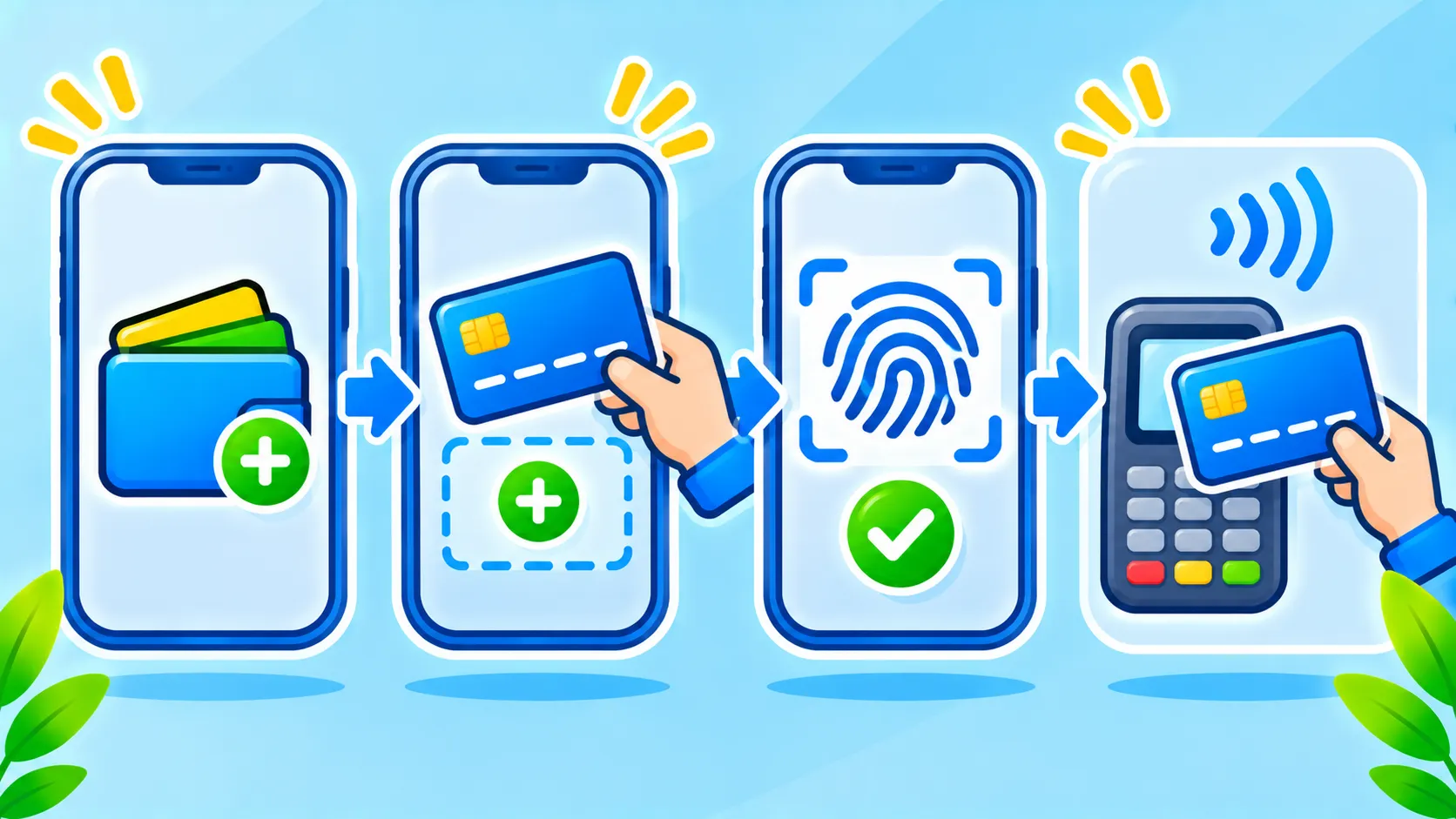
- Open the Wallet app and tap the plus button.
- Choose Debit or Credit Card and follow the prompts to scan or enter your card.
- Verify the card when your bank asks, usually by text, app or call.
- Check Settings, Wallet and Apple Pay to choose your default card and double-click behavior.
How to set up Google Wallet on Android
- Open the Google Wallet app and tap Add to Wallet.
- Choose Payment card and scan or enter your card details.
- Verify with your bank if prompted.
- Make sure NFC is turned on in your phone settings so tap-to-pay works.
Steps can vary by bank, country and phone brand. Google’s Google Wallet Help lists supported banks and countries.
How to pay with your phone
Unlock your phone, hold it near the contactless reader and wait for a tick or confirmation. Some terminals may ask for a PIN or extra approval. If a shop does not accept it, you can still use your regular card.
Security tips that matter
- Use a strong screen lock. A short, easy PIN makes a lost phone easier to misuse.
- Turn on alerts from your bank for every transaction.
- Keep software updated so security fixes are installed. See our update guide.
- Protect your Apple or Google account with two-factor authentication.
- Avoid sketchy apps that ask for broad permissions. Use the app safety checklist.
What to do if your phone is lost or stolen
- Use Find My on iPhone or Find Hub on Android to lock or locate the device. Our guide on how to find a lost phone shows how.
- Mark the device as lost and remove cards remotely if the option is available.
- Call your bank to freeze or replace the cards.
- Change your account passwords.
On Android, features like theft protection can help too. Read how to lock and secure a stolen Android phone.
Watch out for payment scams
Scammers may send texts claiming a payment problem or ask you to approve a code you did not request. Never share one-time codes. If you receive a suspicious message, see how to spot phishing.
Frequently asked questions
Is tap-to-pay safer than swiping a card?
Many security experts consider it safer, mainly because of tokens and device unlocking, but nothing is risk-free. Keep alerts on and check statements.
Will my bank know it is me paying?
Your bank still sees the transaction and can apply its own fraud checks.
Can someone use my wallet if they steal my phone?
They need to unlock it, which is why a strong lock and quick remote action matter.
Note: Wallet features, supported banks and menu names differ by country and software version.

