

A stolen phone is more than the loss of a device. It can expose messages, saved passwords, payment apps, photos and account access if someone gets past the lock screen. Android includes several built-in theft protection tools that can automatically lock a phone, make remote locking easier and add extra checks before sensitive settings can be changed.
Google has continued expanding these protections, including newer safeguards highlighted in its October 2026 Android security guidance. This guide explains what each feature does, how to find the settings, what devices may not support them, and the steps to take if your phone goes missing.
Important: Menu names and availability vary by Android version, phone manufacturer and model. The instructions below describe Google’s standard Android path; Samsung Galaxy devices may use slightly different menu labels.
What Android theft protection features should you enable?
Start with these protections. They work in different situations, so enabling more than one gives you better coverage.
- Theft Detection Lock: Uses device signals and motion patterns to detect a possible snatch-and-run theft and lock the screen.
- Offline Device Lock: Can lock the screen after a device loses internet connectivity and is used offline for a period.
- Remote Lock: Lets you request a screen lock from a browser using your verified phone number.
- Failed Authentication Lock: Automatically locks the screen after repeated unsuccessful authentication attempts.
- Identity Check: On supported devices, requires biometrics for selected sensitive actions, particularly when you are away from trusted places.
These features do not guarantee that a stolen phone can be recovered. Their purpose is to make it harder for someone to access your data and to give you more options to secure the device.
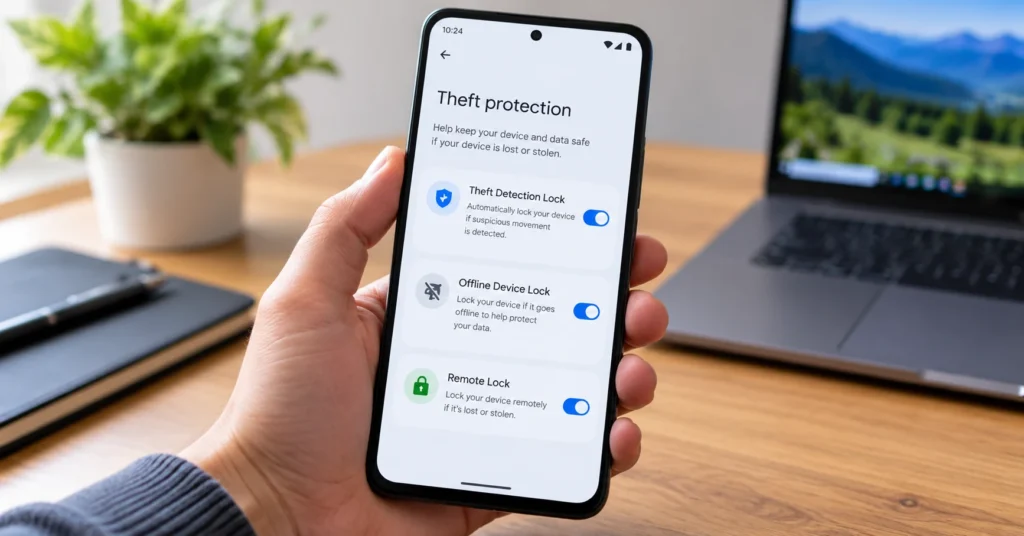
How to turn on Android Theft Protection
- Open Settings on your Android phone.
- Tap Google.
- Open All services.
- Under Personal & device safety, select Theft protection.
- Review the available options and turn on the protections your phone supports.
You may need to set a screen lock before these options become available. If you cannot find the menu, search Settings for “Theft protection”. Some features are not supported on Android Go devices, tablets or wearables, and availability can vary by phone model.
1. Enable Theft Detection Lock
Theft Detection Lock is designed for a situation where someone grabs an unlocked phone and quickly moves away. Google says the feature uses AI together with motion sensors, Wi-Fi and Bluetooth signals to identify movement patterns that may indicate a snatch-and-run theft. If it detects a likely theft event, it can automatically lock the screen.
Steps to enable it
- Go to Settings → Google → All services → Theft protection.
- Find Theft Detection Lock.
- Switch it on if the option is available.
If the option is greyed out or missing, your device may not support it. The feature is not designed to trigger in every movement scenario. Google notes that it may not activate when the phone has a stable Wi-Fi or Bluetooth connection, or after repeated locks in a short period. If it locks your phone during normal use, unlock it normally and continue.
2. Enable Offline Device Lock
A thief may disconnect a phone from the internet to make remote tracking more difficult. Offline Device Lock is intended to respond to that situation by locking the screen after the device has been offline and used for a short period.
Steps to enable it
- Open Settings → Google → All services → Theft protection.
- Select Offline Device Lock.
- Turn the setting on.
There are limits: Google says the phone must be unlocked when it loses internet connectivity, and the screen can be locked by this feature twice in a 24-hour period. It is an extra safeguard, not a replacement for a strong screen lock or Find Hub.
3. Set up Remote Lock before you need it
Remote Lock is useful if your phone is lost or stolen and you want to secure its screen from another device. Set it up in advance rather than waiting until an emergency.
Enable Remote Lock
- Open Settings → Google → All services → Theft protection.
- Tap Remote Lock.
- Turn it on and complete phone-number verification if prompted.
- Consider adding the optional security question if your device offers it.
Google lists several requirements for Remote Lock: a screen lock, an active SIM, a verified phone number, Find Hub enabled and an internet connection. If the phone is offline when you submit a request, it can lock automatically after it comes back online. Remote Lock can be used to lock the screen; use Find Hub separately to locate, mark as lost or erase the device.
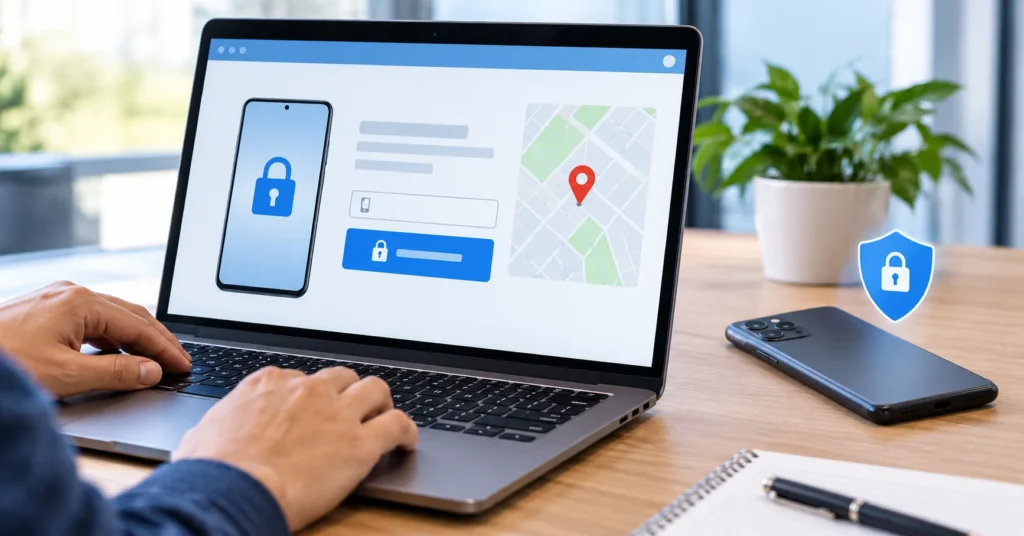
How to lock a lost Android phone remotely
- On another phone or computer, open android.com/lock.
- Enter the phone number associated with the missing device.
- Complete the security check and any additional verification shown.
- Submit the lock request and follow the on-screen confirmation.
Do not share verification codes or security answers with anyone who contacts you claiming to have found your phone.
4. Turn on Failed Authentication Lock and Identity Check
Failed Authentication Lock can lock the screen after repeated failed attempts to unlock the device. Find it in Settings → Google → All services → Theft protection, then enable it if available.
Identity Check adds another layer on supported phones. When you are outside places you have marked as trusted, certain sensitive actions can require biometric verification rather than allowing someone to rely only on your PIN or pattern. Examples can include changing screen-lock settings, accessing saved passwords and passkeys, turning off Find Hub or changing theft-protection settings. The exact list and availability depend on the device.
To set it up, open the Theft protection area in Settings, select Identity Check if listed, and follow the prompts to add biometrics and trusted places. If you do not see the option, your phone may not support it.
Android theft protection on Samsung Galaxy phones
Samsung provides theft-protection controls on supported Galaxy devices, but the menu path can differ from Google’s standard Android instructions. Samsung’s support guidance describes a route through Settings → Security and privacy → Lost device protection → Theft protection. From there, review options such as Theft detection lock, Offline device lock and Remote lock. Samsung notes that features and settings can vary by model and software version.
If you use a Galaxy phone and cannot find the Google menu, check Samsung’s official Theft protection guide for Galaxy devices.
What to do immediately if your Android phone is stolen
Use a trusted device and take these steps as soon as you can:
- Try Remote Lock: Visit android.com/lock if you set it up and meet its requirements.
- Open Find Hub: Use Google Find Hub to check the device’s location, play a sound if appropriate, mark it as lost or erase it. Options depend on the device’s connectivity and settings.
- Contact your mobile carrier: Ask the carrier to suspend the SIM or block the line and ask about the process for reporting the device’s IMEI.
- Secure important accounts: Review your Google Account and other important accounts from a trusted device. Change passwords if you suspect they may be exposed and revoke sessions where appropriate.
- Contact your bank or payment provider: If payment apps or banking access may be at risk, ask the provider to secure access.
- Report the theft: Keep your phone’s IMEI and purchase details available for your carrier or local authorities. Do not attempt to recover the phone by confronting a suspected thief.
Erasing a device is a serious step. Once erased, some remote actions and location options may no longer be available. If you believe recovery is possible, consider the consequences and follow the instructions in Find Hub before choosing erase.
Check these settings before you leave home
- Use a strong PIN of at least six digits or a unique password, and set up fingerprint or face authentication where supported.
- Make sure Find Hub is enabled and your Google Account is signed in.
- Verify the phone number used for Remote Lock and keep your recovery details current.
- Enable available theft-protection options, including Offline Device Lock and Theft Detection Lock.
- Hide sensitive notification content from the lock screen.
- Back up important photos, contacts and files so a lost phone does not also mean losing irreplaceable data.
- Keep a record of your IMEI somewhere other than the phone itself.
For another layer of Android security, see our guide to Android Advanced Protection Mode. If you are unsure which software version your phone runs, follow our guide to checking your Android version.
Frequently asked questions
Are Android theft protection features available on every phone?
No. Availability depends on the Android version, device model, manufacturer and feature. Google’s help documentation says some protections require Android 10 or later, while certain safeguards require newer Android versions. Android Go devices, tablets and wearables are not supported for some of these features.
Does Theft Detection Lock work if my phone is already locked?
Google says Theft Detection Lock is not active while the device screen is already locked. It is intended to help secure an unlocked phone during a suspected snatch-and-run event.
Can Remote Lock locate my phone?
No. Remote Lock is for locking the screen. Use Google Find Hub to locate, mark as lost or erase a compatible device, depending on its settings and connectivity.
What happens if my phone is offline when I request Remote Lock?
Google says the lock request can take effect automatically when the phone comes back online. Offline Device Lock may also lock the screen after the phone loses internet access and is used offline for a period.
Why is Theft Detection Lock missing from Settings?
Your phone may not support the feature, or the software version and manufacturer interface may differ. Check for system updates, search Settings for “Theft protection”, and consult your phone maker’s support page.
Final takeaway
Android’s theft protections work best when configured before a phone goes missing. Turn on the options your device supports, verify Remote Lock, keep Find Hub enabled and maintain a reliable backup. These steps cannot guarantee recovery, but they can reduce the chance that losing your phone also exposes your personal information.

