
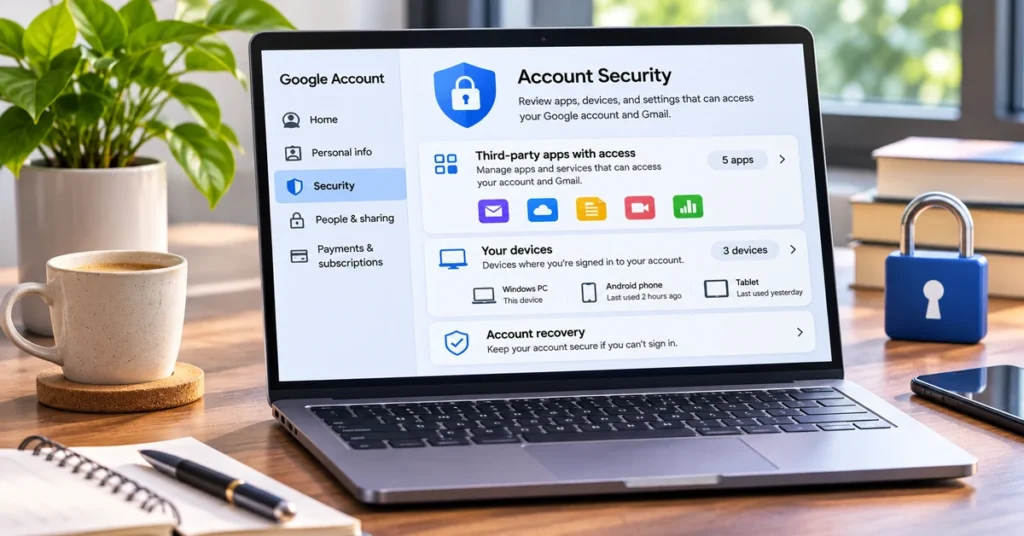
Your Google Account can be connected to more apps and services than you remember. You may have used Sign in with Google to try a new website, connected a calendar or photo editor, or allowed a service to access data from Gmail, Drive, Contacts, or Photos. Those connections can remain after you stop using the app.
Google highlighted account access reviews in its October 30, 2026 security guidance. A quick check can help you spot old connections, unfamiliar devices, and outdated recovery details. This guide shows you how to review each area, remove access safely, and understand what happens after you disconnect an app.
What can access your Google Account?
There are a few different kinds of connections, and they are not interchangeable:
- Sign in with Google: Lets you use your Google Account to sign in to a third-party app or website. Depending on the permissions, the app may receive basic profile information.
- Third-party app access: An app may request permission to access specific Google data or services, such as Gmail, Drive, Calendar, Contacts, or Photos. The permissions shown during authorization determine what it can access.
- Linked accounts: Some services connect their account with your Google Account to enable features between the two services.
- Device sessions: These are phones, computers, browsers, or app sessions where your Google Account is or was recently signed in. They are different from third-party app permissions.
Reviewing only your signed-in devices is not enough. You should also check linked apps and recent security activity.
How to see which apps have access to your Google Account
The quickest way to review connected third-party services is through Google’s linked apps page. Use a browser where you are already signed in to the correct Google Account.
- Open Google Account connections.
- Choose the Google Account you want to review if you have more than one.
- Look through the connected apps and services listed on the page.
- Select an app to open its details.
- Review the connection type and the Google data or services it can access.
- If you no longer trust or use the connection, choose the relevant remove or stop option and confirm.
Google may show different sections for Sign in with Google, linked accounts, and access to your Google Account. Check each section rather than assuming that removing one type of connection removes every connection to the same service.
How to remove an app’s access
Before disconnecting an app, read its access details. A service may need a particular permission for a feature you still use, such as importing calendar events or saving files to Drive.
- On the linked apps page, select the app you want to disconnect.
- Choose Access to your Google Account if you want to review data permissions.
- Select See details and read the access listed for that app.
- If you no longer need it, select Remove access.
- Confirm the change when Google asks.
For a Sign in with Google connection, open the app’s details under that connection type and choose Stop using Sign in with Google. For a linked account connection, review its details and choose the option to delete the link.
Important: Removing access does not necessarily delete information the app already received. Google says the app may retain data previously shared with it. If you want that data deleted, contact the app developer or use the app’s own privacy and account deletion controls.
How to check devices signed in to your Google Account
An app connection and a device sign-in are different. If you used a shared computer, sold an old phone, or signed in on a device you no longer own, check your active sessions too.
- Open Google Account device activity.
- Go to Security & sign-in, then find Your devices.
- Select Manage all devices.
- Review the devices and sessions shown, including their recent activity.
- Open a device or session you no longer use or do not recognize.
- Select Sign out and follow the confirmation steps.
You may see more than one session for the same phone or computer. Google explains that separate sessions can be created when you sign in through another browser, app, or private window, or when you re-enter your password. A recent activity time can also reflect background syncing, not necessarily the last time you physically used the device.
If you are unsure whether a session belongs to you, review its details before signing out. If you still cannot identify it, signing out of the unfamiliar session is a sensible precaution.
Run Google Security Checkup
Security Checkup brings together recommendations that can help protect your account. It can highlight recovery information that needs attention, devices or activity to review, and other security settings.

- Visit Google Security Checkup.
- Sign in to the account you want to check.
- Work through the recommendations shown on the page.
- Review recovery phone and email details and make sure they are current.
- Review recent security events and any unfamiliar account activity.
- Follow the suggested steps for any issue you identify.
Google may show a Recommended actions option from your account profile. If it is not displayed, you can still open the Security & sign-in section in your Google Account and review the security settings manually.
Check your recovery phone number and email address
Recovery information helps you regain access if you forget your password or cannot complete a sign-in. It can also help Google contact you about suspicious activity.
- Confirm that the recovery phone number is still yours and can receive messages or calls.
- Check that the recovery email address is current and that you can open it.
- Remove outdated recovery details you no longer control.
- Do not use an email address or phone number that belongs to someone else.
Make these changes only while signed in through Google’s official account pages. Never share a verification code with someone who contacts you unexpectedly.
What to do if you find an unfamiliar app or device
An unfamiliar name does not automatically mean your account has been compromised. Some apps use a company name instead of the product name you remember, and a device session may be associated with a browser or background service. Still, treat unexpected access carefully.
- Open the app or device details and review the connection type, permissions, and recent activity.
- If you cannot identify the connection or no longer need it, remove access or sign out of the session.
- Review recent security events for sign-ins or account changes you did not make.
- Change your Google Account password if you believe someone else has access.
- Check recovery phone, recovery email, and two-step verification settings for changes you did not authorize.
- Review other websites where you reused the same password and change those passwords too.
If you receive an unexpected message claiming your account is at risk, first learn how to spot a phishing email or text before clicking its links. If you cannot sign in or someone has changed your account recovery details, use Google’s official compromised account recovery guidance.
How often should you review connected apps?
There is no need to check your account every day. A review every few months is a practical habit, and it is especially worthwhile after trying a new service, changing phones, using a shared computer, or receiving an unexpected security alert.
| What to review | When to check | What to look for |
|---|---|---|
| Third-party app access | Every few months | Apps you no longer use or permissions that are no longer necessary |
| Signed-in devices | After replacing or selling a device | Old phones, shared computers, and unfamiliar sessions |
| Security events | When Google sends an alert or something looks unusual | Unrecognized sign-ins or changes to account settings |
| Recovery information | After changing your phone number or email | Outdated details that could prevent account recovery |
Common questions
Can I see every app that has access to my Gmail?
The linked apps page shows third-party connections and the Google Account permissions associated with them. Review each app’s details to see the specific access it has. Do not assume every app connection has the same Gmail permissions.
Does removing an app delete my data from that app?
No. Removing a Google Account connection stops the relevant access or sign-in relationship, but the developer may retain data already shared. Contact the developer or use its account deletion process if you want stored data removed.
Will removing Sign in with Google delete my app account?
Not necessarily. It stops the Google sign-in link. You may need another sign-in method to access the app, and the app account itself may remain active.
Why do I see multiple sessions for one device?
Google can create separate sessions for different browsers, apps, or private browsing windows on the same device. Review the details and activity before deciding whether a session is unfamiliar.
What should I do if I see a device I do not recognize?
Review its details and sign out if you cannot identify it. Then check recent security events, change your password if you suspect unauthorized access, and confirm your recovery and two-step verification settings.
Final checklist
- Review third-party app access and remove connections you no longer need.
- Check Sign in with Google and linked-account connections separately.
- Sign out of old or unfamiliar device sessions.
- Run Security Checkup and review recent security events.
- Confirm your recovery phone and email are up to date.
Taking a few minutes to review connected apps and signed-in devices can reduce unnecessary access to your Google Account. Start with the official connections page, check what each app can access, and remove only the connections you no longer trust or need.
Official sources
- Google: Gmail security checkup guidance (October 30, 2026)
- Google Account Help: Manage links between your Google Account and third-party apps
- Google Account Help: See devices with account access
- Google Account Help: Make your account more secure
- Google Account Help: Secure a hacked or compromised Google Account

