
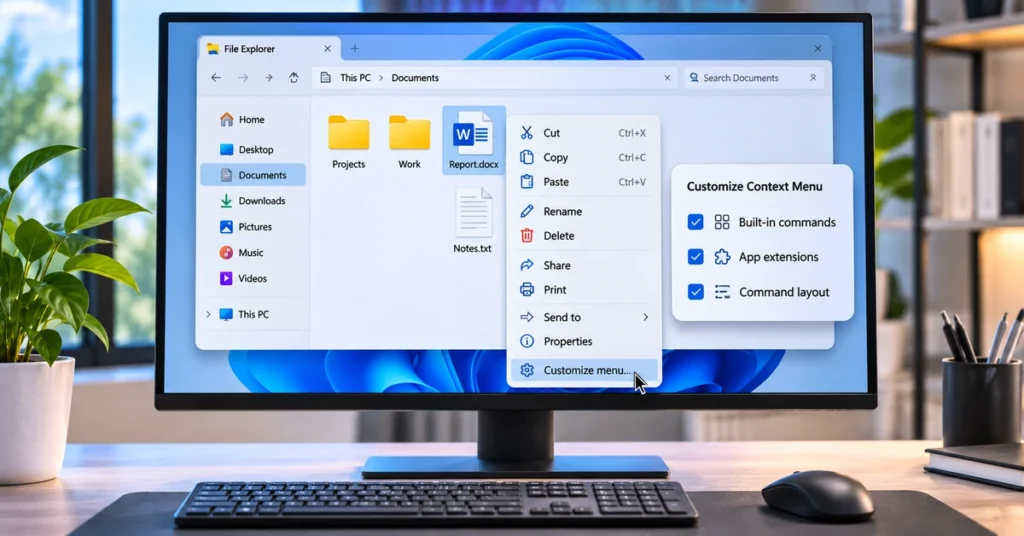
Windows 11’s right-click menu is getting a useful redesign. The October 28, 2026 preview update, KB5127936, introduces a more customizable File Explorer context menu that lets eligible users control built-in commands, app extensions, and the layout of common actions. Instead of accepting every option an installed app adds, you can decide what appears when you right-click a file or folder.
This guide explains how to find the new settings, remove clutter, add useful commands such as Print, change how Cut and Copy appear, and troubleshoot the feature if it is not available on your PC yet.
What is new in the Windows 11 context menu?
The redesigned menu is intended to open more quickly, reduce clutter, and give users more control over commands and third-party app extensions. Microsoft says the new experience is delivered gradually, so installing the update does not guarantee that every eligible PC will receive the interface immediately.
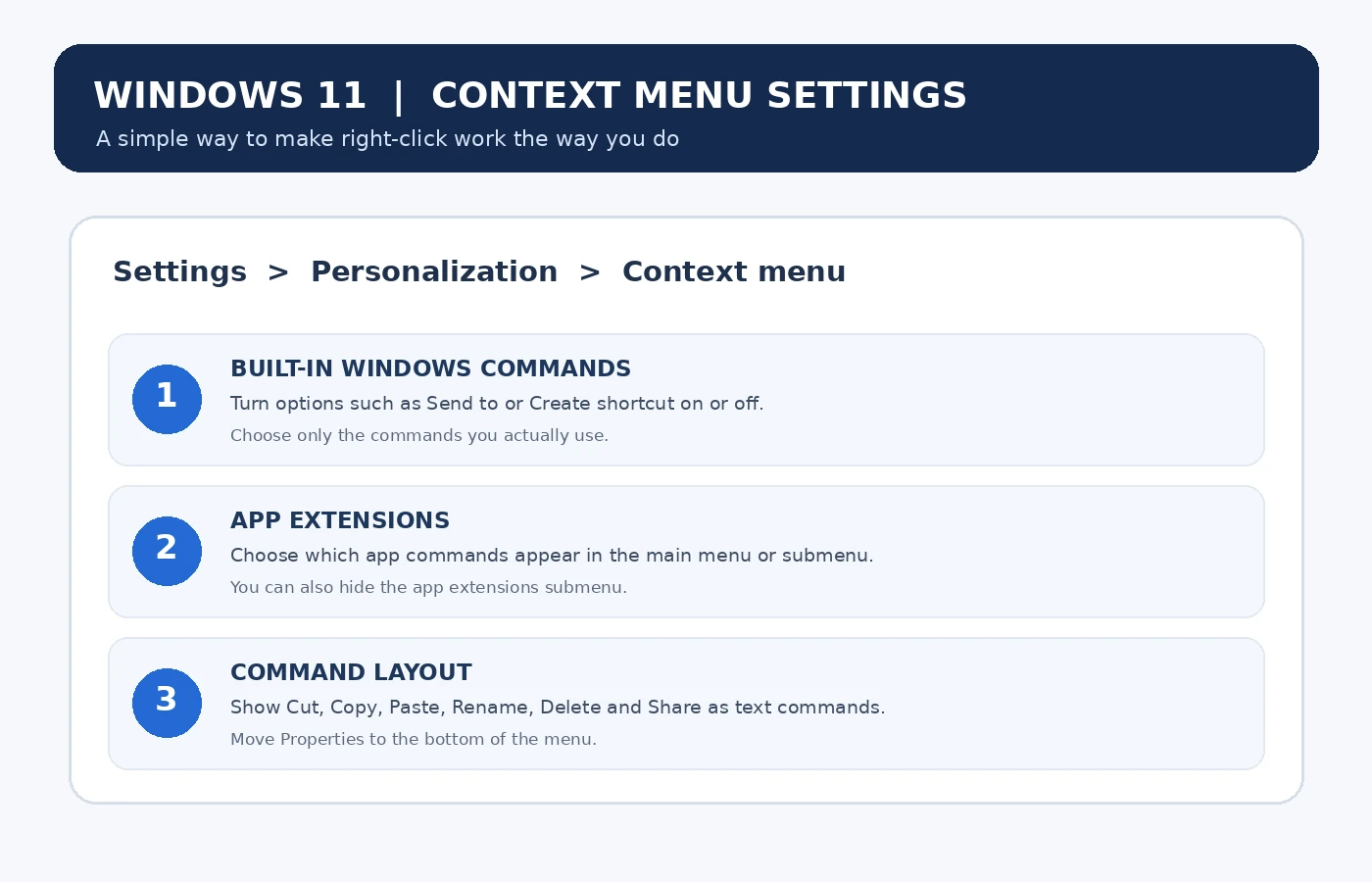
The new Customize menu option appears at the bottom of the File Explorer right-click menu. Selecting it opens a dedicated page under Windows Settings, where the available controls are grouped into three areas:
- Built-in Windows commands: Turn commands such as Send to and Create shortcut on or off. The update also lets you add commands such as Print.
- App extensions: Choose which supported app commands appear in the main context menu or in a submenu. You can also hide the app extensions submenu.
- Command layout: Display Cut, Copy, Paste, Rename, Delete, and Share as text commands in the menu rather than only as a row of icons. You can also move Properties to the bottom.
These options change the menu’s presentation and available shortcuts. They do not uninstall the apps that supplied the extensions.
Which Windows 11 update adds context menu customization?
Microsoft lists the redesigned context menu in the October 28, 2026 preview update KB5127936 for Windows 11 versions 25H2 and 26H2. The published builds are 26200.9818 for version 25H2 and 26300.9818 for version 26H2.
The feature is part of a gradual rollout. That means two PCs with the same Windows version and update can show different experiences while the rollout is in progress. The feature may appear later without another manual installation.
To check your Windows version and build:
- Press Windows + R to open the Run dialog.
- Type
winverand press Enter. - Read the Windows version and OS build in the About Windows window.
- For the October preview release, compare your build with 26200.9818 (25H2) or 26300.9818 (26H2), or a later build.
If your PC is on an older build, check Windows Update before looking for the new menu option.
How to customize the File Explorer right-click menu
Once the redesigned experience has reached your PC, changing it is straightforward. You do not need to edit the Registry or install a third-party utility.
- Open File Explorer and browse to any file or folder.
- Right-click the item to open its context menu.
- Select Customize menu near the bottom.
- Windows opens the Context menu page in Settings. Review the built-in commands, app extensions, and command layout sections.
- Turn the options you want on or off, or select the preferred layout where available.
- Return to File Explorer and right-click an item again to review the result.
The exact options shown can depend on the installed apps and the Windows build. If a particular app does not provide a compatible context-menu extension, its command will not appear as a choice here.
1. Remove built-in commands you rarely use
The built-in commands section helps simplify the menu by hiding actions you almost never select. For example, if you do not use Send to or Create shortcut from the right-click menu, turn those entries off.
Do not remove a command simply because it is unfamiliar. Consider how you manage files first. Create shortcut can be useful for making quick links to frequently used folders, while Send to can provide a convenient route to supported destinations.
The update also allows you to add commands such as Print. This can be useful when you regularly print supported documents or images and want the action easier to reach.
2. Control which app extensions appear
Many desktop applications add their own entries to File Explorer. Archive utilities, cloud storage clients, image tools, and other programs may add actions to the context menu. As more apps contribute commands, the menu can become longer and harder to scan.
In the app extensions section, choose which supported extensions should appear in the main menu and which should stay inside a submenu. If you prefer a cleaner menu, you can hide the app extensions submenu where that option is available.
Keep commands that save you time. For example, a compression tool you use every day may deserve a visible entry, while a rarely used editing action can stay out of the main menu. Hiding an extension from this menu does not remove the application or disable its normal features.
3. Change the layout of Cut, Copy, Paste and other actions
Windows 11 traditionally places common actions such as Cut, Copy, Paste, Rename, Delete, and Share in an icon row near the top of the compact context menu. The redesigned settings let you display these actions directly as text commands instead.
This layout can be easier to understand if you prefer visible labels over icons, or if you are used to the longer menu style in earlier Windows versions. You can also move Properties to the bottom of the context menu to keep it away from the actions you use most often.
There is no universally best layout. If you work quickly with keyboard shortcuts, the icon row may be compact enough. If you rely on the mouse or find icons difficult to identify, text labels may be more comfortable.
Suggested context menu setup for different users
| How you use your PC | Suggested setup |
|---|---|
| Everyday home use | Keep common file actions visible, hide extensions you never use, and remove only commands you recognize and do not need. |
| Office and document work | Consider adding Print if available, keep cloud-storage actions you rely on, and use text labels for common commands if they are easier to scan. |
| Photo and media work | Keep relevant image or media extensions accessible, while moving less-used app commands out of the main menu. |
| Minimal menu preference | Disable unnecessary built-in entries, reduce visible app extensions, and keep the main menu focused on frequent tasks. |
These are starting points, not fixed presets. Adjust the menu based on the commands you actually use, then test it with a few file types.
What if “Customize menu” does not appear?
If the option is missing, it does not necessarily mean your PC is unsupported. Microsoft is using a gradual rollout for this experience. Work through these checks:
- Check the Windows build: Run
winverand confirm that your PC is on a supported Windows 11 release with the relevant update installed. - Check Windows Update: Open Settings > Windows Update and select Check for updates. Review optional updates if the preview update is offered to your device.
- Review update preferences: The “Get the latest updates as soon as they’re available” setting can help your device receive eligible updates sooner, but it does not override a staged feature rollout.
- Restart after installing: If Windows asks for a restart, save your work and restart before checking File Explorer again.
- Wait for the rollout: If the update is installed but Customize menu is still missing, wait and check again later. Availability can vary by device.
Avoid using unofficial tools or Registry changes to force-enable a feature that has not reached your PC. Such workarounds can create instability and are unnecessary for normal use. Wait for the supported Windows rollout instead.
Can you still access the older context menu?
Yes. Windows 11 continues to provide a way to reach additional legacy commands. In File Explorer, right-click a file or folder and select Show more options to open the extended menu. Some older app extensions may appear there if they have not been updated for the newer context menu.
Microsoft also documents holding Shift while right-clicking the desktop to see more options. The exact menu depends on what you click and which extensions are installed.
Does customizing the menu remove app features?
No. Hiding an app extension from the context menu only changes whether that command is shown in the menu’s main area or submenu, or whether the submenu is displayed. It does not uninstall the app. You can still open the application normally and use its other features.
Frequently asked questions
Is the new Windows 11 context menu available to everyone?
Not immediately. Microsoft is gradually rolling it out with the October 28, 2026 preview update KB5127936 for Windows 11 versions 25H2 and 26H2. Eligible devices may receive it at different times.
Do I need to install a third-party app to customize the right-click menu?
No. The new Customize menu option is built into Windows Settings. You can use it to manage supported built-in commands, app extensions, and the layout of common actions.
Can I add Print to the Windows 11 context menu?
Microsoft lists Print as an example of a command that can be added through the built-in commands section. Availability may depend on the rollout and the item you right-click.
Will hiding an app extension uninstall the app?
No. It changes the app command’s visibility in the context menu. The application remains installed.
Why does my PC have KB5127936 but not the new menu?
The context menu is part of a gradual rollout. Installing the update is not a guarantee that the feature will appear immediately on every eligible device.
Final thoughts
The redesigned Windows 11 context menu gives users more control over one of the operating system’s most frequently used interfaces. You can remove unnecessary built-in commands, decide where supported app extensions appear, and choose a layout for common actions that feels more natural.
If you have KB5127936 installed but do not see Customize menu yet, there is no need to force it with unofficial tools. Check your Windows build, install available updates, and allow the gradual rollout to reach your device. For more Windows productivity guidance, see our guide to using Windows 11 Search Actions.

