

Holiday deals and new phone launches make it tempting to sell or trade in your old phone. Before you hand it over, wipe it properly. A phone that is not reset correctly can expose your photos, messages, accounts and even payment cards to the next owner. It can also be useless to them if activation lock is still on. Follow these five steps in order.
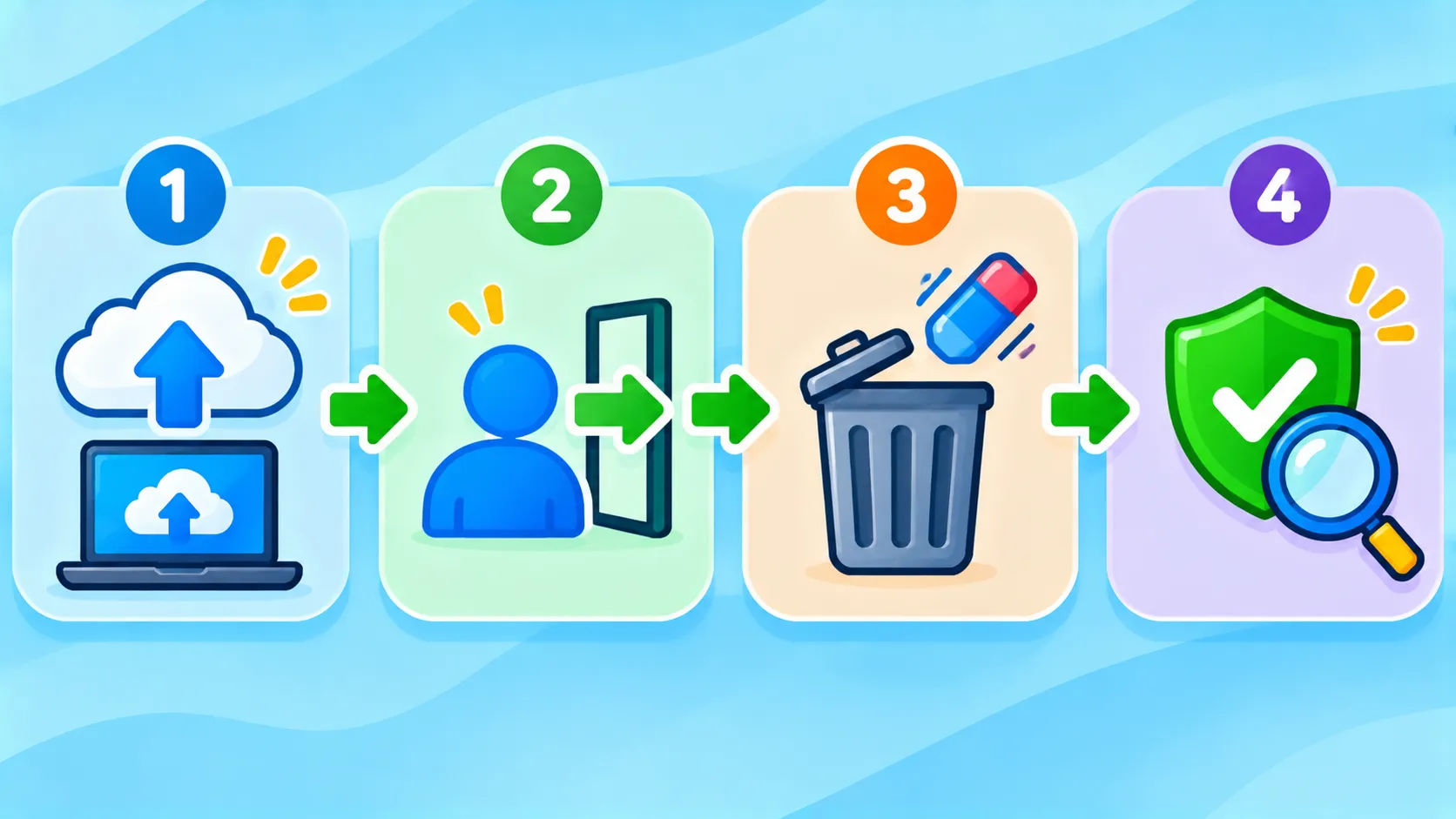
Quick answer: Back up your phone, sign out of your Apple or Google account (this turns off activation lock), unpair accessories and remove your SIM, then erase it. On iPhone, use Erase All Content and Settings. On Android, use Erase all data (factory reset). Finally, check that the phone shows the setup screen.
Note: menu names vary by phone model and software version.
Step 1: Back up everything
Save your photos, contacts, chats and files before you erase anything. iPhone users can follow our guide on backing up an iPhone. Android users should check that Google backup is up to date, and back up WhatsApp separately. Confirm the backup finished before moving on.
Step 2: Sign out of your accounts
- iPhone: go to Settings > [your name], turn off Find My, then scroll down and tap Sign Out.
- Android: go to Settings > Passwords & accounts (or Accounts) and remove your Google account and any Samsung or other maker account.
This turns off activation lock, which otherwise blocks the next owner from setting up the phone.
Step 3: Unpair accessories and remove extras
- Unpair smartwatches and earbuds.
- Remove your SIM card and any memory card.
- If you use an eSIM, choose to delete it during the reset or contact your carrier.
- Remove payment cards from Apple Pay or Google Wallet.
Step 4: Erase the phone
| Phone | Where to find factory reset |
|---|---|
| iPhone | Settings > General > Transfer or Reset iPhone > Erase All Content and Settings |
| Google Pixel | Settings > System > Reset options > Erase all data (factory reset) |
| Samsung Galaxy | Settings > General management > Reset > Factory data reset |
| Other Android | Search “reset” in Settings |
You may need to enter your passcode or account password to confirm.
Step 5: Verify
After the phone restarts, you should see the welcome or setup screen. Do not set it up again. If you are trading in, follow the store’s instructions for the final step. On iPhone, you can also check at account.apple.com that the device has been removed from your account.
Keep your next phone safe
Set up protections on your new device straight away. See Android theft protection and how to lock apps. Buying used instead? Our refurbished buying checklist covers what to check. The FTC also has advice on reporting fraud if a buyer tries to scam you.
The bottom line
Back up, sign out, remove extras, erase and verify. Those five steps protect your personal data and make sure the next owner can actually use the phone.
Frequently asked questions
Does a factory reset delete everything?
Yes. It erases your data, apps and settings, which is why you must back up first.
What is activation lock?
It is a security feature that ties the phone to your account. Signing out turns it off so the next owner can set it up.
Should I remove my SIM card before selling?
Yes. Remove the SIM and any memory card, and delete or transfer your eSIM.
Can someone recover my data after a factory reset?
On modern iPhones and Android phones, storage is encrypted, so a proper factory reset makes data practically unrecoverable.

