

A new smartphone is one of the most popular holiday gifts for parents and grandparents. Out of the box, though, phones can feel cluttered and confusing, with tiny text and endless notifications. Spending an hour setting it up together makes a huge difference to how easy and safe it is to use. Here is a friendly checklist.
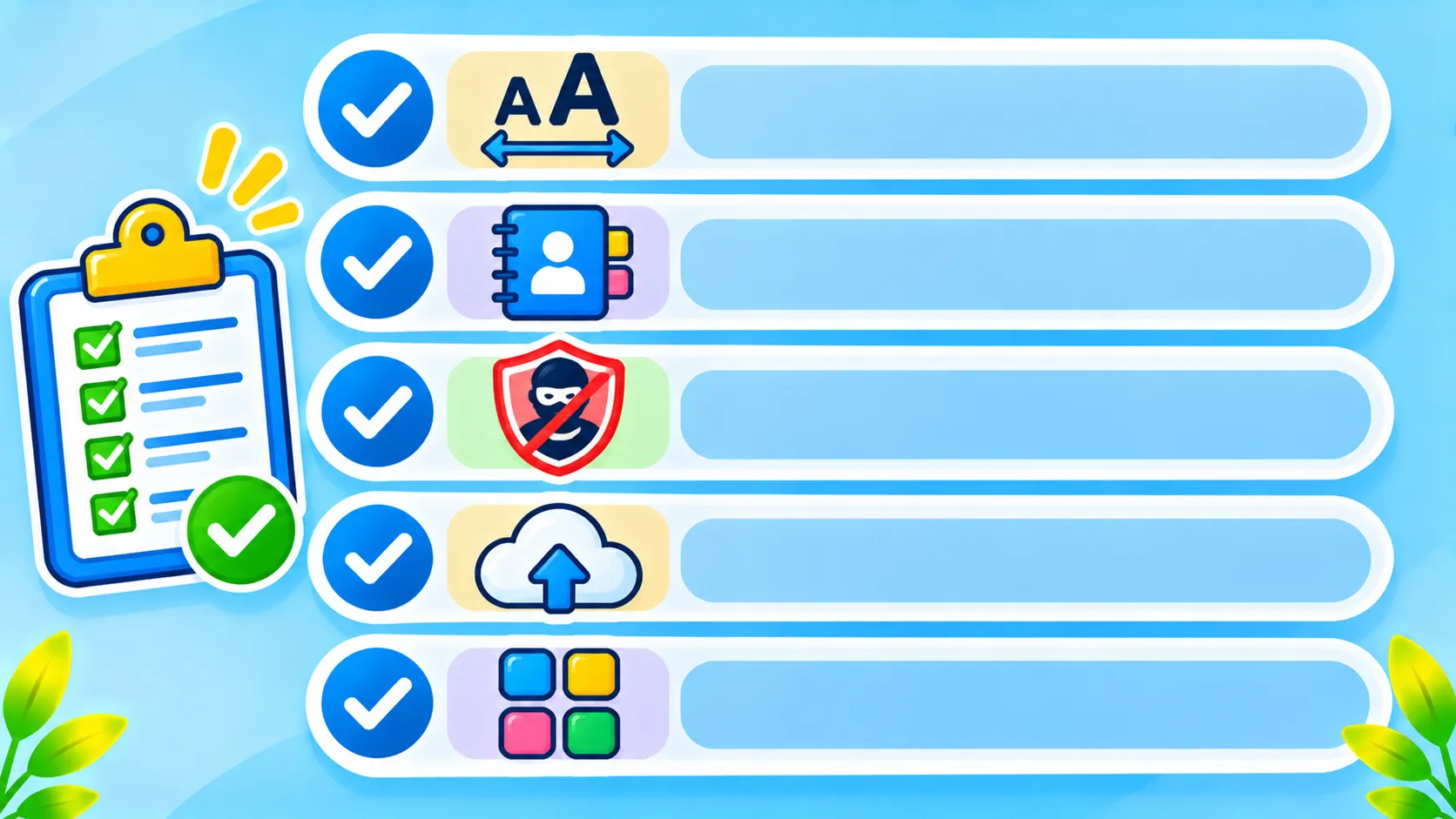
Quick answer: Increase the text size, simplify the home screen to a few key apps, set up emergency contacts and Medical ID, turn on spam call and text filters, agree on a family code word and turn on automatic updates and backups. Do it together, explain each step and always ask before changing settings.
Note: menu names vary by phone and software version. Always ask permission before changing someone’s settings.
1. Make it easy to see and hear
- Bigger text: increase text size and turn on bold text in Display settings.
- Display zoom: make icons and buttons larger.
- Volume and captions: raise ringtone volume and turn on live captions if hearing is a challenge.
- Simpler mode: iPhone has Assistive Access, and many Android phones offer an Easy mode or simple home screen.
2. Keep the home screen simple
- Put Phone, Messages, Camera, Photos and video calling on the first screen.
- Move or hide apps they will not use.
- Add favourite contacts so they can call family in one tap.
3. Add safety information
- Set up emergency contacts and Medical ID. Our guide to Emergency SOS and Medical ID walks you through it.
- Turn on location sharing with family, if they agree.
- Turn on Find My (iPhone) or Find Hub (Android) in case the phone is lost.
4. Block scams
- Turn on spam call and text filters. See how to stop spam calls and how to block spam texts.
- Agree on a family code word for emergencies. Read about AI voice cloning scams.
- Teach them never to share one-time codes with anyone who calls.
- Go through our family scam checklist together.
5. Protect the account and data
| Setting | Why |
|---|---|
| Screen lock they can remember | Protects the phone if it is lost |
| Recovery contact | Helps them get back into their account |
| Automatic updates | Keeps security fixes up to date |
| Automatic backups | Saves photos and contacts |
| Two-factor authentication | Stops account takeovers |
6. Show them a few useful extras
- How to make a video call with family.
- How to use the voice assistant to call someone or set a reminder.
- How to ask an AI assistant simple questions. See how to use ChatGPT on your phone.
Write the steps on paper too, and leave your number for help. The AARP Fraud Watch Helpline is a good resource for older adults worried about scams.
The bottom line
An hour of thoughtful setup turns a confusing gadget into a helpful, safe tool. Make it easy to see, keep it simple, add emergency info, block scams and turn on backups. Most of all, be patient and set it up together.
Frequently asked questions
What is the easiest phone setting for seniors?
Bigger text and a simpler home screen. iPhone’s Assistive Access and Android’s Easy mode simplify things further.
How do I protect an older parent from phone scams?
Turn on spam filters, agree on a family code word and teach them never to share one-time codes.
Should I set up location sharing?
Only if they agree. It can help in emergencies, but it is their choice.
Do I need to set up backups?
Yes. Automatic backups make sure photos and contacts are safe if the phone is lost or broken.

