

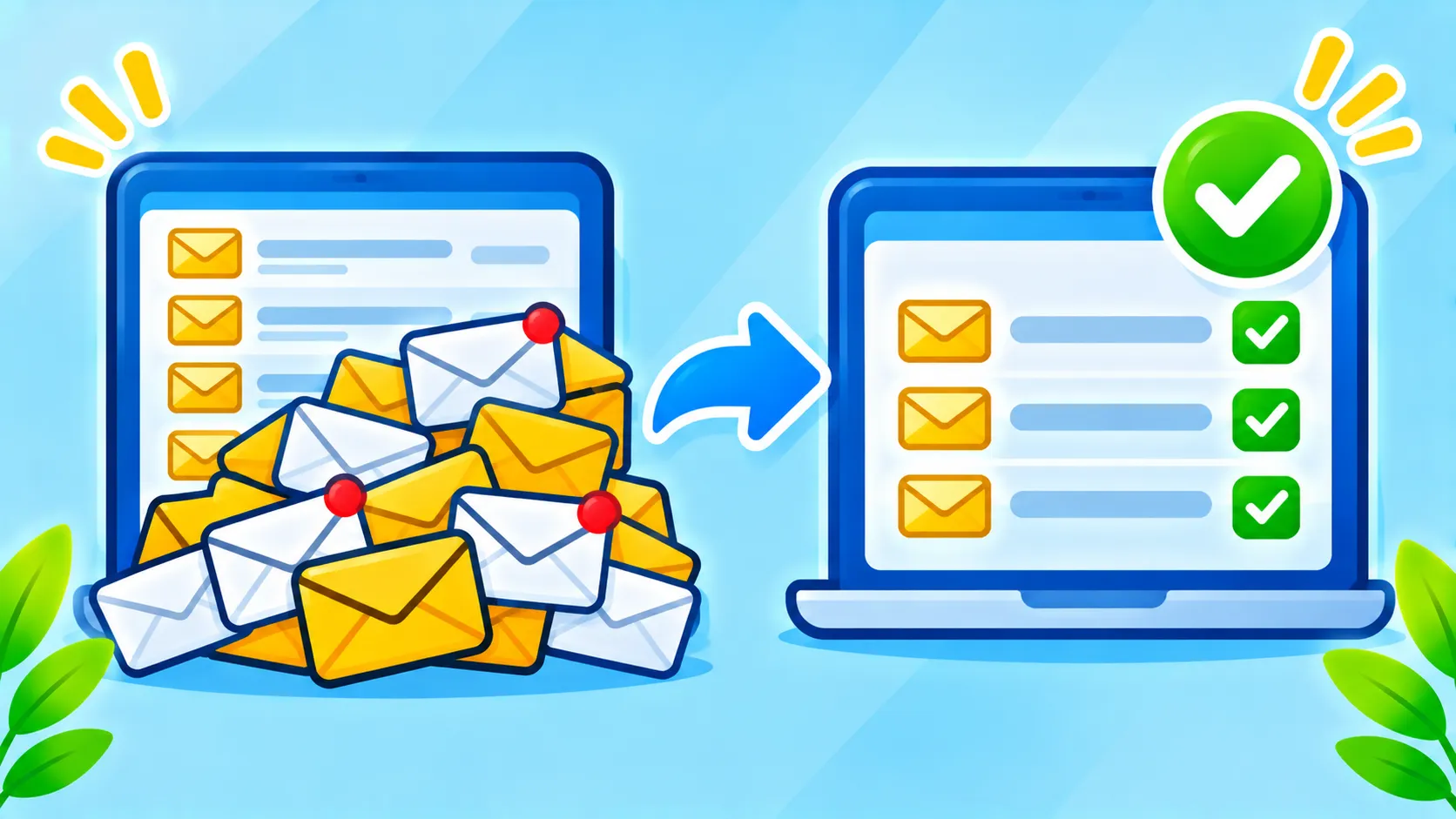
If your inbox is full of discount codes, newsletters you never read and store updates from a site you visited once, you are not alone. Marketing emails pile up quickly, and they bury the messages that matter, like bills, receipts and replies from real people. The fix is not to delete thousands of emails one by one. This guide shows how to unsubscribe properly, how to do it in bulk in Gmail, and how to avoid fake unsubscribe links that are really scams.
Quick answer: Use Gmail’s own Unsubscribe link next to the sender’s name, or the Manage subscriptions view to unsubscribe from many senders at once. Search for “unsubscribe” to find newsletters in bulk. Block or report senders that keep emailing, and never click unsubscribe links in suspicious emails.
Why an unsubscribe link is better than deleting
Deleting an email solves the problem for one day. The next message arrives tomorrow. Unsubscribing stops the flow at the source. It also makes your inbox easier to search and reduces stress, since you no longer have to scan through noise.
How to unsubscribe in Gmail
- Open a promotional email from the sender.
- Look next to the sender’s name for an Unsubscribe link, or find it at the bottom of the message.
- Click Unsubscribe and confirm.
Gmail often shows its own unsubscribe option for legitimate senders. When you use it, Gmail sends the request on your behalf, which is usually safer than clicking links in the email body. Some senders may take a few days to stop sending. Google’s Gmail Help explains the unsubscribe and block options.
Use the Manage subscriptions option
Gmail also has a Manage subscriptions view on the web and in some apps that lists the senders that email you most. From there you can review subscriptions and unsubscribe from several without opening each message. The feature may roll out differently by account and device, so if you do not see it, use the search method below.
Find bulk emails with search
In the Gmail search bar, try searching for the word unsubscribe. It brings up many newsletters and promotions. Then open the senders you no longer want and unsubscribe, or select several messages to review. You can also search by sender name when you know the culprit.
Block or report when unsubscribing does not work
- Block sender: in an email, open the menu and choose Block. Their future messages go to spam.
- Report spam: use this for messages that you never asked for or that look suspicious.
- Create a filter: automatically archive or delete messages that match a sender or keyword. Our guide to Gmail filters has seven ready examples.
Spot fake unsubscribe links
Scammers sometimes copy the look of a store or newsletter and add an Unsubscribe link that leads to a fake page. Be careful when:
- You do not recognize the sender at all.
- The message has spelling errors, urgent threats or odd attachments.
- The link asks you to log in or enter personal details.
In those cases do not click. Mark the message as spam instead. Our guide to spotting phishing emails explains the warning signs, and fake deal scams are especially common during the shopping season.
Stop new clutter before it starts
- Use a separate email address for shopping and sign-ups.
- Untick marketing checkboxes at checkout.
- Be selective with newsletters; keep the few you read.
- Check your privacy settings in the apps you use, including those that connect to your Google account. See which apps can access your account.
Save time with AI and automation
If you still deal with a lot of mail, AI can help you draft quick replies and summaries. Read how to use AI to write emails in Gmail.
Frequently asked questions
Is it safe to click Unsubscribe?
It is generally safe with well-known senders and when you use Gmail’s built-in option. Avoid it for obvious spam.
Why do I still get emails after unsubscribing?
Some senders need several days, and some companies keep sending from other lists. Block them if it continues.
Should I delete all my old emails?
Not necessarily. Archive what you might need and delete large, useless messages.
Note: Gmail features and names may differ by account, device and region.

