
Make (formerly called Integromat) is a no-code automation platform that connects your apps and moves data between them automatically. Its big difference from tools like Zapier is a visual drag-and-drop canvas, where you can see your whole workflow as a flowchart, plus pricing that’s often cheaper for complex automations.
Here’s what Make is, how it works, beginner-friendly automation ideas, and what it costs in 2026.
Quick Verdict
- Best for: Freelancers, agencies and small businesses who want powerful automations at a low price, and people who like seeing workflows visually.
- Skip it if: You want the simplest possible setup. Zapier is easier for complete beginners.
- Is the free plan enough? Yes, for one or two simple automations. You get 1,000 credits a month and 2 active workflows.
What Is Make?
Make is a web-based tool at make.com that links thousands of apps, including Gmail, Google Sheets, Slack, Shopify, Notion, Airtable, HubSpot and OpenAI. Instead of doing the same tasks by hand, you build a workflow once and Make runs it for you.
Key terms in Make
- Scenario: A complete automated workflow (Zapier calls these Zaps).
- Module: One step in a scenario, like “Watch new emails” or “Add a row.”
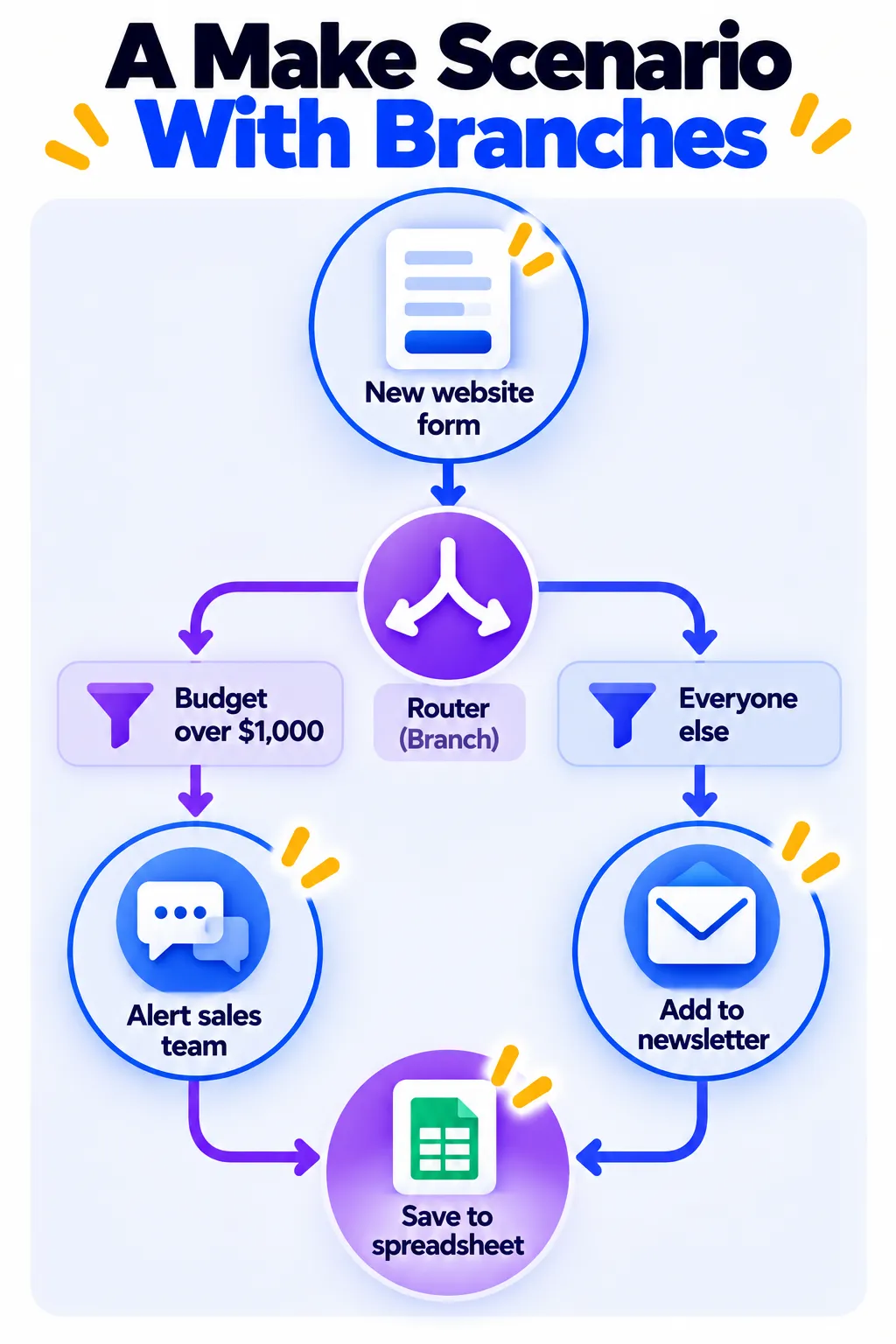
- Router: Splits a workflow into different branches.
- Filter: Lets data continue only if it meets a condition.
- Credit: The unit Make uses for billing. Most standard module runs use one credit.
How Make Works
You build scenarios on a visual canvas. Each app appears as a circle. You connect circles with lines to show the order of steps, add routers to create branches, and set filters so each branch only runs when it should. You can then schedule the scenario to run every few minutes, at set times, or instantly when something happens.
Make also includes AI features, such as AI modules for summarizing or sorting data and AI agents that can make decisions inside a workflow. Learn the basics of AI agents in what are AI agents?
8 Useful Make Automations to Try
- Website form to CRM: Send new form leads to your CRM and a Google Sheet at the same time.
- Smart lead routing: Use a router to send big-budget leads to sales and smaller ones to an email list.
- Shopify orders to a spreadsheet with daily totals.
- Save email attachments to Google Drive or Dropbox, sorted into folders by sender.
- AI email summaries: Summarize long incoming emails with AI and post them to Slack.
- Social media scheduling: Pull approved posts from a Google Sheet or Notion and publish them on schedule.
- Invoice reminders: Check a spreadsheet daily and email clients whose invoices are overdue.
- Meeting notes to Notion: Save AI meeting summaries into a Notion database automatically.
How to Build Your First Scenario (Step by Step)
- Go to make.com and sign up for a free account.
- Click Create a new scenario, or start from a ready-made template.
- Click the big plus icon and choose your first app and trigger, for example Google Forms > Watch Responses.
- Connect your account and choose the form.
- Add the next module, for example Google Sheets > Add a Row, and map the fields.
- Click Run once to test it with real data.
- Set the schedule and switch the scenario On.
Tip: Templates are the fastest way to learn. Open one, see how the modules connect, then adjust it for your own apps.
Make Pricing (2026)
US prices as of October 2026 (lower prices are for yearly billing):
| Plan | Price | What you get |
|---|---|---|
| Free | $0 | 1,000 credits a month, 2 active scenarios, runs every 15 minutes at most |
| Core | About $9/month yearly (a bit more monthly) | 10,000 credits a month, unlimited scenarios, runs as often as every minute |
| Pro | About $16/month yearly | More advanced features and priority execution |
| Teams | About $29/month yearly | Team roles and shared scenarios |
| Enterprise | Custom | Advanced security and support |
In 2025, Make switched from counting “operations” to “credits.” Standard module runs use one credit, but AI features can use credits differently. Check make.com/pricing for current details.
How to Save Credits
- Use filters early so unwanted data stops before it uses more credits.
- Use instant triggers (webhooks) where possible, instead of checking every minute.
- Avoid unnecessary loops over large lists.
- Watch AI modules, which can use more credits than regular steps.
Make vs Zapier
Make is usually cheaper for workflows that run often or have many steps, and its visual canvas makes complex branching easier to understand. Zapier is simpler for beginners and connects to more apps. If you’re a total beginner, start with Zapier. If you’re comfortable experimenting and want more power for less money, try Make. Small business owners can find more ideas in AI tools for small business.
Privacy and Safety Tips
- Only connect the app accounts each scenario actually needs.
- Be careful when moving customer personal data between apps, and follow privacy laws like GDPR where they apply.
- Turn on error notifications so you know when a scenario fails.
Frequently Asked Questions
Is Make free?
Yes. The free plan includes 1,000 credits a month and 2 active scenarios, with access to the full visual builder.
Is Make the same as Integromat?
Yes. Integromat rebranded as Make in 2022.
Is Make cheaper than Zapier?
Usually, yes, especially for workflows with many steps or frequent runs. Compare your expected monthly usage on both tools before deciding.
Do I need coding skills to use Make?
No. Make is a no-code tool, though it takes a little longer to learn than Zapier. Technical users can add code steps if they want.
Why did my scenario stop running?
Common causes include running out of credits, an expired app connection, or repeated errors that pause the scenario. Check the scenario history, fix the error and turn it back on.
The Bottom Line
Make is a powerful, affordable way to automate your work, especially when workflows get more complex. Start with a free template, learn how credits work, and move to Core when you need more than two scenarios. Explore more tools in our AI tools directory.
Related Guides
- Zapier vs Make vs n8n: Which Automation Tool Should You Use? (2026)
- What Is n8n? Build AI Automations and Agents, Pricing and Setup (2026)
- 10 Small Business Tasks You Can Automate Today (With the Best Tools)
- Google Apps Script: 25 Things You Can Automate for Free (Beginner’s Guide 2026)
Explore more in our Automation and Chatbot Tools hub.
Disclaimer: This article is for general information only and is based on details available at the time of writing. Prices, plans, features, release dates, policies and availability can change at any time and may vary by country. Please verify the latest information on the official website of the company or product mentioned before making any decision or purchase. Next DigiTech is an independent website and is not affiliated with or endorsed by the companies mentioned; all trademarks belong to their respective owners. We are not responsible for any loss or decisions made based on this content.