Most phone security settings are scattered across menus. Android’s Advanced Protection pulls the strongest ones into a single switch. It is built for people at higher risk, such as journalists and activists, but anyone who wants tougher protection can use it. Here is what Google says it does, where to find it and what you may give up.
Quick Summary
- What it is: A Google feature that turns on the strongest built-in security and privacy protections for apps, the device, messages, calls, the network and the web.
- Where: Settings > Security & privacy > Advanced Protection > Device protection.
- Requirement: You need a screen lock set up first.
- Trade-off: Some apps and features may stop working, including some security apps that rely on Android’s Accessibility API.
Availability depends on your phone, its Android version and its maker, and some coverage ties the feature to Android 17. Google’s own help page refers to “supported devices”, so check yours before assuming it is there.
How to Turn On Advanced Protection
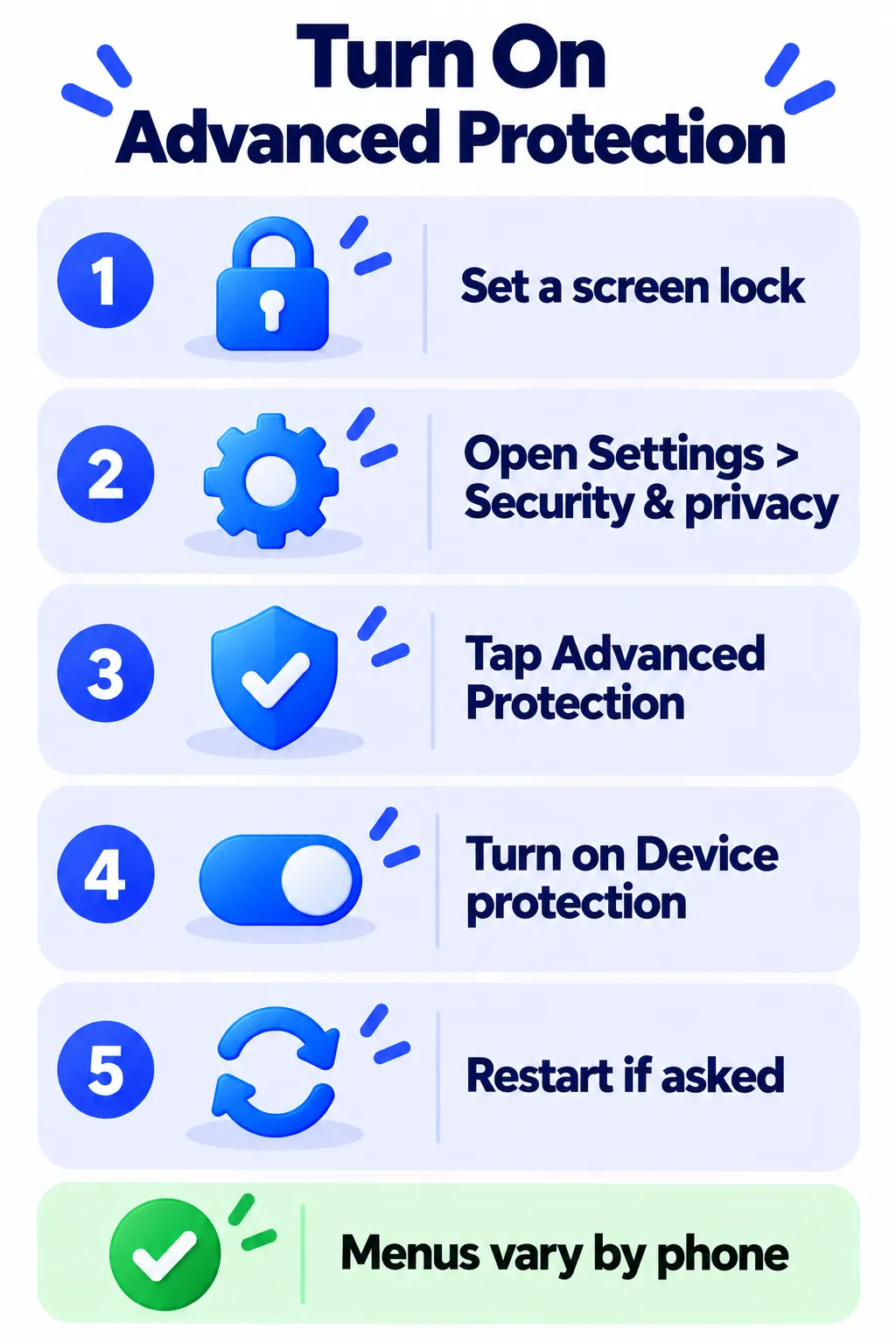
- Make sure a screen lock (PIN, pattern or password) is set.
- Open Settings.
- Tap Security & privacy, then Advanced Protection under “Other settings”. On some phones, go to Google > All services > Advanced Protection under “Personal and device safety”.
- Turn on Device protection.
- When prompted, optionally turn on Intrusion Logging and pick a Google Account for encrypted log backups, or skip it.
- Tap Turn on and restart if asked. You can restart later from the same page.
- Optional: enroll your Google Account in Account protection as well.
To turn it off, return to the same page, switch off Device protection and confirm with your PIN or biometrics. If you enrolled in Account protection, some protections may stay on until you unenroll.
Note: Features and policies may vary by plan, region and app version, and can change at any time. Check the official help center for the latest information.
What Advanced Protection Does
According to Google’s help page, it bundles these protections:
| Area | What it does |
|---|---|
| Apps | Keeps Google Play Protect on, blocks installs and updates from unknown sources, adds Memory Tagging Extension protection, and limits Accessibility services to verified tools |
| Device | Theft Detection Lock, Offline Device Lock, Inactivity Reboot after 72 hours locked, USB protection while locked, Failed Authentication Lock, and restricted Watch Unlock |
| Messages | Scam and spam protection in Google Messages and warnings about links from unknown senders |
| Network | On supported devices, blocks connections to insecure 2G networks |
| Calls | Identifies known spam numbers; in supported regions an AI assistant can screen calls |
| Web | Live phishing blocking with Safe Browsing, Chrome HTTPS upgrades, and Chrome’s JavaScript optimizer and WebGPU turned off |
| Investigation | Optional Intrusion Logging for encrypted security logs |
Note: These details come from the company’s own announcements and have not been independently verified by Next DigiTech.
What You Might Lose or Notice
- No sideloading: Installing apps from outside trusted stores is blocked.
- Some security apps are limited. Bitdefender says Android 17’s mode restricts Accessibility access, so its Web Protection, Chat Protection and App Anomaly Detection become limited or unavailable while the mode is on.
- 2G blocking: You may not connect where only 2G is available.
- Slight slowdowns: Google says Memory Tagging may slightly slow performance.
- Some apps and sites may behave differently because of stricter web and accessibility rules.
Who Should Turn It On?
It is a good fit if you handle sensitive information, travel often, have been targeted before, or simply want tougher defaults and do not sideload apps. It may not suit you if you rely on accessibility tools, third-party launchers or security apps that need broad access. If you are unsure, enable it, use your phone for a few days and switch it off if something you depend on breaks.
Pair it with other basics: two-factor authentication, a strong lock code and a find-my-phone setup.
Frequently Asked Questions
Is Advanced Protection on by default?
No. You turn it on yourself in settings.
Does it need Android 17?
Some coverage ties it to Android 17, while Google’s help page speaks of supported devices. Check your Settings for the option.
Does it slow down my phone?
Google says Memory Tagging may slightly slow performance. Most people will not notice a big difference.
Can I still install apps from the Play Store?
Yes. Installs from unknown sources are what get blocked.
Is this the same as Google’s Advanced Protection Program for accounts?
They are related but separate. Account protection adds stronger sign-in security to your Google Account, while Device protection secures the phone.
The Bottom Line
If you want one switch for stronger Android security, Advanced Protection is it. Set a screen lock, turn on Device protection, accept a few restrictions and keep your sensitive data safer.
Related Guides
- How to Turn On Two-Factor Authentication (2FA) for Your Most Important Accounts
- How to Find a Lost or Stolen Phone (iPhone and Android)
- Is My Phone Hacked? 10 Warning Signs and What to Do Next
- How to Spot a Fake App Before You Download It (7 Warning Signs)
Explore more in our Online Safety and Privacy hub.
Disclaimer: This article is for general information only and is based on details available at the time of writing. Prices, plans, features, release dates, policies and availability can change at any time and may vary by country. Please verify the latest information on the official website of the company or product mentioned before making any decision or purchase. This is not legal, financial or security advice; if you think you have been scammed, contact your bank and the official reporting services. Next DigiTech is an independent website and is not affiliated with or endorsed by the companies mentioned; all trademarks belong to their respective owners. We are not responsible for any loss or decisions made based on this content.