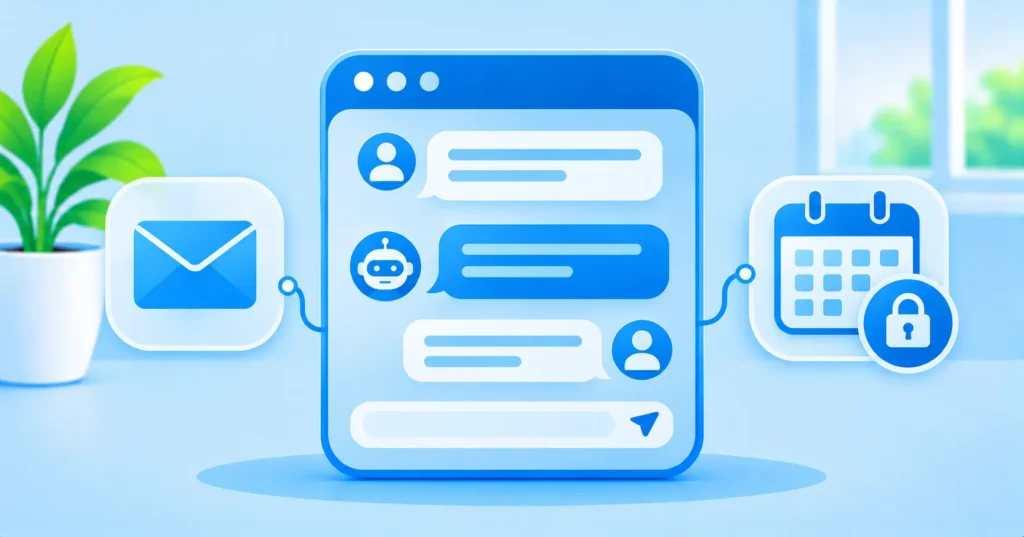
ChatGPT can now connect to your iCloud Mail and iCloud Calendar. OpenAI announced the two plugins on October 27, 2026, and they are available on all ChatGPT plans, including Free, on the web, desktop and iPhone. That means ChatGPT can search your inbox, summarise emails, draft replies and check or update your schedule. Handy, but it also means a chatbot can read your personal mail. Here is what to check before you allow it.
Quick answer: The iCloud plugins connect using an Apple app-specific password, not your main Apple password. Create one at account.apple.com, connect each plugin separately in ChatGPT, and remember that disconnecting in ChatGPT does not revoke the password. You must delete it on Apple’s side too.
Note: check OpenAI’s current help pages for exact permissions.
What the iCloud plugins can do
| Plugin | What ChatGPT can do |
|---|---|
| iCloud Mail | Search emails, summarise your inbox and help with drafts |
| iCloud Calendar | Check your schedule and update events |
Contacts and Reminders are not part of this release. The plugins work on web, desktop and iOS. The Android app is not on the list yet.
How the connection works
- App-specific password: you create a special password for ChatGPT at account.apple.com under Sign-In and Security. This needs two-factor authentication on your Apple Account.
- Separate connections: Mail and Calendar connect separately.
- Email address rules: Mail needs an iCloud, me.com or mac.com address. Calendar uses your primary Apple Account email, which may be different.

Checklist before you connect
- Decide if you really need it. Connect only if the benefit is clear, like summarising a busy inbox.
- Avoid sensitive accounts. Do not connect mail that holds medical, legal or work secrets.
- Turn on two-factor authentication for your Apple Account first (it is required anyway).
- Name the app-specific password clearly, such as “ChatGPT Mail,” so you can find and delete it later.
- Review what ChatGPT drafts before sending anything.
- Know how to disconnect fully (see below).
How to fully remove access
- In ChatGPT, open Settings and disconnect the iCloud plugin.
- Go to account.apple.com > Sign-In and Security > App-Specific Passwords.
- Delete the password you created for ChatGPT.
Changing your main Apple password also cancels all app-specific passwords, so you would need to reconnect if you still want the plugins.
Is it safe?
Using an app-specific password is safer than sharing your main password, and you can revoke it at any time. The bigger question is whether you are comfortable with an AI service reading your emails. Treat it like giving a helper access to your inbox: useful, but only if you trust it. Read whether AI chatbots are safe to use, and review ad settings with our guide on turning off personalised ads in ChatGPT.
The bottom line
ChatGPT’s iCloud Mail and Calendar plugins can save time on email and scheduling. Connect only what you need, use a clearly named app-specific password, and remember to delete it at Apple when you stop using the plugins.
Frequently asked questions
Is the ChatGPT iCloud plugin free?
Yes. It is available on all ChatGPT plans, including Free, on web, desktop and iOS.
Do I give ChatGPT my Apple password?
No. You use an app-specific password created at account.apple.com, not your main Apple password.
Does disconnecting in ChatGPT remove access?
Not completely. You also need to delete the app-specific password in your Apple Account settings.
Does it work on Android?
The Android app is not listed for the iCloud plugins at launch.