
Many apps ask for access to your camera, microphone or location when you first open them, and it is easy to tap “Allow” without thinking. Months later, you may have dozens of apps that can see where you are or listen through your mic. Reviewing these permissions takes only a few minutes and is one of the easiest privacy wins on any phone.
Quick answer: On iPhone, go to Settings > Privacy & Security and tap Camera, Microphone or Location Services. On Android, go to Settings > Security & privacy > Privacy and open the Privacy dashboard or Permission manager. Turn off access for any app that does not need it.
How to check on iPhone
- Open Settings.
- Tap Privacy & Security.
- Tap Camera, Microphone or Location Services to see which apps have access.
- Switch off any app that does not need it.
- For location, tap an app and choose Never, Ask Next Time or While Using the App. Turn off Precise Location for apps that only need your rough area, like weather.
Newer iOS versions also offer an App Privacy Report at the bottom of Privacy & Security. Turn it on to see how often apps use your camera, mic and location over the past week. Apple’s guide to controlling access to information in apps has more detail.
How to check on Android
- Open Settings.
- Tap Security & privacy (or Privacy on some phones).
- Open the Privacy dashboard to see which apps used your camera, mic or location in the last 24 hours.
- Open Permission manager (sometimes called App permissions), then tap Camera, Microphone or Location.
- Tap an app and choose Allow only while using the app, Ask every time or Don’t allow.
Google’s help page on changing app permissions on Android covers the steps for different versions.
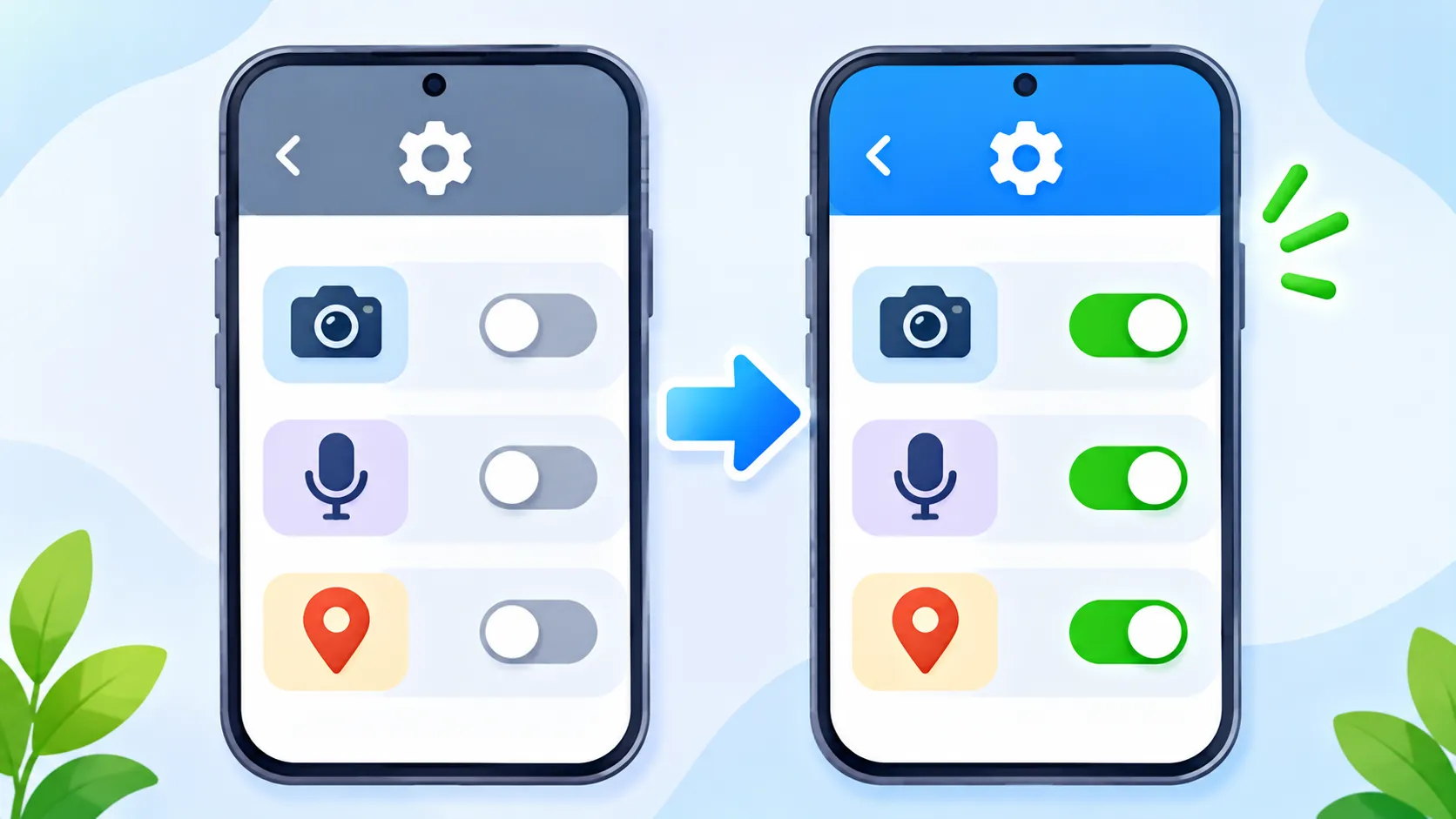
What the coloured dots mean
| Indicator | iPhone | Android (12 and later) |
|---|---|---|
| Camera in use | Green dot at the top of the screen | Green camera icon or dot in the corner |
| Microphone in use | Orange dot at the top of the screen | Green microphone icon or dot in the corner |
| Location in use | Arrow icon in the status bar | Location icon in the status bar |
If you see a dot when you are not using the camera or a call, swipe down to Control Center or Quick Settings to see which app triggered it.
Which permissions to remove
- Apps that do not need them: flashlight, wallpaper, calculator or simple game apps asking for location or microphone.
- Apps you no longer use. Delete them completely.
- Social media apps that have camera or mic access “always.” Set them to ask every time.
- Anything unfamiliar. Use our is this app safe checklist and learn how to spot fake apps.
Which apps usually need access
- Camera: camera, video calling and banking apps that scan cheques or ID.
- Microphone: phone, messaging, video calling and voice assistant apps.
- Location: maps, ride-hailing, delivery and weather apps, ideally only while in use.
Make it a habit
Set a reminder to review permissions every few months, and after installing new apps. It is also worth checking which apps have access to your Google account. If your phone behaves strangely, with battery drain or unknown apps, read is my phone hacked?
Note: Menu names vary by phone brand and software version.
The bottom line
A five-minute permission check on your iPhone or Android phone shows exactly which apps can see, hear and track you. Turn off what is not needed, use “while using the app” for location, and repeat the check every few months.
Frequently asked questions
How do I know if an app is using my camera right now?
Look for a green dot or camera icon at the top of the screen. Swipe down to Control Center or Quick Settings to see which app is using it.
Can apps listen to me without permission?
No. On iPhone and Android, apps need microphone permission, and you will see an indicator when the mic is active.
Should I turn off location for all apps?
No. Maps, delivery and weather apps need it. Set them to “while using the app” and turn location off for apps that do not need it.
Will turning off permissions break my apps?
Some features may stop working, but the app will ask again when it needs access. You can always turn it back on.

