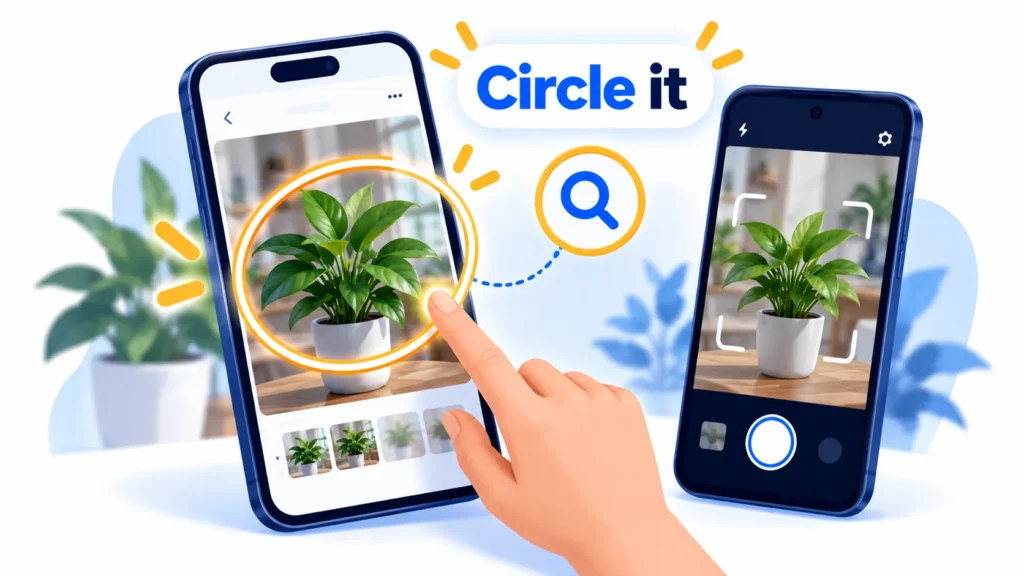
You see a pair of shoes in a video, a plant in a friend’s photo, or a word in a language you cannot read. Normally you would screenshot it, open another app and try to describe it. Visual search lets you skip all that: you point at what you see and ask Google about it.
Two tools do this. Circle to Search is built into supported Android phones. Google Lens works on Android and on iPhone, through the Google app and Chrome. This guide explains what each one does, how to start it, and how to fix it when it will not work. Menu names may differ slightly by phone brand and software version.
Quick Summary
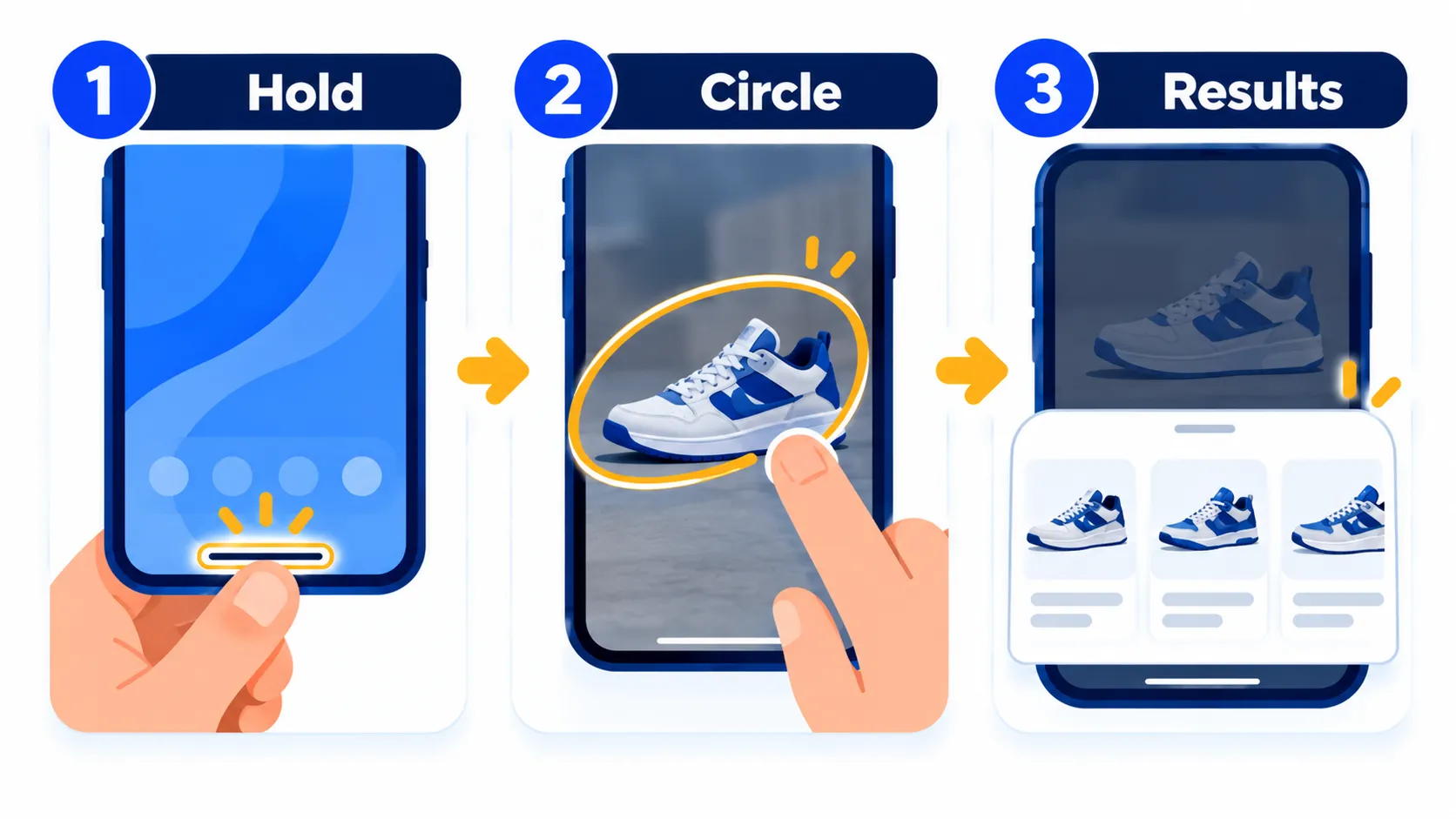
- Circle to Search: Touch and hold the Home button or navigation handle on a supported Android phone, then circle, highlight, scribble or tap what you want to search.
- Google Lens on iPhone: In Chrome, tap the three-dot menu and choose Search Screen with Google Lens. In the Google app, tap the three-dot menu and choose Search this Screen.
- Best for: Identifying products, plants and landmarks, translating text, and getting more context about an image.
- Privacy tip: Anything you select is sent to Google to get results, so avoid selecting private or sensitive content.
What Is Circle to Search?
Circle to Search is a Google feature that lets you search anything on your phone screen without leaving the app you are in. According to Google, you can circle, highlight, scribble or tap an image, video or text. Results appear in the lower half of the screen, so you stay in the app you were using.
Google describes things you can do with it:
- Circle an item in a photo or video to identify it and find similar versions, including shopping results.
- Highlight a restaurant or store name in a message or social media post to see search results for it.
- Ask a follow-up question about the image by typing in the search bar, which can bring up AI Overviews.
- Translate content on your screen.
Which Phones Support Circle to Search?
Google says Circle to Search is available on select premium Android phones. Its help page lists a supported Android phone, which it says includes Pixel 6 and later, and Google does not publish a single complete list of every brand on that page. The simplest test is to try the gesture below on your phone or search your Settings app for “Circle to Search”.
Google lists these requirements:
- A supported Android phone.
- Google set as the default digital assistant app (Settings > Apps > Default apps > Digital assistant app), with Use screen and app data turned on.
- The Google app updated to the latest version from Google Play.
Some extras, such as “Find the look” and “Try it on”, have extra device, age and country conditions. Check Google’s help page for the current list.
Note: Features and policies may vary by plan, region and app version, and can change at any time. Check the official help center for the latest information.
How to Use Circle to Search on Android
- Open the app, photo, video or web page that contains what you want to search.
- Touch and hold the Home button or the navigation handle at the bottom of the screen. A Google Search bar and a colored glow appear.
- Circle, highlight, scribble or tap the image or text you want to search.
- Read the results in the lower half of the screen. Tap that area to expand it.
- To exit, swipe down, use the back gesture or tap the X at the top left.
Tips for better results
- Adjust your selection: Drag the borders of the selection, or drag the whole selection to move it.
- Reach content hidden behind the search bar: Use a two-finger pan, or drag the search bar to the top or bottom of the screen.
- Add context: Type words in the search bar after selecting. For example, circle a jacket and add “waterproof” to narrow results.
- Zoom in: If results look wrong, pinch outward to zoom in before selecting again.
How to Translate With Circle to Search
Google says you can touch and hold the Home button or navigation handle, tap Translate, and choose Scroll and translate. You can also tap Translate next to the search bar to translate the whole screen. Translation works for web pages, messages and social media, but Google notes it does not work for videos or GIFs.
How to Turn Circle to Search On or Off
Google says that on most Android devices you can open Settings, search for Circle to Search, tap it and switch it on or off. On a Pixel, open Settings > System and use the Circle to Search toggle. If the gesture does nothing, check that it is switched on there.
Google Lens on iPhone: Two Ways to Use It
iPhone does not have Circle to Search built into the system, but Google brought a similar experience to iPhone through Lens. Google announced in February 2025 that you can search what is on your screen in both the Chrome and Google apps for iOS. It requires an iPhone and works with gestures such as drawing, highlighting or tapping.
In Chrome on iPhone
- Open a web page in Chrome.
- Tap the three-dot menu.
- Choose Search Screen with Google Lens.
- Circle, highlight or tap the part of the page you want to search.
In the Google app on iPhone
- Open the Google app and a page or result.
- Tap the three-dot menu.
- Choose Search this Screen.
- Select what you want to search with a gesture.
Google also said at the time that a Lens icon in Chrome’s address bar would arrive in a later update, so your screen may look slightly different. Menu names may differ slightly by app version.
Note: Release dates and rollout timing can change. Please confirm the latest details on the official website or help center.
Searching with your camera
Google’s own tips for Lens describe a simple routine that works in the Google app on both Android and iPhone:
- Open the Google app.
- Point your camera at the subject, such as a painting, a product or a menu.
- Ask a question by typing or speaking while you take the photo.
- Review the AI Overview and links to related sites.
Google says you can also use Lens to check an image’s context with About this image, compare prices when you photograph a product, and summarize or copy text from a photo, including handwriting.
Circle to Search vs Google Lens: What Is the Difference?
| Circle to Search | Google Lens | |
|---|---|---|
| Where it works | Supported Android phones | Android and iPhone, in the Google app and Chrome |
| How you start it | Touch and hold the Home button or navigation handle | Three-dot menu in Chrome or the Google app, or the camera inside the Google app |
| Best for | Searching what is already on your screen | Searching what is on your screen or in the real world |
| Needs a setup | Google as default assistant, latest Google app | Google app or Chrome, updated |
Everyday Uses
- Shopping: Circle a product in a video or photo to find where to buy it and compare prices.
- Learning: Highlight a landmark or plant name to learn more without leaving the app.
- Travel: Translate a menu or sign by selecting the text.
- Fact-checking: Use About this image to see where a picture appears online before sharing it.
- Messages: Highlight a shop or restaurant name in a chat to see its details.
Privacy and Accuracy Cautions
- Your selection goes to Google. Do not circle bank details, private messages, passwords or other sensitive content. Google notes some features may not work in banking, medical or other confidential apps.
- Check shopping results. A visual match is not always the exact product, price or seller. Open the store page and confirm before paying. Read how to spot fake apps if a result sends you to download something.
- AI summaries can be wrong. Treat AI Overviews as a starting point and verify important facts, especially for health, legal or money questions.
- Identifying people. Be thoughtful about using visual search on photos of private individuals.
Troubleshooting
- Nothing happens when you hold the Home button or handle: Check that Circle to Search is on in Settings and that your phone is supported.
- Option missing in Chrome on iPhone: Update Chrome from the App Store and look again in the three-dot menu.
- Results are off: Make the selection tighter, zoom in, or add a word in the search bar.
- Still stuck: Install pending Android updates, update the Google app, and restart your phone.
Frequently Asked Questions
Is Circle to Search free?
Google presents it as a built-in search feature on supported phones, and there is no separate charge on its help page. Your carrier data charges still apply.
Does Circle to Search work on iPhone?
Not as a system feature. On iPhone you can use Google Lens inside Chrome or the Google app to search your screen with similar gestures.
How do I start Circle to Search?
Touch and hold the Home button or navigation handle at the bottom of the screen, then circle, highlight, scribble or tap.
Why can I not find Circle to Search on my phone?
Your phone may not support it yet, the feature may be turned off, or your Google app may be out of date. Search Settings for “Circle to Search” and update the Google app.
Can I use Lens without the Google app?
On iPhone, Lens is available through the Google app and Chrome. On Android, it is also built into several Google products. Use whichever is installed and updated.
The Bottom Line
If you have a supported Android phone, hold the Home button or handle and circle what you want to know about. On iPhone, open the three-dot menu in Chrome or the Google app and pick the Lens option. Both save you the screenshot-and-describe routine, but check results before you buy or share anything.
Related Guides
- Android 17 Update: Which Phones Get It and What’s New
- Samsung One UI 9: Which Galaxy Phones Get It and What’s New
- How to Take a Screenshot on Any Device (Windows, Mac, iPhone, Android)
- How to Start Using AI in Everyday Life: A Simple 7-Day Plan for Beginners
Explore more in our Tech Tips hub.
Disclaimer: This article is for general information only and is based on details available at the time of writing. Prices, plans, features, release dates, policies and availability can change at any time and may vary by country. Please verify the latest information on the official website of the company or product mentioned before making any decision or purchase. Next DigiTech is an independent website and is not affiliated with or endorsed by the companies mentioned; all trademarks belong to their respective owners. We are not responsible for any loss or decisions made based on this content.