
Your Google Account holds your email, photos, documents, saved passwords and often the keys to dozens of other services. If someone gets into it, the damage can spread quickly. The good news is that Google provides a security checkup tool, and a few minutes of review can close most of the common gaps. This guide walks through eight settings worth checking today, in plain language.
Quick answer: Open your Google Account, go to Security and run the Security Checkup. Turn on 2-Step Verification, consider a passkey, update your recovery phone and email, sign out of devices you no longer use, remove old third-party apps and fix weak passwords with Password Checkup.
How to start the checkup
Open Google’s Security Checkup (or your Google Account page, then Security) and sign in. You will see a section about your security status and recommendations. Follow the prompts and review each item. Menu wording can change, so use the search box on the account page if something looks different.
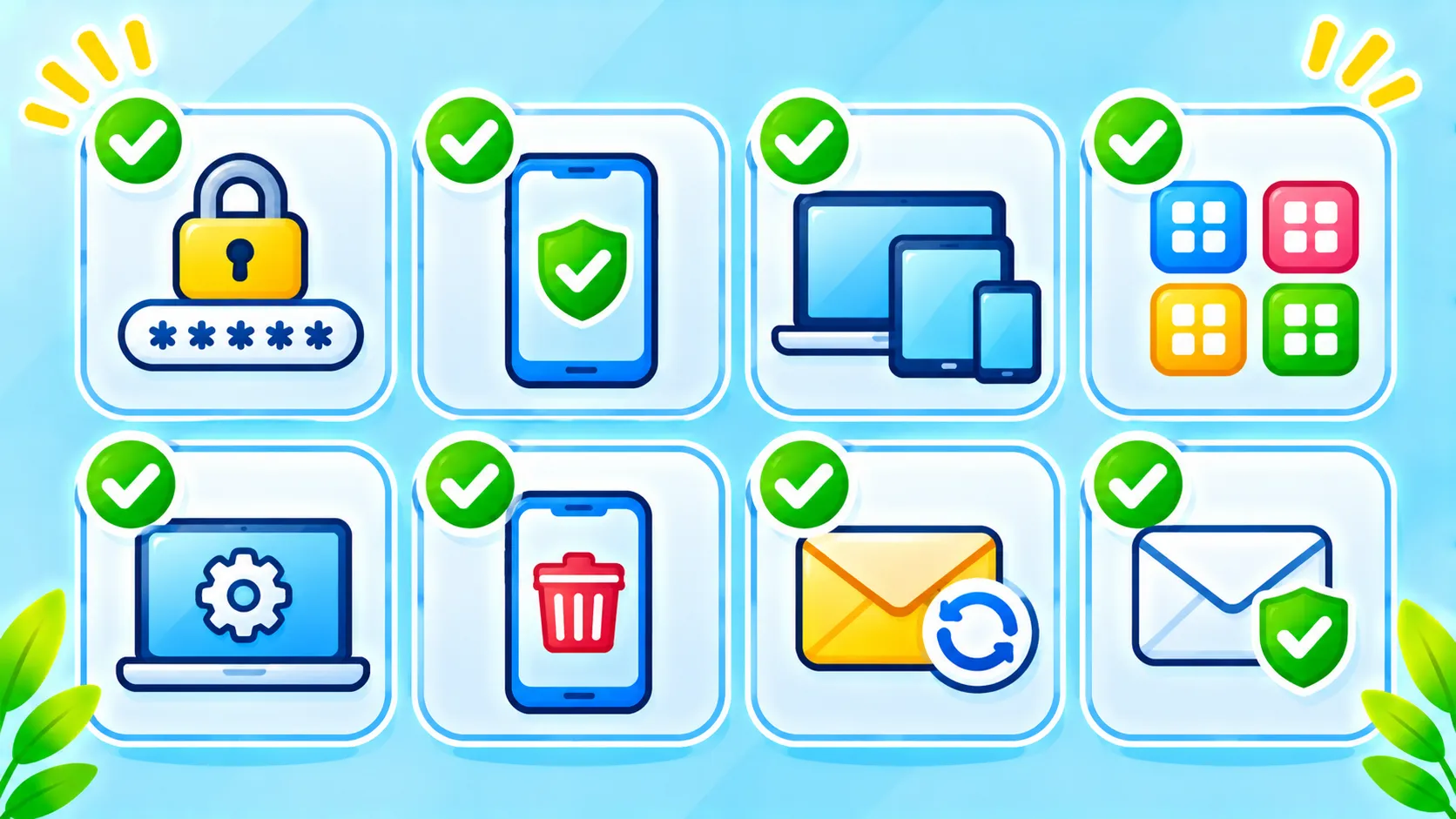
1. Review your sign-in methods
Check how you sign in: password, 2-Step Verification, passkeys and so on. Use a long, unique password that you do not reuse elsewhere. If you suspect your password is weak or reused, change it now and store it in a trusted password manager.
2. Turn on 2-Step Verification
Two-step verification asks for a second proof when you sign in, so a stolen password alone is not enough. Prefer prompts on your phone or a security key over text messages where possible, because SIM-based attacks exist. Our guide shows how to turn on two-factor authentication step by step.
3. Consider adding a passkey
Passkeys let you sign in with your fingerprint, face or screen lock instead of typing a password, and they resist phishing. If you have not tried them, read passkeys explained.
4. Check your recovery phone and email
Recovery options help you get back in if you lose access, but outdated ones can also be a risk. Make sure the recovery phone number and backup email are current and belong to you.
5. Review devices that are signed in
Look at the list of devices where you are signed in. Sign out of any phone, tablet or computer you no longer use or do not recognize. This is especially important if you sold or lost a device. If a phone is missing, our guide on finding a lost phone explains what to do.
6. Remove third-party apps with account access
Over time you may have given many apps and sites access to parts of your account. Review the list and remove anything you no longer use. We cover this in detail in how to check apps with access to your Google account.
7. Check saved passwords and activity
If you use Google Password Manager, open the Password Checkup feature to see weak, reused or exposed passwords and fix them. Also review recent security activity for logins or alerts that look unfamiliar. You can tidy your history too with our guide on deleting your Google search history.
8. Turn on security alerts and keep devices updated
Make sure you will get notified about unusual sign-ins. Keep your phone, browser and apps updated. See our update guide, and the latest Chrome security update for an example of why updates matter.
Watch for phishing
Most account takeovers start with a convincing message. Never share verification codes, and do not enter your password on a page reached through an email link. Learn the signs in how to spot a phishing email or text.
How often should you do a checkup?
A quick review every few months is a good habit, and again after a lost device, a data breach notice or a suspicious message.
Frequently asked questions
Is a Google Account security checkup free?
Yes. The tools are part of your Google Account.
Will 2-Step Verification lock me out?
Only if you lose all your methods. Add backup options like recovery codes and keep them somewhere safe.
What if I think my account was hacked?
Change your password, sign out of all devices, review activity and use Google’s account recovery tools if needed.
Note: Google updates account pages from time to time, so labels and the order of settings may differ.

