

Videos buffer, calls freeze and web pages crawl. When Wi-Fi is slow, it is tempting to blame your internet provider straight away. Sometimes that is right, but often the problem sits inside your home: the router is in a bad spot, too many devices are competing, or the connection needs a simple restart. Work through these ten fixes before you pick up the phone. Most take only a few minutes.
Quick answer: Run a speed test on Wi-Fi and on a cable to see where the problem is. Then restart your modem and router, move the router to a central raised spot, use the 5 GHz band near the router, disconnect unused devices and update the router. Call your provider only if wired speeds are also slow.
First, find out if it is Wi-Fi or the internet
Run a speed test, for example at Speedtest.net, on a device connected by Wi-Fi, then on a computer connected to the router by cable if you can. If the cable is fast and Wi-Fi is slow, the problem is your wireless setup. If both are slow, the issue may be your plan or your provider.
Fix 1: Restart your router and modem
Unplug the router and modem, wait about 30 seconds, plug the modem in first and then the router. This clears temporary glitches and is the most common fix.
Fix 2: Move the router to a better spot
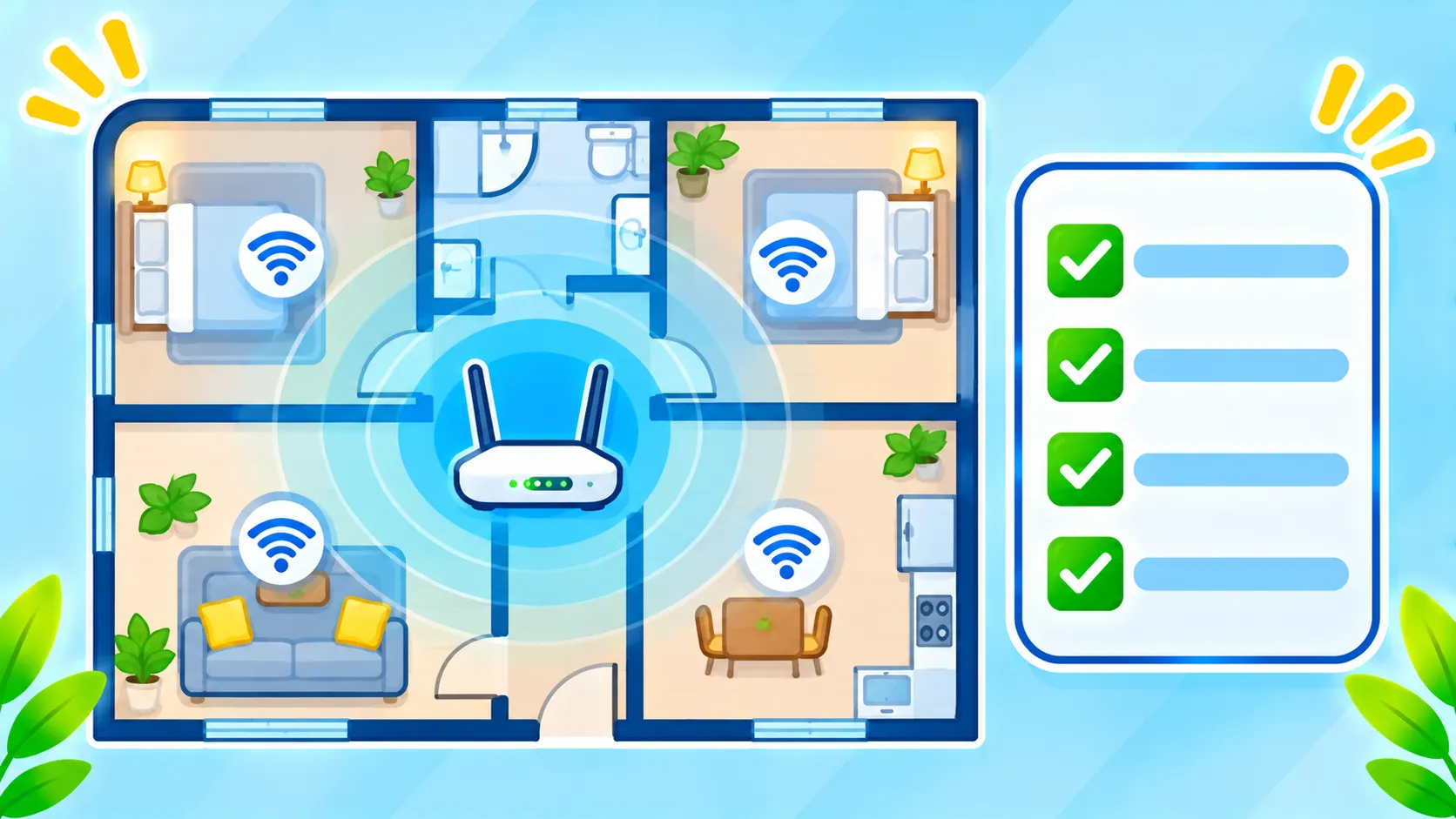
Wi-Fi signal weakens through walls, floors and large objects. Place the router in a central, open, raised location. Avoid putting it inside a cabinet, behind a TV or next to a microwave or cordless phone base.
Fix 3: Use the right Wi-Fi band
Many routers broadcast 2.4 GHz and 5 GHz networks, and newer ones add 6 GHz. The 5 GHz band is usually faster at close range, while 2.4 GHz travels farther through walls but is slower. Read our explainer on 2.4 vs 5 vs 6 GHz Wi-Fi, or check your router app to see which band each device uses.
Fix 4: Disconnect devices you do not need
Every connected device shares bandwidth, and streaming, gaming and cloud backups use a lot. Pause large downloads and disconnect unused devices. If you see unfamiliar devices on the network, change your Wi-Fi password and read our guide on signs your phone may be hacked.
Fix 5: Update your router
Router updates can fix bugs and improve security. Many modern routers update through an app, and others use a web admin page. Check the manufacturer’s instructions. Keeping devices updated is good practice in general, as discussed in our update guide.
Fix 6: Change the Wi-Fi channel
In apartment buildings, many routers share the same channels, which causes interference. In your router settings, try switching to a less crowded channel, or set the channel to Auto. Your router app or a Wi-Fi analyzer app can show nearby networks.
Fix 7: Check the device, not just the router
If only one phone or laptop is slow, the problem may be that device. Restart it, forget the network and reconnect, and install updates. If the whole device is lagging, see our guides on fixing a slow laptop and freeing up space on Android.
Fix 8: Use a cable for important devices
For a desktop, a gaming console or a streaming box, an Ethernet cable is usually more stable than Wi-Fi. This also frees up wireless capacity for your phones and tablets.
Fix 9: Extend coverage the right way
If some rooms get a weak signal, consider a mesh Wi-Fi system or a quality extender. Mesh systems usually give a smoother experience than a single extender in a large home. Position the extra units halfway between the router and the dead zone, not in the dead zone itself.
Fix 10: Check your plan and equipment
If the wired speed is far below what you pay for, call your provider. Old routers can also limit your speed. Ask whether your equipment supports your plan and consider upgrading it if it is several years old.
Protect your network while you are at it
- Use a strong, unique Wi-Fi password and WPA2 or WPA3 security.
- Change the default router admin password. Our router security checklist covers the rest.
- Turn off guest access when you do not need it.
- Be careful on shared networks. See is public Wi-Fi safe?
Forgot your Wi-Fi password?
If you need to reconnect devices after changing settings, our guide shows how to find a saved Wi-Fi password on Windows, Mac, iPhone and Android.
Frequently asked questions
Why is my Wi-Fi slow only at night?
Evening is peak time. Many people in your area and your household are streaming at once, which can slow things down.
Does a VPN slow down Wi-Fi?
It can, because traffic takes an extra route. See do you need a VPN? for when it helps.
How often should I restart my router?
Only when you have a problem, or occasionally if it behaves oddly. Constant restarting is not usually needed.
Note: Router menus and options differ by brand and provider. Check your router’s manual or support page.

