
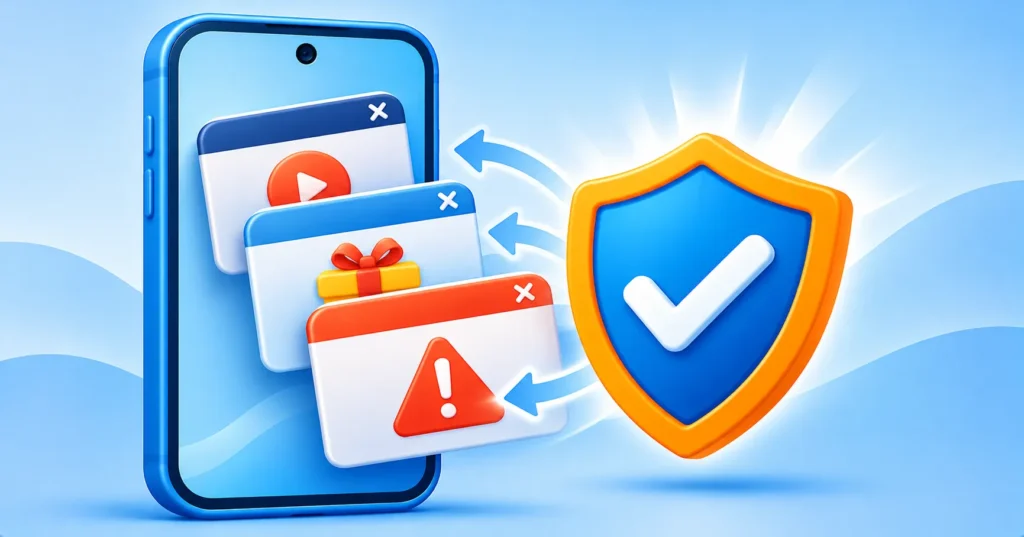
You open a website to read one article and suddenly your screen fills with ads, a fake prize banner or a loud warning that your phone is infected. Or worse, ads start appearing even when you are not using the browser at all. Pop-up ads are annoying, and some are outright scams. The fixes are mostly simple settings changes. This guide explains what is causing the pop-ups and how to stop them on both Android and iPhone.
Quick answer: In Chrome on Android, go to Settings > Site settings and block Pop-ups and redirects, then remove spammy sites under Notifications. In Safari on iPhone, turn on Block Pop-ups and Fraudulent Website Warning. If ads appear outside the browser, uninstall recent unknown apps and run Google Play Protect.
First, work out what kind of pop-up you have
Not every pop-up has the same cause, and the right fix depends on the type.
- Pop-ups inside a website: windows or banners that open while you browse. These are fixed with browser settings.
- Notification spam: alerts that appear in your notification shade or lock screen after you tapped Allow on a site.
- Redirects: tapping a page sends you to a different site or an app store page you did not choose.
- Ads outside the browser: pop-ups that appear on your home screen or over other apps. This often points to an unwanted app.
- Fake virus warnings: messages claiming your phone is infected and urging you to call a number or install a cleaner.
How to block pop-ups in Chrome on Android
- Open Chrome and tap the three-dot menu.
- Go to Settings, then Site settings.
- Tap Pop-ups and redirects and make sure it is blocked.
- Also open Notifications and turn off sites you do not trust.
Exact names can differ slightly depending on your Chrome version. Google’s pop-up help page has the latest steps.
How to block pop-ups in Safari on iPhone
Open the Settings app and find Safari. On newer versions of iOS, Safari settings may sit under Apps. Turn on Block Pop-ups. You can also turn on Fraudulent Website Warning in the same area. Then clear old website data if you keep seeing unwanted pages.

Stop notification spam
Many spam alerts exist because you once tapped Allow on a notification prompt. To undo it on Android Chrome, go to Settings, Site settings, Notifications and remove or block the offenders. You can also long-press a spammy notification and choose to turn off notifications from that site. On iPhone, websites cannot send notifications unless you have added them to your Home Screen as an app, so check Settings, Notifications for any unfamiliar entries.
If ads appear outside the browser
Ads that pop up on your home screen or over other apps are a warning sign of adware. Here is what to check.
- Think about which app you installed just before the ads began.
- On Android, open Settings, Apps and look for special access such as Display over other apps. Remove that permission from apps that should not have it.
- Uninstall any app you do not recognize or no longer use.
- Open Google Play Protect in the Play Store and run a scan.
For a deeper check, read our guide on whether your phone is hacked, and use the app safety checklist before installing anything new.
Be careful with fake virus alerts
A page that says your phone is infected is almost always fake. Real security warnings do not come from random websites. Do not call a phone number shown on the page, and do not install a cleaner or security app because a pop-up told you to. Close the tab, and if it will not close, clear the browser’s recent history and data. Learn the common tricks in our guide to spotting phishing emails and texts and read how to spot fake apps.
Extra protection with an ad blocker
On a computer, a good ad blocker can cut pop-ups noticeably. See our list of free ad blockers for Chrome and how to install and manage Chrome extensions safely. Stick to well-known blockers, because some extensions are themselves a source of ads.
Habits that keep pop-ups away
- Say Block or Not Now when a site asks to send notifications.
- Avoid downloading apps from outside the official app stores.
- Keep your phone and browser updated.
- Avoid tapping ads that promise free prizes, gift cards or urgent warnings.
Frequently asked questions
Why do I get pop-ups when I am not using my browser?
This usually points to an app with permission to display over others, or to notification spam from a website you allowed. Review app permissions and notification settings.
Can iPhone get pop-up ads?
Yes, mostly in websites and sometimes through calendar subscription spam. Block pop-ups in Safari and remove unknown calendar subscriptions.
Will a factory reset stop all pop-ups?
It removes adware, but try the simpler steps first and back up your data before resetting.
Note: Menu names change between versions of Chrome, Safari, Android and iOS. Use your device’s search in Settings if an option is hard to find.

