
Few things are more annoying than a phone that stutters when you open the camera or takes ten seconds to load a message. The good news is that a slow phone is rarely broken. In most cases it is short on storage, running too many background tasks, or waiting on an update. This guide walks through 12 fixes in the order that makes the most sense, starting with the quickest ones. You do not need any special tools, and none of the first ten steps delete your data.
Quick answer: Restart your phone, install updates, free up storage and remove unused apps first. Then limit background activity, turn off power saving, check battery health and find any misbehaving app. Reset settings or factory reset only as a last resort, after backing up.
Why phones slow down in the first place
Phones slow down for a handful of common reasons: nearly full storage, too many apps refreshing in the background, outdated software, an aging battery that limits performance, or one badly behaved app. Knowing the likely cause helps you decide which fixes to try first. If the slowdown started right after a software update, you may also want to read our guide on whether you should update right away.
Fix 1: Restart your phone
It sounds too simple, but a restart clears temporary memory and stops stuck processes. If you cannot remember the last time you switched your phone off, start here. Hold the power button (or the side button on iPhone), shut down, wait ten seconds and turn it back on.
Fix 2: Install pending updates
Updates often include performance and bug fixes. On iPhone, open Settings, then General, then Software Update. On Android, open Settings and look for System or Software update. Menu names vary by brand. Charge your phone and use Wi-Fi first.
Fix 3: Free up storage
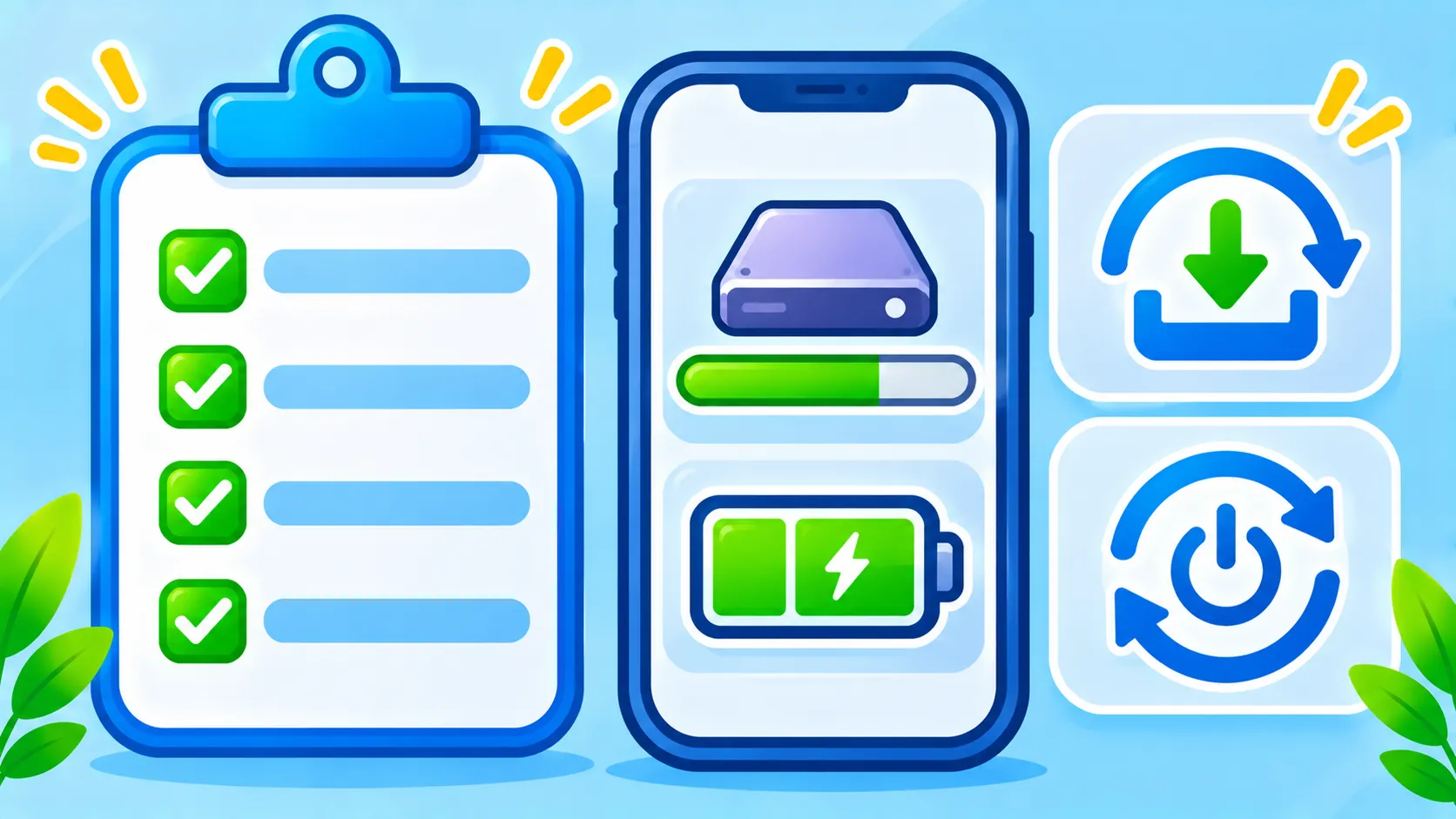
When storage is almost full, phones struggle because they need free space to work. Aim to keep a healthy amount free. If you are stuck, follow our step-by-step guides for iPhone storage fixes or freeing up space on Android. Large videos, old downloads and unused apps are usual suspects.
Fix 4: Remove apps you do not use
Unused apps still take space and some keep running in the background. Press and hold an app and choose Remove App or Uninstall. On iPhone you can also offload an app, which keeps its data but removes the app itself.
Fix 5: Limit background activity
On iPhone, go to Settings, General, Background App Refresh and turn it off for apps that do not need it. On Android, look in Settings, Apps, choose an app and open its battery or data usage options to restrict background use. Do this for social media and shopping apps first.
Fix 6: Check whether power saving is on
Low Power Mode on iPhone and Battery Saver on Android reduce performance to save energy. They are useful on the go, but if your phone feels sluggish all day, check that they are switched off.
Fix 7: Reduce animations and widgets
Heavy live wallpapers, many widgets and fancy transitions use extra power. Switch to a plain wallpaper and remove widgets you rarely use. On Android, you can also shorten or turn off animations in Developer options, though that menu is optional and not needed by most people. On iPhone, turning on Reduce Motion under Accessibility can make things feel snappier.
Fix 8: Check your battery health
An old battery can make a phone slower because the system may limit performance to keep it stable. On iPhone, open Settings, Battery, Battery Health and Charging. Many Android phones show similar information in Settings or the manufacturer’s care app. If health is low, a battery replacement can help. Our article on why a phone battery drains fast explains common causes and fixes. Apple also explains how batteries age on its battery information page.
Fix 9: Find the app that is causing trouble
If only one app is slow, update it, clear its cache (on Android) or reinstall it. If everything slows down after installing a new app, remove that app and test again. For apps you are unsure about, our app safety checklist is a good way to judge them.
Fix 10: Rule out security problems
Unwanted apps, intrusive ads and strange pop-ups can slow a phone and hint at a deeper issue. Read how to tell if your phone is hacked for the signs to look for and what to do next.
Fix 11: Reset settings, not your data
If nothing works, try resetting settings. On iPhone, choose Settings, General, Transfer or Reset iPhone, Reset, Reset All Settings. On Android, look for Reset options and pick Reset Wi-Fi, mobile and Bluetooth or Reset app preferences. This does not erase photos or apps, but you will need to re-enter Wi-Fi passwords and some preferences.
Fix 12: Factory reset as a last resort
A full factory reset fixes many stubborn problems but erases everything, so back up first. Our guide to transferring data to a new phone covers backups, and the same steps help you restore afterward. Only do this once the earlier fixes have failed.
When it is time to replace your phone
If your phone no longer receives security updates, cannot run the apps you need, or stays slow even after a reset, replacing it may be the sensible choice. Weigh repair costs, such as a new battery, against the price of a new device.
Frequently asked questions
Does clearing cache make my phone faster?
It can help if one app is acting up, but it is not a magic fix. Cache is rebuilt as you use the app.
Do task killer apps help?
Usually not. Modern iPhone and Android systems manage memory well, and closing apps constantly can use more battery as they reload.
Will a factory reset make my old phone like new?
It often restores smooth performance, but it cannot fix an aging battery or hardware limits.
Note: Menu names and steps vary by phone model and software version. Check your manufacturer’s support pages if an option looks different.

