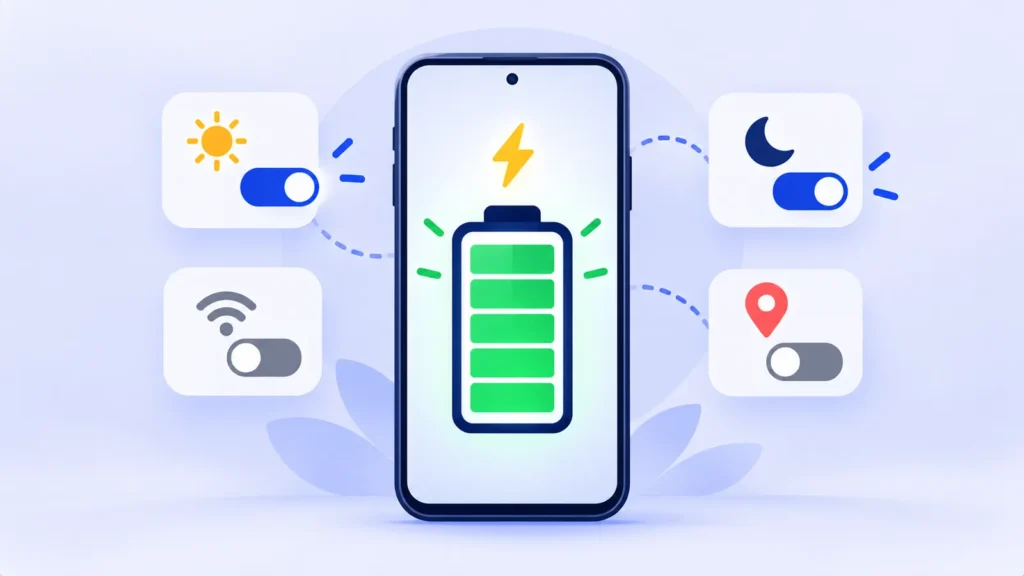
It’s 4 p.m., you’re out, and your phone is at 12 percent. Again.
Phone batteries do wear down over time, but a lot of drain comes from settings working against you. Change a few of them and you can easily get through the day. Here are ten that make a real difference on both iPhone and Android, and none of them make your phone annoying to use.
First, See What’s Draining Your Battery
Before changing anything, look at the culprits:
- iPhone: Settings > Battery. Scroll down to see which apps used the most.
- Android: Settings > Battery > Battery usage (wording varies by brand).
If one app you barely use is near the top, that’s your first fix.
10 Settings That Quietly Save Battery
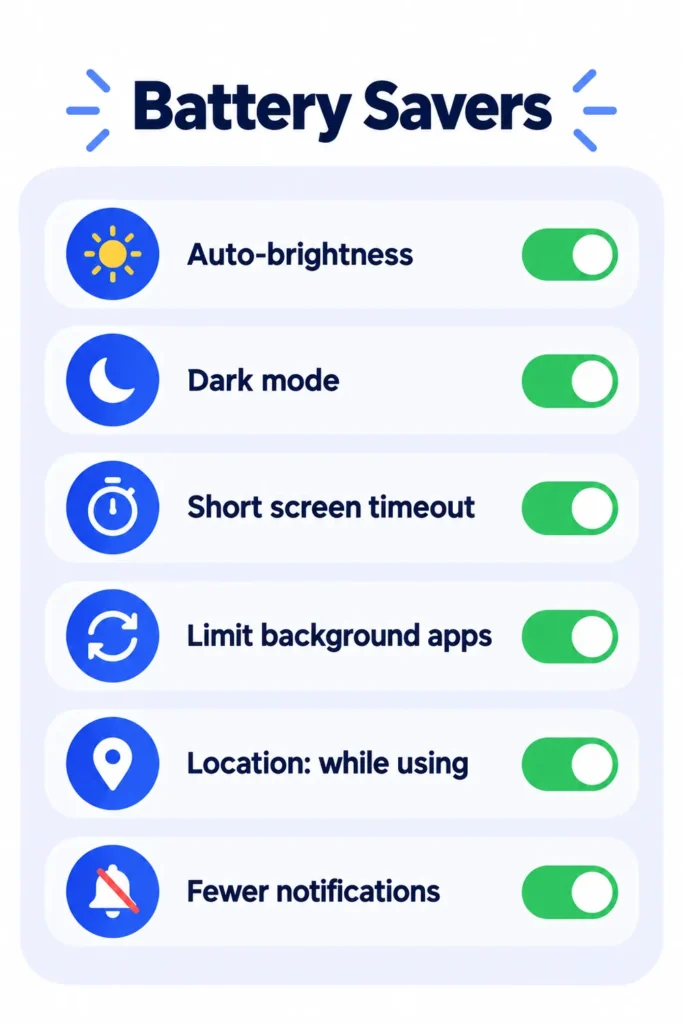
1. Turn On Auto-Brightness
Your screen is usually the biggest power user. Auto-brightness keeps it only as bright as it needs to be. On iPhone it’s under Settings > Accessibility > Display & Text Size. On Android, look for Adaptive brightness in Display settings.
2. Use Dark Mode
On phones with OLED screens (most recent iPhones and many Android phones), dark pixels use less power. It’s easy on the eyes at night, too.
3. Shorten Screen Timeout
Set your screen to turn off after 30 seconds to 1 minute. On iPhone: Settings > Display & Brightness > Auto-Lock.
4. Limit Background Activity
Many apps refresh in the background even when you’re not using them. On iPhone, go to Settings > General > Background App Refresh and turn it off for apps that don’t need it. On Android, open an app’s battery settings and set it to Restricted or Optimized.
5. Set Location to “While Using”
Apps tracking your location all day is a big drain. Change most apps to While Using the App, and set apps that don’t need location at all to Never.
6. Cut Unnecessary Notifications
Every notification lights up your screen and wakes your phone. Turn off alerts from shopping apps, games and anything else that isn’t important.
7. Automate Low Power Mode
Low Power Mode (iPhone) and Battery Saver (Android) are great, but most people forget to turn them on. Android lets you schedule Battery Saver at a set percentage. On iPhone, you can create a Shortcuts automation to turn on Low Power Mode at, say, 30 percent.
8. Don’t Force 5G Everywhere
5G can drain battery fast in areas with weak signal. On iPhone, choose 5G Auto in Settings > Cellular > Cellular Data Options > Voice & Data. Your phone will use 5G only when it’s worth it.
Note: Features and policies may vary by plan, region and app version, and can change at any time. Check the official help center for the latest information.
9. Remove Live Wallpapers and Extra Widgets
Animated wallpapers and widgets that constantly refresh (weather, news, stocks) use power all day. Keep the ones you actually look at.
10. Protect Your Battery’s Long-Term Health
Turn on Optimized Battery Charging on iPhone, or Adaptive charging on many Android phones. Newer iPhones also let you cap charging at 80 percent. This won’t help today’s battery life much, but it keeps your battery healthier for years.
One Myth to Ignore
Swiping away all your open apps doesn’t save battery. Phones pause background apps on their own, and reopening apps from scratch can actually use more power.
Frequently Asked Questions
Does dark mode really save battery?
Yes, on phones with OLED screens. On older LCD screens, the difference is small.
Is it bad to charge my phone overnight?
Not with optimized or adaptive charging turned on. Your phone holds at about 80 percent and finishes charging just before you usually unplug.
When should I replace my battery?
If your battery health is below about 80 percent and you’re struggling to get through a day, a battery replacement is often cheaper than a new phone.
The Bottom Line
Check what’s draining your battery, then turn on auto-brightness, limit background apps, and fix location settings. Those few changes alone can add hours to your day.
Related Guides
- iPhone Storage Full After iOS 27? 10 Easy Fixes That Actually Work
- Wi-Fi Connected But No Internet? 10 Fixes That Actually Work
- Why Is My Phone Overheating? 10 Easy Fixes for iPhone and Android
- Google Storage Full? How to Free Up Space in Gmail, Drive and Photos
Explore more in our Tech Tips for Beginners hub.
Disclaimer: This article is for general information only and is based on details available at the time of writing. Prices, plans, features, release dates, policies and availability can change at any time and may vary by country. Please verify the latest information on the official website of the company or product mentioned before making any decision or purchase. Next DigiTech is an independent website and is not affiliated with or endorsed by the companies mentioned; all trademarks belong to their respective owners. We are not responsible for any loss or decisions made based on this content.