
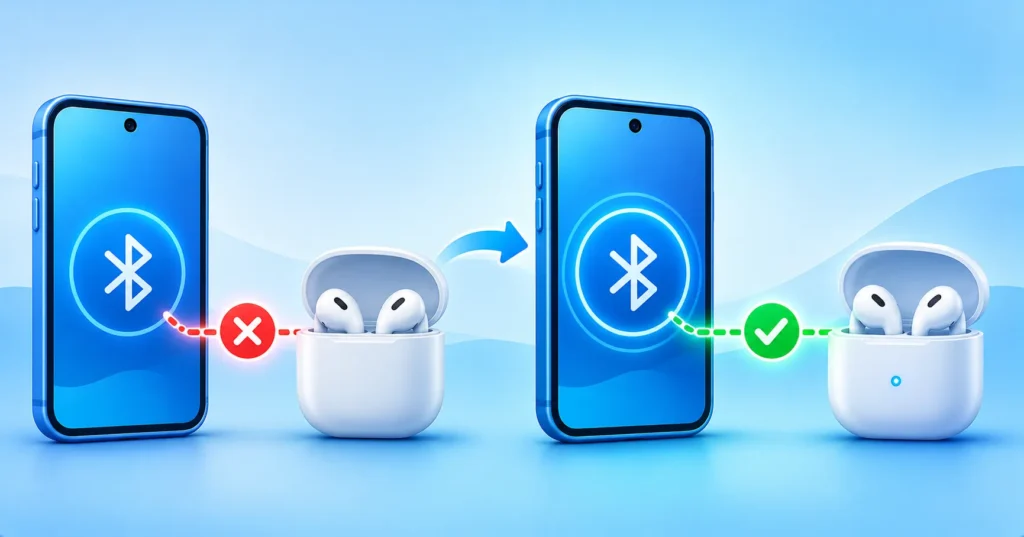
You put in your earbuds, open your music app and nothing happens. Or your speaker connects for a minute and then drops. Bluetooth problems are frustrating, but the cause is usually small: a setting turned off, an old pairing that went bad, or a device that is already connected to something else. Work through these ten fixes in order and you will solve most issues without buying anything new.
Quick answer: Charge the accessory, turn Bluetooth off and on, and put the device in pairing mode. If that fails, forget the device in your Bluetooth settings and pair it again, restart both devices and install updates. As a last resort, reset the accessory or your phone’s network settings.
Fix 1: Check the basics
Make sure Bluetooth is on, the accessory is charged and it is close to your phone or computer. Low battery is a common reason for weak or failing connections. Charge your earbuds or speaker for a few minutes and try again.
Fix 2: Turn Bluetooth off and on
Switch Bluetooth off, wait about ten seconds and turn it back on. You can do this from Control Center on iPhone or the quick settings panel on Android. On Windows, use the Bluetooth toggle in Settings or the quick settings menu.
Fix 3: Put the accessory in pairing mode
Many devices need a long press of a button until a light flashes. Every brand is slightly different, so check the manual or the manufacturer’s page. If your device is already connected to another phone or laptop, it may not appear for pairing, so disconnect it from the other device first.

Fix 4: Forget the device and pair again
An old or corrupted pairing is a very common cause. On iPhone, open Settings, Bluetooth, tap the info icon next to the device and choose Forget This Device. On Android, open Settings, Connected devices, find the accessory and choose Forget or Unpair. On Windows, open Settings, Bluetooth and devices, select the accessory and choose Remove device. Then pair it again from scratch.
Fix 5: Restart both devices
Restart your phone or computer and also power cycle the accessory. Put earbuds back in their case, close it, wait a bit and take them out.
Fix 6: Check for software updates
Bluetooth bugs are sometimes fixed in system updates. Install pending updates on your phone or PC. If your accessory has a companion app, check for firmware updates there. Our guide on whether to update right away can help you decide timing.
Fix 7: Reduce interference
Bluetooth uses the same 2.4 GHz range as many Wi-Fi networks, microwaves and other wireless gadgets. Walls and crowded places make things worse. Move closer, avoid putting your phone in a bag far from your earbuds and keep other devices away.
Fix 8: Make sure the audio output is correct
Sometimes the device is connected but sound still plays from your phone speaker or laptop. On iPhone, tap the AirPlay or audio output icon in Control Center. On Android, use the media output switcher. On Windows, choose your Bluetooth device from the volume menu. Also check that the volume is up on both the phone and the accessory.
Fix 9: Remove too many saved connections
Accessories remember a limited number of devices. If you have paired earbuds with many gadgets, they may try the wrong one. Remove old devices from your list and keep only what you use.
Fix 10: Reset the accessory or network settings
Most earbuds and speakers have a reset procedure, which usually involves holding buttons for several seconds. Search the brand and model for the exact steps, or check your phone maker’s help pages, such as Google’s Android Help Center. If several accessories fail, reset your phone’s network settings. On iPhone this is under Settings, General, Transfer or Reset iPhone, Reset, Reset Network Settings. On Android, look for Reset Wi-Fi, mobile and Bluetooth. Note that this also removes saved Wi-Fi networks, so keep your passwords handy. If you need them, see how to find a saved Wi-Fi password.
When the problem is the hardware
If only one earbud works, the sound is crackly with every device, or the accessory will not charge, it may be a hardware fault or an aging battery. Check the warranty or contact the manufacturer. If your phone itself feels slow or laggy, read why your battery drains fast.
A quick safety note
Only pair devices you recognize, and turn Bluetooth off in crowded places if you are not using it. If strange devices keep asking to connect, see our guide on whether your phone is hacked.
Frequently asked questions
Why does my Bluetooth keep disconnecting?
Low battery, interference, distance and power-saving settings are common causes. Update software and forget and re-pair the device.
Can I connect to two devices at once?
Some accessories support multipoint connections, but many do not. Check your model.
Does Bluetooth affect battery life?
It uses a small amount, and modern versions are efficient. A constant reconnect loop can drain more.
Note: Menu names and reset steps vary by device brand and software version. Follow the manufacturer’s instructions for your model.

