
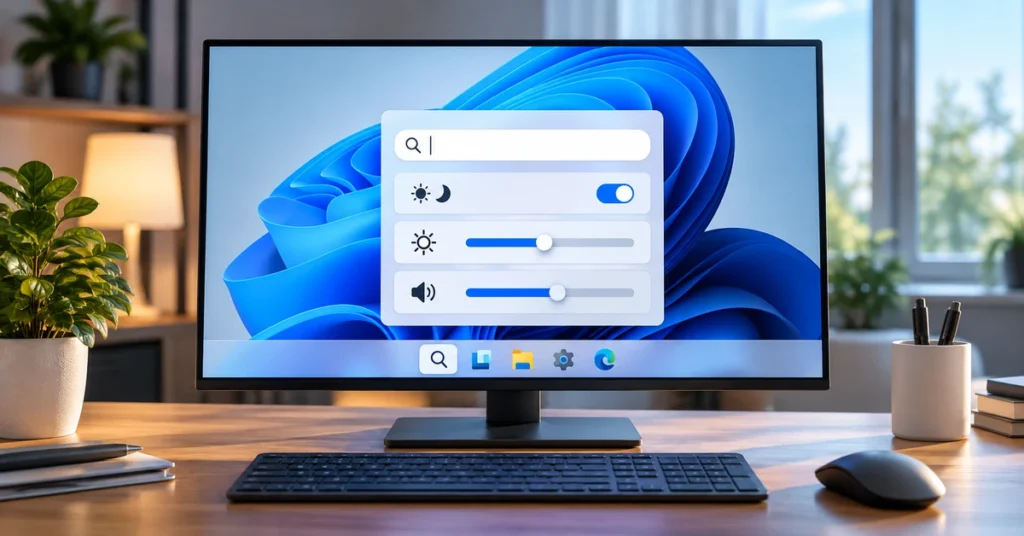
Windows 11 Search is gradually becoming more than a place to find apps and files. Microsoft is testing a redesigned taskbar search experience that can also perform simple actions, such as switching on dark mode, adjusting brightness, changing volume, or arranging open windows, without making you open the Settings app first.
The feature is still rolling out through the Windows Insider programme, so it is important to understand what is available now and what ordinary Windows 11 users may not see yet. This guide explains how Windows Search Actions work, which actions Microsoft has announced, how to try the preview, and what to check if the new interface is missing.
What are Windows 11 Search Actions?
Windows 11 Search Actions are controls that appear inside the redesigned taskbar search experience. Instead of using search only to locate a setting, you can type what you want to do and, when a supported action is available, complete the task directly from the result.
For example, searching for a phrase such as “turn on dark mode” can offer an action to change the theme. You may also be able to adjust a supported setting with an inline slider. The goal is to reduce the number of steps between deciding what you want and making the change.
Microsoft introduced the new experience as an Insider preview in October 2026. It is not a separate app or a replacement for the Settings application. It is an evolving layer on top of Windows Search, and the available actions can change as Microsoft tests and expands the feature.
What can you do directly from Windows Search?
Microsoft’s October 30, 2026 Insider update describes several additions to the preview. Availability depends on the build, rollout and device configuration, so not every Insider will necessarily see every action at the same time.
1. Change common Windows settings
The first group of actions focuses on everyday settings. Microsoft has demonstrated searches that can switch on dark mode, turn on Night light, enable Bluetooth, or mute the device. The October 30 update adds inline sliders for adjusting screen brightness, volume and cursor size in supported preview builds.
These actions can save time when you need a quick adjustment. They do not mean every item in Settings can be changed through search; only supported actions appear as Microsoft expands the feature.

2. Arrange your open windows
Search Actions can also help manage your workspace. Microsoft has shown commands such as minimising all open windows and arranging windows on the screen. This is useful when you are switching between tasks or need to clear the desktop quickly.
3. Use actions with a connected phone
The October 30 Insider announcement adds phone actions for a supported device connected through Phone Link. Microsoft says Android support is available in the preview, including actions such as calling or texting a contact and controlling Do Not Disturb. iPhone support is planned for early 2027, according to the announcement.
Phone actions require a supported phone and a working Phone Link connection. They are not a general replacement for the Phone Link app, and availability can vary by phone platform and preview build.
4. See richer results and filters
The redesigned search experience is also adding more context to results. Microsoft describes inline file previews and details such as a file’s modified date, location and author. Search can show web answers for certain queries, while result filters help narrow a search to areas such as Files & Folders, Settings and Actions.
Store app and game results can also appear. Microsoft says users can control those suggestions under Settings > Privacy & security > Search.
How to use Windows Search Actions
If the new experience is enabled on your Insider device, try these steps:
- Click the Search icon or search box on the Windows 11 taskbar.
- Type a plain-language request, such as “turn on dark mode”, “dim my screen”, “mute”, or “minimize all my windows”.
- Look for an action result rather than selecting a normal web or app result.
- If the result offers a toggle, slider or action button, review it and use the on-screen control.
- Check that Windows has applied the change. If the action is not offered, use the relevant option in Settings or the usual Windows shortcut instead.
The exact wording that triggers an action can change during the preview. If one phrase does not work, try a shorter, direct request or use the action category in the search filters.
How to try the new Windows Search experience
As of Microsoft’s October 30, 2026 announcement, the expanded Search Actions are being tested in the Experimental and Experimental (26H1) Insider channels. The listed builds are 26340.9843 for Experimental and 28120.3393 for Experimental (26H1). Microsoft is using a gradual rollout, so installing a listed build does not guarantee that the feature will appear immediately.
- Open Settings on your Windows 11 PC.
- Go to Windows Update and select Windows Insider Programme.
- Review the Insider channel information before enrolling. Experimental builds are preview software and may contain bugs or unfinished features.
- If you choose to proceed, follow Microsoft’s enrolment instructions and install the applicable preview build offered to your device.
- Open Windows Update and check for updates again after the build is installed. Restart if Windows requests it.
- Open taskbar Search and check whether the new experience or its feature flag is available.
Microsoft’s October 7 instructions described a Feature flags route for eligible Experimental builds: after installing build 26340.9616 or build 28120.3181 (Experimental 26H1), check for updates again and restart. The “New Windows Search Experience” flag should then become visible if the device is eligible. Later builds may change the exact steps, and the feature remains subject to staged availability.
Important: Do not install an Insider preview on your primary work PC simply to access one search feature. Preview builds can be less stable than public releases. Back up important files first and read Microsoft’s current Windows Insider guidance before enrolling.
Why you may not see Search Actions yet
- You are on a public Windows release: The new Search experience is an Insider preview, not a feature that is available to every Windows 11 PC.
- Your Insider channel is not eligible: Microsoft has identified the Experimental channels for the current preview. Other channels may not receive the same build or feature set.
- The rollout has not reached your device: Microsoft is enabling the experience gradually, even among eligible testers.
- Your build is too old: Some preview features require a specific Insider build or later servicing update.
- The feature flag is not enabled: Follow the current instructions for your exact Insider build; older steps may not match newer releases.
- Your language or device configuration differs: The initial October 7 preview was English-only, and Microsoft may expand language and configuration support over time.
Windows Search Actions vs. Quick Settings and the Settings app
Search Actions are designed for quick, intent-based tasks. Quick Settings remains useful when you want to see and adjust a group of controls, such as Wi-Fi, Bluetooth, brightness and volume. The Settings app remains the place for detailed configuration, advanced options and troubleshooting.
| Tool | Best use |
|---|---|
| Windows Search Actions | Finding a supported action and completing it from the search results |
| Quick Settings | Making quick changes to common controls in one panel |
| Settings app | Detailed configuration, advanced options and device management |
For example, Search may help you switch on dark mode with a direct request. If you want to configure a schedule, change a more specific display preference or troubleshoot a setting, open Settings instead.
Is it safe to join the Windows Insider Programme for this feature?
Joining the Insider Programme is optional. It gives you access to preview builds and features earlier, but those builds are intended for testing and feedback. They may have bugs, compatibility problems or changes before a feature reaches a general release.
Before enrolling, back up important files, check whether your PC is suitable for testing, and understand how to leave the programme. If the computer is essential for work, school or business, waiting for a public rollout is usually the lower-risk choice.
Frequently asked questions
Are Windows 11 Search Actions available to everyone?
No. The redesigned Search experience and its inline actions are being tested through Windows Insider preview channels. Microsoft says broader availability will follow, but it has not provided a universal date for every device.
Can Windows Search change brightness and volume?
Microsoft’s October 30, 2026 update describes inline sliders for screen brightness, volume and cursor size in the Experimental preview. Whether you see them depends on your build and rollout status.
Can I send a text message from Windows Search?
Microsoft has added phone actions for supported Android phones connected through Phone Link in the preview. iPhone support is planned for early 2027. Device, app and regional support may affect availability.
Do I need a Copilot+ PC?
Microsoft’s published Search Actions preview instructions do not state that a Copilot+ PC is required for the basic actions described here. The feature is tied to eligible Windows Insider builds and staged rollout, not presented as a Copilot+ exclusive.
What should I do if an action does not appear?
Check your Windows build and Insider channel, install available updates, restart if required, and try a simple supported phrase. If the action remains unavailable, use Quick Settings or the Settings app instead of assuming your PC is faulty.
Final thoughts
Windows 11 Search Actions point toward a more useful taskbar search: one that can help you find something and complete a small task without sending you through several menus. The October 2026 preview already covers useful settings, window management, richer results and connected-phone actions, but it is still a work in progress.
If you use a PC for everyday work, the practical approach is to wait for the public rollout unless you specifically want to test preview software. For more Windows troubleshooting help, see our guides on checking your Windows version and the Windows 11 October 2026 update.

