
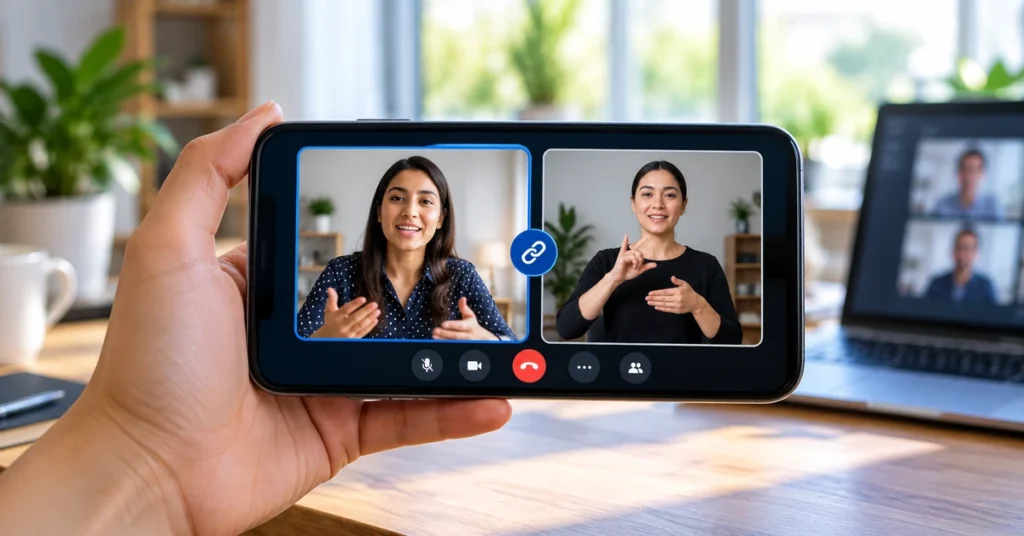
Google Meet is making its video layout more useful for meetings that include sign-language interpreters, co-presenters or other participants who need to stay visible together. With video tile pairing, two participants can ask to have their video tiles displayed side by side for everyone in the meeting. When either paired participant speaks, both tiles are highlighted and remain visually connected.
Google announced an expansion of this feature to the Meet mobile apps in October 2026. Android rollout began on October 12, while the iOS rollout is scheduled to start on November 2. This guide explains what tile pairing does, how to request it on Android and iPhone, how to accept or end a pairing, and what limitations to know before using it.
What is Google Meet video tile pairing?
Video tile pairing links two participants’ video tiles in a Google Meet call. Instead of the meeting layout showing only the person who is currently speaking, it keeps the paired participants together side by side. Both tiles receive a visual highlight when either person speaks.
The feature is especially useful when one participant is communicating through a sign-language interpreter. It can also help a presenter and co-presenter stay visible as a pair. Google says captions can show the paired state and attribute captions to both participants.
Tile pairing does not merge two video feeds into one, and it does not automatically translate speech or create captions. It changes how the two participant tiles are presented to the other people in the meeting.
Why tile pairing matters for accessibility
In a standard video meeting, the layout may prioritise the person speaking. That can make it harder for someone who relies on a sign-language interpreter if the interpreter’s tile moves away or becomes less prominent when another participant talks.
Pairing keeps the speaker and interpreter visually connected. Other attendees can see both tiles together, and the paired tiles are highlighted when either participant speaks. This helps preserve the visual relationship between spoken communication and its interpretation.
The same option can be useful for co-presenters, interview partners or two people who need to be seen together during a discussion. It is an optional meeting control: one participant sends a request and the other person must accept it.

How to pair video tiles in Google Meet on Android
Google’s Android instructions provide two ways to send a pairing request. Make sure you are using the latest Google Meet app and have joined the meeting before following these steps.
Method 1: Use the participants list
- Join the Google Meet meeting on your Android phone or tablet.
- Tap More controls, then open Tools and People.
- Find the participant whose video tile you want to pair with yours.
- Tap the menu next to that participant’s name.
- Select Ask to pair your tiles.
- Wait for the other participant to accept the request.
Method 2: Request pairing from a video tile
- While in the meeting, find the participant’s video tile.
- Touch and hold the video tile to open its options.
- Tap Ask to pair your tiles.
- The other participant must accept before the pairing becomes active.
Once accepted, the pairing icon appears next to both participants in the People list and on their video tiles. Other meeting participants will see the two tiles positioned together.
How to pair video tiles on iPhone or iPad
The iPhone and iPad process is similar to Android. Google lists the following steps in its iOS Help instructions:
- Open the Google Meet app and join a meeting.
- Tap More controls, then Tools, and open People.
- Find the participant you want to pair with.
- Tap the menu next to their name and choose Ask to pair your tiles.
- Alternatively, touch and hold the participant’s video tile and choose the pairing option.
- Wait for the other participant to accept.
After acceptance, both tiles show a pairing icon. The other people in the call see the paired tiles together, and the tiles receive a blue border when either participant speaks.
How to accept or decline a tile pairing request
You do not have to accept every request. When another participant asks to pair tiles, Google Meet displays a notification during the meeting. Choose the option that matches your preference:
- Accept: Your tile is paired with the requesting participant’s tile.
- Decline: The sender is notified that the request was declined.
- Ignore: You can leave the request unanswered.
If multiple people send requests, you can review the requests and choose whom to pair with. Google says a participant can be paired with only one person at a time. Accepting a different pairing replaces the previous pairing.
How to check whether your tiles are paired
After the other participant accepts, look for the pairing icon in the participants list. The same icon appears on both paired video tiles, and the participants’ names are shown together with the pairing indicator.
Other people in the meeting should see the two video tiles next to each other. When either participant speaks, both tiles receive a blue outline. If captions are enabled, the paired state is also reflected in the captions.
How to unpair video tiles in Google Meet
You can end a pairing when it is no longer needed. On Android or iPhone:
- Open the meeting controls.
- Go to Tools and then People.
- Find the participant you are currently paired with.
- Tap the menu next to their name.
- Select Unpair your tiles.
The other participant receives a notification that the tiles are no longer paired. Either participant can use the unpair option.
When will video tile pairing be available on Android and iPhone?
Google’s October 21, 2026 announcement gives separate rollout dates for Android and iOS:
| Platform | Rollout start | Expected visibility |
|---|---|---|
| Android | October 12, 2026 | Gradual rollout, up to 15 days |
| iPhone and iPad | November 2, 2026 | Gradual rollout, up to 15 days |
The rollout applies to Rapid Release and Scheduled Release domains. Google says the feature is available to Google Workspace customers, Workspace Individual subscribers and users with personal Google accounts. Because availability is gradual, two people using the same platform may see the option at different times.
On iPhone and iPad, the rollout has not started as of October 31, 2026. Google lists November 2 as the start date, so the option may not appear immediately on that day.
Limitations you should know
- Acceptance is required: Sending a request does not automatically pair the tiles. The other participant must accept.
- One pairing at a time: A participant can be paired with only one other person. Accepting another request replaces the existing pairing.
- Not available in recordings: Tile pairing is not preserved in meeting recordings.
- Not available in breakout rooms: The feature does not work in breakout rooms.
- Rollout is gradual: The option may be missing until Google’s rollout reaches your account or device.
- App version matters: Google recommends using the latest Meet app for the best experience.
What to do if the pairing option is missing
If you cannot find Ask to pair your tiles, try these checks:
- Update Google Meet: Install the latest version from Google Play or the Apple App Store.
- Check the rollout window: Android began rolling out in October. iOS rollout starts November 2, 2026, and may take up to 15 days.
- Check the meeting context: Tile pairing is not available in recordings or breakout rooms.
- Open the People list: Look under More controls, Tools and People rather than only checking the main video screen.
- Try the video-tile shortcut: Touch and hold the other participant’s tile and check whether the pairing option appears.
- Ask your Workspace administrator: For managed accounts, an administrator can control availability at the organizational-unit level.
If the option is still unavailable, it may simply not have reached your account yet. There is no need to reinstall the app repeatedly or change unrelated phone settings.
Frequently asked questions
Is Google Meet tile pairing available for personal Google accounts?
Yes. Google lists personal Google accounts, Google Workspace customers and Workspace Individual subscribers among the supported account types. The feature still follows the staged platform rollout.
Can I pair my video with a sign-language interpreter?
Yes. This is one of the main accessibility uses for tile pairing. Send a request to the interpreter and wait for them to accept. Both tiles can then remain visible together for other meeting participants.
Can I pair with more than one participant?
No. Google says you can pair tiles with only one person at a time. If you accept a new pairing request, you are unpaired from the previous participant.
Will paired tiles appear in a Google Meet recording?
No. Google states that tile pairing is not available for recordings. The paired layout should not be treated as a recording feature.
When does tile pairing arrive on iPhone?
Google scheduled the iOS rollout to start on November 2, 2026. It is a gradual rollout that may take up to 15 days, so the feature may arrive later for some users.
Does tile pairing work in breakout rooms?
No. Google lists breakout rooms as an unsupported scenario for tile pairing.
Final thoughts
Google Meet video tile pairing is a small but meaningful improvement for mobile meetings. It helps keep a speaker and interpreter visible together, and it can also support co-presenters who need to stay side by side in the meeting layout. The feature is optional, requires the other participant’s approval and is rolling out separately on Android and iOS.
If you do not see the option yet, check the rollout date for your device, update Meet and look in the People list during a regular meeting. If you also want to improve meeting follow-up, see our guide to AI meeting note takers for Zoom, Teams and Google Meet. For the exact current instructions, use Google’s official guides below.

