
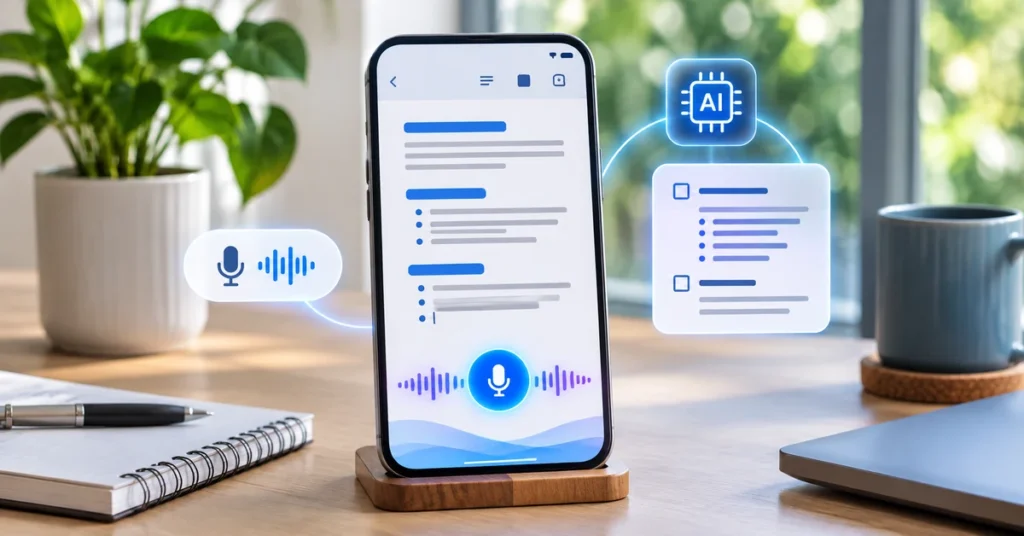
Writing a useful document on a phone can be slower than thinking through the idea itself. You may have the outline in your head, the details scattered across emails and chats, and no convenient way to turn everything into a clear first draft. Google Docs Live is designed to close that gap: you describe what you need in a natural conversation, review a proposed structure, and work with Gemini to shape the document.
Google announced the mobile Docs Live experience as part of its voice features for Workspace. It is rolling out in Google Docs on Android and iOS for eligible plans. The feature can also use relevant context from Gmail, Drive, Chat and the web when you choose sources. Here is what it does, who can access it, and how to use it carefully.
What is Google Docs Live?
Docs Live is a conversational, voice-led writing experience inside the Google Docs mobile app. Instead of dictating a long passage and receiving a raw transcript, you explain the document you want to create. Gemini can help brainstorm, organize the information, propose a plan and turn that plan into an editable draft.
For example, you could ask it to prepare a project update based on a recent team discussion, create a customer proposal from a few requirements, or structure notes from an event-planning conversation. You can then ask for changes to the outline or draft before finishing the document.
The important distinction is that Docs Live is more than ordinary speech-to-text. Traditional voice typing mainly converts spoken words into text. Docs Live uses your spoken instructions to help plan and shape a document. You remain responsible for reviewing the result.
What can Docs Live do?
Turn an unstructured idea into an outline
You do not need to prepare a polished prompt. Explain the goal, audience and information you already have. Gemini can propose a structure that you can adjust before it writes the draft. If a section is unnecessary, tell it to remove that section; if a key point is missing, ask it to add one.
Use relevant Workspace information
When you allow it and select the appropriate sources, Docs Live can draw on relevant information from Gmail, Drive and Chat, as well as the web. This can help when a document needs details from a meeting note, a project brief or an email thread. You can also add reference files rather than relying on a broad instruction alone.
Refine the draft conversationally
After the first draft appears, you can ask Gemini to edit sections, change the tone, add or remove content, or adjust formatting. For example, ask it to make the introduction shorter, turn a paragraph into a checklist, or make the language more suitable for a customer-facing proposal.
How to create a document with your voice in Google Docs
The core workflow is similar on Android and iPhone. Make sure you are signed in to an account with an eligible Google Workspace or Google AI plan, and update the Google Docs app if the feature is not visible.
- Open the Google Docs app on your Android phone or iPhone.
- Tap the Insert button near the bottom-right of the screen.
- Choose Create with voice, if the option is available for your account.
- Speak naturally and describe the document you want. Include its purpose, intended audience, key points and preferred format.
- If useful, add reference material from Google Drive, Gmail, Google Chat or the web.
- Review the plan Gemini creates. Ask it to add, remove or reorganize sections before moving forward.
- When the outline is ready, tap Next or say Show me the draft.
- Review the generated draft and request edits. You can ask Gemini to add, remove or revise sections and change formatting.
- Tap Done to finish creating the document with voice.
The labels and controls may vary slightly as Google updates the app. If you do not see Create with voice, check your plan eligibility, app version and account access rather than assuming the feature is available to every user.
How the Docs Live workflow works
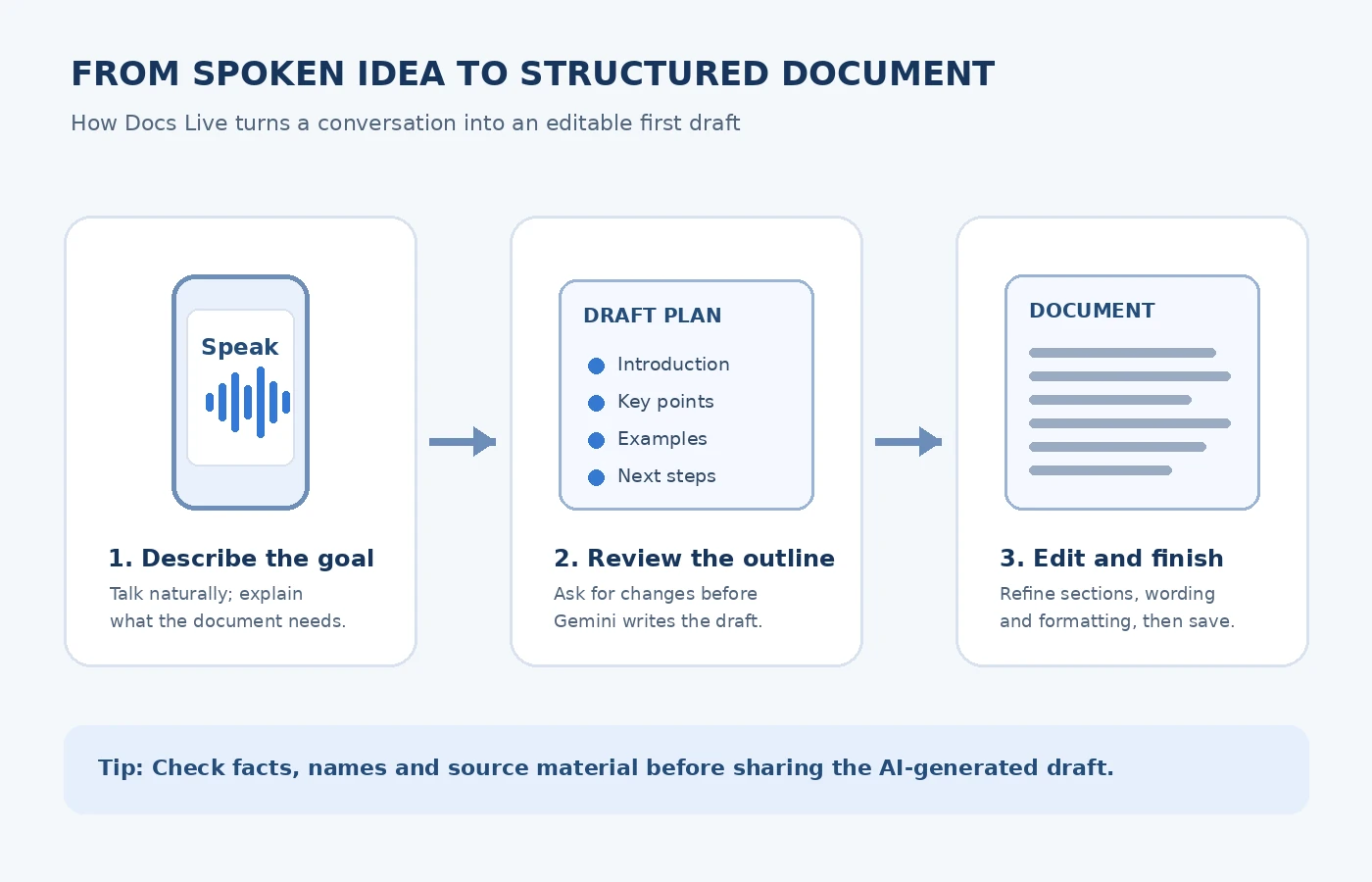
Think of the process as three stages: explain the goal, review the outline, and edit the finished draft. Taking a moment to improve the outline can save time later because it gives Gemini a clearer structure to follow.
How to get better results from voice prompts
Voice input works best when you provide enough context for Gemini to understand the task. You do not need to speak in perfect sentences, but a clear brief usually produces a more useful first draft.
- State the document type: Say whether you need a meeting summary, project update, proposal, event plan or customer email.
- Identify the audience: Explain whether the document is for your manager, colleagues, a customer or the public.
- Give the purpose: Tell Gemini what the reader should understand or do after reading it.
- Name the required sections: Mention headings such as background, objectives, timeline, budget and next steps.
- Specify the tone: Ask for concise, professional, friendly or explanatory language where appropriate.
- Choose the sources: Point it to the relevant project brief or meeting notes instead of asking it to search broadly.
- Review before drafting: Correct the outline first so that the final document follows the right structure.
Example voice prompt
Create a concise project update for our client. Use the latest project notes in Drive and the relevant team discussion in Chat. Include a short summary, completed work, current blockers, next steps and expected dates. Keep the tone professional and do not invent dates or figures. Show me the outline before writing the draft.
This prompt explains the audience, sources, structure and accuracy requirements. Replace the example details with information that actually applies to your project.
Who can use Google Docs Live?
Google’s published availability information says the feature requires an eligible Google Workspace or Google AI plan. The October 21 Workspace update lists Business Standard and Business Plus, Enterprise Standard and Enterprise Plus, Google AI Pro and Ultra, Google AI Pro for Education, and AI Expanded Access among the eligible plans or add-ons. Access can depend on the account and administrator settings.
The Google Docs Help Center currently describes the feature as available on mobile for Android and iOS, in English. Google says the rollout is available now for eligible Rapid Release and Scheduled Release domains, but feature visibility can still vary by account. Workspace administrators with Gemini in Docs enabled have the feature on by default, according to Google’s rollout note.
Do not assume that every personal Google account or every free Google account has access. Check the account you are using and the plan attached to it.
Docs Live vs Google Docs voice typing
| Feature | Docs Live | Traditional voice typing |
|---|---|---|
| Main purpose | Plan, draft and refine a document through conversation | Convert spoken words into text |
| Structure | Can propose and revise an outline | Usually follows the words you dictate |
| Context | Can use selected Workspace sources and web context | Does not build a document from connected source material |
| Editing | Can respond to follow-up instructions about sections and formatting | Primarily inserts dictated text for you to edit |
Choose Docs Live when you need help turning an idea and supporting information into a structured document. Use ordinary voice typing when you already know exactly what you want to say and simply want to dictate it.
Privacy and accuracy: what to check before using it
Because Docs Live can work with connected information, choose sources deliberately. Only include files, emails or conversations that are relevant and that you are authorized to use for the document. In a work or school account, your organization’s administrator may control which Gemini features are enabled.
AI-generated content still needs editorial review. Check names, dates, amounts, quotations, policy statements and technical details against the original sources. Make sure the draft has not blended information from unrelated conversations or omitted an important qualification. For sensitive material, follow your organization’s data-handling rules before adding it as a source.
Also remember that a polished first draft is not the same as a verified final document. Read the full result, correct errors, and confirm that you are comfortable with every statement before sharing it.
Common problems and how to troubleshoot them
Create with voice is missing
Confirm that you are using the Google Docs mobile app, signed in to the correct account, and on an eligible plan. Update the app and check whether your Workspace administrator has enabled Gemini in Docs. The feature is not described as a desktop workflow in Google’s current Help Center instructions.
Gemini cannot find a source file
Open the source settings and select the relevant location or add the file directly. Check that the account has permission to access the document and that you are not signed in to a different personal or work account.
The outline is not what you wanted
Do not move to the draft immediately. Tell Gemini which sections to remove, what information is missing and how the order should change. A specific correction is more useful than simply saying the outline is wrong.
The draft contains incorrect details
Compare those details with the source files. Correct the prompt, narrow the source material and ask for a revision. Do not publish or send factual claims that you have not checked.
Frequently asked questions
Is Google Docs Live available on Android and iPhone?
Yes. Google’s Help Center lists mobile availability for both Android and iOS. The feature requires an eligible Google Workspace or Google AI plan and is currently documented in English.
Can Docs Live use my Gmail and Google Drive information?
It can use relevant information from Gmail, Drive and Chat, as well as the web, when the appropriate sources are available and selected. You can manage source settings during the creation process.
Does Docs Live automatically publish or share the document?
No. The workflow creates a document draft in Google Docs. You should review it and decide yourself whether to share or send it.
Is Docs Live the same as voice typing?
No. Voice typing transcribes what you say. Docs Live uses conversational instructions to help plan, draft and refine a structured document.
Why can I not see the feature?
Your account may not have an eligible plan, the app may need an update, or your administrator may not have enabled Gemini in Docs. Rollout visibility can also vary across accounts.
Final thoughts
Google Docs Live is useful when you have the information and ideas for a document but do not want to start with a blank page on your phone. Its strongest workflow is to explain the goal, choose the right reference material, review the outline and then refine the draft. It can reduce the effort of getting started, but careful fact-checking and human editing remain essential.
If you are exploring other ways to create and edit files with AI, see our guide to creating and editing files directly in Google Gemini.

