
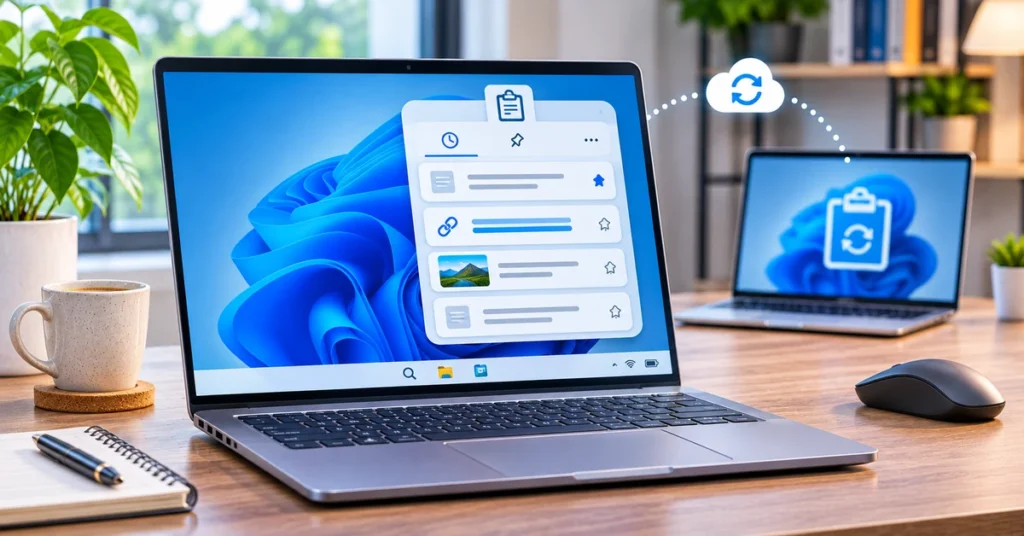
Copying and pasting is one of the most common things you do on a PC, but Windows 11 can do more than remember just the last item you copied. Its Clipboard history feature keeps a list of recent copied text and supported content, so you can choose an earlier item without going back to the original app or webpage.
The shortcut is simple: press Windows + V. If clipboard history is not enabled yet, Windows will ask you to turn it on. Once enabled, you can reopen the panel, paste an earlier item, pin frequently used snippets, sync copied text across supported devices, and clear items you no longer need. This guide walks through each option and explains the privacy limits worth knowing.
What is Clipboard history in Windows 11?
Clipboard history is a built-in Windows feature that stores a short list of things you copy or cut. Instead of replacing the previous clipboard item every time you press Ctrl + C, Windows lets you open a history panel and select from recent entries.
It is useful when you are collecting several links, moving details between documents, filling in forms, writing emails, or comparing information from different sources. For example, you could copy a meeting link, a short paragraph, and a reference number, then paste the correct item when you need it.
- Open history: use Windows + V.
- Paste the latest item: use Ctrl + V as usual.
- Pin important items: keep selected entries available after a restart.
- Sync copied text: optionally make text available on other signed-in Windows devices.
- Manage privacy: delete individual entries or clear unpinned clipboard data.

How to turn on Clipboard history
You can enable the feature directly from its keyboard shortcut or from Windows Settings.
Method 1: Enable it with Windows + V
- Press Windows + V on your keyboard.
- If clipboard history is off, a small panel will appear with a Turn on button.
- Select Turn on.
- Copy a few pieces of text, then press Windows + V again to see the history.
Method 2: Enable it from Settings
- Open Start → Settings.
- Select System.
- Open Clipboard.
- Turn on Clipboard history.
- Return to your work and press Windows + V to open the panel.
If the option is unavailable or greyed out on a work-managed computer, your organisation may have a policy that disables clipboard history. In that case, contact your IT administrator rather than trying to bypass the restriction.
How to use Windows + V to paste an earlier item
After enabling the feature, copy two or more items from any supported app. Then follow these steps:
- Place the cursor in the document, message, form, or text field where you want to paste.
- Press Windows + V.
- Browse the clipboard entries shown in the panel.
- Select the item you want to insert.
- Repeat the process whenever you need another saved item.
Normal shortcuts continue to work: Ctrl + C copies, Ctrl + X cuts, and Ctrl + V pastes the most recent clipboard item. Windows + V is the shortcut for choosing from the history list.
How to pin frequently used clipboard items
Pinning is useful for snippets you reuse often, such as a standard email response, a non-sensitive template line, or a frequently used public URL. A pinned item is kept in the clipboard panel when the ordinary history is cleared by a restart.
- Press Windows + V.
- Find the item you want to keep.
- Select the three-dot menu beside that item.
- Choose Pin.
- To remove it later, open the same menu and choose Unpin or delete the item.
Pin only information that is safe to keep on the device. Do not use clipboard history as a password manager or a place to store payment details, authentication codes, private customer information, or other sensitive data.
How to sync Clipboard history across devices
Windows can sync clipboard text to other supported devices when you enable the feature and sign in with the same Microsoft account or supported work account. This is useful if you copy a short piece of text on one PC and want to paste it on another.
- Open Settings → System → Clipboard.
- Find Clipboard history across your devices or the similarly named sync setting shown on your Windows build.
- Turn the setting on.
- Choose Automatically sync text that I copy if you want eligible copied text to sync automatically.
- Alternatively, choose the manual option if you prefer to select which text entries are uploaded.
- Sign in with the same account on the other Windows device and open its clipboard history with Windows + V.
Sync availability and the exact setting labels can vary by account type, Windows version, and organisation policy. Microsoft’s support instructions describe syncing clipboard items between devices signed in with the same account. Do not assume that every file, image, or item from every app will sync: the automatic sync setting is specifically described for text.
How to delete one clipboard item or clear the history
Clipboard history can contain information you copied temporarily. Remove entries you no longer need, especially if you use a shared computer.
Delete one item
- Press Windows + V.
- Find the item you want to remove.
- Select its three-dot menu.
- Choose Delete.
Clear all unpinned clipboard data
- Open Settings → System → Clipboard.
- Find the Clear clipboard data section.
- Select Clear.
You can also open Windows + V and use Clear all where that option is shown. Pinned items are treated differently and may remain until you unpin or delete them. Review the panel after clearing if you need to confirm which entries remain.
Clipboard history limits you should know
Clipboard history is designed for short-term convenience, not permanent storage. Microsoft’s current clipboard support documentation lists these practical limits:
- Up to 25 entries: older unpinned items are removed as new items take their place.
- Up to 4 MB per item: very large copied content may not be stored in the history.
- Supported formats: text, HTML, and bitmap formats are supported.
- Restart behaviour: ordinary history is cleared when Windows restarts, while pinned items are retained.
These limits explain why clipboard history should not replace saving a document or keeping a proper notes file. If a copied item matters, paste it into the app where it belongs and save that file.
Privacy tips: what not to copy into clipboard history
Clipboard history is convenient, but it can also retain content you may not want someone else to see. Treat it as a temporary workspace, particularly on shared or work-managed PCs.
- Avoid copying passwords, one-time passcodes, recovery codes, payment card details, or private identity information unless absolutely necessary.
- Clear sensitive entries immediately after use.
- Turn off cross-device sync if you do not want copied text uploaded and made available on other signed-in devices.
- On a shared computer, review clipboard entries before leaving your session.
- Use a reputable password manager for credentials instead of pinning them in clipboard history.
Remember that clipboard sync is tied to your signed-in account. Before enabling it on a device used by other people, consider who can access that Windows account and whether your organisation has rules about copying work information.
How to fix Clipboard history when it is not working
Windows + V does nothing
Open Settings → System → Clipboard and confirm that Clipboard history is turned on. Then try the shortcut again. If the setting is greyed out, a device policy may be controlling it.
Copied items do not appear
Try copying plain text from Notepad to test the feature. Some apps or content types may behave differently. Also remember that the feature has a per-item size limit and supports specific formats.
Clipboard history disappears after restarting
This is expected for ordinary unpinned entries. Pin the items you need to retain, but only if they are not sensitive. Clipboard history is not intended to preserve every copied item permanently.
Clipboard sync is not working
Check that sync is enabled in Settings → System → Clipboard and that both devices use the same Microsoft or supported work account. If you selected manual syncing, open Windows + V and use the sync control on the individual item. Work or school policies may restrict the feature.
The clipboard option is disabled on my work PC
Your organisation may disable clipboard history through Windows policy. Ask your IT administrator whether the feature is allowed. Do not try to change managed settings without approval.
Useful clipboard shortcuts at a glance
- Ctrl + C: copy selected content.
- Ctrl + X: cut selected content.
- Ctrl + V: paste the most recent clipboard item.
- Windows + V: open clipboard history and choose an earlier item.
For more ways to work faster in Windows, see our guide to using Windows 11 Search Actions and taskbar commands.
Frequently asked questions
Is Clipboard history enabled by default in Windows 11?
You may need to turn it on the first time. Press Windows + V and select Turn on, or enable Clipboard history from Settings → System → Clipboard.
How many items can Windows 11 clipboard history store?
Microsoft’s support documentation currently states that clipboard history is limited to 25 entries. Older unpinned entries are removed as new items are added.
Does clipboard history save items after a restart?
Ordinary clipboard history is cleared when the PC restarts. Pinned items are retained until you unpin or remove them.
Can I sync clipboard history between two Windows 11 PCs?
Yes, supported clipboard text can sync when the feature is enabled and both devices use the same Microsoft account or supported work account. You can choose automatic or manual text syncing.
Can clipboard history store images and files?
Microsoft lists text, HTML, and bitmap formats as supported, with a 4 MB per-item limit. Clipboard history is not a general file-transfer or permanent file-storage tool.
Final thoughts
Windows 11 Clipboard history is a small feature that can save time every day. Turn it on with Windows + V, use the panel to paste earlier items, pin only safe snippets you reuse, and enable syncing only if it fits your workflow. Keep its 25-entry and 4 MB limits in mind, and clear sensitive content instead of treating the clipboard as long-term storage.

