
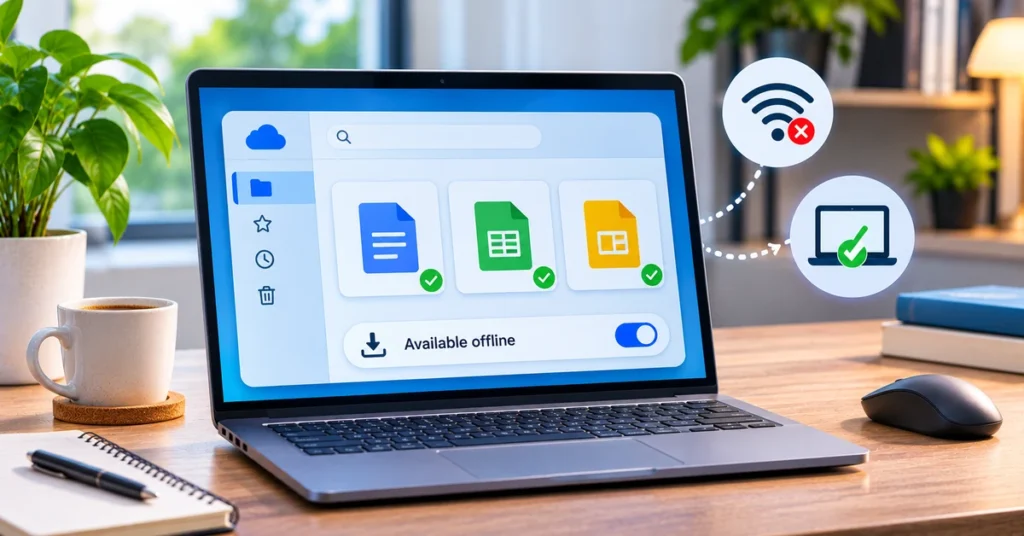
A weak Wi-Fi signal should not stop you from reviewing a report, updating a spreadsheet or finishing a presentation. Google Drive can keep selected files ready on your computer so you can open and edit them when you are offline. The important part is setting this up before your connection disappears.
This guide explains two different ways to work without internet: offline access in Google Drive on the web for Google Docs, Sheets and Slides, and offline access to regular files through the Google Drive for desktop app. They are related, but they do not work in exactly the same way. If you are also learning Google Docs features, see our guide to creating Google Docs with your voice. If your account is running low on space, our Google storage cleanup guide can help you review Gmail, Drive and Photos storage.
What Google Drive offline access actually does
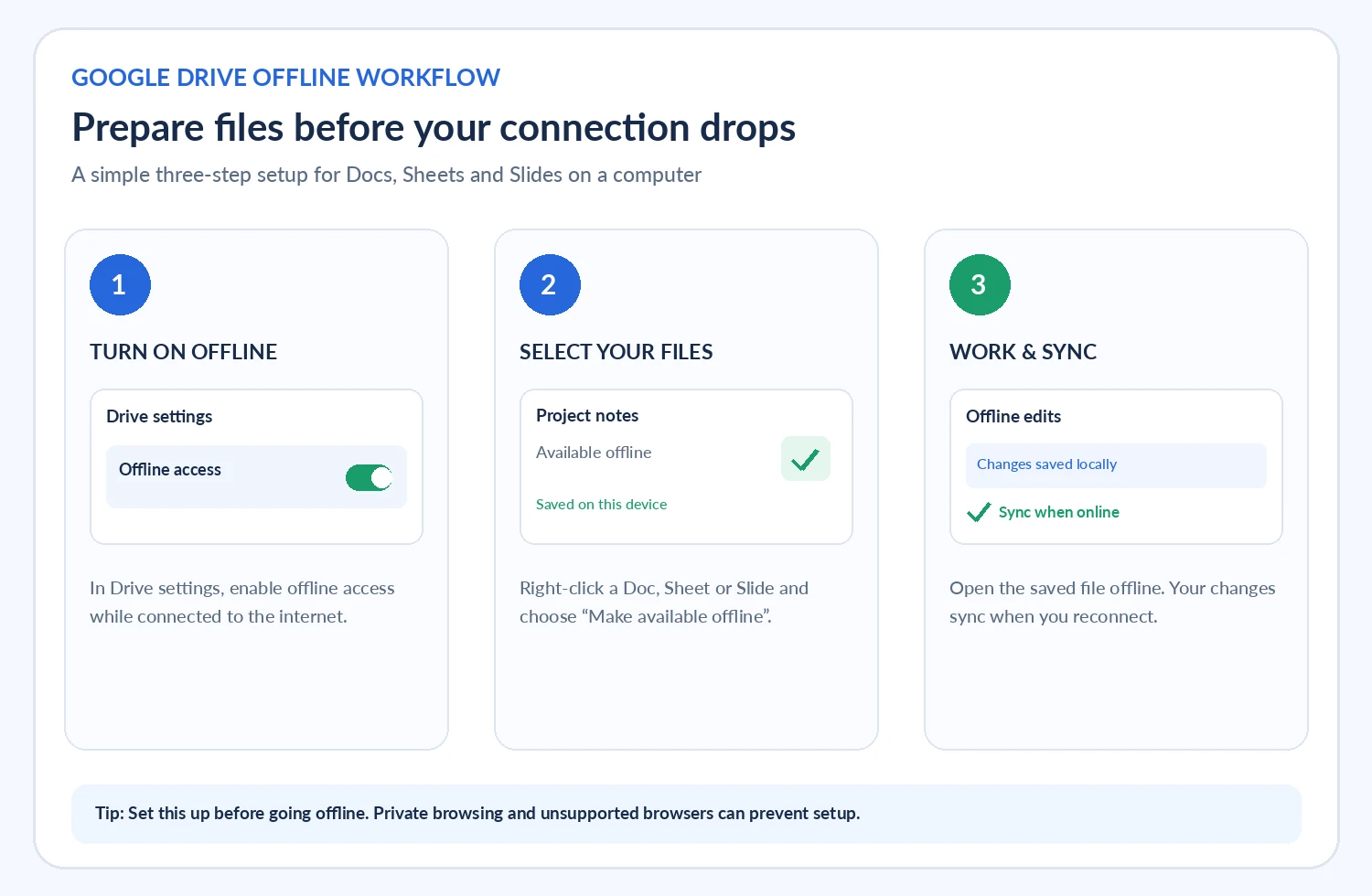
Offline access stores supported files on your device so you can view and edit them without an active internet connection. For the web experience, Google supports offline work with Google Docs, Google Sheets and Google Slides. You can enable offline access generally, then choose individual files that you want to keep available.
When you reconnect, changes made offline are synchronised. Until that happens, the local copy is important: avoid clearing browser data or switching profiles while you still have unsynchronised work.
Google Drive on the web vs Drive for desktop
- Drive on the web: Designed for Google Docs, Sheets and Slides in Chrome or Microsoft Edge. You enable the offline setting and mark important documents available offline.
- Drive for desktop: Provides a Google Drive folder in File Explorer on Windows or Finder on macOS. With streaming, selected files and folders can be made available offline. With mirroring, a local copy of My Drive is kept on the computer.
Do not assume that enabling offline mode in the browser automatically downloads every file in your Drive. Likewise, Drive for desktop’s streaming and mirroring options are separate from the browser setting for Google documents.
Before you enable Google Drive offline
Prepare your computer while you still have a reliable internet connection. For Google Drive on the web, Google lists these requirements:
- Use Google Chrome or Microsoft Edge on a computer.
- Do not use an Incognito or other private-browsing window.
- Install and enable the Google Docs Offline extension for Chrome-based offline editing.
- Make sure the computer has enough free storage for locally saved files.
- Sign in to the Google Account you intend to use and keep the correct browser profile active.
Offline access may also be controlled by a Google Workspace administrator. If your organisation disables it, you may see a message that offline access is disabled by your administrator. In that situation, changing browser settings will not override the organisation’s policy.
How to turn on Google Drive offline access in a browser
Follow these steps on a Windows or Mac computer. You need to be online during the initial setup so Drive can prepare the local files.
- Open Google Chrome or Microsoft Edge and sign in to the correct Google Account.
- Go to Google Drive settings.
- Find the Offline section.
- Enable the option that lets you create, open and edit recent Google Docs, Sheets and Slides files on this device while offline.
- Wait for Drive to finish preparing the offline experience before disconnecting from the internet.
You can also turn on offline access from the settings screen in Google Docs, Sheets or Slides. Google notes that enabling it in one of these apps also enables it for the others.
Make sure the Google Docs Offline extension is enabled
Open Chrome and visit the Extensions manager. Confirm that Google Docs Offline is installed and switched on. If you use Microsoft Edge, Google’s setup flow may direct you to the Chrome Web Store to install the extension. Keep the browser updated and use a normal browser window rather than private browsing.
How to make specific Google Drive files available offline
Turning on offline access is only the first step. You should also select the documents you are likely to need during a commute, flight, outage or visit to a location with unreliable internet.
- Open Google Drive while connected to the internet.
- Find the Google Docs, Sheets or Slides file you want to use.
- Right-click the file, or open its More menu.
- Select Make available offline.
- Look for the offline-ready check mark or status indicator.
You can also open a document and choose File → Make available offline. In the Docs, Sheets or Slides home screen, the More menu provides the same option. If you need several files, select them in a batch where the interface allows it, but do not select more than your computer can comfortably store.
How to check whether a document is ready
Open the file while you are still online. Next to the document title, use the document status control to check its offline status. If the file is not ready, Google may show an explanation. Resolve that message before relying on the document away from a connection.
Use Google Drive for desktop when you need regular files offline
The Drive for desktop app is useful when you want Drive content to appear in File Explorer or Finder. Its two sync modes, streaming and mirroring, have different storage and availability behaviour.
Stream files
With streaming, files are primarily stored in the cloud and downloaded as needed. This saves local disk space, but files are not all automatically available offline. To keep a streamed file or folder on your computer, open the Google Drive folder in File Explorer or Finder, right-click the item, choose Offline access and then Available offline. The app must be running and your account connected for streamed content to be accessed in the usual way.
Mirror files
With mirroring, a copy of My Drive is stored on your computer as well as in the cloud. This uses more local storage, but files are available offline by default and remain as local files if the Drive app is not running. Choose this option only if you have enough disk space and understand that changes must still finish syncing to reach the cloud.
To change the mode, open the Drive for desktop menu, go to Settings or Preferences, select Google Drive, and choose Stream files or Mirror files under the My Drive syncing options. Before switching modes, wait until recent changes have finished syncing. Google specifically warns that unsynced changes can be at risk when changing from mirroring to streaming.
What happens when you edit files without internet?
For supported Google Docs, Sheets and Slides files, you can continue working on the local offline copy. When the computer reconnects, the changes are synchronised. Google says offline changes can be reviewed in the file’s version history. If you are collaborating with other people, remember that they may not see your latest edits until your device is back online and the sync completes.
For streamed files in Drive for desktop, the offline copy is available only after you explicitly mark the item available offline. Mirrored files are stored locally by design. In either case, check the sync status before shutting down, disconnecting the account or changing sync modes.
How to turn off offline access or remove offline files
If you no longer need offline access in the browser, open the Docs, Sheets or Slides home screen, go to Menu → Settings and switch off Offline. Turning it off in one of these apps also turns it off for the others.
For Drive for desktop, you can remove the offline availability setting from a streamed file or folder through its Offline access menu. Remember that offline files use local disk space. Removing offline availability is different from deleting the file from Google Drive, so read the menu carefully before confirming an action.
Common Google Drive offline problems and fixes
Offline access is missing or cannot be enabled
Check that you are using Chrome or Edge, not a private window, and that Google Docs Offline is enabled. Confirm you are signed into the intended Google Account and have enough disk space. If the account is managed by a school or company, ask the administrator whether offline access is allowed.
Another user has already enabled offline access
Google documents a limitation of one offline-enabled account per browser profile. If you need offline access for another Google Account, use a separate Chrome or Edge profile, sign into that account there, and configure offline access in that profile.
Offline sync is stuck or a document will not update
First reconnect to a stable network and reload the document. If the problem remains, try turning offline access off and on again. Google also recommends clearing the site data for Docs when the browser remains stuck checking offline sync status. Be careful: clearing browser site data can remove local browser state, so do not do it while you have unsynchronised edits you cannot afford to lose.
The file is not available when you disconnect
Open it while online and check its status. If you use Drive on the web, make sure you explicitly selected Make available offline. If you use Drive for desktop in streaming mode, right-click the file or folder and set Offline access to Available offline. Also verify that the Drive for desktop app is running and the account remains connected.
Offline access is disabled by an administrator
This is an organisation policy, not a local browser error. Contact your Google Workspace administrator and ask whether offline access can be enabled for your account or organisational unit.
Practical tips for using Drive offline safely
- Prepare in advance: Open and mark important files offline before travelling or leaving Wi-Fi coverage.
- Be selective: Download only the documents and folders you actually need, especially on a laptop with limited storage.
- Use the right account: Check the browser profile before enabling offline access; the setting is tied to that profile and account.
- Check sync before closing: Reconnect and wait for pending changes to upload before switching accounts or sync modes.
- Protect shared devices: Offline copies are stored locally. Use a device you control, lock your screen and follow your organisation’s device-security rules.
- Keep a backup for critical work: Offline access is convenient, but it should not be your only copy of important business or personal records.
Frequently asked questions
Can I use Google Drive offline on a computer?
Yes. You can use Google Docs, Sheets and Slides offline in Chrome or Edge after enabling offline access and preparing the files. Drive for desktop also supports offline files through streaming selections or mirroring.
Can I edit Google Sheets without internet?
Yes, if offline access is enabled and the spreadsheet is available offline on that computer. Your changes sync after you reconnect.
Does Google Drive automatically save every file offline?
No. The browser experience may save some recent files, but you should manually mark important documents available offline. In Drive for desktop, mirrored My Drive content is local by default, while streamed files need to be selected.
Can I use Google Drive offline in Incognito mode?
No. Google’s documented browser setup requires a normal Chrome or Edge session; private browsing is not supported for this offline workflow.
Will my offline edits appear for collaborators immediately?
No. Other people see the changes after your device reconnects and the changes sync. Until then, the edits remain on your offline device.
Final thoughts
Google Drive offline access is worth setting up before you need it. For browser-based work, enable offline access in Drive settings and mark essential Docs, Sheets and Slides files available offline. For regular files and folders, choose streaming or mirroring in Drive for desktop based on how much local storage you have and how you work. A quick test while you are still online can prevent an unpleasant surprise when the network disappears.

